 Effortlessly manage data through preview, delete, export, etc.

 100% Security Verified | No Subscription Required | No Malware

 :
: 
 ChatGPT
 Perplexity
 Gemini
 Claude
 Grok
Grok

I thought I’d moved everything, wiped my old phone for trade-in, and then realized my authenticator codes and a chunk of chats didn’t come over. The transfer wasn’t the hard part—the order and verification were.
Reddit user, r/Android
Cloning a phone or transferring only the essentials sounds simple until one skipped step leads to missing photos, broken 2FA access, or lost messages.
AI can help you map the safest sequence, decide what “essentials” truly means for your situation, and surface the verification checks you should run before you touch anything irreversible.
AI can’t access your devices, see what’s actually on them, or perform the transfer; execution still requires real tools and deliberate confirmation at each checkpoint.
In this article
- How to plan a clone vs essentials-only transfer without missing steps
- Define “clone” vs “essentials only” for your case
- Identify the true point of no return
- Build verification gates that block wiping/trade-in
- Set a fallback window and failure criteria
- What the AI needs to know
- Using AI prompts to build a safer workflow
- When to stop planning and start execution
- Execute the workflow safely with Dr.Fone
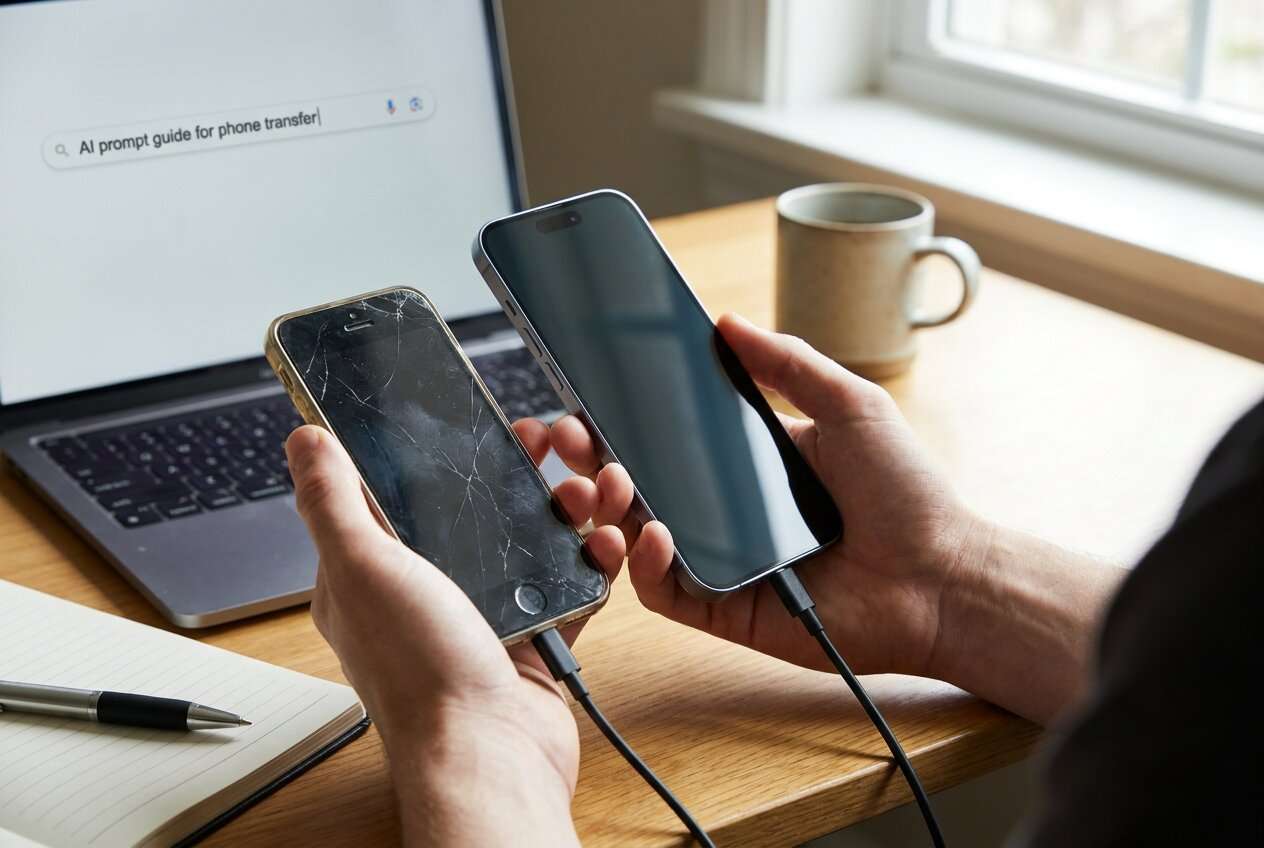
Part 1. How to plan a clone vs essentials-only transfer without missing critical steps
You’re moving from an old phone to a new one, but you’re unsure whether to do a full clone (everything) or a minimal transfer (contacts, photos, WhatsApp, and key apps). You also don’t want to spend hours moving junk you’ll never use.
The uncertainty usually isn’t “which button to press,” but “what order prevents lockouts and losses”—especially around authenticator apps, encrypted chats, and items that don’t sync automatically.
1-1. Define “clone” vs “essentials only” for your case
A full clone aims to move as much as possible in one go. An “essentials only” transfer is safer for avoiding clutter, but riskier if you forget a category that doesn’t obviously sync (2FA, app-stored files, chat media, local-only photos).
1-2. Identify the true point of no return
The main point-of-no-return moment is when you factory reset, trade in, or wipe the old phone (or when a “sync” choice overwrites newer data with older data).
1-3. Build verification gates that block wiping/trade-in
Your plan should treat that irreversible moment as locked until verification is complete. Verification should be proof-based (counts, timestamps, spot-check opens, login tests), not “it looks fine.”
1-4. Set a fallback window and failure criteria
Decide how long you’ll keep the old phone usable after the new phone is “live” (often 3–7 days) and what would count as failure (missing chat history, missing albums, 2FA login failure, missing notes/files).
Part 2. What the AI needs to know
Answer these so the AI can produce a sequence you can trust:
- Old phone OS and model (e.g., iPhone 12 iOS 17 / Samsung S21 Android 14)
- New phone OS and model
- Transfer goal: full clone or “essentials only” (define essentials)
- Data types that matter: photos/videos, contacts, messages/SMS, WhatsApp/LINE/Telegram, call logs, notes, calendar, files, voice memos
- 2FA setup: authenticator app(s), SMS-based codes, passkeys, security keys
- Cloud status: iCloud/Google Photos/Drive/OneDrive enabled or not; storage available
- Any work/MDM restrictions (company profile, managed apps, blocked backups)
- Messaging specifics: iMessage/RCS status; WhatsApp backup status; dual-SIM/eSIM
- Time constraints and risk tolerance (need same-day cutover vs can test for a week)
- “No-go” constraints (can’t lose chat history, can’t risk overwriting new phone data, can’t disconnect old phone yet)
Part 3. Using AI prompts to build a safer workflow
Use the prompts below to force a clear sequence with verification gates before any irreversible step.
3-1. Level 1: Basic Prompt
I’m moving from my old phone to a new phone and I’m not sure whether to clone everything or transfer only essentials.
Create a step-by-step plan that prevents data loss and account lockouts, and include a “stop and verify” checklist before I wipe or trade in the old phone.
3-2. Level 2: Advanced Prompt
Design two workflows for my phone move: (A) full clone and (B) essentials only.
Split each workflow into Preparation / Execution / Verification, label steps as Critical vs Optional, and add “decision gates” where I must confirm results before proceeding (especially before any factory reset or trade-in).
3-3. Level 3: Evidence Prompt
Context: Old phone = (Android 14, Samsung S21), new phone = (Android 14, Pixel 8).
Goal = (essentials only): contacts, photos/videos, WhatsApp history, SMS, and 2FA continuity.
Constraints: (I cannot lose WhatsApp chats; I use Google Authenticator; I have limited cloud storage; trade-in is scheduled tomorrow).
Create a workflow with checks before/during/after each stage.
Include concrete verification examples like “confirm WhatsApp shows chats up to (yesterday 9pm)” and “confirm Google Photos shows (X) backed-up items.”
Also list the top 5 failure modes and how to detect them early.
3-4. Prompt refinement (follow-up prompts)
Build a table with columns: Data type → Where it currently lives → Transfer method → Verification proof → If verification fails, what I do next.
Write a pre-flight checklist that I must complete before any transfer starts (accounts, Wi‑Fi, charging, storage, update status, cables).
Add a hard gate titled “Do NOT wipe old phone until…” with 8–12 specific pass/fail checks (counts, dates, sample opens).
Produce a rollback plan if the new phone is missing items (how to pause cutover, keep SIM/eSIM stable, and re-attempt without overwriting newer data).
3-5. AI plan vs. real device constraints
| Planning with AI | Reality on devices |
|---|---|
| Can sequence steps and highlight dependencies (2FA, messaging, cloud) | Must manually confirm what’s actually present on each phone |
| Can suggest verification checks (counts, dates, spot-checks) | Verification requires opening apps, checking settings, and viewing real data |
| Can warn about irreversible moments (wipe/trade-in/overwrite) | The device will still allow destructive actions even if you’re not ready |
| Can propose options (clone vs essentials) | Transfer tools and OS rules determine what can actually be moved |
AI improves planning, but it cannot execute transfers or validate results on your devices.
Part 4. When to stop planning and start execution
- You can name exactly what you’re transferring (and what you’re not) without hesitation.
- You have a written verification checklist that blocks factory reset/trade-in until it’s passed.
- You’ve identified your highest-risk items (2FA, encrypted chats, photos not synced) and their transfer method.
- You’ve set a fallback window (e.g., keep old phone active for 3–7 days) and know what “failure” looks like.
If all four are true, you’re ready to execute without improvising mid-transfer.
Part 5. Clone old phone or transfer essentials only: execute the workflow safely with Dr.Fone
Execution is where most losses happen, because it’s easy to assume “it copied” without proving it. Run the transfer, then verify against your checklist before any wipe, trade-in, or old-phone cleanup.
 Move data between iOS to Android and vice versa.
- Transfer contacts, SMS, photos, videos, music, and more types.
- Available with all phones with Android and iOS versions.
- Simple, click-through process.

To run the plan you designed (full clone or essentials-only), you can execute the transfer with Dr.Fone - Phone Transfer, then validate outcomes using the proof-based checks your AI plan generated.

-
Step 1 Lock your cutover rules (no-return protection)
Keep the old phone powered, unlocked, and connected, and do not factory reset, sign out of primary accounts, or delete apps until verification is complete.

Limitation: A transfer tool can execute what you choose, but it can’t decide what you meant by “essentials” or stop you from wiping early without your own checklist.
-
Step 2 Start the transfer workflow you planned (clone or essentials-only)
Select the correct transfer direction (old → new) and proceed through the execution stage you planned.

-
Step 3 Validate with proof, not vibes
After the transfer finishes, verify with your pre-written checks (counts, last message date, photo ranges, random spot-check opens, and 2FA login tests) and record what passed/failed.

Limitation: If you skip verification and proceed, you may not notice silent gaps (missing chat history, partial media, or 2FA breakage) until the old phone is gone.
-
Step 4 Only then finalize (the irreversible moment)
Only after all critical checks pass, complete the final actions (e.g., SIM/eSIM migration confirmation, trade-in preparation, factory reset of the old phone) and keep a short post-cutover monitoring window.

Limitation: Factory reset/trade-in is often irreversible; once the old phone is wiped or surrendered, recovery options may be limited or impossible.




Conclusion
Use AI to define scope, sequence, risk points, and verification gates; then use Dr.Fone to execute the actual clone or essentials-only transfer, with the old phone kept intact until your checks prove you’re safe to finalize.
FAQ
-
What’s the biggest risk when choosing “essentials only”?
Missing a category that doesn’t obviously sync (authenticator codes, local-only photos, app-stored files, or chat media), then discovering it after the old phone is wiped.
-
How do I prevent overwriting newer data on the new phone?
Plan a direction (old → new), pause any auto-sync that could merge incorrectly, and verify timestamps (latest photo/message) before enabling full sync everywhere.
-
When should I run 2FA checks?
Before finalizing: test logging into at least 2–3 important accounts on the new phone (email, bank, primary social) while the old phone is still available as a fallback.
-
How long should I keep the old phone before wiping it?
Long enough to pass your checklist and complete a real-life use cycle (often 3–7 days), especially if you rely on messaging history or 2FA.
-
Can AI tell me whether my WhatsApp history will transfer cleanly?
AI can outline the safest sequence and checks, but it can’t see your backup state or guarantee results; you must verify in the app on the new phone before wiping the old one.
 Add Wondershare Dr.Fone as a preferred source on Google





