 Effortlessly manage data through preview, delete, export, etc.

 100% Security Verified | No Subscription Required | No Malware

 :
: 
 ChatGPT
 Perplexity
 Gemini
 Claude
 Grok
Grok

I’m trying to recover photos and videos from an SD card, but I’m not sure if I should clone it first—or if that will just slow things down or complicate everything.
Forum user
You’re trying to recover photos, videos, or documents from an SD card, but you’re unsure whether cloning the card first is necessary—or whether it will slow you down or complicate things. This often comes up right after a format prompt, a failed file transfer, or after you tapped “Scan” in a recovery app and nothing seems to change for several minutes.
AI (like ChatGPT or Gemini) can help you interpret symptoms, narrow likely causes (deleted vs formatted vs failing media), and decide whether a clone-first approach is the safer path based on your exact situation.
AI can’t see the SD card’s true hardware health or guarantee outcomes, and repeated trial-and-error can quietly reduce recoverable data—especially if anything writes new data to the same card.
In this article
- Part 1. Why you should clone an SD card before recovery
- What cloning protects (and why it matters)
- When cloning matters most
- Why “recognized” doesn’t mean “safe”
- Before you prompt the AI
- Part 2. Using AI prompts to decide if you should clone first
- Part 3. When to stop deciding and switch to a safer plan
- Part 4. Execute recovery safely with Dr.Fone (Android)
- Part 5. AI output vs reality (what AI can’t do for the card)
Part 1. Why you should clone an SD card before recovery
Cloning an SD card before recovery is mainly about preserving evidence: it creates a read-only-like working copy (an image) so recovery attempts don’t repeatedly stress the original card or accidentally change what’s recoverable.
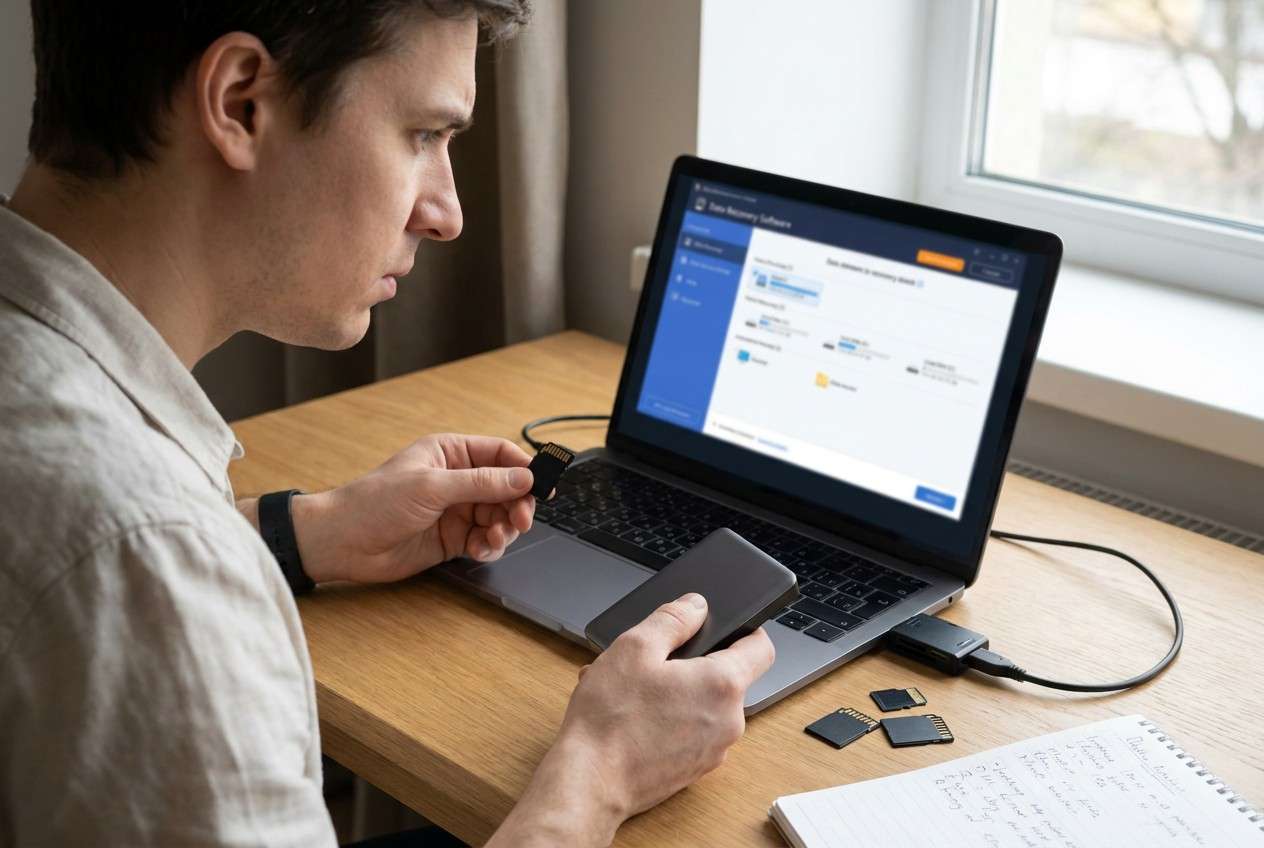
This matters most when the SD card shows warning signs (slow reads, disconnects, “needs to be formatted,” or strange file names). It can also matter if you’ve already tried a few recovery scans, or if the card was used in a phone that kept recording or caching after the loss.
Even if the SD card came from an Android phone, you might be checking it using a computer (or even moving files between devices like an iPhone 13 or iPhone 14 via adapters). The confusing part is that the SD card can look “recognized” while the missing folder never reappears, so it’s unclear whether recovery should start immediately or only after cloning.
1-1. Before You Prompt the AI
Answer these first so the AI can assess risk without guessing:
- What happened right before the loss (delete, format, crash, “corrupted,” transfer interrupted)?
- Has anything been saved to the SD card since (photos, app data, downloads)?
- Does the card disconnect, read slowly, or show capacity/format errors?
- Where was the card used last (Android phone model, camera, drone, etc.)?
- What recovery attempts have you already tried (apps, PC tools, scans)?
Part 2. Using AI prompts to decide if you should clone an SD card before recovery
2-1. Level 1: Basic Prompt
I lost data on an SD card. Should I clone the SD card before attempting recovery in my case? Ask me the minimum questions you need first, then give a cautious recommendation with the lowest-risk next steps.
2-2. Level 2: Advanced Prompt
Diagnose whether cloning the SD card first is necessary.
Context: I lost [photos/videos/docs] after [deleted/formatted/corruption/transfer failed]. The SD card is used in [Android phone/camera]. Current symptoms: [recognized/not recognized/asks to format/slow/disconnects]. I already tried: [nothing / one scan / multiple tools].
Task:
1) List the top 5 likely scenarios (deleted, formatted, file system corruption, encryption/adoptable storage, physical failure).
2) Rank them by likelihood and by risk of making things worse if I proceed without cloning.
3) Recommend the safest next steps in order, with “do not do” warnings.
2-3. Level 3: Evidence Prompt
Help me decide if I should clone an SD card before recovery using evidence-based risk checks.
Evidence fields (fill what I can):
- SD card size/brand:
- How it was used: (phone storage, camera media, dashcam loop recording, etc.)
- Android phone model: (e.g., Galaxy S21)
- Was it set as adoptable/internal storage?: (yes/no/unknown)
- File system seen on computer: (exFAT/FAT32/RAW/unknown)
- Current behavior: (e.g., asks to format, mounts then disconnects, very slow, folders show 0 bytes)
- What happened right before loss: (e.g., “Format card” prompt, battery died during transfer)
- Any new writes since loss: (e.g., took 10 photos afterward)
- Tools tried so far: (e.g., Android recovery app scan, Windows chkdsk, Disk Utility First Aid)
- What I care about most: (e.g., last 3 months of photos)
Output format:
A) Clarifying questions you still need (max 8).
B) Risk rating (Low/Medium/High) for “recover directly” vs “clone first.”
C) The safest sequence of actions I should take next, and what to avoid.
2-4. Prompt Refinement
Use these follow-ups to force clearer, safer reasoning:
What are the 6 most important questions you still need to ask to avoid a bad recommendation?
Separate causes into software causes vs file system causes vs hardware failure signs, and tell me what evidence points to each.
Rank the most likely causes again, but this time explain what single observation would most increase or decrease each likelihood.
If I skip cloning and run recovery directly, what are the specific ways I could reduce recoverable data in my scenario?
Based on my symptoms, what quick non-destructive checks should I do first to confirm whether the card is unstable?
Part 3. When to stop deciding whether to clone an SD card before recovery
Stop and switch to a more cautious plan (clone-first or professional help) if you see any of these:
- The SD card repeatedly disconnects, freezes, or becomes extremely slow during reads
- Your computer/phone prompts you to format the card, or it shows as RAW/uninitialized
- You already ran multiple scans or repair commands and symptoms are getting worse
- The SD card was used as Android adoptable/internal storage and you’re unsure about encryption
Once you’ve used AI to identify the most likely scenario and risk level, the next step is execution with a tool that can scan and export recoverable data without writing back to the SD card.
Part 4. Clone SD card before recovery safely with Dr.Fone - Data Recovery (Android)
If your lost files were tied to Android usage (for example, media saved by apps or stored alongside device data), the practical next move is to run a controlled recovery workflow that exports results to a safe location. Dr.Fone - Data Recovery (Android) is relevant at this stage because it’s designed to perform the scanning and recovery process from Android contexts while you focus on minimizing risk (avoiding writes, choosing the right source, and saving recovered files elsewhere). Use AI to confirm whether you should clone first; then use a recovery tool to execute the scan and export step-by-step (see the guided flow at the official Android Data Recovery guide).
 Scan Android phones and tablets directly.
- Preview and recover only what you want.
- Supports WhatsApp, photos, videos, contacts, and more.
- Works with 6000+ Android devices.

-
Step 1 Stabilize the source

Stop using the SD card/device immediately and avoid taking new photos or moving files, because new writes can overwrite deleted data.
-
Step 2 Choose the safest connection

Connect the Android device (or SD context) in a way that avoids intermittent disconnects, and keep the device powered to prevent mid-scan interruptions.
-
Step 3 Run a targeted scan

In Dr.Fone, select Recover Data from Android Device and scan only the needed data types when possible to reduce time spent stressing an unstable source.
-
Step 4 Preview and export to a different drive

Save recovered files to your computer or another storage location (not back onto the same SD card) to avoid overwriting remaining traces.




Part 5. AI Output vs Reality
AI can guide decision-making, but it won’t replace what the device does in the real world:
| AI can help you decide | Reality you still must handle |
|---|---|
| Whether symptoms suggest corruption vs deletion | The SD card may disconnect or stall mid-read |
| Whether cloning is the safer first step | Creating an image requires stable reads and enough disk space |
| What actions are higher-risk (format, repair, write) | Some “fix” actions can overwrite critical structures |
| What order to try steps to minimize harm | Recovery tools must do the actual scanning and exporting |
AI reduces guesswork and helps you choose lower-risk next steps; a recovery tool is what performs the scan and saves found files elsewhere.
Conclusion
Use AI to interpret symptoms and decide whether cloning first is the safer strategy for your specific SD card situation, then hand off the execution (scanning and exporting recovered files) to Dr.Fone so you’re not relying on repeated trial-and-error on the original media.
FAQ
-
Should I clone an SD card before recovery if I only deleted files?
Often not mandatory, but cloning is safer if the card is unstable, was used after deletion, or you plan multiple recovery attempts. -
Does cloning an SD card improve recovery results?
Cloning doesn’t “increase” what exists, but it can prevent additional damage and lets you retry recovery methods without stressing the original card. -
Should I run CHKDSK or “Repair disk” before recovery?
Usually avoid repairs first when data matters; they can modify file system structures and reduce what recovery tools can find. -
What if my Android SD card was set as internal/adoptable storage?
Treat it as higher risk: encryption and device-binding can limit what’s recoverable outside the original phone, so clone-first and careful diagnosis are recommended. -
Where should I save recovered files to avoid overwriting?
Save to a different drive (PC storage or another external drive), not to the same SD card you’re trying to recover from.
 Add Wondershare Dr.Fone as a preferred source on Google





