 Effortlessly manage data through preview, delete, export, etc.

 100% Security Verified | No Subscription Required | No Malware

 :
: 
 ChatGPT
 Perplexity
 Gemini
 Claude
 Grok
Grok

I turned on Messages in iCloud, tapped Merge, and after the restart most of my iMessages just vanished. I can’t tell if it’s still syncing or if they’re gone.
Apple Support Community user
iMessages can seem to “vanish” right after you turn on Messages in iCloud or complete an iCloud sync on an iPhone 13 or iPhone 14. This often happens after tapping Merge or after a restart, and nothing changes even after several minutes—so it’s unclear whether the phone is still syncing or the messages are actually gone.
AI (like ChatGPT or Gemini) can help you describe the symptoms precisely, narrow the most likely causes (sync status, storage, account mismatch, filters), and choose low-risk checks in a sensible order.
AI can’t see your iCloud state, verify Apple’s servers, or confirm what’s truly in your backups. Trial-and-error actions—like signing out of Apple ID or toggling sync repeatedly—can increase confusion and, in some cases, overwrite what you’re trying to retrieve.
In this article
- Why iMessages disappeared after iCloud sync happens and what it means
- What the “missing” messages can mean
- Common display/sync explanations
- Find the “source of truth” first
- Before you prompt the AI
- Using AI prompts to diagnose missing iMessages after iCloud sync safely
- AI output vs reality: what you should verify
- When to stop troubleshooting iMessages after iCloud sync and avoid risks
- Unlock Android screen with Dr.Fone
Part 1. Why iMessages disappeared after iCloud sync happens and what it means
When Messages in iCloud is enabled, your iPhone may replace local message history with what’s currently in iCloud. If iCloud has an incomplete set (or is mid-upload), your device can temporarily show fewer conversations than you expect.
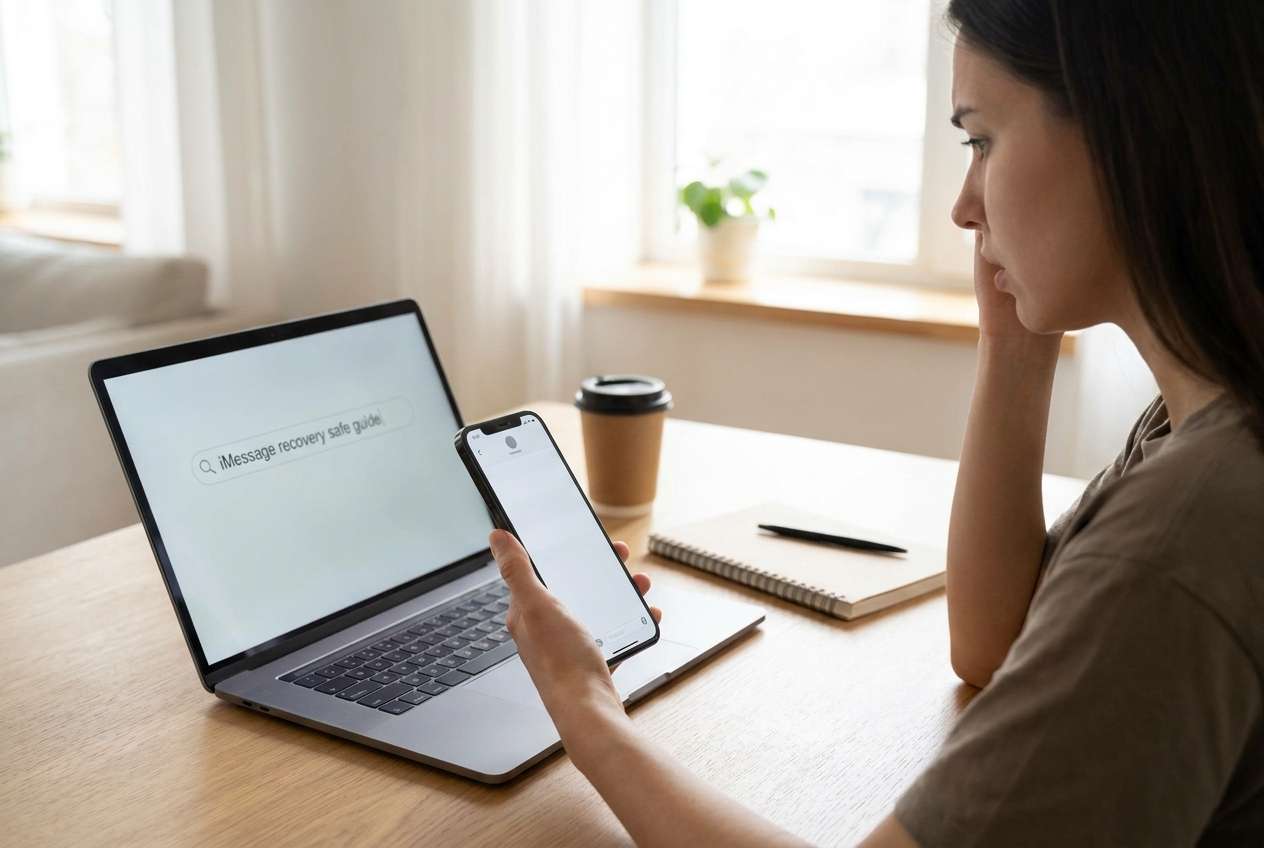
Another common meaning: the messages aren’t deleted, but they’re not being displayed due to filtering (Unknown Senders), indexing delays, or signing into a different Apple ID on one device. After “Install Now” for an iOS update or after a forced restart, indexing and syncing can lag and make threads appear missing.
In many cases, the fastest clarity comes from identifying where the “source of truth” is (iCloud, a device, or a backup) before changing settings again.
1-1. Before You Prompt the AI
Gather a few facts first so the AI can reason from evidence instead of guesswork:
- iPhone model and iOS version
- Whether Messages in iCloud is ON (Settings → Apple ID → iCloud → Messages)
- Apple ID(s) used across devices (iPhone/iPad/Mac)
- iPhone storage and iCloud storage availability
- What you did right before it happened (enabled sync, tapped Merge, restored, updated)
- Whether missing items are entire conversations or just recent messages
Part 2. Using AI prompts to diagnose missing iMessages after iCloud sync safely
2-1. Level 1: Basic Prompt
My iMessages disappeared after iCloud sync. Ask me the minimum questions needed to narrow the cause without risky steps. Then give a ranked list of likely causes and the safest checks first.
2-2. Level 2: Advanced Prompt
Act as a troubleshooting analyst for “iMessages disappeared after iCloud sync.”
1) Ask up to 8 clarifying questions (only ones that change the diagnosis).
2) Provide a ranked shortlist of causes with probability (high/medium/low).
3) For each cause, suggest 1–2 low-risk checks.
4) Flag any steps that could overwrite data (e.g., toggling Messages in iCloud repeatedly, signing out of Apple ID, restoring backups) and suggest safer alternatives first.
2-3. Level 3: Evidence Prompt
Diagnose why iMessages disappeared after iCloud sync using the evidence below.
- iPhone model: (e.g., iPhone 13 Pro)
- iOS version: (e.g., iOS 17.5)
- Trigger event: (e.g., turned on Messages in iCloud / tapped Merge / restored from backup / updated iOS)
- What “disappeared”: (e.g., entire threads / only recent messages / attachments missing)
- Time since change: (e.g., 10 minutes / 3 hours / overnight)
- iCloud storage: (e.g., 4 GB free / storage full)
- iPhone storage: (e.g., 1 GB free / 30 GB free)
- Settings status: Messages in iCloud ON/OFF, iMessage ON/OFF, SMS/MMS ON/OFF
- Apple ID consistency: same Apple ID across iPhone/iPad/Mac?
- Other devices: do messages still show on another device?
- Network: Wi‑Fi stable? low power mode? VPN?
- Any recent Apple ID sign-in prompts or 2FA issues?
Output:
1) Top 3 likely causes (ranked)
2) Key evidence that supports/contradicts each cause
3) Safest next steps (in order), avoiding overwrite risks
4) “Stop and reassess” conditions
2-4. Prompt Refinement
Use these follow-ups to force clearer, safer reasoning:
Ask missing questions:
What are the 5 most important missing details you still need, and why does each one change the diagnosis?
Rank causes:
Re-rank the causes assuming iCloud storage is nearly full, and explain what changes.
Separate categories:
Split possibilities into (A) display/filtering, (B) sync/indexing delays, (C) account mismatch, (D) actual deletion/overwrite. Put my case into one category with justification.
Identify key evidence:
What single check would most strongly confirm whether iCloud currently contains my full message history, without risky changes?
Part 5. AI output vs reality: what you should verify
AI can suggest logical paths, but it can’t verify what’s actually stored in your iCloud or on-device database.
| What AI may conclude | What you should verify in reality |
|---|---|
| “It’s just still syncing.” | iCloud → Messages status/progress and whether other devices show the threads. |
| “It’s an Apple ID mismatch.” | Apple ID email on each device, and whether iMessage is using the same send/receive identities. |
| “Storage caused incomplete sync.” | Exact iCloud/storage free space and whether uploads are blocked by low storage. |
| “Messages were deleted.” | Whether threads exist on another device/backup before changing sync toggles again. |
AI helps you choose the lowest-risk checks and a rational order. The actual execution still depends on what you can access on your devices and accounts.
Part 3. When to stop troubleshooting iMessages after iCloud sync and avoid risks
If you’re not getting clearer evidence after a few safe checks, stop before you perform actions that can replace one message set with another.
- You’re about to toggle Messages in iCloud OFF/ON repeatedly or sign out of Apple ID just to “try something.”
- You can’t confirm whether another device still has the messages, but you’re considering a restore or erase.
- You’re missing 2FA access (can’t receive codes), so you can’t reliably test account changes.
- The message set is changing unpredictably (threads appear/disappear), suggesting active sync/indexing or inconsistent account state.
Once you’ve used AI to narrow the most likely cause, the next step is making sure you can safely access the accounts/devices needed to carry out the chosen path without getting locked out mid-process.
Part 4. Unlock Android screen with Dr.Fone
If your iMessages disappeared after iCloud sync and you’re also blocked by account verification—such as Apple ID two-factor codes going to a locked Android phone—you may need access to that Android device before you can complete safe checks (confirming sign-ins, receiving codes, reviewing account notifications). In that situation, Dr.Fone - Screen Unlock (Android) becomes relevant as an execution tool to regain access to the Android screen so you can continue the iCloud/iMessage diagnosis steps you already mapped with AI, without improvising risky iCloud toggles. Use the official Unlock Android Screen flow described on the Dr.Fone pages (see the product and guide links below in-step) to keep actions aligned with your device type and lock scenario.
 Unlock Android phone in seconds.
- Remove PIN, pattern, password, fingerprint.
- Bypass Google FRP lock easily.
- Works on all Android brands & models.
- No tech skills required – user-friendly.

-
Step 1 Confirm your lock type
Identify whether it’s PIN/pattern/password/biometric and your Android brand/model to avoid using an incompatible method.

-
Step 2 Open Dr.Fone – Screen Unlock (Android)
Launch the Screen Unlock module from the official tool page for the supported workflow on your computer.

-
Step 3 Follow the Android lock screen removal guide
Use the step-by-step guide to select the correct device category and proceed carefully, since some methods may erase data on certain models.

-
Step 4 Regain access to verification channels
Once unlocked, retrieve the 2FA code/SMS/account alerts you need to continue iCloud and Apple ID checks on your iPhone.





Conclusion
Use AI to turn “iMessages disappeared after iCloud sync” into a ranked diagnosis with evidence-based, low-risk checks, then hand off execution to the right tool or device access step—such as unlocking an Android phone when it’s blocking verification—so you can proceed without guesswork or unnecessary account toggles.
FAQ
-
Why did my iMessages disappear right after enabling iCloud Messages?
Because the device may switch to showing what’s currently in iCloud, and if iCloud hasn’t finished uploading/downloading, the visible message set can look incomplete temporarily.
-
Can iCloud sync make messages look deleted when they aren’t?
Yes. Filters, indexing delays, storage constraints, or account mismatches can hide threads without deleting them.
-
Is it risky to toggle “Messages in iCloud” off and on to force a refresh?
It can be. Repeated toggling can create confusing merges or re-download behavior; it’s better to confirm what exists on other devices and check storage/status first.
-
What’s the safest way to confirm whether iCloud still has my message history?
Check whether the same threads exist on another trusted Apple device signed into the same Apple ID and review iCloud Messages status/progress before changing settings.
-
How does unlocking an Android phone relate to an iCloud iMessage issue?
If Apple ID verification codes or recovery steps depend on SMS/notifications going to your Android device, unlocking it helps you complete account checks without making risky iCloud changes.
 Add Wondershare Dr.Fone as a preferred source on Google





