 Effortlessly manage data through preview, delete, export, etc.

 100% Security Verified | No Subscription Required | No Malware

 :
: 
 ChatGPT
 Perplexity
 Gemini
 Claude
 Grok
Grok

Building a content inventory from a creator phone sounds simple—until one missed step causes lost originals, broken folder structure, or missing metadata you needed later.
Forum user
AI is useful for shaping a clear workflow: what to capture, what to export, how to name it, what to verify, and where the “don’t proceed yet” checkpoints belong.
AI can’t access your device, confirm what transferred correctly, or prevent accidental deletion. Once the plan is locked, execution needs real device tools—especially before any irreversible actions like deleting originals or resetting a phone.

In this article
- How to plan a creator-phone content inventory without missing steps
- What “inventory” means for creator phones
- Sequence beats “what to save”
- Verification gates before irreversible actions
- What to prepare before execution
- What the AI needs to know
- AI prompts to build a safer workflow
- AI plan vs. real device constraints
- When to stop planning and start execution
Part 1. How to Plan content inventory workflow for a creator phone Without Missing Critical Steps
You’re trying to inventory a creator phone that’s full of camera rolls, edited exports, drafts, voice notes, project assets, and app-based content (social drafts, chat media, cloud sync folders). You want a searchable, reusable library—not just “a backup.”
The uncertainty usually isn’t what to save; it’s the sequence: what to capture first, what to export second, how to avoid duplicates, and what “good” verification looks like before you move on.
The point-of-no-return moment is when you delete “already moved” files, format an SD card, or factory reset the phone to reclaim space—any of those should happen only after verification proves the inventory is complete and readable on your target storage.
1. Plan the sequence before touching files.
Write down sources, export order, destination structure, and stop/go checkpoints so you don’t miss app media, drafts, or edited vs. original variants.
2. Define verification gates (not “looks fine”).
Use pass/fail checks like folder presence, rough category counts, and randomized open/play tests for videos and audio before any deletion, formatting, or reset.
3. Treat irreversible actions as a separate phase.
Only reclaim space after every source area is verified to be complete and readable on the destination storage.
Part 2. What the AI Needs to Know
Share your setup and goal so the workflow can be sequenced safely.
- Phone OS and model (iPhone/Android, storage size)
- Where content currently lives (Camera/DCIM, Downloads, Files app, SD card, cloud-synced folders)
- Content types to inventory (photos, videos, RAW, edited exports, audio, PDFs, project files, app chat media)
- Apps that contain important media (e.g., WhatsApp/Telegram, CapCut, Lightroom, Notes, Voice Memos)
- Your target destination(s) (external drive, computer, NAS, cloud) and free space available
- Preferred structure (by date, by project, by platform, by client)
- Naming conventions you want (e.g.,
YYYY-MM_Project_Platform_AssetType) - Duplicate tolerance (keep all vs. dedupe) and whether metadata must be preserved
- Deadline and acceptable downtime (minutes vs hours)
- Your “reclaim space” plan (delete after verified vs. keep everything)
Part 3. Using AI Prompts to Build a Safer content inventory workflow for a creator phone Workflow
Use these prompts to force a clear sequence, define verification gates, and surface risks before you touch the device.
3-1. Level 1: Basic Prompt
Create a step-by-step plan to build a complete content inventory from my creator phone without losing anything. Include a checklist of what to capture and a verification step before any deletions. Keep it planning-only—no device actions yet.
3-2. Level 2: Advanced Prompt
Design a structured workflow for a creator-phone content inventory with Preparation / Execution / Verification phases.
Separate critical steps (must-do to avoid loss) from optional steps (nice-to-have), and include “stop points” where I should not proceed until verification passes.
3-3. Level 3: Evidence Prompt
I’m inventorying a creator phone with mixed content and want a library I can search and reuse.
Context:
- OS/model: (Android, 256 GB)
- Content sources: (DCIM/Camera, Downloads, CapCut exports, WhatsApp media, Voice notes)
- Target storage: (Windows laptop + 2TB external SSD)
- Organization goal: (By project + month, preserve timestamps)
- Risk constraints: (I may delete originals later to free space, but only after proof)
Ask:
1) Propose the safest sequence to capture everything, including app-based media.
2) Define checks before, during, and after transfer (e.g., sample counts, spot-check playback, folder-level comparisons).
3) Provide a “verification gate” checklist that must pass before any irreversible actions (delete/format/reset).
4) Suggest a naming + folder structure example using my goals (e.g., 2026-05_ClientX_Reel_Broll).
3-4. Prompt Refinement
Return the plan as a table with columns: Step, Goal, Inputs, Output location, Failure signs, Verification method, Stop/Go decision.
List the top 10 ways creator-phone inventories go wrong (duplicates, missing chat media, edited vs original confusion, timestamp drift) and add prevention checks to the workflow.
Create a ‘minimum viable inventory’ path vs a ‘complete archive’ path, and tell me exactly what I lose if I choose the faster option.
Define a verification method that does not rely on trusting file counts alone—include random sampling rules (e.g., 20 files across 5 folders) and playback checks for videos.
Ask me only the missing questions needed to remove ambiguity, then regenerate the final workflow in a single pass.
Part 4. AI Plan vs. Real Device Constraints
| Planning need | What AI can do | What AI cannot do | What you must verify on-device |
|---|---|---|---|
| Content map | Identify likely content locations and app risk areas | See your actual folders/apps/data | Where the files truly reside and what’s accessible |
| Safe sequencing | Build “capture → export → verify → only then delete” order | Enforce the order during real transfer | That you followed the order and didn’t skip a source |
| Verification gates | Define pass/fail checks and sampling rules | Confirm files open/play correctly | Random spot-checks, metadata checks, and readability |
| Irreversible-risk control | Flag “don’t delete/reset yet” moments | Stop you from deleting/resetting | You must delay irreversible actions until checks pass |
AI improves planning, but cannot execute transfers, access app data, or validate outcomes on your actual phone. Treat the plan as a checklist you follow with real tools and real verification.
Part 5. When to Stop Planning content inventory workflow for a creator phone and Start Execution
- You have a finalized source list (every place content could exist) and a destination structure (where each category will land).
- You have defined verification gates with pass/fail criteria (not just “looks fine”), including sampling rules for videos/audio.
- You have enough free space and time allocated to complete the transfer without rushing mid-way.
- You have explicitly postponed irreversible actions (delete originals, format SD, factory reset) until after verification passes.
Once these are true, planning is done, and the risk now shifts from “missing steps” to “executing carefully and checking outcomes.”
Use Tools to Turn "Plans" into Verifiable Exports
When you're ready to move from "planning" to "execution," use Dr.Fone Basic - Data Manager to first perform a non-deleting baseline export (baseline snapshot). Then, verify each item against your predefined validation criteria before proceeding to high-risk operations such as cleaning or freeing up space.
 Easily manage data through preview, delete, export, etc.
- Transfer all data between devices.
- Robust backup solutions for reliable data protection.
- Mirror screens to PC for meetings, teaching, and control.

The most common failures during execution are "silent": only partial data transferred, certain app media missed, files corrupted, or appearing complete but actually unreadable. The following process emphasizes exporting first, verifying next, and only then performing irreversible actions.
-
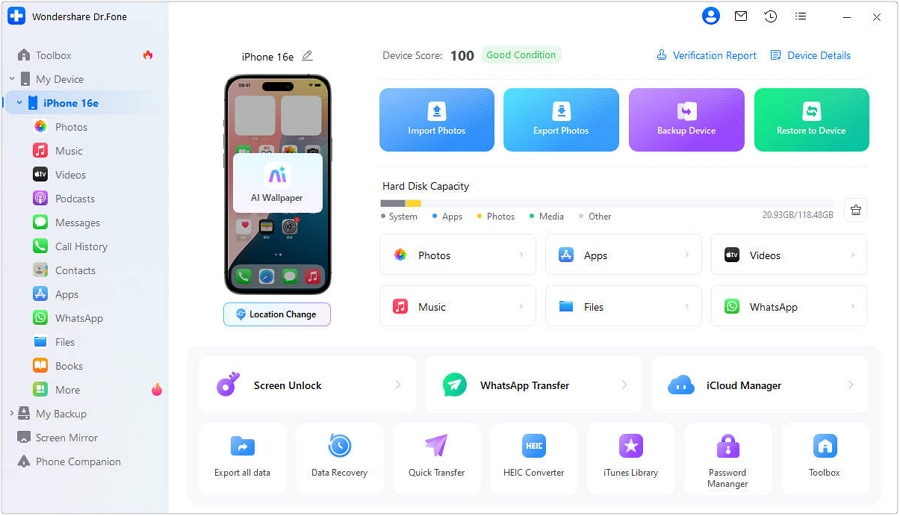
Step 1 Connect Device and Start Export (Create Baseline Snapshot Without Deleting Anything)
Connect your phone to the computer and choose to export/backup to your planned destination (e.g., a "Unorganized_Baseline_Export" folder on an external SSD).
-
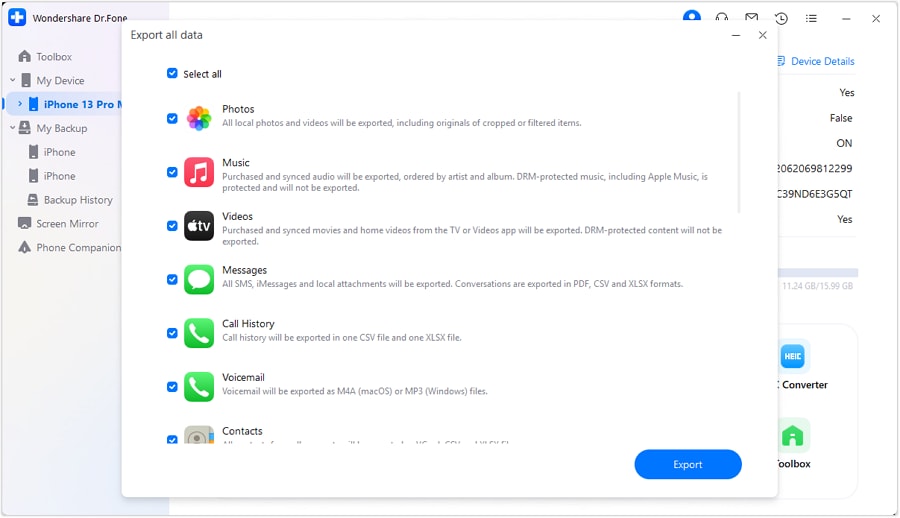
Step 2 Select Content to Export by Type (Matching Your Source List)
Cover each item on your "source list" one by one: Camera/Photos, Downloads, Voice Memos, and specific app content you've explicitly listed (each category must map correctly into your target structure).
-
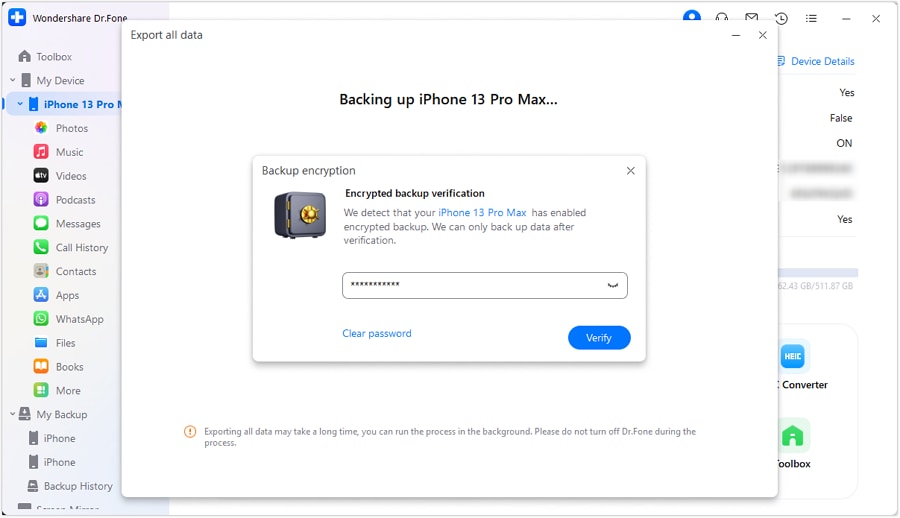
Step 3 Set Necessary Security Options (e.g., Export/Backup Password)
If your workflow requires protection of exported data (especially for long-term archiving or sensitive content), complete the relevant settings at this step.
-
Step 4 Monitor Export Completion and Immediately Perform "Validation Check" (Proceed to Cleanup Only After Passing)
After export completes, don't rely solely on the "completed" message. Perform readability checks according to your validation criteria (randomly sample open/play files), compare approximate counts by major categories, and confirm that key folders and subfolders actually exist and are not empty.




Conclusion
Use AI to design a strict, verification-first inventory workflow with clear stop/go gates, then use Dr.Fone as the execution layer to perform the real transfer and cleanup—only after you’ve verified the inventory is complete and readable.
FAQ
-
How do I avoid missing content that lives inside apps (not in DCIM)?
Include an “app media” section in your source list (chat apps, editors, notes/voice apps) and treat each as its own capture + verification item, not an afterthought.
-
What’s the minimum verification I should do before deleting anything?
At minimum: confirm destination folders exist, compare rough counts by major category, and do randomized open/play checks across multiple folders (especially large videos and audio files).
-
Why are file counts alone not enough?
Counts won’t catch corrupted videos, zero-byte files, missing metadata, or transfers that skipped subfolders but replaced them with empty shells.
-
When should I dedupe—before or after the inventory is complete?
After. Dedupe too early is a common way to delete the “wrong copy” (original vs edited) before you’ve proven the archive is complete and usable.
-
Can AI tell me whether my backup is complete?
No. AI can define what to check and how, but it can’t see your device contents or confirm file integrity on your storage.
 Add Wondershare Dr.Fone as a preferred source on Google





