 Effortlessly manage data through preview, delete, export, etc.

 100% Security Verified | No Subscription Required | No Malware

 :
: 
 ChatGPT
 Perplexity
 Gemini
 Claude
 Grok
Grok

I’m trying to free up space on an old Android tablet, but it’s packed with “copy” files from downloads and messaging apps. I’m worried I’ll delete the only good version of a photo or PDF if I clean duplicates the wrong way.
Forum user
Cleaning duplicate files on an old Android tablet sounds simple, but one missed step can delete the only copy of a photo, document, or offline media file you still need.
AI helps by turning a vague goal (“remove duplicates”) into a clear workflow: what to check first, what to delete last, and how to verify you’re not removing originals or app-required files.
AI can’t scan your tablet storage, confirm what’s truly duplicated, or undo deletions after the fact. Once the plan is verified, you need real device tools to do the cleanup safely.
In this article
- How to plan a duplicate-cleaning workflow without mistakes
- Why old tablets accumulate duplicates
- What usually causes uncertainty
- The “point of no return”
- What a safe plan must include
- What the AI needs to know
- AI prompts to build a safer workflow
- AI plan vs. real device constraints (and when to start execution)
- Execute the workflow safely with Dr.Fone
Part 1. How to Plan Clean Duplicate Files on Old Android Tablet Without Missing Critical Steps
You’re working with an older tablet that’s slow, low on storage, and full of “copy” files from downloads, messaging apps, Bluetooth transfers, or repeated camera imports. You want space back without breaking apps or losing sentimental media.
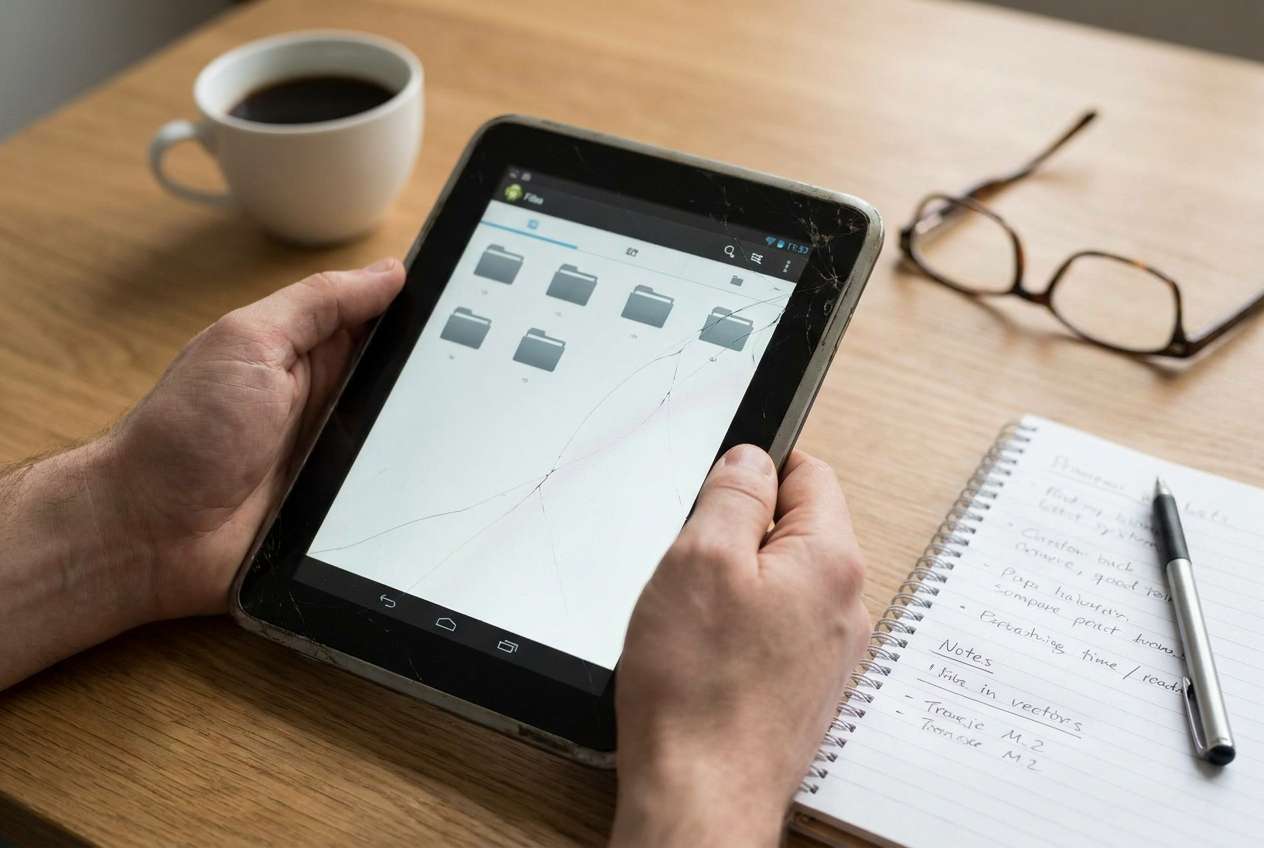
The uncertainty usually isn’t “what is a duplicate,” but “which version is the real one,” “where duplicates hide,” and “what order prevents mistakes.” If you delete first and ask questions later, you can’t easily prove what you removed.
The point of no return is emptying the trash / recycle bin (or permanently deleting from a file manager) before verifying that the remaining files open correctly and that you still have at least one safe backup copy elsewhere.
Part 2. What the AI Needs to Know
Answer these so the AI can build a safe, device-appropriate plan:
- Android version (if known) and tablet model (optional)
- Approx. free storage and total storage (e.g., “1.2 GB free of 16 GB”)
- Main duplicate types: photos, videos, audio, documents, APKs, downloads, WhatsApp/Telegram media, etc.
- Where files live: internal storage, SD card, both
- Whether you use Google Photos/Drive/OneDrive or local-only storage
- Whether you can connect the tablet to a PC/Mac (USB) reliably
- Your risk tolerance: “aggressive cleanup” vs “only obvious duplicates”
- Anything that must not be touched (e.g., “school PDFs,” “family photos,” “offline maps,” “app folders”)
- Your preferred verification method (open a sample set, check counts/sizes, compare folders, etc.)
Part 3. Using AI Prompts to Build a Safer Clean Duplicate Files on Old Android Tablet Workflow
Use the prompts below to force a cautious sequence, clear decision points, and verification gates before any irreversible deletion.
3-1. Level 1: Basic Prompt
Help me plan a safe workflow to clean duplicate files on an old Android tablet without deleting originals.
I want a simple sequence of steps with a short checklist of what to verify before I delete anything.
Include common duplicate locations like Downloads and messaging app folders.
3-2. Level 2: Advanced Prompt
Design a structured workflow to clean duplicate files on my old Android tablet, split into Preparation, Execution, and Verification.
Mark steps as critical vs optional, and include clear “stop points” where I must verify results before moving on (especially before any permanent deletion).
3-3. Level 3: Evidence Prompt
Create a cautious duplicate-cleaning plan for my Android tablet with these details: Android version (Android 9), storage (16 GB total, 900 MB free), storage locations (internal + SD card), duplicate types (photos/videos + PDFs), and key folders (DCIM/Camera, Downloads, WhatsApp/Media, Bluetooth).
For each phase (before/during/after), list: (1) what evidence to collect (e.g., file counts, folder sizes, sample opens), (2) what checks confirm a file is safe to delete (e.g., same size + same date + same content indicator), and (3) what to avoid (e.g., app data folders, thumbnails vs originals).
Also suggest a “quarantine” approach (move to a review folder) before any permanent deletion.
3-4. Prompt Refinement
Build me a decision tree for duplicates: “same filename,” “same size,” “same date,” “different resolutions,” “edited vs original,” and what I should keep in each case.
Output a folder-by-folder priority list (highest space savings first) and tell me what to verify in each folder before touching it.
Give me a verification checklist with pass/fail criteria I can follow before I delete anything, and a separate checklist before I empty trash or confirm permanent deletion.
Create a quarantine plan: where to move suspected duplicates, how long to wait, and what spot-checks to run before final removal.
Part 4. AI Plan vs. Real Device Constraints (and When to Start Execution)
4-1. AI Plan vs. Real Device Constraints
| Planning step (AI can help) | Real-world constraint (device/tool reality) |
|---|---|
| Identify risky folders and safe targets | Android file access restrictions vary by version and apps |
| Define “duplicate” rules and edge cases | Two files can look similar but not be identical (edits, compression, metadata changes) |
| Create verification gates and stop points | Storage scans can be slow on old hardware; battery or crashes can interrupt |
| Propose a quarantine-and-verify approach | Moving large files needs sufficient free space and reliable file operations |
AI improves the workflow and reduces avoidable mistakes, but it cannot read your tablet’s storage, confirm file identity, or carry out the cleanup actions on the device.
4-2. When to Stop Planning Clean Duplicate Files on Old Android Tablet and Start Execution
- You have a written keep/delete rule for each major file type (photos, videos, documents).
- You’ve identified “do-not-touch” areas (app data folders, system folders, unknown app directories).
- You’ve defined verification gates, including a final gate before any permanent deletion.
- You have a rollback path (at minimum: quarantine folder or an external backup location).
If those are true, you’re no longer guessing—you’re choosing a controlled workflow and ready to apply it.
Part 5. Execute the Workflow Safely with Dr.Fone
Execution now matters because duplicates often span multiple folders and storage locations, and mistakes are usually irreversible only after the final delete/confirm step. To run the plan on a real device, you can use Dr.Fone Basic - Data Manager to review files, back up what matters, and apply your keep/delete rules carefully.
 Easily manage data through preview, delete, export, etc.
- Transfer all data between devices.
- Robust backup solutions for reliable data protection.
- Mirror screens to PC for meetings, teaching, and control.

-
Step 1 Prepare a safety net and confirm scope
Connect the tablet to a computer and confirm what storage locations you’ll work on (internal vs. SD). Before cleanup, create a current backup of the tablet (or at least the data you cannot afford to lose).
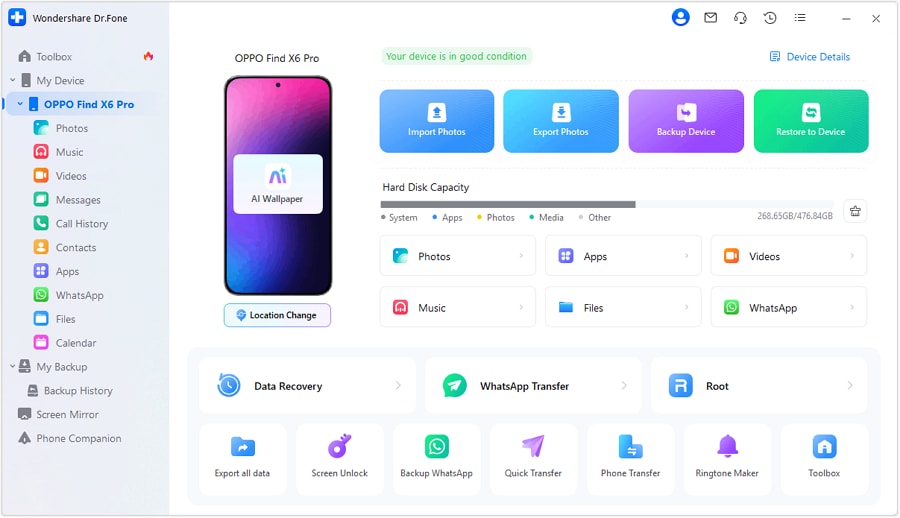
 Note: AI can’t verify your backup exists or is restorable; you must confirm the backup completes and is accessible.
 -
Step 2 Start with lower-risk areas and identify duplicate clusters
Begin in obvious duplicate locations (for example: Downloads and messaging-app media folders) and use your plan’s verification gates (counts/sizes + spot-check opens) before moving anything. Keep your “do-not-touch” areas off-limits.
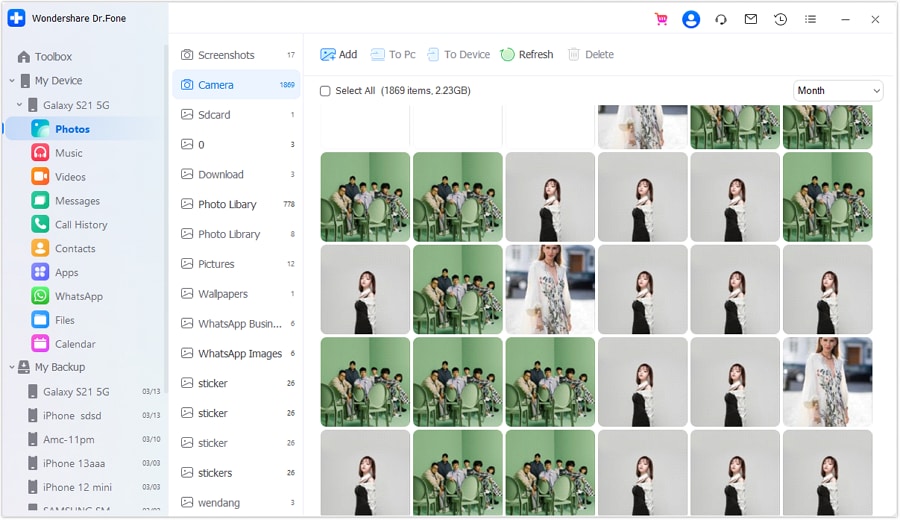 Note: Storage scans and file operations can be slow on old hardware; work in small batches so interruptions don’t cause mistakes.
 -
Step 3 Run cleanup actions only after verification gates (use quarantine if unsure)
Carry out the planned cleanup (especially for photos/videos and PDFs) only after you’ve verified what you’re keeping. If you’re not fully confident, move suspected duplicates to a quarantine/review folder instead of deleting immediately.
 Note: AI can’t see which files the tool is selecting or deleting; you must review selections carefully before confirming any removal.
 -
Step 4 Post-clean verification before the point of no return
Verify key files open correctly, storage space changed as expected, and nothing critical is missing. Only then proceed to any permanent deletion / emptying trash step.
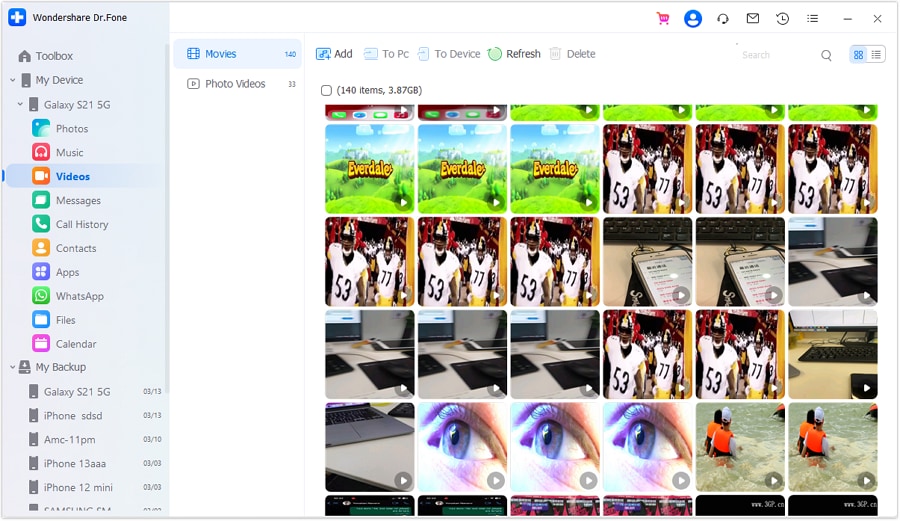 Note: Once permanent deletion is confirmed, recovery may be impossible; AI cannot undo the action or guarantee recoverability.




Conclusion
Use AI to build a cautious, check-driven workflow with clear stop points, then use Dr.Fone to execute the backup and cleanup actions on the real device—especially before any irreversible deletion step.
FAQ
-
What’s the biggest risk when cleaning duplicates on an old Android tablet?
Deleting the only valid copy (e.g., keeping a lower-resolution copy and deleting the original, or deleting a file an app still relies on). -
How do I verify a file is truly a duplicate before deleting?
Use multiple signals: same folder context, identical size, same creation/modification pattern, and a spot-check by opening a sample—don’t rely on filename alone. -
Where do duplicates most commonly pile up?
Downloads, messaging-app media folders, Bluetooth/Share folders, and repeated camera imports (including “edited” exports vs originals). -
When is the “point of no return”?
When you confirm permanent deletion or empty trash/recycle functions—do not do this until after post-clean verification. -
Can AI tell me which exact files to delete on my tablet?
No. AI can only plan rules and checks; it cannot access your device storage or validate file contents.
 Add Wondershare Dr.Fone as a preferred source on Google





