 Effortlessly manage data through preview, delete, export, etc.

 100% Security Verified | No Subscription Required | No Malware

 :
: 
 ChatGPT
 Perplexity
 Gemini
 Claude
 Grok
Grok

I want a minimalist phone—fewer apps and files—but I’m worried I’ll delete the wrong thing and get locked out of banking or lose photos. I don’t mind cleaning up, I just need a safe order to do it.
Reddit user, r/Android
A minimalist phone setup sounds simple until you delete the wrong thing, lose a login method, or remove files you actually need. Missing one verification step can turn “declutter” into permanent data loss.
AI can help you structure the workflow: what to review first, what to back up, what to delete later, and how to confirm you won’t break essentials like banking, 2FA, work accounts, or photo access.
But AI can’t see your phone, confirm what’s truly backed up, or safely perform device actions. Once the plan is clear and verified, you still need real tools to execute backups, transfers, and cleanup reliably.
In this article
- How to plan a minimalist setup without missing critical steps
- What “minimalist” should not break
- Dependencies that cause lockouts
- Delay irreversible actions
- Sequence beats a generic checklist
- What the AI needs to know
- Using AI prompts to build a safer workflow
- AI plan vs. real device constraints (and when to start execution)
- Execute the workflow safely with Dr.Fone
Part 1. How to Plan Minimalist Phone Setup With Fewer Apps and Files Without Missing Critical Steps
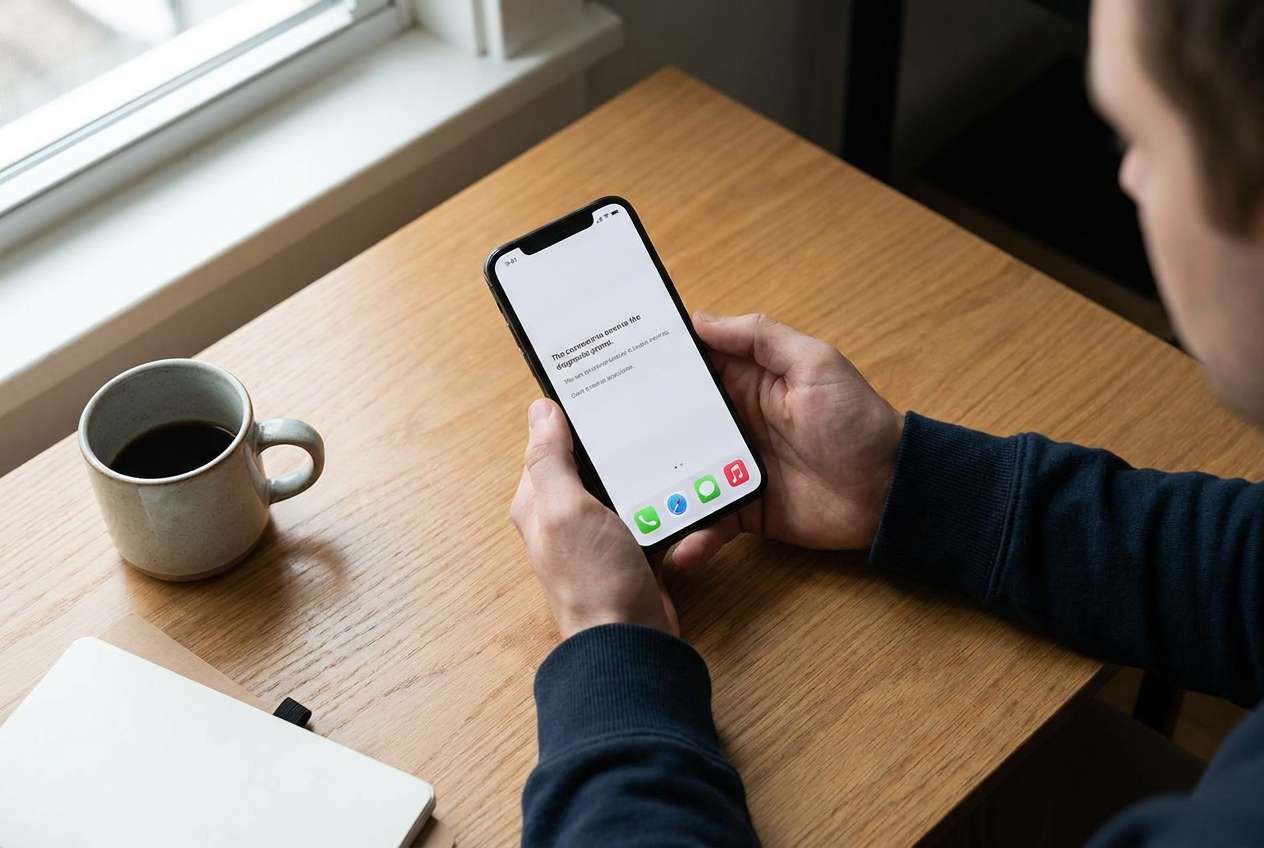
You want fewer apps, fewer notifications, less clutter, and more space—without breaking daily essentials (calls, messages, camera, maps, payments, work tools). The uncertainty is usually not what to remove, but what depends on what (logins, 2FA, offline files, subscriptions, cloud sync).
After an AI answer, many people still aren’t sure about sequence: Should you back up photos before uninstalling? What about app data stored locally? Which “system” apps are safe to disable? What’s the minimum verification that proves you can still sign in?
There’s also a real point of no return: deleting local photos/files, wiping chat histories, or doing a factory reset to “start fresh” can be irreversible if backups are incomplete or not restorable. Your plan should explicitly delay those actions until verification is done.

Part 2. What the AI Needs to Know
Share just enough context for a safe, step-by-step plan.
- Phone OS and model (Android/iPhone; model if known)
- Storage situation (e.g., “128 GB, 6 GB free”)
- What “minimalist” means for you (fewer apps, fewer files, fewer accounts, fewer notifications)
- Non-negotiables (calls/SMS, WhatsApp/Signal, banking, work apps, maps, camera, music)
- 2FA/authenticator use (SMS, authenticator app, security keys, email fallback)
- Cloud services in use (iCloud/Google Photos/OneDrive/Dropbox), and whether sync is on
- Any local-only data risk (downloads folder, voice memos, offline maps, notes, app caches)
- Time constraints (e.g., “30 minutes today, 2 hours this weekend”)
- Your risk tolerance (keep archive vs aggressively delete)
Part 3. Using AI Prompts to Build a Safer Minimalist Workflow
Use the prompts below to make AI produce a sequence with checkpoints, not a vague checklist.
3-1. Level 1: Basic Prompt
Help me plan a minimalist phone setup with fewer apps and files. I want a step-by-step order of operations that reduces the chance of deleting something important, including what I should verify before I remove anything.
3-2. Level 2: Advanced Prompt
Design a minimalist phone setup workflow split into Preparation, Execution, and Verification.
Mark each step as critical or optional, and include dependencies (e.g., “confirm 2FA access before uninstalling authenticator,” “confirm photos are accessible from another device before deleting local copies”).
End with a short “stop/go” checklist before any irreversible deletion.
3-3. Level 3: Evidence Prompt
Create a minimalist phone setup plan for my situation and include checks before, during, and after each risky action.
Context: OS (Android 14), storage (128 GB total, 5 GB free), key apps (WhatsApp, Gmail, banking app, Maps), 2FA (Google Authenticator), photos (Google Photos sync ON but not sure if complete), files (Downloads folder has PDFs), goal (remove 20+ apps, reduce files by 30 GB).
Requirements:
- Identify “do not touch yet” items until verification passes (e.g., authenticator, photo library, message backups).
- Provide a verification method example (e.g., “log in on a second device,” “open photo library in browser,” “download one test file”).
- Include a clear point-of-no-return warning before any step like deleting originals, clearing app data, or factory reset.
3-4. Prompt Refinement (Follow-ups)
Output the plan as a table with columns: Step, Why it matters, Risk, Verification test, Rollback option. Keep it under 15 steps.
Create a “dependency map” of my top 10 apps: what data they store locally, what’s synced, and what breaks if I uninstall or clear storage.
List the minimum viable set of apps I should keep, grouped by: communication, security/2FA, finance, navigation, health, work—and explain one risk per group if removed.
Write a “pre-delete verification script” I can follow in 10 minutes that proves photos, contacts, and 2FA recovery will still work.
Give me a two-tier deletion policy: Archive (move/backup first) vs Delete (safe to remove now), with examples for Downloads, Screenshots, large videos, and app caches.
Part 4. AI Plan vs. Real Device Constraints (and When to Start Execution)
| AI can produce a sequence and checks | Your phone may have hidden local-only data and app-specific storage rules |
|---|---|
| AI can suggest what’s usually safe to remove | Only the device can show which files are truly local vs synced |
| AI can recommend verification tests | Only real sign-in attempts confirm 2FA and account recovery actually work |
| AI can warn about points of no return | Only real tools can back up/transfer/restore reliably under time pressure |
AI improves planning, but cannot execute backups, transfers, deletions, or restores on your device.
4-1. When to Stop Planning and Start Execution
- You have a written sequence that delays irreversible steps (deleting originals/clearing chat history/factory reset) until after verification.
- You can pass the “access tests” on essentials: phone unlock, primary email, banking login, and 2FA recovery method.
- You can prove your most valuable data is accessible elsewhere (e.g., photos visible on web/another device; key files open from a second location).
- You have a rollback path for mistakes (backup available, restore method understood, time reserved).
If those are true, further planning usually adds opinions—not safety—and it’s time to run the workflow carefully.
Part 5. Minimalist Phone Setup With Fewer Apps and Files: Execute the Workflow Safely with Dr.Fone
Execution is where mistakes become real (overwriting backups, removing the wrong data, or discovering too late that something wasn’t saved). Treat deletion and resets as last, not first.
If you want a more controlled way to manage, transfer, and back up your phone data before you declutter, consider Dr.Fone Basic - Data Manager.
 Easily manage data through preview, delete, export, etc.
- Transfer all data between devices.
- Robust backup solutions for reliable data protection.
- Mirror screens to PC for meetings, teaching, and control.

-
Step 1 Secure a restorable backup first
Use a computer-based backup or a targeted backup of the data categories you care about, then confirm the backup completes without errors before you uninstall apps or delete files.

Limitation: AI can’t verify backup integrity or confirm what was captured—you must review the backup results and ensure you know how to restore.
-
Step 2 Reduce apps and files in a controlled order
Move critical items off the phone first, then uninstall non-essential apps and remove only confirmed-safe files after your verification tests (logins, 2FA access, file-open tests, photo access on web) pass.

Limitation: AI can’t see which items are still local-only; you must double-check offline folders, “recently deleted,” and app-specific storage before removing anything.
-
Step 3 Review large media and exports before deleting originals
Identify large videos and media-heavy folders, confirm they’re safely stored elsewhere (and actually playable/openable), then export/archive what you want to keep.

Limitation: “Synced” doesn’t always mean “complete and restorable.” Always test by accessing items from another device or a browser.
-
Step 4 Only after verification, do the high-risk cleanup
If your plan includes irreversible steps (delete originals, clear app data, wipe chats, factory reset), do them only after your stop/go checklist is fully satisfied and you can sign in to key accounts from another device.

Limitation: AI cannot stop a reset, undo deletion, or recover data that was never backed up—don’t proceed until verification is done.




Conclusion
Use AI to plan the order, identify risks, and define verification checks; use real tools to execute. A minimalist setup is safest when irreversible actions wait until after you’ve proven backups and access are truly working.
FAQ
-
What’s the most common way people lose data during a minimalist setup?
Deleting local photos/files or clearing app data before confirming sync/backup is complete and restorable. -
How do I verify photos are actually safe before deleting local copies?
Check the full library from a separate device or a web browser, open several recent and older items, and confirm they’re not just thumbnails. -
Why is 2FA such a big deal when uninstalling apps?
If your authenticator is removed without recovery codes or a transfer, you can lock yourself out of email, banking, and work accounts. -
When is a factory reset appropriate for minimalism?
Only after you can prove you can restore what you need and re-authenticate into critical accounts; it’s a point-of-no-return step. -
Can AI tell me which apps are safe to delete on my exact phone?
No—AI can suggest typical candidates, but only your device can show dependencies, permissions, and local-only data that might be lost.
 Add Wondershare Dr.Fone as a preferred source on Google





