 Effortlessly manage data through preview, delete, export, etc.

 100% Security Verified | No Subscription Required | No Malware

 :
: 
 ChatGPT
 Perplexity
 Gemini
 Claude
 Grok
Grok

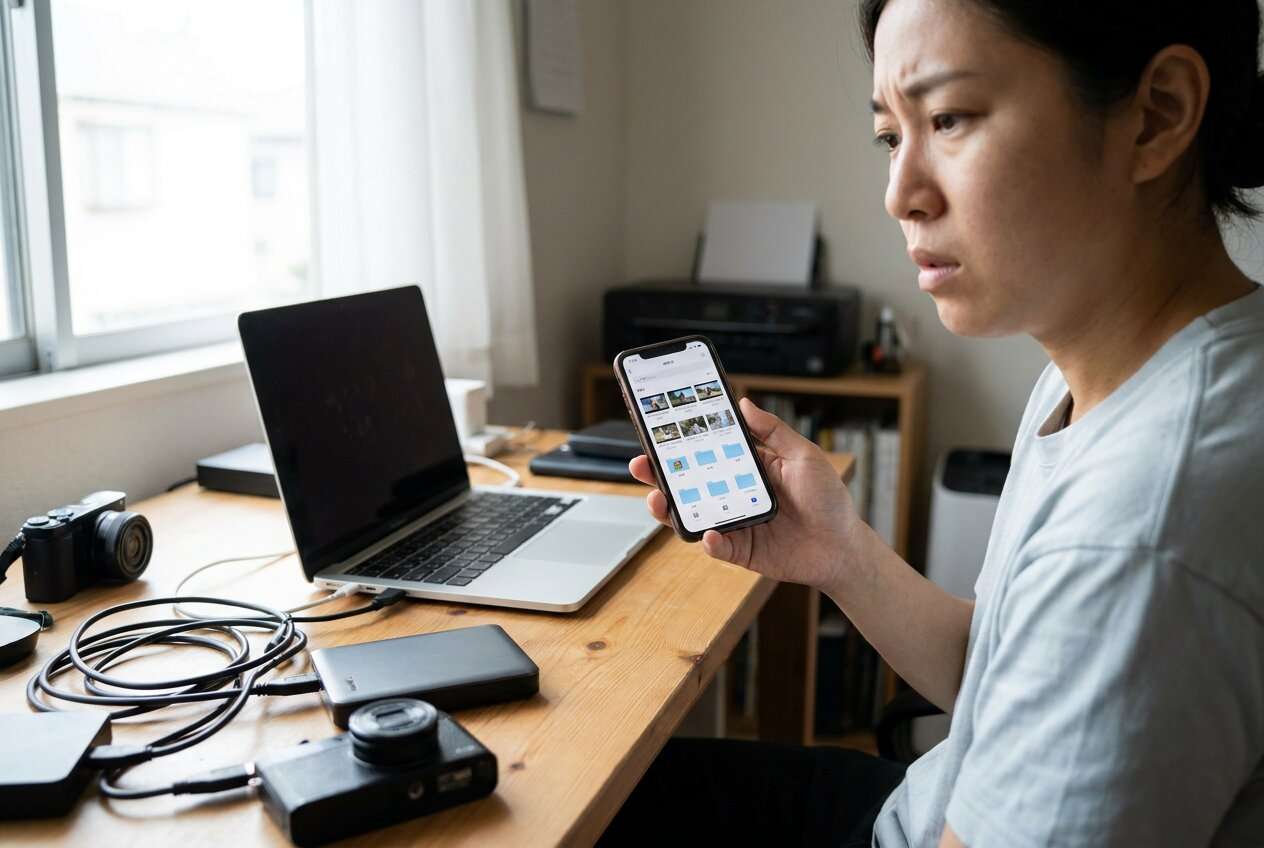
I tried to “clean up” my camera roll before backing up and ended up with missing clips, weird duplicates, and no idea what was actually safe to delete.
Reddit user, r/iPhone
Organizing creator footage on a phone before backup sounds simple, but missing one step can lead to duplicates, broken folder logic, or accidentally excluding key clips from the backup set. AI can help you plan the safest sequence and verification gates, but you’ll still need real tools to execute moves, backups, and checks on-device.
In this article
- How to plan without missing critical steps
- Why the sequence matters
- Point-of-no-return actions
- Where creators get stuck
- What “safe” looks like
- What the AI needs to know
- Using AI prompts to build a safer workflow
- AI plan vs. real device constraints
- Execute the workflow safely with Dr.Fone
Part 1. How to plan organize creator footage on a phone before backup without missing critical steps
You’ve got a phone full of mixed media: raw clips, edited exports, thumbnails, voiceovers, B-roll, and duplicates from multiple apps. You want it organized before you back it up, but you’re not sure what order prevents mistakes.
After an AI answer, the uncertainty is usually the sequence: should you delete first, or back up first? Should you merge albums, rename files, or separate “raw vs export”? Without verification points, it’s easy to “clean up” the wrong items.
Your point-of-no-return moment is any deletion, “free up space” action, or overwriting/merging that destroys original timestamps/metadata or removes the only copy of a clip—don’t reach that moment until you’ve confirmed what’s included in the backup set.

Part 2. What the AI needs to know
Share your current situation so the AI can propose a safe workflow order.
- Phone OS and model (iPhone/Android, model)
- Where footage lives (Camera roll, DCIM, app folders, SD card, cloud-synced albums)
- File types and volume (e.g., 4K video, ProRes, HEVC, audio WAV/MP3; total GB)
- Your target backup destination (computer drive, external SSD, cloud) and constraints (space, time)
- Your organization goal (by date, project, client, platform, “raw vs edits”)
- Your edit pipeline (CapCut, VN, Premiere Rush, Lightroom, etc.) and whether projects reference local media
- Current pain points (duplicates, missing dates, scattered exports, low storage)
- What must not be touched (legal/paid work, unreleased content, original masters)
- Your risk tolerance (maximum acceptable loss, whether you can re-download/re-create anything)
Part 3. Using AI prompts to build a safer organize creator footage on a phone before backup workflow
Use the prompts below to force a clear order: prepare → verify → execute → verify again.
3-1. Level 1: Basic prompt
I need a safe plan to organize creator footage on my phone before I back it up. Give me the correct sequence of checks and actions so I don’t delete or misfile anything important. Include a short “stop points” list before any irreversible action.
3-2. Level 2: Advanced prompt
Build a structured workflow to organize my phone footage before backup with three phases: Preparation, Execution, and Verification.
Separate critical steps (must do) vs optional steps (nice to have), and highlight any point-of-no-return actions (delete, overwrite, merge).
Assume I want a simple folder/albums structure (Raw / Selects / Exports) and I need to avoid duplicates and missing clips.
3-3. Level 3: Evidence prompt
Here’s my context: I’m a creator with mixed footage on my phone (iPhone 14 / Android S23), about (180 GB) of videos and photos across (Camera Roll + CapCut exports + WhatsApp). I need to organize by (Project name + date) and separate (Raw vs Exports). My backup target is (external SSD 1TB via computer), and I have only (12 GB) free space on the phone.
Create a workflow with:
- Before: inventory checks (storage, counts, date ranges, where duplicates come from)
- During: rules for what gets moved/renamed/tagged first, and what must not be touched until verified
- After: verification checklist (spot-check samples, confirm total size, confirm date coverage, confirm exports aren’t replacing raws)
Also provide a “minimum safe version” of the workflow if I only have (60 minutes) before travel.
3-4. Prompt refinement (follow-up prompts)
Convert your workflow into a checklist with gates: Gate A (inventory complete) → Gate B (backup set defined) → Gate C (backup verified) → Gate D (cleanup allowed), and list the pass/fail criteria for each gate.
Propose a naming/labeling convention that avoids ambiguity and version confusion (e.g., 2026-05-Client-Project-CamA-RAW-001), and specify exactly what fields are required vs optional.
Give me a “duplicate control plan” that distinguishes true duplicates (same file) vs near-duplicates (same scene different trim), and tell me how to avoid deleting the wrong one.
List the top 10 mistakes creators make when organizing before backup, then map each mistake to a prevention check I can perform in under 2 minutes.
Part 4. AI plan vs. real device constraints
| Planning with AI (Safe to do now) | Reality on your phone (Must be done with tools) |
|---|---|
| Define folder/album logic and naming rules | Actually moving files/albums without breaking app links |
| Create verification gates and pass/fail checks | Checking real file counts, sizes, and date coverage on-device |
| Identify point-of-no-return moments to delay | Avoiding accidental deletes/overwrites during cleanup |
| Reduce ambiguity in what “backup complete” means | Confirming a readable, restorable copy exists on the destination |
AI improves planning, but cannot execute. Your device state (storage, permissions, app media locations) determines what’s possible and what’s risky.
4-1. When to stop planning and start execution
- You can clearly name the backup set (what is included and where it currently lives).
- You have defined one organization structure you’ll actually use (not multiple competing ones).
- You have at least two verification checks that confirm completeness (coverage + spot-check).
- You have identified the first irreversible action you will delay until verification passes.
Once those are true, you’re no longer guessing—you’re choosing a controlled path forward.
Part 5. Organize creator footage on a phone before backup: execute the workflow safely with Dr.Fone
Execution now matters because this is where mistakes become permanent: mis-clicks, overwritten copies, and “cleanup” actions can remove the only usable version of a clip. To do this safely, use Dr.Fone Basic - Data Manager to complete a no-loss backup first, then apply your planned structure, and only perform irreversible cleanup after verification.
 Easily manage data through preview, delete, export, etc.
- Transfer all data between devices.
- Robust backup solutions for reliable data protection.
- Mirror screens to PC for meetings, teaching, and control.

-
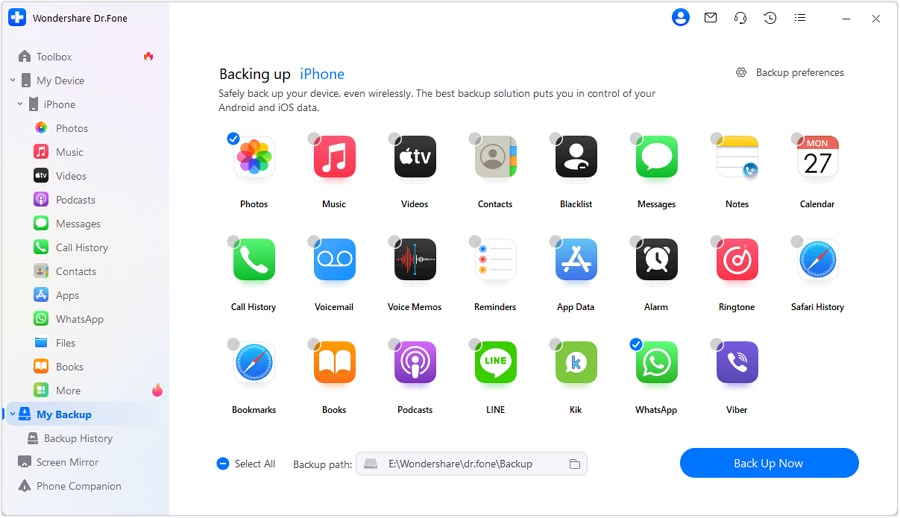
Step 1 Run a no-loss backup first (open the backup feature)
Before any deletions or aggressive reorganization, start by accessing the backup feature so your first move is always “create a safe copy,” not “clean up.”
-
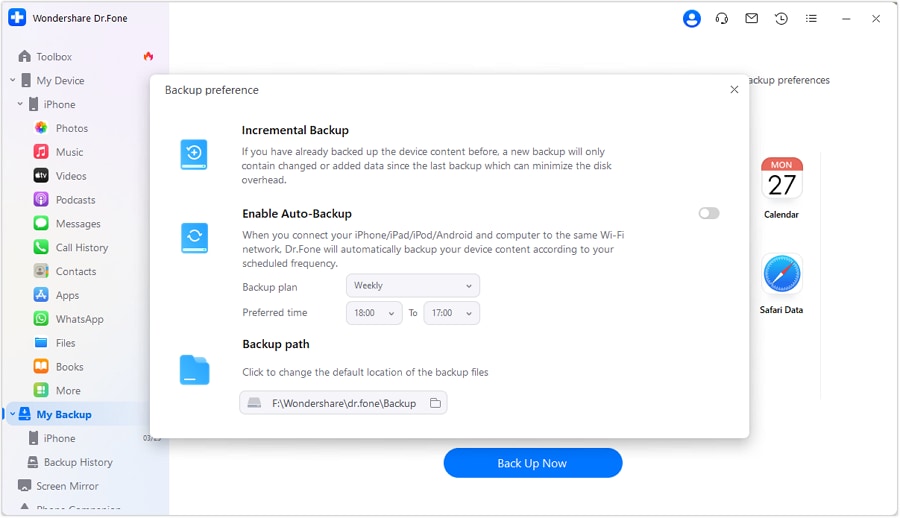
Step 2 Set backup preferences and define your backup set
Make sure you know what is included in the backup set (which locations/apps/albums) before proceeding. This helps prevent accidental exclusions.
-
Step 3 Complete the backup process
Run the backup to your chosen destination before changing album structures, moving files that apps may reference, or doing any dedupe work.

-
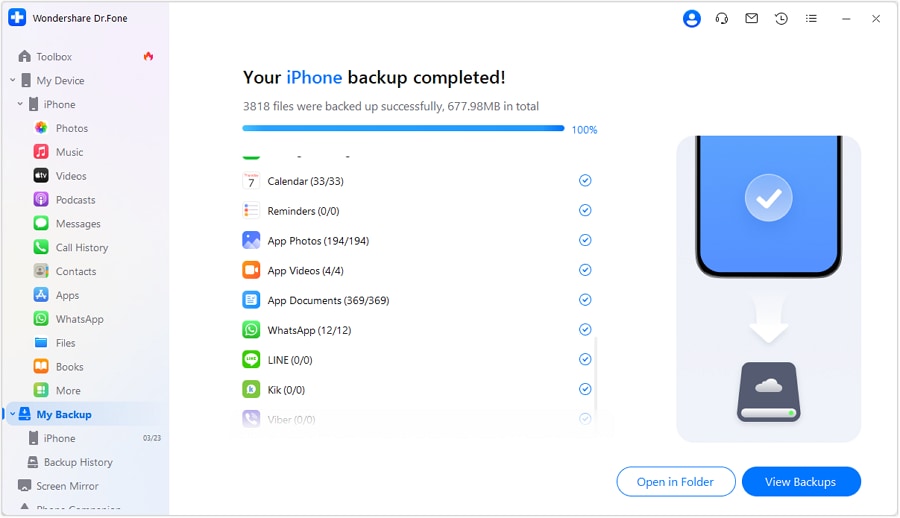
Step 4 Verify the backup, then organize and only perform irreversible cleanup
Verify that key samples (recent, oldest, largest, and most important projects) are present and readable. Only after verification passes should you apply the planned organization structure and do any point-of-no-return cleanup (delete/overwrite/merge).




Conclusion
Use AI to define the sequence, gates, and verification checks for organizing creator footage before backup; then use real tools like Dr.Fone to perform the backup and organization actions safely, delaying irreversible cleanup until verification is complete.
FAQ
-
Should I delete duplicates before I back up?
No. Deleting is a point-of-no-return; back up first, then dedupe after you can confirm a restorable copy exists.
-
What’s the fastest way to confirm the backup isn’t missing footage?
Verify coverage (date range + approximate total size) and spot-check a small sample: newest, oldest, largest files, and one file from each critical project.
-
Will organizing files break my editing apps’ projects?
It can. Some apps reference local file paths; moving/removing source media may cause missing media in projects. Treat active projects as “do not touch” until exports and essential sources are verified.
-
How do I avoid mixing “raw” and “exports”?
Define a rule before execution (e.g., Raw = camera originals; Exports = rendered edits only) and don’t rename/move until you’ve confirmed which folder/app each type originates from.
-
When is it safe to free up space on my phone?
Only after you’ve verified the backup is complete and readable, and you’ve confirmed the files you plan to remove are truly redundant (not the only copy, not needed by a project).
 Add Wondershare Dr.Fone as a preferred source on Google





