 Effortlessly manage data through preview, delete, export, etc.

 100% Security Verified | No Subscription Required | No Malware

 :
: 
 ChatGPT
 Perplexity
 Gemini
 Claude
 Grok
Grok

I restored my new phone from a backup, but a big chunk of my photos didn’t come back—some albums are missing and some Live Photos are now just still images. I don’t know if the backup failed, if it’s still syncing, or if the originals were never in the backup at all.
Apple Support Community user
Missing photos in a backup is usually a workflow problem—one skipped setting, one wrong account, or one “optimize storage” toggle can silently exclude originals.
AI is useful here because it can turn a vague situation (“my backup is missing photos”) into a sequenced checklist: what to confirm first, what evidence to gather, and what not to touch until you’re sure.
AI can’t inspect your phone, accounts, or backup files directly, so the actual recovery, export, or transfer must be done with real device tools after the plan is verified.
In this article
- Part 1. Plan the diagnosis without missing critical steps
- Common “missing photos” patterns
- Identify the source of truth
- Avoid the point-of-no-return actions
- Move only after verification
- Part 2. What the AI needs to know
- Part 3. Using AI prompts to build a safer workflow
- Part 4. When to stop planning and start execution
- Part 5. AI plan vs. real device constraints
Part 1. Plan the diagnosis without missing critical steps
You backed up your phone, restored a new device, or opened a backup—and a chunk of photos is missing. Sometimes only recent photos are gone; other times whole albums disappear, Live Photos turn into stills, or “Screenshots” is empty.

1-1. Common “missing photos” patterns
Missing photos can present as:
- Only recent photos missing
- Entire albums missing or partially present
- Live Photos turning into still images
- Specific albums (like Screenshots) appearing empty
1-2. Identify the source of truth
After an AI answer, the uncertainty usually remains: Which system is the source of truth (device storage vs cloud)? Is the backup a device backup, a cloud photo sync, or both? Did the backup capture originals or placeholders? Without a strict sequence, you can “fix” the wrong layer and make the gap bigger.
1-3. Avoid the point-of-no-return actions
There’s also a point-of-no-return moment: overwriting a good backup with a new one (or disabling a cloud photo library and choosing a destructive option like removing originals) can permanently reduce what’s recoverable—so verification has to come first.
1-4. Move only after verification
The safest approach is: define what’s missing, confirm where originals likely exist, record baseline evidence, then execute extraction/transfer using real tools.
Part 2. What the AI needs to know
Share the minimum facts needed to map your situation to the right backup layer and failure point.
- Phone type and OS (e.g., iPhone 14 on iOS 17.5 / Samsung S22 on Android 14)
- Where you expected photos to be backed up (iCloud Photos, Google Photos, OneDrive, computer backup, external drive, etc.)
- What “backup” means in your case (full device backup vs photo-sync service vs manual copy)
- Where you noticed the missing photos (on the phone, in the cloud, in the backup file, after restore, on a PC/Mac)
- Approx. how many photos are missing and date range (e.g., “~800 photos, mostly May–June”)
- Whether “Optimize Storage” / “Free up space” is enabled in any photo app
- Whether you recently switched accounts, phones, SIMs, regions, or family/shared libraries
- Any recent events: restore, reset, app reinstall, storage full, battery died during backup, interrupted sync
- What you can still access right now (the old phone, the new phone, the cloud account, the computer backup)
Part 3. Using AI prompts to build a safer workflow
Use these prompts to force a clear sequence, define evidence, and avoid destructive steps before you confirm what’s actually missing.
3-1. Level 1: Basic Prompt
My phone backup is missing photos. Help me create a step-by-step diagnostic plan to figure out whether the photos were never backed up, are still syncing, or exist only in the cloud as placeholders. Include what to check first and what actions to avoid until I confirm where the originals are.
3-2. Level 2: Advanced Prompt
Build a structured workflow for “photos missing from phone backup” with three sections: Preparation, Execution (non-destructive checks only), and Verification.
- Mark each step as Critical or Optional.
- Include decision points (IF/THEN) for iCloud Photos vs Google Photos vs local device backup.
- Include a “stop” rule before any irreversible action (overwriting backups, factory reset, turning off photo library with removal).
3-3. Level 3: Evidence Prompt
I need an evidence-driven plan to explain why photos are missing from my backup and how to prevent further loss.
Context:
- Device: (iPhone 13, iOS 17.4)
- Photo system: (iCloud Photos ON, Optimize Storage ON)
- Backup type I relied on: (computer backup + iCloud)
- Symptom: (photos from 2024-04-01 to 2024-05-15 missing after restore; albums partially present)
- Access I still have: (old phone is available; Mac backup exists; iCloud storage near full)
Give me:
1) Checks BEFORE I touch settings (what screens/counters to record: photo counts, “Last synced”, iCloud storage, Recently Deleted, hidden album).
2) Checks DURING non-destructive troubleshooting (how to confirm originals vs placeholders; how to detect partial sync or account mismatch).
3) Checks AFTER each change (what should increase/decrease, what proves the issue is resolved).
Also list the top 5 failure causes that match this context and what evidence would confirm each.
3-4. Prompt Refinement
Create a single-page checklist with “Do / Don’t” actions, and put any irreversible actions into a separate “Forbidden until verified” box.
Ask me 10 yes/no questions that will uniquely identify whether this is a sync issue, a backup-scope issue, an account issue, or a storage/optimization issue—then give different next steps for each outcome.
Define what “missing” means in measurable terms (counts, date ranges, albums) and give me a verification method that doesn’t rely on scrolling the camera roll.
Give me a decision tree that ends in exactly one of these conclusions: (A) photos never existed on device, (B) photos exist only in cloud, (C) photos exist on old device, (D) photos exist in a prior backup snapshot, (E) photos were deleted. For each, list the safest extraction path.
List the specific data I should capture as proof before changes (screenshots/logs), and where each piece of evidence will be found on iOS/Android.
Part 4. When to stop planning and start execution
- You can state which system is the source of truth (old phone storage vs cloud library vs computer backup) and why.
- You recorded baseline evidence (photo counts, date range missing, sync status, storage status, Recently Deleted/Trash state).
- You identified one safe path that does not overwrite backups or delete originals.
- You named the irreversible actions to avoid until recovery/export is complete (e.g., overwriting backups, factory reset, disabling photo library with removal options).
If those are true, you’re ready to move from diagnosis to controlled extraction/transfer.
Part 5. AI plan vs. real device constraints
| AI can | Device reality |
|---|---|
| AI can: sequence checks to avoid overwriting good data | Device reality: one wrong tap can replace backups or remove local originals |
| AI can: propose decision trees by backup type | Device reality: your setup may mix sync + backup + multiple accounts |
| AI can: define verification metrics (counts, dates, albums) | Device reality: counts differ across apps due to hidden, deleted, or unsupported formats |
| AI can: highlight risk moments and “stop rules” | Device reality: execution needs tools to access, extract, and transfer safely |
AI improves planning and reduces avoidable mistakes, but it cannot access your phone, read your backup contents, or perform transfers—execution requires real device software.
Recommended Tool: Execute the Workflow Safely
Execution now matters because the goal is to capture what still exists (on device, in backups, or in accessible libraries) before any change reduces recoverability. To do that in a controlled way, you can use Dr.Fone Basic - Data Manager once you’ve verified the safest source of truth.
 Easily manage data through preview, delete, export, etc.
- Transfer all data between devices.
- Robust backup solutions for reliable data protection.
- Mirror screens to PC for meetings, teaching, and control.

-
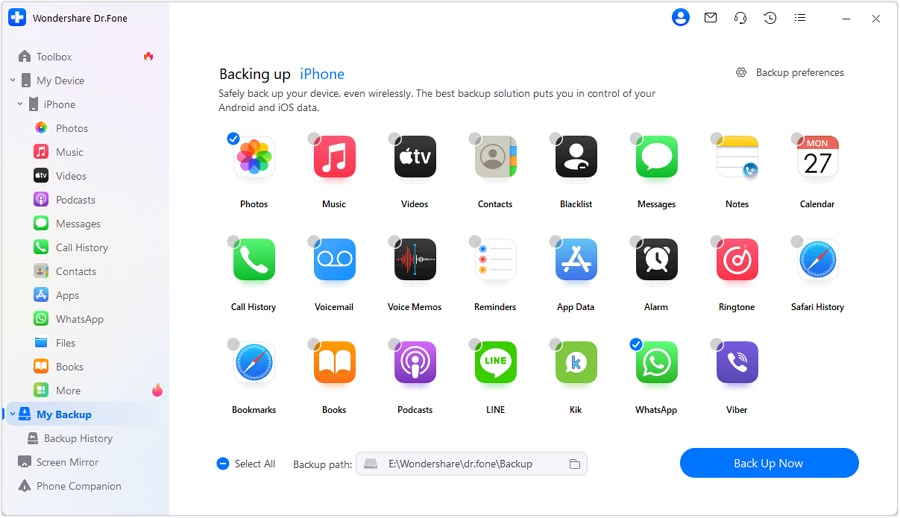
Step 1 Open the backup feature and choose the verified source
Use the planning results to select the correct source of truth (device storage, a computer backup, or another confirmed source)—not the one you merely expected.
-
Step 2 Run the process without changing risky settings
Keep the process non-destructive while you’re still confirming where originals live. Avoid overwriting backups or turning off photo libraries with removal options during this phase.

-
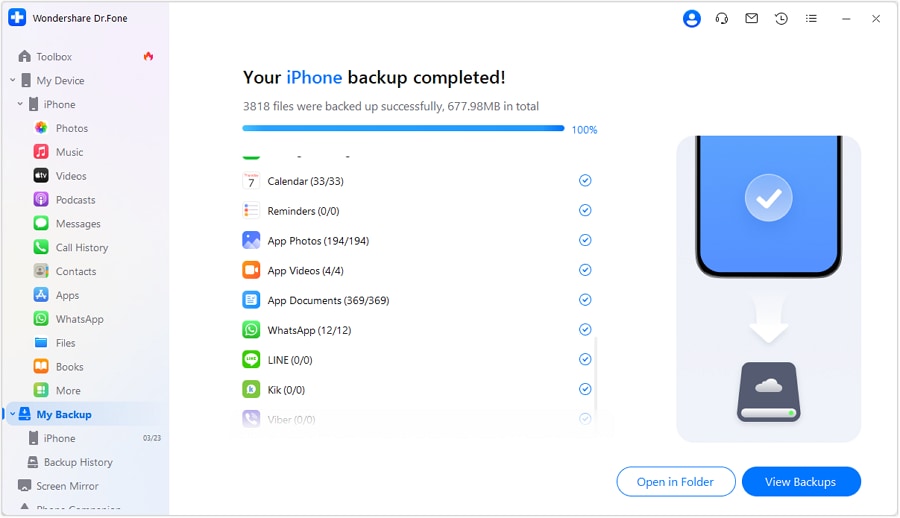
Step 3 Extract the missing date ranges/albums first
Prioritize exporting the missing range (dates/albums) into a separate folder/location so you can verify completeness before mixing it back into your main library.
-
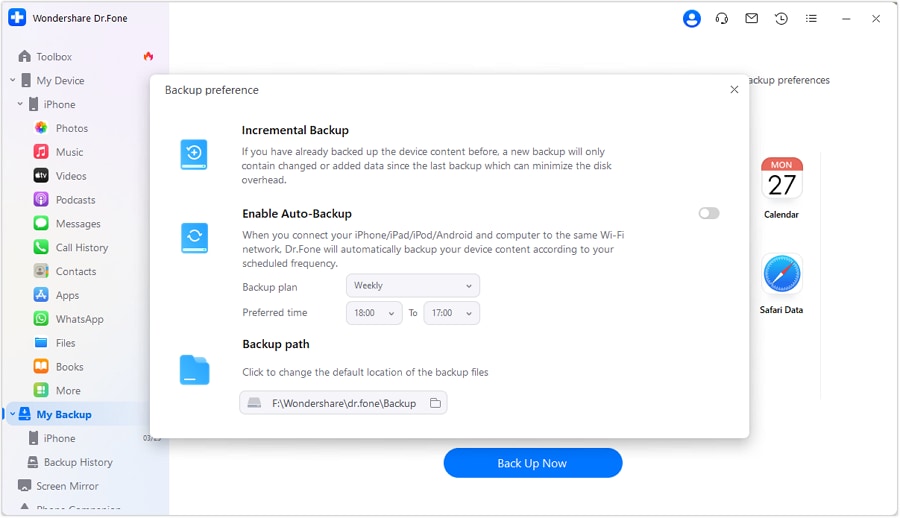
Step 4 Verify counts and originals before irreversible actions
Use your baseline metrics (counts, date coverage, album presence) and spot-check originals (not just thumbnails) before you overwrite backups, factory reset, or apply destructive cloud options.
Key limitation to remember: no tool can guarantee recovery after you overwrite a backup or remove originals—treat those as “only after verification” actions.




Conclusion
Use AI to impose structure—define what “missing” means, identify the source of truth, and set “do not cross” risk rules—then use a real tool to execute extraction and transfer once verification is complete.
FAQ
-
Is a “phone backup” the same as a photo cloud sync (iCloud Photos/Google Photos)?
No. A device backup and a photo-sync library can be separate systems with different scopes, timing, and failure modes. -
What’s the biggest risk when photos are missing?
Accidentally overwriting an older good backup with a newer incomplete one, or taking a destructive cloud action before extracting originals. -
How do I verify missing photos without scrolling for hours?
Use measurable checks: total photo/video counts, date-range sampling, album counts, and confirming whether items are originals vs placeholders. -
Why do I see photos on the phone but not in the backup?
Common causes include backups excluding cloud-synced items, interrupted sync, storage optimization, account mismatch, or the photos living only in an app/library not covered by your backup type. -
When should I stop changing settings and start extracting?
As soon as you’ve identified where the best copy likely lives and you’ve captured baseline evidence—then prioritize extraction of the missing range before experimenting further.
 Add Wondershare Dr.Fone as a preferred source on Google





