 Effortlessly manage data through preview, delete, export, etc.

 100% Security Verified | No Subscription Required | No Malware

 :
: 
 ChatGPT
 Perplexity
 Gemini
 Claude
 Grok
Grok

I thought moving from Android to iPhone would be simple, but I kept realizing later that something didn’t transfer—or I had to reset and start over because I missed a prerequisite.
Forum user
Moving from Android to iPhone is easy to start and surprisingly easy to mess up if you skip one prerequisite (Wi‑Fi state, storage, account access, message handling, or encryption).
AI can help you map a clean sequence, decide what to transfer with Move to iOS vs a desktop tool, and define verification checks so you don’t discover missing photos or chats after you’ve already switched phones.
AI can’t access your devices, read your actual storage, or run the transfer itself—so once the plan is correct, you still need real tools to execute, monitor progress, and confirm what actually moved.
In this article
- How to plan without missing critical steps
- Why “sequence” matters more than “which tool”
- Prerequisites that commonly break transfers
- Irreversible moments to avoid too early
- Verification gates before you commit
- What the AI needs to know
- Using AI prompts to build a safer workflow
- AI plan vs. real device constraints
- When to stop planning and start execution
Part 1. How to Plan move to ios or desktop transfer tool for android to iphone Without Missing Critical Steps
You’re switching to a new iPhone and trying to choose between Move to iOS (during iPhone setup) or a desktop transfer tool (after setup). You also want to avoid losing time on repeated attempts, partial transfers, or “some items didn’t move” surprises.
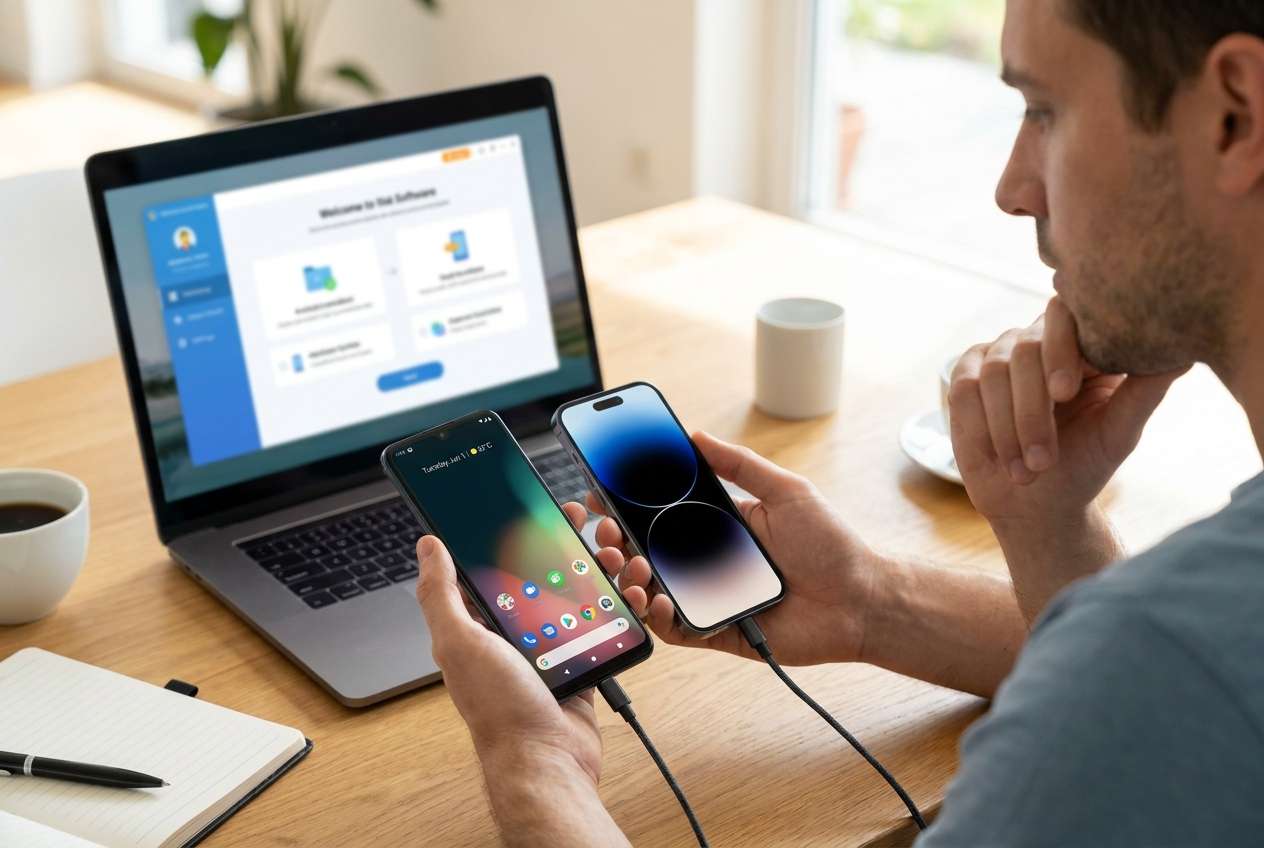
1-1. Why “sequence” is the real problem
Even after you ask AI which option is “best,” you can still feel stuck because the real problem is usually sequence: what must be done before setup, what can wait, and what must be verified before you commit.
1-2. What each approach is constrained by
Move to iOS (during iPhone setup)
- Tied to iPhone setup flow.
- Best considered when your iPhone is not yet set up.
Desktop transfer tool (after setup)
- Often fits better when the iPhone is already set up.
- Can support a more controlled, repeatable process when you need retries and verification gates.
1-3. The “point of no return” you should delay
The point of no return is often erasing/resetting the iPhone to rerun Move to iOS (or wiping the Android after you think everything transferred). Don’t reach any reset/erase step until your verification checklist is complete and you’ve confirmed what’s safely backed up.
1-4. Plan with verification gates before irreversible actions
Before any reset/erase actions, define what “done” means (totals + spot checks) and decide what evidence you must see on-device before proceeding.
Part 2. What the AI Needs to Know
Share the specifics below so the workflow can be planned around your devices, data types, and risk tolerance.
- Android model + Android version
- iPhone model + iOS version
- Whether the iPhone is already set up (yes/no)
- Data to move (contacts, photos/videos, SMS, WhatsApp, files, apps list, call logs, notes)
- Approximate size of data (e.g., photos/videos ~80 GB)
- Where your data currently lives (device storage vs Google Photos/Drive vs SD card)
- Messaging/chat apps and priorities (WhatsApp, LINE, Telegram, Signal)
- Any work/MDM restrictions or corporate accounts
- Available hardware/time (Windows/Mac access, cables, stable Wi‑Fi, hours available)
- Your tolerance for risk/downtime (need both phones usable during transfer vs can pause usage)
- Whether you can sign into key accounts (Google/Apple IDs, 2FA access)
Part 3. Using AI Prompts to Build a Safer move to ios or desktop transfer tool for android to iphone Workflow
Use the prompts below to force a clear sequence with verification gates before any irreversible actions.
3-1. Level 1: Basic Prompt
I’m moving from Android to iPhone and deciding between Move to iOS and a desktop transfer tool. Plan the safest step-by-step workflow and list what I must verify before I consider the migration “done.” Keep it planning-only—no execution instructions that assume access to my devices.
3-2. Level 2: Advanced Prompt
Create a structured workflow to migrate Android → iPhone using either Move to iOS (during setup) or a desktop transfer tool (after setup).
Split it into Preparation / Execution / Verification, and label each step as Critical or Optional. Include “stop points” where I should not proceed unless specific checks pass, especially before any reset/erase actions.
3-3. Level 3: Evidence Prompt
My situation: Android (Samsung S21, Android 14) → iPhone (iPhone 15, iOS 17). The iPhone is already set up. Data: contacts, device photos/videos (~60 GB), SMS, and WhatsApp chats (high priority). I have a Windows PC and cables; Wi‑Fi is sometimes unstable.
Build a plan that chooses the best approach (Move to iOS vs desktop transfer) and includes:
- Checks before transfer (storage, account access, chat backup readiness)
- Checks during transfer (what to monitor, what failures look like)
- Checks after transfer (sample-based verification + totals where possible)
Also list the irreversible moments (e.g., erasing iPhone to rerun Move to iOS, wiping old phone) and the exact evidence I should collect before taking those steps.
3-4. Prompt Refinement
Convert this into a checklist with three columns: Step, Pass/Fail evidence, If it fails, what I do next.
List the top 10 failure modes for my scenario and rank them by likelihood and impact, then add prevention steps for each.
I want minimum downtime. Propose a sequence that keeps both phones usable until the final cutover, and define what ‘final cutover’ means.
For WhatsApp specifically, add a gated mini-workflow: prerequisites, transfer path options, and how I confirm chats/media are complete before I delete anything.
Ask me only the missing questions you need (max 12). After I answer, output a final one-page plan with a verification checklist.
Part 4. AI Plan vs. Real Device Constraints
| Planning item | What AI can do | What AI cannot do | What you must confirm on-device |
|---|---|---|---|
| Choose Move to iOS vs desktop tool | Compare tradeoffs and sequence steps | Detect your actual device state | iPhone setup status, network stability, cable reliability |
| Define what data should transfer | Build a scope checklist | See your real photo count / chat size | Totals (photos/videos), account sync state, WhatsApp readiness |
| Create verification gates | Provide pass/fail criteria | Prove completeness | Spot-check albums, search messages, confirm chats/media present |
| Identify irreversible moments | Flag resets/overwrites and timing | Prevent you from erasing | You pause before erase/reset until evidence is collected |
AI improves planning, but cannot execute the transfer, access your devices, or validate outcomes—those require real device actions and dedicated tools.
Part 5. When to Stop Planning move to ios or desktop transfer tool for android to iphone and Start Execution
- You have a written scope: exactly which data types must move, and which can be re-synced later.
- You’ve identified the irreversible moments (erase/reset/wipe) and added explicit “do not proceed unless…” checks.
- You have the prerequisites ready (accounts/2FA, power, storage headroom, stable connection/cables, time window).
- You have a verification method (totals + spot checks) and a fallback path if the first attempt fails.
Once those are true, you’re no longer deciding—you’re following a controlled sequence with evidence gates.
Move to ios or desktop transfer tool for android to iphone: Execute the Workflow Safely with Dr.Fone
Execution now matters because the biggest losses happen during real transfers: interruptions, partial copies, mismatched data categories, and accidental overwrites after a “looks fine” assumption. To carry out the plan on a computer, you can use Dr.Fone - Phone Transfer.
 Move data between iOS to Android and vice versa.
- Transfer contacts, SMS, photos, videos, music, and more types.
- Available with all phones with Android and iOS versions.
- Simple, click-through process.

-
Step 1 Lock the scope and capture baseline counts
On both phones, confirm what you’re moving and record baseline totals (for example: photo/video counts, key chat presence, storage used) so you can verify after execution. AI can suggest what to count, but it can’t see your actual totals or confirm what’s truly on-device.

-
Step 2 Start the Android → iPhone transfer path on your computer
Use the transfer tool on your computer and keep devices connected and uninterrupted. AI cannot perform the transfer, maintain the connection, or resolve device prompts—execution must happen in the tool and on the devices.

-
Step 3 Choose the data categories and run the transfer to completion
Follow your planned scope (what must move vs what can be re-synced later) and let the transfer complete before making changes. This is where interruptions and partial copies can occur if the connection drops.

-
Step 4 Verify completion before any reset/erase
Verify against your checklist (totals + targeted spot checks), and only then consider irreversible steps like erasing the iPhone to rerun a method or wiping the old Android. AI can define what “verified” means, but only you can confirm the evidence on the devices before crossing the point of no return.




Conclusion
Use AI to design a risk-aware sequence with clear verification gates and “do not proceed” moments, then use Dr.Fone to carry out the actual Android-to-iPhone transfer and confirm results on real devices before any irreversible reset or wipe.
FAQ
-
Should I use Move to iOS or a desktop transfer tool?
Choose based on your constraints: Move to iOS is tied to iPhone setup, while a desktop tool is often better when the iPhone is already set up or you need a more controlled, repeatable process. Your plan should include verification gates either way.
-
What’s the most dangerous mistake in this migration?
Erasing/resetting a device (or wiping the Android) before you have proof that critical items—especially chats and photos—are complete on the iPhone.
-
How do I verify without checking every single file?
Use a mix: baseline totals (counts/sizes where available) plus spot checks of high-value items (recent photos, oldest photos, key conversations, specific attachments).
-
When should I rerun the transfer instead of patching missing items?
Rerun when the missing data is systemic (entire categories absent, large date ranges missing, repeated failures) or when your verification shows you can’t trust the completeness.
-
Can AI guarantee my WhatsApp or photos transferred correctly?
No. AI can only design the checks; it can’t access your chat database, media store, or iPhone Photos library to confirm completeness.
 Add Wondershare Dr.Fone as a preferred source on Google





