 Effortlessly manage data through preview, delete, export, etc.

 100% Security Verified | No Subscription Required | No Malware

 :
: 
 ChatGPT
 Perplexity
 Gemini
 Claude
 Grok
Grok

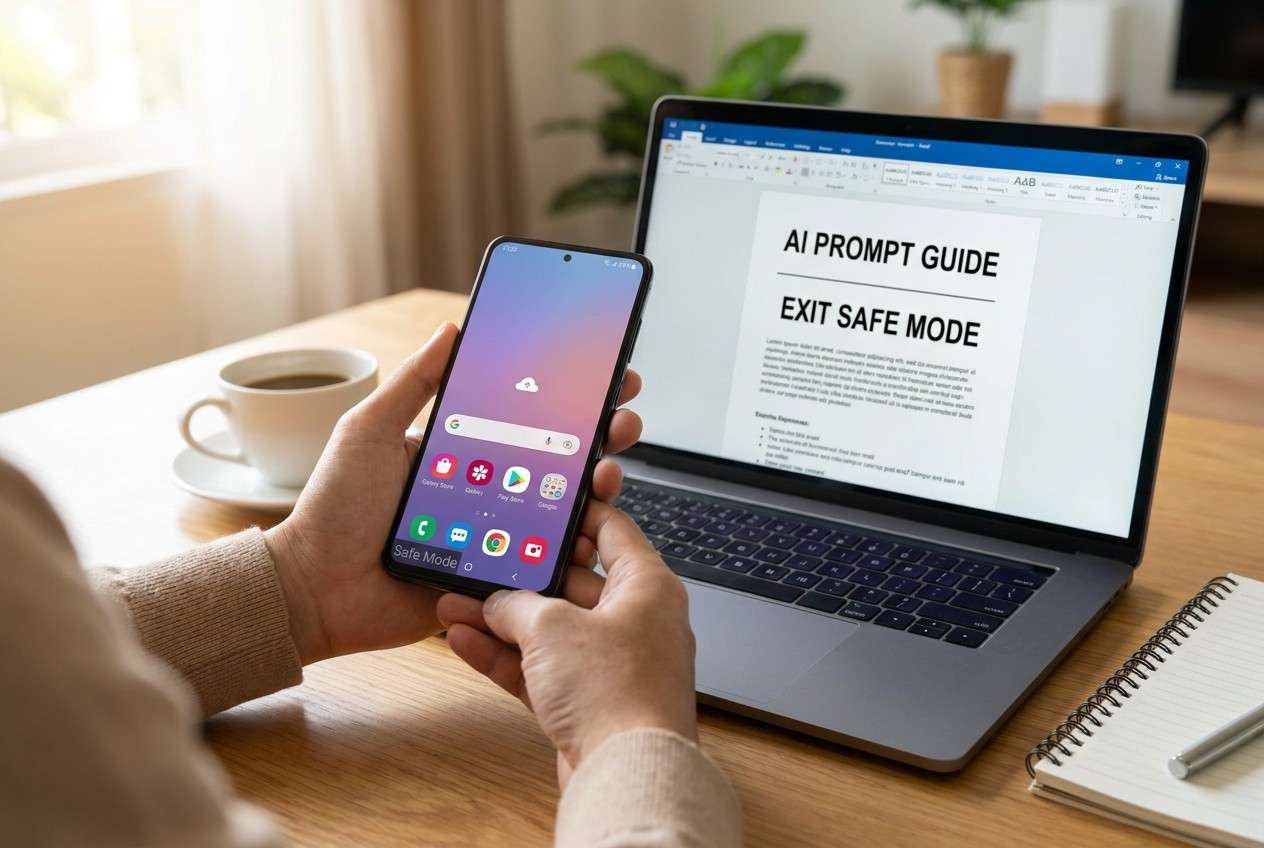
My phone says “Safe mode” after I restarted it, and it won’t go away no matter how many times I reboot. It feels like I’m stuck in a diagnosis mode.
Forum user
Safe Mode can be useful for diagnosis, but it’s frustrating when your Android stays stuck in it—especially after you just restarted or finished checking a problematic app. On devices like a Samsung Galaxy S23 or Google Pixel 7, it may keep showing “Safe mode” on the screen and nothing seems to change after several minutes.
An AI tool (like ChatGPT or Gemini) can help you interpret symptoms, narrow likely causes (buttons, apps, settings, OS glitches), and choose the lowest-risk next step based on what you already tried.
In this article
- Why Android stays in Safe Mode after diagnosis and what it means
- Common patterns that keep Safe Mode enabled
- What you may notice while stuck in Safe Mode
- Why the uncertainty matters (physical vs system trigger)
- Before you prompt the AI
- Using AI prompts to diagnose Android Safe Mode stuck safely
- AI output vs reality: what you verify on the phone
- When to stop troubleshooting Android Safe Mode and avoid risks
- Exit Android Safe Mode safely with Dr.Fone System Repair (Android)
Part 1. Why Android stays in Safe Mode after diagnosis and what it means
1-1. Common patterns that keep Safe Mode enabled
Safe Mode usually turns off after a normal restart, so staying in it often points to one of a few patterns: a button is being held (or the case is pressing it), the OS keeps triggering Safe Mode at boot, or the phone believes there’s a persistent stability issue.
1-2. What you may notice while stuck in Safe Mode
This often happens right after you uninstall an app, tap Restart, or complete a quick “diagnosis” step (like testing recent apps, clearing storage, or checking for updates). You may notice third‑party apps are disabled, widgets disappear, and performance feels different.
1-3. Why the uncertainty matters (physical vs system trigger)
The uncertainty is the hardest part: it’s unclear whether the phone is still “in a diagnostic state,” or whether a physical or system trigger is forcing Safe Mode every time it boots.
1-4. Before you prompt the AI
Collect a few quick facts so the AI can narrow causes without guessing:
- Android brand/model and Android version (if known)
- What you did right before Safe Mode appeared (install/update/uninstall/restart)
- Whether “Safe mode” watermark appears after every reboot
- Any button issues (sticky volume keys) or tight case/screen protector
- Any recent drops, water exposure, or charging/USB issues
Part 2. Using AI prompts to diagnose Android Safe Mode stuck safely
2-1. Level 1: Basic Prompt
My Android is stuck in Safe Mode after I did a diagnosis step (restart/uninstall/update). I want the lowest-risk ways to exit Safe Mode without data loss. Ask me the minimum questions you need, then give a short ranked list of likely causes and the safest next steps.
2-2. Level 2: Advanced Prompt
Act like a cautious Android triage assistant. My phone keeps booting into Safe Mode.
Goal: exit Safe Mode with minimal risk.
Constraints: avoid factory reset unless clearly necessary; avoid steps that could erase data.
Please:
1) Ask up to 7 clarifying questions.
2) Rank the most likely causes (hardware button/case pressure, OS glitch, faulty app or admin policy, accessibility/boot settings, other).
3) For each cause, propose one low-risk test and one next step if the test fails.
4) Flag any step that might risk data or security.
2-3. Level 3: Evidence Prompt
Diagnose why my Android won’t exit Safe Mode using the evidence below. Provide: (a) top 3 likely causes with reasoning, (b) safest sequence of actions, (c) stop signals where I should avoid further trial-and-error.
Evidence
- Android model: (e.g., Samsung Galaxy S22)
- Android version: (e.g., Android 14)
- When Safe Mode started: (e.g., after uninstalling an app + tapping Restart)
- What the screen shows: (e.g., “Safe mode” watermark bottom-left)
- Does Safe Mode return after reboot?: (Yes/No)
- Buttons/case: (e.g., volume down feels stuck; tight case installed)
- Recent changes: (e.g., system update, new launcher, VPN, accessibility app)
- Device health: (e.g., storage nearly full; overheating; random restarts)
- What I already tried: (e.g., normal restart; removed case; powered off 2 minutes)
- Data priority: (e.g., high—photos and chats not backed up)
Safety requirement: start with checks that don’t modify data, then only suggest deeper steps with explicit risk labels.
2-4. Prompt Refinement (follow-ups that force specificity)
If the AI’s answer feels generic, use follow-ups that force specificity:
“What 5 yes/no questions most efficiently distinguish between a stuck volume button and an OS-triggered Safe Mode?”
“Rank the causes again assuming Safe Mode returns after every reboot, and tell me what evidence would change the ranking.”
“Separate your plan into physical checks, settings checks, and system-level actions—no overlap.”
“What single observation would be the strongest evidence that a third-party app is forcing Safe Mode?”
“List steps I should avoid if my data is not backed up, and explain why each is risky.”
Part 3. AI output vs reality: what you verify on the phone
AI can guide decisions, but your device behavior is the final proof.
| AI suggests | What you verify on the phone |
|---|---|
| “A stuck volume-down key is likely.” | Volume button feels jammed, case presses the key, or Safe Mode appears immediately on boot. |
| “A normal restart should exit Safe Mode.” | Safe Mode watermark disappears after reboot and third‑party apps return. |
| “A recent app or admin policy may be involved.” | Safe Mode started right after installing an app with special permissions (accessibility/device admin). |
| “System instability may be forcing Safe Mode.” | Safe Mode persists despite removing case and checking buttons; reboots are abnormal or update recently failed. |
AI helps you choose a low-risk path; execution still depends on the device’s actual responses, hardware condition, and whether system files are intact.
Part 4. When to stop troubleshooting Android Safe Mode and avoid risks
Stop if you’re repeating actions without new evidence—Safe Mode loops can mask deeper system issues.
- Safe Mode persists after multiple clean restarts and after removing any tight case or accessories
- Volume/power buttons behave inconsistently (sticking, double-pressing, triggering actions by themselves)
- The phone shows boot instability (random reboots, overheating, “System UI not responding” even in Safe Mode)
- You’re about to try high-impact steps (factory reset, risky flashing) without a backup or clear diagnosis
Once you’ve narrowed likely causes with AI, it’s usually safer to switch from experimentation to a controlled execution method that targets the system condition directly.
Part 5. Exit Android Safe Mode safely with Dr.Fone System Repair (Android)
If your checks suggest Safe Mode is being re-triggered by an underlying system issue (rather than a simple button/case problem), Dr.Fone - System Repair (Android) becomes relevant as the practical execution step. Instead of continuing trial-and-error menus, it helps you apply a guided system repair workflow—especially for common Samsung scenarios—while you stay focused on protecting data and avoiding unnecessary resets.
 Fix Android instantly – no skills needed.
- Solve boot loop, black screen, won’t turn on, etc.
- High success rate for all system issues.
- User-friendly interface with easy-to-follow steps.

Follow a guided flow and keep the process low-risk by confirming details carefully and avoiding unnecessary changes while your data isn’t backed up.
-
Step 1 Open System Repair (Android)
Launch Dr.Fone and choose System Repair to start a guided Android repair flow without improvising steps.

-
Step 2 Connect your Android device
Plug in via USB and keep the connection stable (avoid loose cables/ports that can interrupt the process).

-
Step 3 Select the Android repair option
Choose the repair option that matches your symptoms and proceed with the guided workflow.

-
Step 4 Confirm device details
Verify the model and other identifiers to reduce mismatch risk before proceeding.

-
Step 5 Run the repair workflow
Follow the on-screen instructions until the device completes the process and reboots normally.




Conclusion
Use AI to translate your Safe Mode symptoms into a ranked set of likely causes and low-risk next steps, then hand off the execution to a controlled repair workflow like Dr.Fone - System Repair (Android) if the issue points to a deeper system-level trigger rather than a simple restart or button/case fix.
FAQ
-
Why does my Android keep rebooting into Safe Mode?
Most commonly because a volume button is being pressed at boot (often by a case), or the system is unstable after an update/app change and keeps triggering Safe Mode behavior.
-
How do I know if a stuck button is causing Safe Mode?
If Safe Mode appears immediately on every boot and the volume key feels sticky or the case is tight around the buttons, that’s strong evidence.
-
Will restarting always turn off Safe Mode?
Usually yes, but not if a physical button trigger persists or if the OS is stuck in an abnormal boot state.
-
Is it safe to uninstall recent apps while in Safe Mode?
It’s often low-risk, but do it selectively: remove the most recent or suspicious apps first, especially those with accessibility or device admin privileges.
-
What should I avoid if I haven’t backed up my data?
Avoid factory resets and any step that explicitly warns about erasing data unless you’ve exhausted safer checks and confirmed the risk is acceptable.
 Add Wondershare Dr.Fone as a preferred source on Google





