 Effortlessly manage data through preview, delete, export, etc.

 100% Security Verified | No Subscription Required | No Malware

 :
: 
 ChatGPT
 Perplexity
 Gemini
 Claude
 Grok
Grok

I pulled an old Android out of a drawer and none of the PINs I usually use work. Now it keeps saying “Wrong PIN” and sometimes makes me wait before trying again. I just want the safest way to figure out what’s going on without making it worse.
Reddit user, r/AndroidQuestions
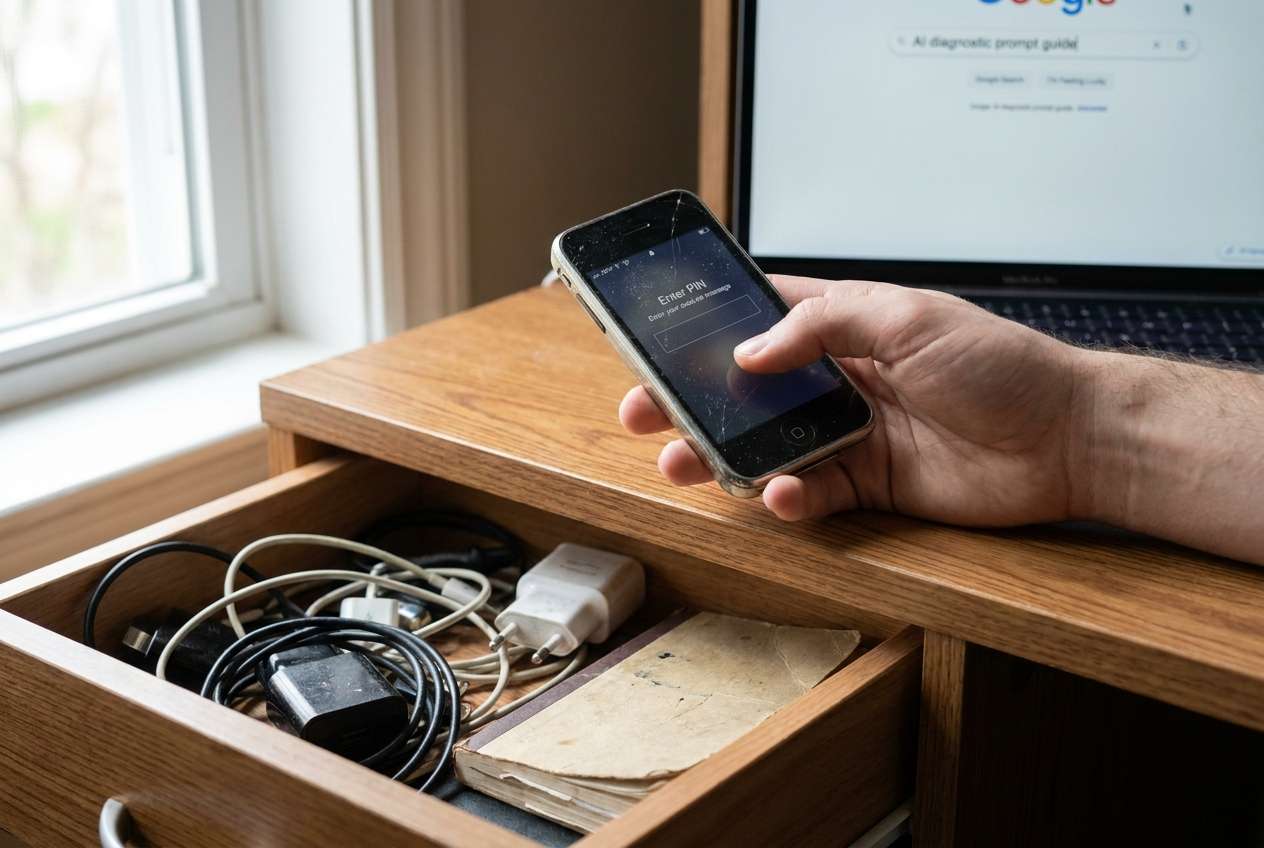
You pulled an old phone out of a drawer, tried the usual PIN, and now it won’t unlock. This often happens on older Android devices that haven’t been used in months—and after a few attempts, it can feel like you’re locked out for good.
AI (like ChatGPT or Gemini) can help you map the situation: what lock type you’re seeing, what “too many attempts” messages imply, and which low-risk checks might confirm the most likely cause.
AI can’t verify your device state or remove the lock by itself, and trial-and-error can raise risk (temporary lockouts, account challenges, or data loss). The goal is to diagnose safely, then hand off execution to a dedicated tool if needed.
In this article
- Why forgetting an old phone PIN happens and what it means
- Common lock types you may have used
- Typical lockout messages you’ll see
- Why things feel “worse” after multiple tries
- Before you prompt the AI: what to collect
- Using AI prompts to diagnose a forgotten phone PIN safely
- When to stop DIY attempts and avoid risks
- Resolve access safely with Dr.Fone
- FAQs and next steps
Part 1. Why forgetting an old phone PIN after months in a drawer happens and what it means
If your phone sat unused for a long time, it’s common to forget whether you used a 4-digit PIN, a 6-digit PIN, a pattern, or a password. This can happen with any spare device—whether it’s an older Android or even a backup iPhone 13/iPhone 14 you kept around.
The trigger is usually simple: after taking it out and pressing Power to wake it, you enter what you think is the right code. The symptom is consistent: repeated “Wrong PIN” prompts, possible time delays after multiple attempts, or a “Try again in X minutes” lockout.
What makes it confusing is the uncertainty: you may not remember if you later changed the PIN, enabled fingerprint as a shortcut, or tied the phone to a different Google account—so nothing “new” happens after several tries except longer waiting times.
1-1. Before You Prompt the AI
Collect these basics first so the AI can narrow causes without risky guessing:
- Android brand/model (if you know it)
- Android version estimate (old/new, last time updated)
- Lock type shown (PIN / pattern / password)
- On-screen messages (“Try again in 30 seconds,” “Too many attempts,” etc.)
- Whether you remember the Google account used on the phone
- Whether you care about preserving data on this device
Part 2. Using AI prompts to diagnose a forgotten phone PIN safely
2-1. Level 1: Basic Prompt
I forgot the PIN for an Android phone that’s been in a drawer for months. I’m seeing the lock screen and “Wrong PIN” after multiple tries. Ask me the minimum questions needed to identify the safest next steps without increasing lockouts or data loss.
2-2. Level 2: Advanced Prompt
Act as a cautious Android lockout triage assistant. Based on my answers, rank the most likely causes (forgotten PIN vs wrong Google account vs lock type mismatch vs device policy/MDM) and recommend low-risk checks first.
Constraints: Don’t suggest brute-force attempts. Highlight steps that could trigger longer lockouts or erasure. End with a decision point: “preserve data” vs “regain access.”
2-3. Level 3: Evidence Prompt
Help me diagnose my Android lockout safely. Use the details below, then:
1) list the top 3 likely explanations,
2) list what evidence would confirm/deny each,
3) suggest the safest next action sequence.
Evidence
- Phone brand/model: (e.g., Samsung Galaxy S10)
- Android version (guess): (e.g., Android 10/11/12)
- Lock type shown: (PIN / pattern / password)
- What I did before the issue: (e.g., powered on after months, entered PIN 5 times)
- Exact messages: (e.g., “Try again in 30 seconds”)
- Fingerprint/face options visible?: (yes/no)
- Google account remembered?: (yes/no/unsure)
- Was this a work/school phone (MDM)?: (yes/no/unsure)
- SIM present and receiving texts?: (yes/no)
- Data priority: (must keep data / ok to reset)
- Time since last use: (e.g., 6 months)
- Any backups expected: (Google backup / none / unsure)
2-4. Prompt Refinement
If the first AI answer feels generic, tighten it with follow-ups like these:
What key question are you missing that would most change your recommendation?
Separate possibilities into: user memory issues, account/ownership issues, device management (MDM), and hardware/OS issues.
Rank the causes again, but only using evidence I provided—no assumptions.
What single on-screen message or setting would be the strongest clue to distinguish a forgotten PIN from an account-related lock?
List actions I should avoid because they increase lockout timers or risk data loss.
2-5. AI Output vs Reality
AI can help you reason, but it can’t see your phone’s actual state. Use this quick check:
| What AI can infer | What you must confirm on the device |
|---|---|
| Likely lock type and common lockout behavior | Exact lock screen type and any countdown timer |
| Whether “too many attempts” implies waiting vs escalation | Whether the phone enforces longer delays after each try |
| Whether MDM/work profiles might block resets | Whether the device shows work management/enterprise prompts |
| Low-risk next steps order (wait, verify accounts, check backups) | Your real data priority and whether backups exist |
AI reduces guesswork, but execution still depends on what the device allows—and on your goal (preserve data vs regain access).
Part 3. When to stop DIY attempts for a forgotten Android PIN and avoid risks
If you keep trying “likely” PINs, you can hit longer lockouts and make recovery decisions harder. Stop and reassess when you see these signals:
- You’re getting increasing wait timers (minutes/hours) after each set of attempts.
- You suspect it’s a work/school-managed phone (MDM) and you don’t have admin support.
- You can’t confirm the Google account tied to the device, and prompts suggest account verification.
- Your priority is data preservation, but the remaining options are trending toward reset/erase paths.
Once you’ve used AI to narrow what’s happening and chosen your priority, you’re ready to move from diagnosis to execution using a purpose-built method.
Part 4. Forgot old phone PIN after months in a drawer: resolve access safely with Dr.Fone
If your diagnosis points to a straightforward screen lock issue (and you’ve decided whether data preservation is possible for your situation), Dr.Fone - Screen Unlock (Android) becomes relevant because it’s designed to handle the practical “unlock screen” step after you’ve stopped risky guessing. At this stage, your goal is controlled execution: follow a guided flow, confirm device details carefully, and avoid random attempts that increase lockouts. Use Unlock Android Screen only after you’re confident you’re working on your own device and you’ve clarified whether data loss is acceptable for your model/Android version.
 Unlock Android phone in seconds.
- Remove PIN, pattern, password, fingerprint.
- Bypass Google FRP lock easily.
- Works on all Android brands & models.
- No tech skills required – user-friendly.

-
Step 1 Choose your unlock path
Open Dr.Fone and select Screen Unlock (Android), then choose the option that matches the lock you’re facing (PIN/pattern/password), being careful to pick the correct device brand/series.

-
Step 2 Confirm device information
Enter/select the device details Dr.Fone asks for, double-checking model family to avoid mismatched instructions that can derail the process.

-
Step 3 Follow the guided on-device steps
Put the phone into the required mode as instructed, and don’t interrupt the connection mid-process (disconnecting can force you to restart the flow).

-
Step 4 Complete screen access and re-secure the phone
Once access is restored, immediately set a new screen lock you’ll remember and update recovery options (Google account, backup, and a recorded PIN in a secure place).

-
Step 5 Validate backup and account access
After you’re in, confirm you can sign into the intended Google account and that backup/sync is enabled before you store the phone again.




Part 5. FAQs and next steps
Below are common questions people ask when an old Android won’t accept the PIN after months of disuse. Use them to sanity-check whether you’re dealing with a simple forgotten PIN, an account/verification flow, or a work-managed (MDM) restriction.
Conclusion
Use AI to clarify what kind of lockout you’re facing, what evidence matters, and which low-risk checks come first—then hand execution to a dedicated tool like Dr.Fone Screen Unlock (Android) when you’re ready to stop guessing and follow a controlled access path.
FAQ
-
Why did my Android start delaying attempts after wrong PIN entries?
Many devices enforce escalating timeouts after repeated failures to slow guessing and protect data.
-
Is “forgot PIN” the same as a Google account lock?
No—screen locks are local to the device, while Google account verification appears in specific reset/verification scenarios and depends on the account previously used.
-
What if this was a work phone with device management (MDM)?
MDM policies can restrict changes and resets; you may need the organization’s admin credentials or support to regain normal access.
-
How do I tell whether I’m entering the wrong lock type (PIN vs password)?
Look at the lock screen input style: numeric keypad suggests PIN; a text field with letters suggests password; a 3×3 grid indicates pattern.
-
Will trying more PINs eventually work if I wait out the timer?
Waiting may let you try again, but repeated guesses can increase delays and won’t help if the PIN memory is wrong—use diagnosis to avoid endless cycles.
 Add Wondershare Dr.Fone as a preferred source on Google





