 Effortlessly manage data through preview, delete, export, etc.

 100% Security Verified | No Subscription Required | No Malware

 :
: 
 ChatGPT
 Perplexity
 Gemini
 Claude
 Grok
Grok

I upgraded my phone the night before class and thought “everything transferred.” Then my authenticator wouldn’t approve logins and I couldn’t get into school email until IT opened.
Reddit user, r/college
Switching to a new phone before a semester starts can quietly break essentials like 2FA, class apps, cloud sync, and campus access if you miss even one dependency.
AI helps you turn a vague “move everything over” goal into a sequenced checklist with prerequisites, decision points, and verification steps—so you don’t discover problems during the first lecture.
AI can’t actually move data, sign you into accounts, or validate what’s on your device in real time, so once the plan is clear you’ll need real device tools to execute safely.
In this article
- How to plan a student phone switch checklist without missing critical steps
- Why order matters (2FA, SIM/eSIM, MDM)
- Define “done” with verification tests
- Set a point-of-no-return gate
- Keep the old phone usable until the end
- What the AI needs to know
- Using AI prompts to build a safer workflow
- AI plan vs. real device constraints
- When to stop planning and start execution
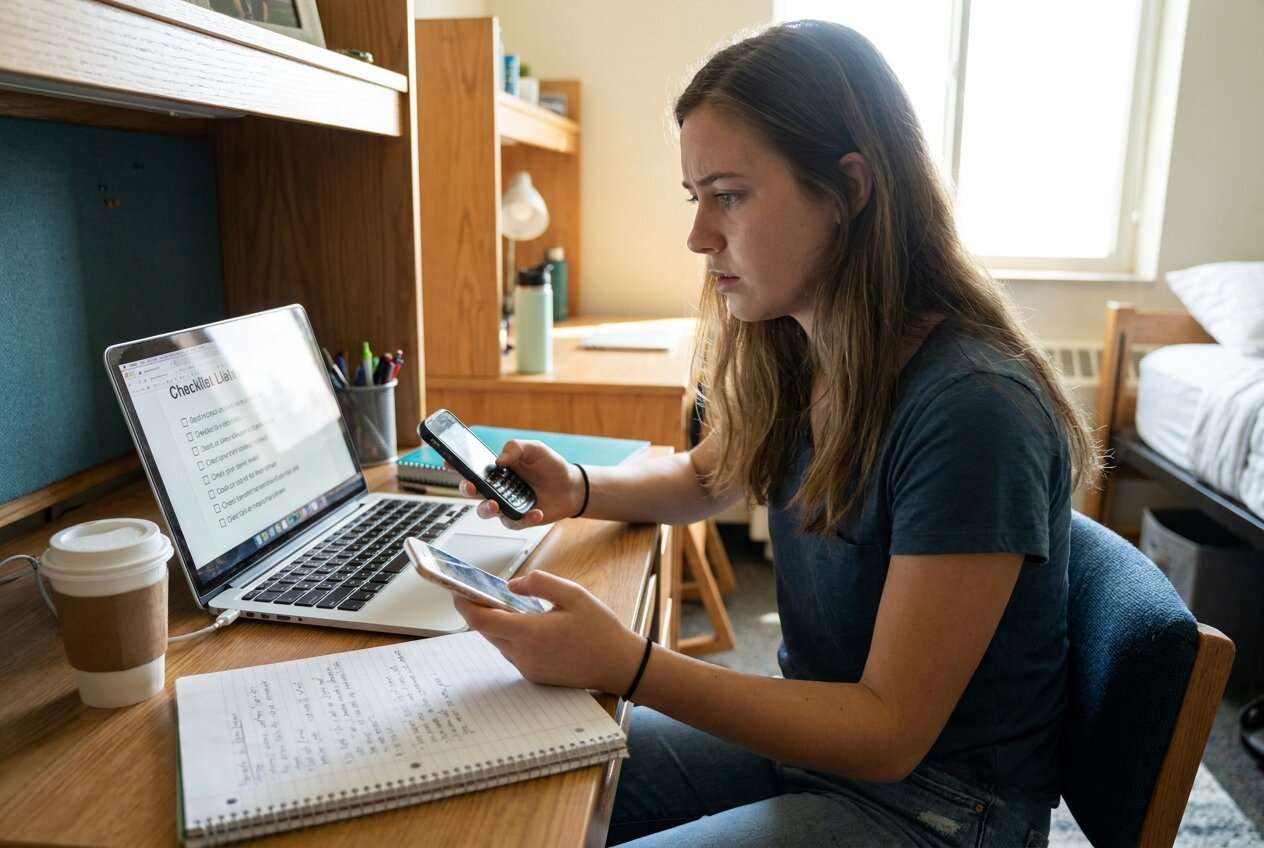
Part 1. How to Plan student phone switch checklist before a new semester Without Missing Critical Steps
You’re a student moving from an old phone to a new one right before the semester, and you need messages, photos, notes, authenticator codes, school apps, and subscriptions to be ready on day one.
You asked AI “what should I do?” and got a list—but you’re still unsure about order (what must happen first), what to verify (what “done” looks like), and what could block you (2FA, SIM/eSIM, device management profiles, or storage limits).
There’s also a point-of-no-return moment: erasing or trading in the old phone (or removing the authenticator app from it) before you’ve proven everything works on the new phone can lock you out of school systems and accounts.
Part 2. What the AI Needs to Know
Answer these so the workflow can be sequenced correctly:
- Old phone brand/model + OS version (e.g., iPhone 12 on iOS 17 / Galaxy S21 on Android 14)
- New phone brand/model + OS version
- Transfer type (iPhone→iPhone, Android→Android, iPhone→Android, Android→iPhone)
- What must move (photos, SMS, WhatsApp, notes, contacts, files, call logs, app data where possible)
- Your critical apps list (school email, LMS, banking, transit, password manager, authenticator, cloud drives)
- 2FA setup details (authenticator app name, hardware keys, backup codes availability)
- SIM/eSIM plan and whether you can receive SMS on the old phone during setup
- Storage status (free space on both devices) and network access (stable Wi‑Fi available?)
- Deadline and risk tolerance (e.g., must be done tonight; can’t risk account lockouts)
- What will happen to the old phone (keep, trade-in, return, recycle)
Part 3. Using AI Prompts to Build a Safer student phone switch checklist before a new semester Workflow
Use these prompts to make AI produce a sequence you can follow and verify before you touch any irreversible steps.
3-1. Level 1: Basic Prompt
Create a student phone switch checklist for moving from my old phone to my new phone before a new semester. Include a safe order of operations and the top mistakes that cause lost access (especially 2FA and school accounts). Keep it planning-only and add a short “verify before you erase old phone” section.
3-2. Level 2: Advanced Prompt
Build me a structured workflow for a student phone switch checklist before a new semester with three phases: Preparation, Execution, and Verification.
For each phase, list critical steps vs optional steps, and include “stop conditions” where I should pause if a check fails.
3-3. Level 3: Evidence Prompt
I’m switching phones before semester starts: old device (iPhone 12, iOS 17), new device (iPhone 15, iOS 18), must-have apps (Gmail, Canvas, Duo Mobile, Google Drive, WhatsApp), deadline (tomorrow 8am), old phone will be traded in.
Create a checklist that includes: checks before transfer (free space, backups, 2FA readiness), checks during (what to confirm as data moves), and checks after (login tests, message history spot-checks, photo counts).
Include a “point of no return” gate that I must pass before I erase/hand over the old phone.
3-4. Prompt Refinement
Output the checklist in a table with columns: Step, Why it matters, How to verify, If it fails do this, Risk level (High/Med/Low).
Split “accounts” into categories: school identity/SSO, email, banking, password manager, authenticator, and list the verification test for each.
Ask me exactly 10 questions maximum that materially change the order of steps, then regenerate the workflow using my answers.
Add a “minimum viable switch” path that gets me ready for classes in 60 minutes, plus a “full cleanup” path for later.
Include a final pre-trade-in checklist with “must still have old phone in hand” items (e.g., transfer eSIM, approve 2FA prompts, export backup codes).
Part 4. AI Plan vs. Real Device Constraints
| What AI can plan well | What AI can’t do on your device | What you should do |
|---|---|---|
| The safest order of steps and dependencies (2FA → accounts → data → cleanup) | Actually transfer data, enable settings, or confirm what copied correctly | Use the plan as a script, then execute with device tools |
| Risk gates (don’t erase old phone until checks pass) | Guarantee that a transfer includes every app’s internal data | Run post-transfer spot checks for each critical app |
| Verification checklist (logins, counts, random samples) | See your screen, receive codes, or approve 2FA prompts | Keep both phones available for codes/prompts until the end |
| Contingency paths (what to do if locked out / missing data) | Recover accounts without your recovery options | Prepare recovery methods (backup codes, alternate email/phone) before switching |
AI improves planning, sequencing, and verification logic, but it cannot execute transfers or validate your device state—execution requires real tools and your on-device confirmation.
Part 5. When to Stop Planning student phone switch checklist before a new semester and Start Execution
- You have a finalized list of must-work-by-morning apps/accounts and the exact login/2FA test for each.
- You have a point-of-no-return gate defined (no erase/trade-in until every critical test passes).
- You have backups and prerequisites confirmed (power, Wi‑Fi, storage, recovery methods, charger/cable).
- You have a contingency path if something fails (extra time buffer, access to old phone, recovery contacts/codes).
Once those are true, further brainstorming adds little—what matters next is controlled execution and verification.
Student phone switch checklist before a new semester: Execute the Workflow Safely with Dr.Fone
Execution now matters because your risk comes from real device states (permissions, incomplete transfers, 2FA prompts, storage limits), not from the plan on paper. To move data phone-to-phone in a controlled way, you can use Dr.Fone - Phone Transfer.
 Move data between iOS to Android and vice versa.
- Transfer contacts, SMS, photos, videos, music, and more types.
- Available with all phones with Android and iOS versions.
- Simple, click-through process.

Transfer or migrate data (keep old phone untouched)
Use Dr.Fone on a computer to run the phone-to-phone transfer/migration you planned, keeping both phones connected and powered until completion. AI cannot confirm what actually transferred or detect missing items on your device in real time.
Run verification checks before any irreversible action
Use your AI-generated verification list to test logins, 2FA prompts, message history spot-checks, photo/video sampling, and must-have school apps on the new phone while the old phone is still available. AI can’t receive codes, approve prompts, or validate counts on your behalf—you must confirm the evidence.
Only after passing the gate: backup/cleanup + old-phone erase/trade-in
Use Dr.Fone to complete any needed backup/export steps, then proceed to erase/reset the old phone only after every critical check is marked “pass” and you no longer need the old device for 2FA/SIM. This is the high-risk, often irreversible moment: once erased or handed in, recovery may be impossible.
-
Step 1 Open Phone Transfer on your computer
Launch Dr.Fone and enter the Phone Transfer feature so you can run the migration while keeping the old phone intact as your fallback.

-
Step 2 Set the correct transfer direction
Confirm which device is the source (old phone) and which is the destination (new phone) before you start, so data moves the right way.

-
Step 3 Choose what to transfer
Select the data categories that match your AI plan (contacts, photos, messages, and other essentials), then begin the transfer.

-
Step 4 Prevent syncing conflicts during transfer
Follow the on-screen guidance to avoid cloud-sync collisions while the transfer runs, and keep both devices available for codes/prompts until verification is complete.





Conclusion
Use AI to produce a structured, risk-aware checklist with clear verification gates, then use Dr.Fone to execute the transfer and cleanup—because AI can plan the workflow, but real tools are needed to perform and validate the switch.
FAQ
-
What’s the biggest mistake students make when switching phones before a semester?
Erasing/trading in the old phone before verifying 2FA, school SSO/email access, and the specific apps needed for classes. -
How do I know I’m safe to erase the old phone?
You can log into school systems and email, pass all 2FA challenges from the new phone, and spot-check critical data (messages/files/photos) with the old phone still available as a fallback. -
Should I switch SIM/eSIM early or late?
Usually late—after you’ve confirmed the new phone is functioning and you’re done using the old phone to receive verification codes, unless your setup specifically requires the number active on the new device. -
What should I verify beyond “my photos are there”?
At minimum: authenticator/2FA works, password manager unlocks, school SSO apps work, messaging history is acceptable, and any required campus apps (LMS, email, transit) are usable. -
Can AI tell me whether everything transferred correctly?
No. AI can define what to check and how to interpret results, but only you (and your tools) can confirm what’s present on the device.
 Add Wondershare Dr.Fone as a preferred source on Google





