 Effortlessly manage data through preview, delete, export, etc.

 100% Security Verified | No Subscription Required | No Malware

 :
: 
 ChatGPT
 Perplexity
 Gemini
 Claude
 Grok
Grok

I switched phones and didn’t realize one app depended on a “Sign in with Google” flow plus 2FA on my old device—after wiping it, I couldn’t get back into my accounts for days.
Reddit user, r/GooglePixel
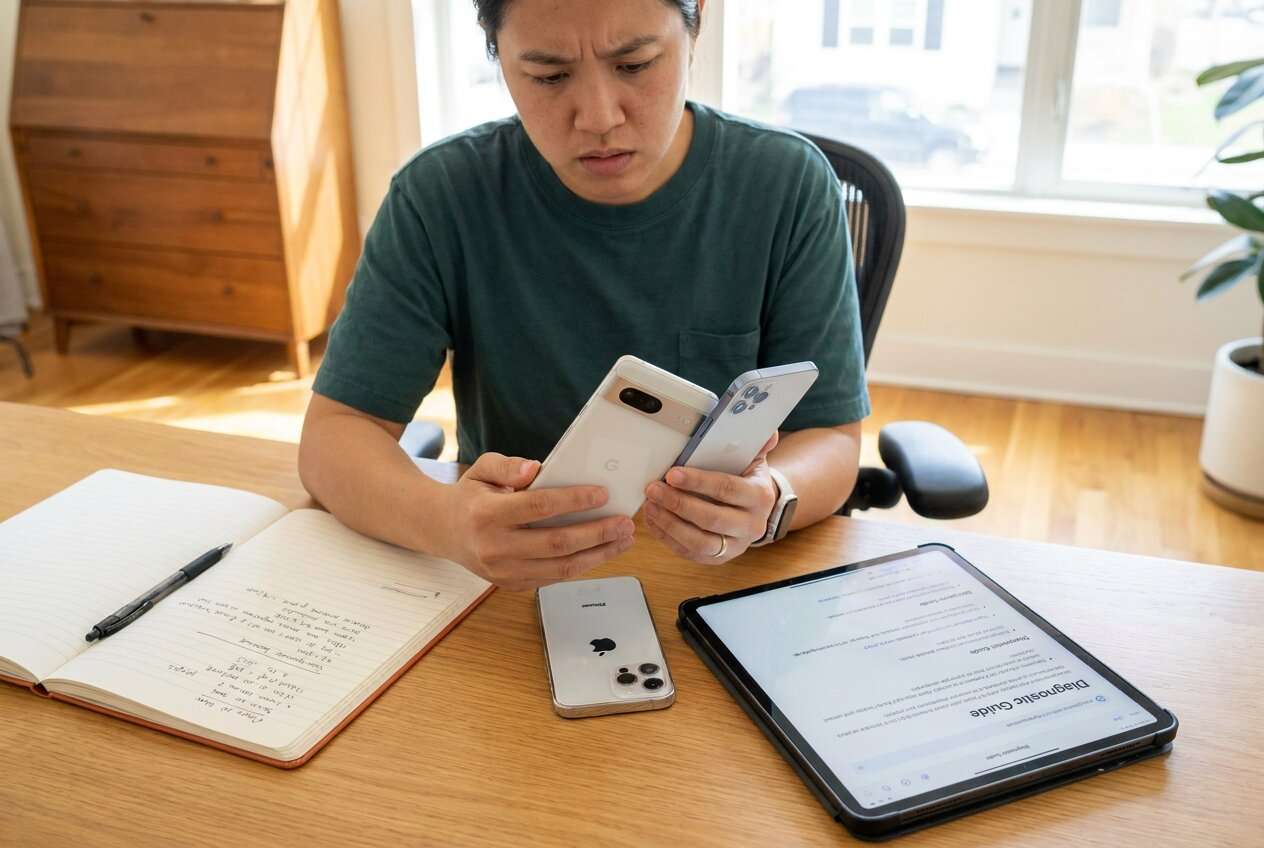
Moving from a Pixel to an iPhone is easy to start—and easy to mess up if you miss one dependency like 2FA, message history, or a single “sign in with Google” account that you actually need on day one.
AI can help you turn your situation into a safe sequence (inventory → migrate → verify → irreversible steps), but it can’t touch your devices or prove the results—so execution still needs real tools and on-device verification.
In this article
- How to plan a Pixel to iPhone migration without missing critical steps
- Level 1: Basic prompt
- Level 2: Advanced prompt
- Level 3: Evidence prompt
- Prompt refinement follow-ups
- What the AI needs to know
- Using AI prompts to build a safer workflow
- AI plan vs. real device constraints
- Execute the workflow safely with Dr.Fone
Part 1. How to Plan Pixel to iPhone App and Account Migration Without Missing Critical Steps
You’ve got a Pixel you’ve used for years and a new iPhone you want to use immediately—without losing access to banking apps, authenticator codes, WhatsApp chats, or work accounts. You also want your “stuff” (contacts, photos, files, calendars) to show up where you expect.
After asking AI “how do I migrate?”, you often get a list of options—but not a safe order. The missing piece is usually sequence + checkpoints: what must be confirmed before you continue, and what can wait.
Your point-of-no-return moment is typically something like factory-resetting the Pixel, wiping the iPhone, removing an authenticator, or deactivating a number/account—any of which can lock you out if you haven’t verified logins and 2FA on the iPhone first.
Part 2. What the AI Needs to Know
Answer these so the AI can build a workflow that matches your risk level and accounts.
- Pixel model + Android version (if known)
- iPhone model + iOS version (if known)
- How you sign in to key apps (Google, Apple ID, Microsoft, password manager, “Sign in with Google”)
- 2FA methods in use (SMS, authenticator app, security keys, backup codes)
- Messaging scope (SMS/MMS needs, WhatsApp/Signal/Telegram, work chat apps)
- Data scope (photos/videos, contacts, calendar, notes, documents, downloads)
- Your “must work on day one” apps (banking, work, rideshare, email)
- Whether the Pixel will be kept, traded in, or returned (and the deadline)
- Any constraints (limited storage, slow Wi‑Fi, no SIM swap yet, no PC/Mac access)
Part 3. Using AI Prompts to Build a Safer Pixel to iPhone Workflow
Use these prompts to force AI to produce a sequence with verification gates, not a vague checklist.
3-1. Level 1: Basic Prompt
I’m moving from a Pixel to an iPhone and I need a step-by-step migration plan for apps, accounts, and data. Prioritize avoiding lockouts and missing 2FA. Include what to verify before I reset or trade in my Pixel.
3-2. Level 2: Advanced Prompt
Design a migration workflow from Pixel → iPhone with three sections: Preparation, Execution, Verification.
- Mark each step as Critical or Optional.
- In Preparation, include an inventory of accounts, 2FA, and “must-work” apps.
- In Execution, describe the order of actions (install/sign-in, data transfer, messaging apps) without assuming tools can do everything.
- In Verification, list specific pass/fail checks and what to do if a check fails.
Also call out any irreversible steps and where they must NOT occur until verification passes.
3-3. Level 3: Evidence Prompt
Build me a migration plan using my details, and include checks before/during/after.
Context:
- Old phone: Google Pixel 6 (Android 14), will be traded in in 3 days
- New phone: iPhone 15 (iOS 17)
- Key accounts: Google (Gmail + Photos), Apple ID, Microsoft 365, 1Password
- 2FA: Google Authenticator + SMS fallback; some apps use “Sign in with Google”
- Must-work apps day one: bank app, Authenticator, WhatsApp, work email, ride-share
- Data: ~80GB photos/videos, contacts, calendar, PDFs in Downloads
Requirements:
- Provide an ordered workflow with “stop and verify” gates.
- List exactly what evidence proves each gate passed (e.g., successful login on iPhone, 2FA codes working, messages visible).
- Identify the earliest safe moment to factory reset the Pixel, and what must be backed up/confirmed first.
3-4. Prompt Refinement
Turn the plan into a table with columns: Step, Why it matters, Risk if skipped, Verification check, Rollback/fallback.
List my top 10 “lockout risks” in this migration (especially 2FA and password manager access) and the prevention for each.
Give me a minimal “Day 1” path (must-have only) and a separate “Day 7 cleanup” path (nice-to-have), each with verification gates.
For each critical app category (banking, email, password manager, authenticator, messaging), tell me the exact order to set up on the iPhone and the exact moment it’s safe to sign out of the Pixel.
Assume one thing fails (e.g., authenticator transfer, WhatsApp restore, or Google account verification). Add a contingency branch: what I do next and what I must NOT do.
Part 4. AI Plan vs. Real Device Constraints
| Planning element | What AI can do | What AI can’t do | What needs real tools/devices |
|---|---|---|---|
| Account + 2FA sequencing | Create an ordered setup plan with risk gates | Confirm your logins/2FA actually work | Sign in on iPhone, test codes, store backup codes safely |
| Data migration scope | Identify what should be moved and in what order | Extract/transfer your real photos/files/messages | Run an actual transfer/backup and validate results |
| App readiness | List which apps must be installed and verified first | Install apps or restore app sessions | Install from App Store, sign in, confirm access |
| Point-of-no-return timing | Define “do not reset” conditions | Know your trade-in rules and current device state | Verify success, then erase/reset only when ready |
AI improves planning, but cannot execute the transfer, confirm results, or protect you from irreversible actions if you skip verification.
4-1. When to Stop Planning and Start Execution
- You have a written inventory of critical accounts, 2FA methods, and must-work apps (with recovery options noted).
- You have defined verification gates (what “success” looks like) for logins, authenticator access, and key data.
- You have a fallback path if one critical item fails (alternate 2FA, backup codes, old phone retained until resolved).
- You have identified the irreversible step (erase/reset/trade-in) and explicitly placed it after all verification gates.
At this point, the plan is “stable enough” to run without improvising mid-migration.
Part 5. Pixel to iPhone Migration: Execute the Workflow Safely with Dr.Fone
Execution matters now because the biggest risks show up during real transfers: storage limits, partial copies, missed media, or discovering too late that an account/2FA won’t verify on the iPhone. For the device-to-device transfer step, you can use Dr.Fone - Phone Transfer as the execution layer while you follow the sequence and verification gates your AI plan produced.
 Move data between iOS to Android and vice versa.
- Transfer contacts, SMS, photos, videos, music, and more types.
- Available with all phones with Android and iOS versions.
- Simple, click-through process.

Important: AI can define the safest order and the exact verification checks, but it cannot confirm your cables, permissions, storage, prompts, or whether transfers and logins actually succeeded. Treat every “stop and verify” gate as mandatory before any irreversible action.
-
Step 1 Prepare devices and your verification checklist
On your computer, open Dr.Fone and get your Pixel and iPhone ready (cables, device unlock, and any prompts). Make sure your “must work on day one” checklist is written down and ready to validate immediately after transfer.

-
Step 2 Set the transfer direction correctly
Select the correct source and destination (Pixel → iPhone) before you start. A wrong direction can waste time and complicate verification, especially if you’re on a trade-in deadline.

-
Step 3 Choose supported data types and run the transfer
Pick the data categories you intend to carry over, start the transfer, and wait for completion. Afterward, install apps on the iPhone and sign in in the exact order your plan specifies (especially password manager → email → authenticator → banking/work apps).

-
Step 4 Verify outcomes and delay irreversible steps until proof is complete
Use your verification gates (successful logins, 2FA works, key content present, chats restored where applicable). Only then proceed to erase/reset/trade-in actions. Many apps require fresh sign-in and 2FA even after data transfer—assume re-authentication will be needed.





Conclusion
Use AI to design the safest sequence, identify lockout risks, and define verification gates; then use Dr.Fone to carry out the actual transfer and only proceed to irreversible steps once your checks prove the migration is truly complete.
FAQ
-
Do my apps and accounts “transfer” automatically from Pixel to iPhone?
Apps usually need to be reinstalled from the App Store, and many accounts require signing in again; assume you must re-authenticate and re-enable 2FA on the iPhone. -
What’s the most dangerous step in this migration?
Erasing/resetting the Pixel (or removing/deactivating your 2FA method) before confirming you can log in and receive/produce verification codes on the iPhone. -
What should I verify before I trade in or factory reset the Pixel?
At minimum: password manager access, authenticator/2FA access, primary email access, banking/work app access, and the presence of your critical data (contacts/photos/files). -
How long should I keep the Pixel active after switching?
Until all critical verification gates pass and you’ve had at least one normal day of real usage on the iPhone (including a login/2FA event), or until your trade-in deadline forces the decision. -
Can AI tell me if my transfer is complete?
No—AI can define what to check and what “complete” means, but only you (and your tools) can confirm the real counts, files, and app access on the devices.
 Add Wondershare Dr.Fone as a preferred source on Google





