 Effortlessly manage data through preview, delete, export, etc.

 100% Security Verified | No Subscription Required | No Malware

 :
: 
 ChatGPT
 Perplexity
 Gemini
 Claude
 Grok
Grok

I logged into Messenger on my new phone and it looked fine—then I realized older chats and some media weren’t there. Now I’m scared to wipe my old phone because I don’t know what “complete” is supposed to look like.
Forum user
Exporting Messenger data before moving to a new phone sounds simple, but missing one step can leave you with partial chats, lost media, or an account that looks “synced” but isn’t complete.
AI helps you turn a vague goal (“move everything”) into a clear sequence: what to check first, what to capture as proof, and what to avoid until you’re certain the data is safe.
AI can’t actually export, transfer, or verify files on your device—it can only plan and review your inputs. Execution still requires real tools and real-device checks.
In this article
- Part 1. Plan the migration without missing critical steps
- Why “log in and sync” can look complete but isn’t
- The safest order of operations
- Cross-platform (iPhone ↔ Android) confusion points
- Identify the point-of-no-return actions
- Part 2. What the AI needs to know
- Part 3. AI prompts to build a safer workflow
- Part 4. AI plan vs. real device constraints (and when to stop planning)
- Part 5. Execute the workflow safely (device-side)
Part 1. How to plan export messenger data before moving to new phone without missing critical steps
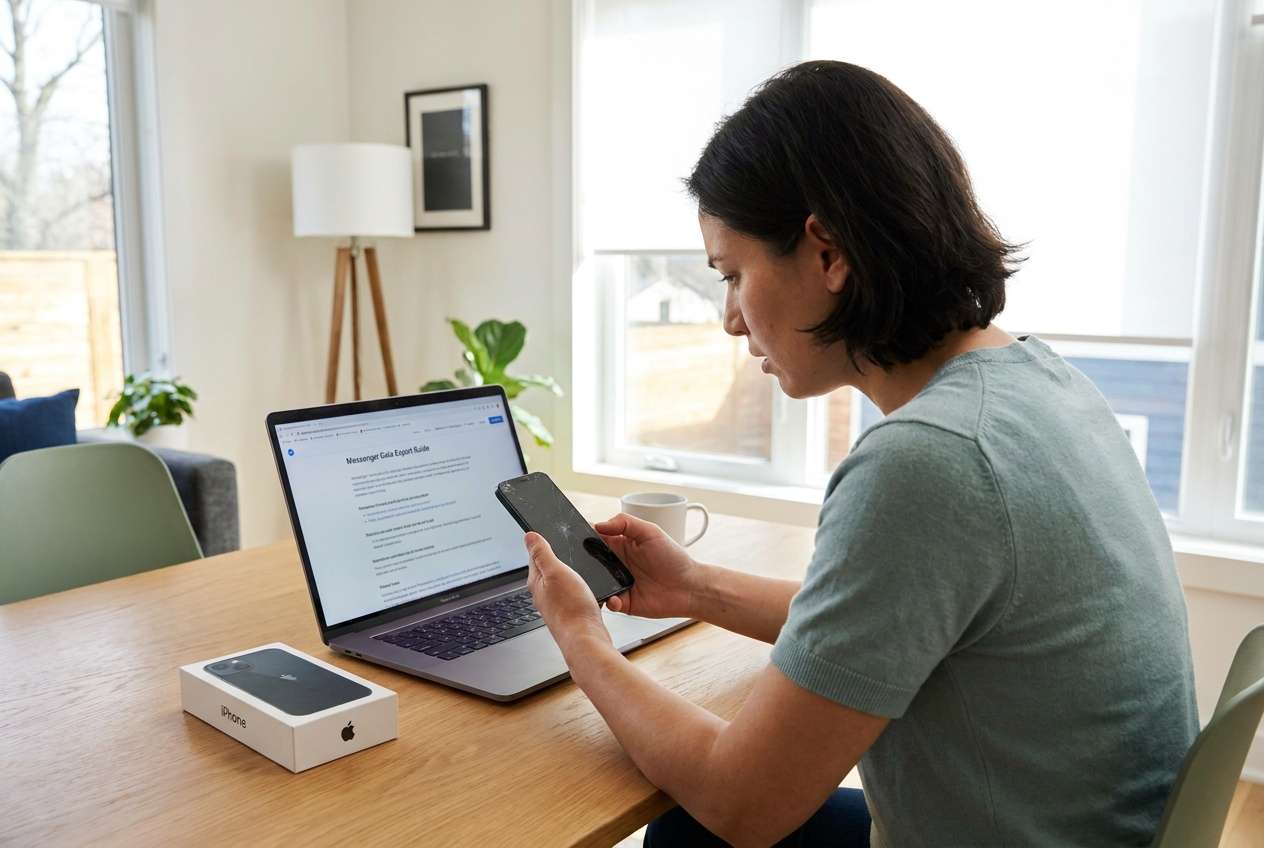
You’re switching phones (often across iPhone ↔ Android), and you want your Messenger conversations, photos/videos in chats, and message history to remain accessible on the new device. The confusion usually starts when “log in and sync” doesn’t show everything, or media appears missing.
Even after an AI explanation, you may still be unsure about the correct order: should you log in on the new phone first, export from the old phone first, or back up first? Small sequencing mistakes can make troubleshooting harder.
There’s also a point-of-no-return moment: factory resetting, trading in, or wiping the old phone before you’ve proven (with checks) that the new phone has the data you need.
Part 2. What the AI needs to know
Share the specifics below so the plan matches your real constraints and reduces avoidable mistakes.
- Old phone OS/model (e.g., iPhone 12 iOS 17 / Galaxy S21 Android 14)
- New phone OS/model
- Messenger/Facebook login method (password, SMS, authenticator app, device-based approval)
- Whether you still have access to the old phone number/email used for the account
- Approx. data scope (e.g., “8 years of chats, many videos,” “only recent chats”)
- Whether you need attachments/media preserved, or just text history
- Current storage space on old/new phone (rough estimate is fine)
- Network conditions (stable Wi‑Fi available? limited data?)
- Deadline and risk tolerance (moving today vs can wait)
- Any constraints (work phone policies, managed devices, broken screen, battery issues)
- What “success” means to you (which conversations must be verified)
Part 3. Using AI prompts to build a safer export messenger data before moving to new phone workflow
Use the prompts below to force a clear sequence with verification checkpoints before you touch anything irreversible.
3-1. Level 1: Basic prompt
I’m moving from [old phone + OS] to [new phone + OS] and I need a plan to export/keep my Messenger data without losing chats or media.
Please give me a simple step-by-step workflow with a short checklist of what to confirm before I wipe or trade in the old phone.
3-2. Level 2: Advanced prompt
Create a structured workflow to move Messenger data from [old device] to [new device] with minimal risk.
Break it into Preparation / Execution / Verification, and label each step as critical or optional.
Include “stop points” where I should not continue until specific checks pass, especially before any irreversible action like factory reset.
3-3. Level 3: Evidence prompt
Context: I’m migrating Messenger from [iPhone 12 iOS 17] to [Pixel 8 Android 14].
I have 2FA enabled, my account uses (SMS + authenticator), and my “must-keep” threads are (family group chat, work thread, 3 close friends).
I care about media in chats (photos/videos), not only text.
Build a workflow with:
- Checks before execution (account access, storage, Wi‑Fi, 2FA readiness)
- Checks during execution (what I should observe on-screen, what might indicate partial sync)
- Checks after execution (proof checklist: specific threads, media sampling, search tests)
Also list common failure modes (e.g., media missing, login loop, partial history) and what to do without deleting anything.
3-4. Prompt refinement
Rewrite the workflow as a decision tree with IF/THEN branches for: can’t log in, 2FA fails, old phone has low storage, new phone shows fewer threads, media thumbnails don’t load.
Give me a verification checklist that includes at least 10 concrete checks (thread counts if possible, date range sampling, media sampling, search tests), and define what ‘pass’ looks like.
Identify the irreversible steps in this migration and insert hard stop gates before each one (what evidence I must collect first).
Turn the plan into a time-boxed runbook (30 minutes / 2 hours / half-day) with what to do if I get interrupted mid-move.
Part 4. AI plan vs. real device constraints (and when to stop planning)
4-1. AI plan vs. real device constraints
| Planning element | What AI can do | What AI cannot do | What you must verify on-device |
|---|---|---|---|
| Workflow sequencing | Draft an order with stop gates | Confirm it matches your exact UI/version | Actual app states, prompts, and sync behavior |
| Risk identification | Flag irreversible moments and common failure modes | Detect your current account/session state | Login success, 2FA prompts, session approvals |
| Verification design | Propose checklists and evidence steps | Inspect your chats/media | Thread presence, date ranges, media playback |
| Troubleshooting logic | Offer safe next actions without deletion | Run diagnostics or transfers | Real outcomes after each change |
AI improves planning, but cannot execute. Your device’s OS version, account security, and app behavior determine what actually happens.
4-2. When to stop planning export messenger data before moving to new phone and start execution
- You can clearly state your success criteria (which chats/media must be present and how you’ll prove it).
- You have a verification checklist with stop gates before any irreversible action.
- You’ve confirmed account access readiness (credentials + 2FA method works + recovery options available).
- You’ve minimized avoidable risks (stable power, stable Wi‑Fi, enough storage, time window).
At this point, the remaining uncertainty is best resolved by real-device execution and observation.
Part 5. Execute the workflow safely (device-side)
Execution now matters because planning can’t reveal real-world issues like partial sync, permission prompts, storage bottlenecks, or interruptions. Use a tool-based workflow only after your stop gates and verification plan are set.
5-1. Prepare the devices and your verification gates
Action: Ensure both phones are charged, on stable Wi‑Fi, signed into the correct account(s), and your “must-keep threads” checklist is ready to validate before any wipe/trade-in.
Limitation: AI can’t confirm your login state, 2FA prompts, or whether the app is fully synced on either phone.
5-2. Run the transfer/export execution (keep the old phone untouched)
Action: Perform the actual device-side export/transfer steps you planned, keeping the old phone untouched until verification passes.
Limitation: AI cannot operate transfer tools, cannot see transfer progress, and cannot judge whether what moved is complete without your checks.
5-3. Verify outcomes before any irreversible step
Action: On the new phone, verify the required threads and sample media playback per your checklist, then only proceed to irreversible actions (factory reset/trade-in) after all checks pass.
Limitation: AI can suggest what to check, but only you can confirm what’s actually present and accessible on the device.
Recommended tool-based execution (with verification gates)
If you also need a more structured, tool-assisted workflow to move chat data between devices while keeping verification checkpoints, consider Dr.Fone - WhatsApp Transfer as part of your execution phase (after your plan and stop gates are ready).
 Transfer WhatsApp across Android & iOS.
- Backup & restore WhatsApp to PC securely.
- Preview & export chats selectively.
- Works with all iPhone & Android models.
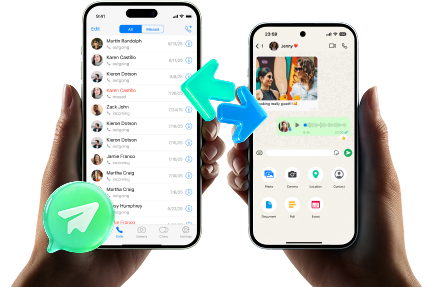
Whatever tool you choose, keep your “do not delete anything” rule until your proof checklist passes. The safest execution pattern is: prepare → run the move → verify with evidence → only then do irreversible actions.
-
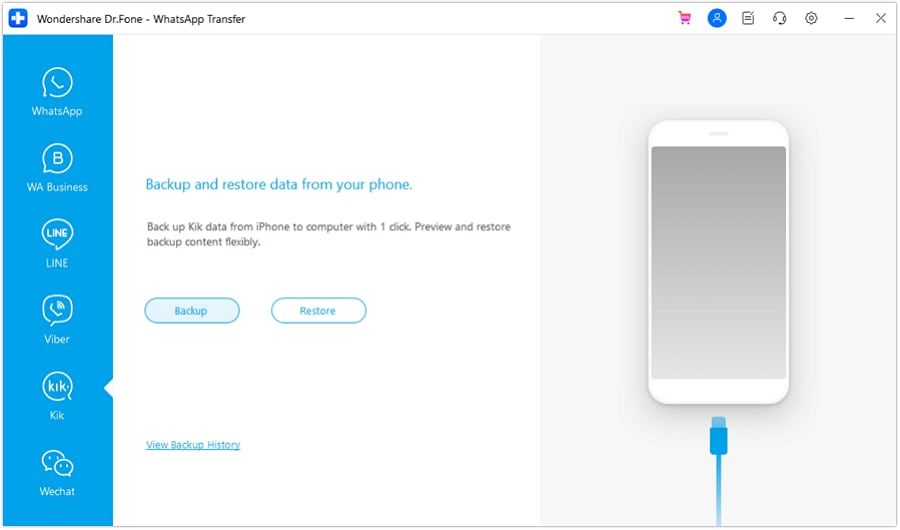
Step 1 Launch the tool and open the transfer/backup module
On your computer, start the software and navigate to the chat transfer/backup area so you can follow the execution plan you created (while keeping the old phone unchanged until verification completes).

-
Step 2 Connect devices and start the planned operation
Connect the required device(s) and begin the transfer/export step according to your workflow’s “Execution” phase.
-
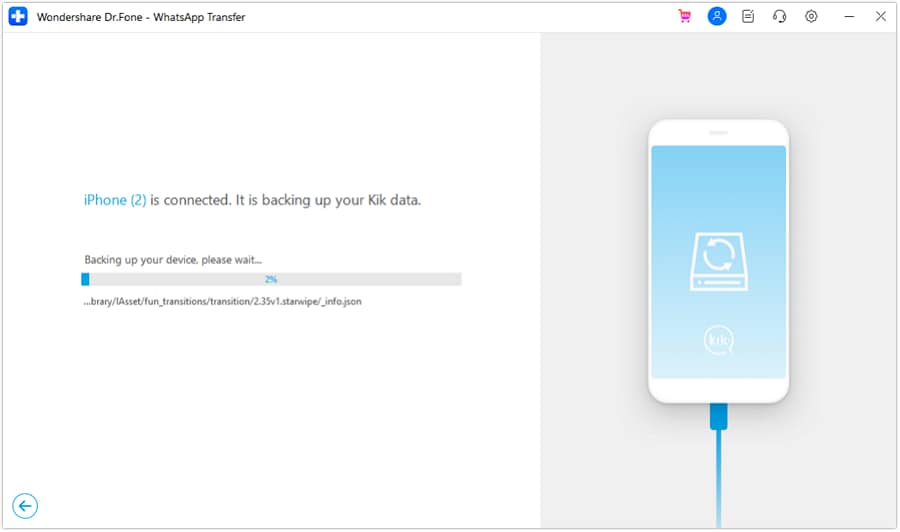
Step 3 Monitor progress without interrupting the process
Observe progress indicators and avoid actions that could interrupt the operation (unplugging cables, switching networks, closing the app) unless your stop-gate rules require pausing.
-
Step 4 Finish and move to verification before any wipe/trade-in
Once the operation completes, switch to your verification checklist on the new phone (must-keep threads, date-range sampling, media playback, and search tests) before taking any irreversible step.




Conclusion
Use AI to design a strict, low-risk workflow with stop gates and verification checks, then use a real tool to execute on-device. Planning reduces avoidable mistakes; execution is where the truth is confirmed.
FAQ
-
What’s the biggest risk when moving Messenger data to a new phone?
Assuming “logging in” equals “everything transferred,” then wiping the old phone before confirming message history and media you care about are accessible. -
What should I verify before I factory reset the old phone?
Verify your must-keep threads, date-range sampling (old messages), media sampling (photos/videos open), search results for older keywords, and that your account access/2FA works on the new device. -
How do I avoid making the situation worse if something looks missing?
Stop and avoid destructive actions: don’t uninstall apps, don’t clear cache/data, don’t factory reset, and don’t remove accounts until you’ve captured what’s missing and when it stopped appearing. -
When should I run the move—before or after setting up the new phone?
Plan for minimal changes: ensure you can log in and stabilize connectivity first, then execute the move with verification gates. The key is not the “first login,” but having a checklist and not triggering any irreversible steps early. -
Can AI confirm whether my Messenger export/transfer is complete?
No. AI can design the verification checklist and interpret what you report, but it cannot inspect your chats, attachments, or device state directly.
 Add Wondershare Dr.Fone as a preferred source on Google





