 Effortlessly manage data through preview, delete, export, etc.

 100% Security Verified | No Subscription Required | No Malware

 :
: 
 ChatGPT
 Perplexity
 Gemini
 Claude
 Grok
Grok

I deleted some “Downloads” during a cleanup on my work Android, and now a signed contract PDF is just gone. I can’t tell if it’s really deleted, moved, or sitting in some app trash.
Reddit user, r/Android
Losing contract files on a work Android phone often happens right after a quick cleanup—deleting downloads, clearing a file manager folder, or emptying Trash—and then you realize a signed PDF or scanned agreement is gone. Nothing seems to change after several minutes of searching, and it’s unclear whether the file is truly deleted or just moved.
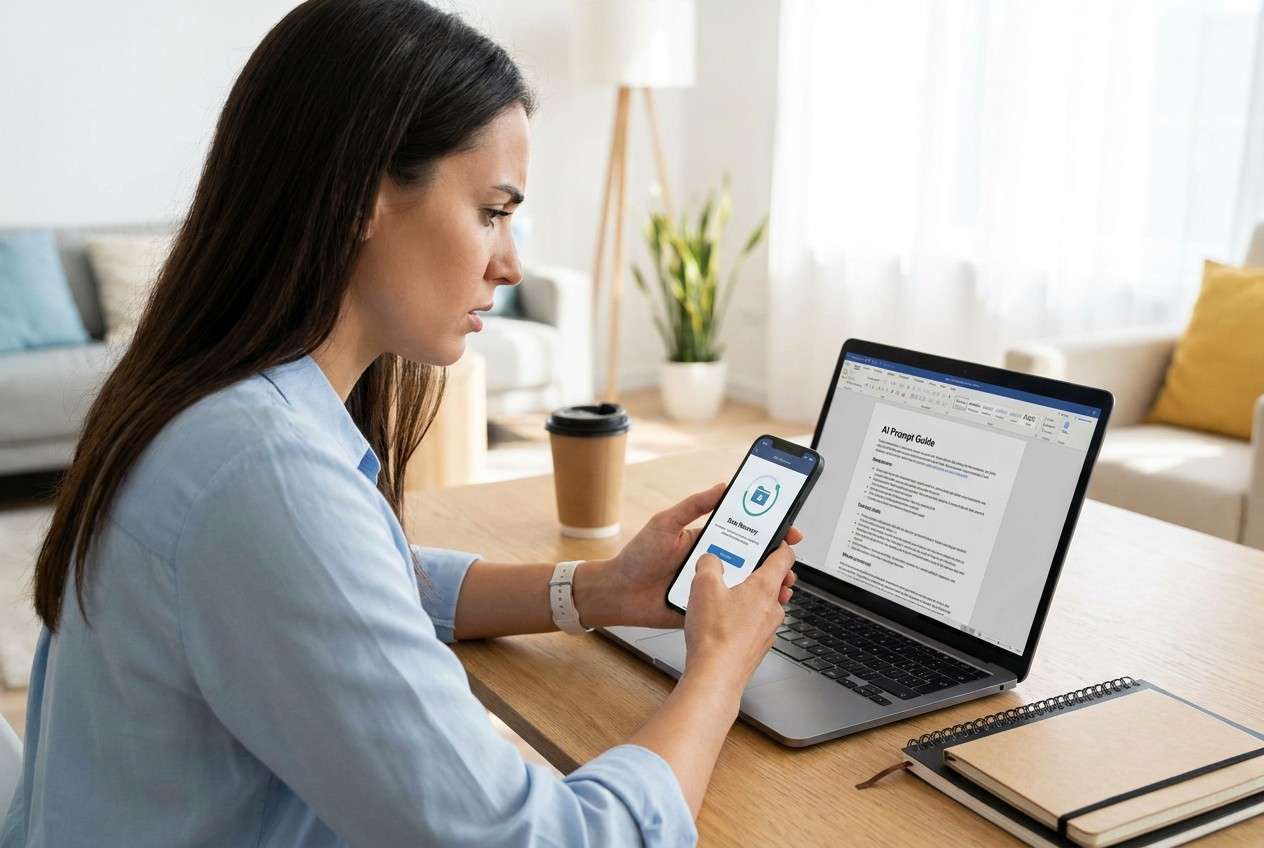
AI (like ChatGPT or Gemini) can help you triage what happened by mapping your symptoms (where the contract was stored, how it was deleted, whether it was synced) to the most likely causes and safest next checks.
AI can’t see your phone’s real storage state, and trial-and-error can make recovery harder (for example, by overwriting storage). Use AI to decide what to do next, then use a dedicated tool to carry out the recovery steps.
In this article
- Why contracts get deleted on a work Android phone and what it means
- Common deletion scenarios
- Typical save locations on work phones
- What affects recoverability
- Before you prompt the AI
- Using AI prompts to diagnose deleted contract recovery options safely
- When to stop troubleshooting deleted contracts on a work phone to avoid risks
- Recover deleted contracts from a work phone with Dr.Fone Data Recovery (Android)
- FAQ
Part 1. Why contracts get deleted on a work Android phone and what it means
1-1. Common deletion scenarios
On a work phone, “deleted contracts” usually means one of a few situations: the file was removed from a local folder, removed from a synced app (Drive/OneDrive), auto-cleaned by a storage manager, or wiped during a work-policy action. This can happen right after you tapped Delete, Clear storage, Free up space, or after an app restart.
1-2. Typical save locations on work phones
If you normally handle contracts on another device (even something like an iPhone 13 or iPhone 14) and only occasionally use the Android work phone, it’s easy to miss where the file was actually saved—Downloads, a messaging app’s media folder, a scanner app folder, or a cloud workspace folder.
1-3. What affects recoverability
What it “means” depends on where the contract lived (device storage vs. SD card vs. cloud) and what you did after deletion. The safest assumption is: the more you use the phone afterward, the more you risk overwriting the space where deleted data might still be referenced.
1-4. Before you prompt the AI
Collect these details first so the AI can narrow causes without guesswork:
- Android brand/model and Android version
- Where the contract was stored (Downloads, Drive, OneDrive, scanner app, WhatsApp/Teams, etc.)
- File type and name clues (PDF/DOCX/image, approximate filename)
- How it was deleted (manual delete, emptied Trash, “Free up space,” app uninstall, work policy wipe)
- Time since deletion and what you did afterward (took photos, installed apps, recorded video, updates)
- Whether the phone is managed (MDM/Work Profile) and whether you have an SD card
Part 2. Using AI prompts to diagnose deleted contract recovery options safely
2-1. Level 1: Basic Prompt
I deleted a contract file from my Android work phone. Ask me the minimum questions needed to determine whether it might be in Trash, cloud sync, an app folder, SD card, or actually deleted from device storage. Then give the safest next 5 checks in order, with what not to do to avoid overwriting.
2-2. Level 2: Advanced Prompt
Diagnose my “deleted contract on Android work phone” issue by ranking the most likely scenarios from 1–5 and assigning a risk level (low/medium/high) for each next step. Prioritize steps that are reversible (Trash restore, cloud version history) before anything that could overwrite data. Explain why each scenario fits or doesn’t fit based on my details.
2-3. Level 3: Evidence Prompt
Help me recover a deleted contract from my work Android phone by building a decision tree based on evidence.
Device & setup
- Phone model: (e.g., Samsung Galaxy S22)
- Android version: (e.g., Android 13)
- Work management: (Work Profile/MDM/unknown)
- Storage: (internal only / SD card)
Contract details
- Format: (PDF/DOCX/image)
- Source app: (scanner app, email attachment, Teams/WhatsApp, Drive/OneDrive, file manager)
- Likely location: (Downloads, Documents, app folder path if known)
Deletion event
- What I tapped: (Delete / Empty Trash / Clear storage / Free up space / Uninstall app)
- Time since deletion:
- Phone usage after deletion: (light/moderate/heavy; any large downloads/videos?)
Sync & accounts
- Was it in Google Drive/OneDrive/SharePoint?
- Any recent sync errors?
What I already checked
- Trash bins checked: (Files app / Drive / OneDrive / scanner app)
- Search terms used:
Now: (1) list the top 3 most probable locations, (2) list the safest verification steps, (3) tell me what actions to avoid to reduce overwrite risk, (4) tell me when device-based recovery is the next logical move.
2-4. Prompt Refinement
Use these follow-ups to tighten the diagnosis and reduce risky guessing:
What key question is missing that would most change your conclusion, and why?
Separate my case into categories: “still recoverable via Trash,” “recoverable via cloud/version history,” “recoverable from SD card,” “may require device-based recovery.” Place me into one category with justification.
Rank the likely causes again after considering Work Profile/MDM and whether the file was created inside a managed app container.
What single piece of evidence should I check next (exact menu/location) that would confirm the top hypothesis?
If I already emptied Trash, what are the lowest-risk steps left that don’t increase overwrite risk?
2-5. AI Output vs Reality
AI can help you plan, but it can’t verify what’s truly on your phone. Use this table to sanity-check suggestions:
| AI suggestion | Reality check you should do |
|---|---|
| “It’s probably in Trash.” | Confirm the specific app Trash (Files/Drive/OneDrive/scanner app) and whether it was emptied. |
| “It was synced, so restore from cloud.” | Check the exact work account, folder, and version history/Recycle Bin tied to that account. |
| “It’s on an SD card.” | Verify whether the phone has an SD card and whether the contract was ever saved there. |
| “Do a bunch of tests and downloads.” | More usage can overwrite deleted space; keep actions minimal until you choose a recovery path. |
AI bridges ambiguity (what happened, where to look first). The execution gap is that only your device and accounts can confirm file state—so once you’ve narrowed the likely scenario, move to the least risky recovery method that matches it.
Part 3. When to stop troubleshooting deleted contracts on a work phone to avoid risks
Stop “trying random things” once your next action could reduce recovery odds or create compliance issues.
- You’re about to install or run multiple cleanup/boost apps, or you’ve already been heavily using the phone since deletion.
- The phone is clearly managed (MDM/Work Profile) and you’re not authorized to change policies, permissions, or security settings.
- You suspect the contract lived inside a managed app container (Work Profile) and personal-side searches aren’t showing it.
- You’re considering a factory reset, OS repair actions, or storage “optimization” steps just to see if the file returns.
Once AI helps you narrow the most likely path (Trash/cloud/SD/device storage), hand off execution to a recovery tool that matches that path and keeps steps controlled.
Part 4. Recover deleted contracts from a work phone with Dr.Fone Data Recovery (Android)
After you’ve used AI to confirm the contract likely isn’t simply sitting in an app Trash or cloud recycle bin, the next practical step is a controlled device-based attempt. Dr.Fone - Data Recovery (Android) is relevant here because it’s designed to scan for recoverable data from an Android device in a guided way, helping you avoid improvising with risky, overwrite-heavy trial steps while you’re under time pressure to restore a work contract.
 Scan Android phones and tablets directly.
- Preview and recover only what you want.
- Supports WhatsApp, photos, videos, contacts, and more.
- Works with 6000+ Android devices.

-
Step 1 Confirm your recovery target
Decide whether you’re looking for a PDF/DOC/image and stop non-essential phone use to reduce overwrite risk.

-
Step 2 Open Dr.Fone – Data Recovery (Android)
Launch the recovery module and choose the option aligned with “Recover Data from Android Device,” keeping your phone connected and stable.

-
Step 3 Connect your Android phone to the computer
Use a reliable cable and avoid disconnects during detection/scanning to prevent interruptions or partial results.

-
Step 4 Select data types and start scanning
Choose only the relevant file categories when possible to keep the scan focused and reduce unnecessary time on a work device.

-
Step 5 Preview results and recover to the computer
Preview found items and save recovered files to the computer (not back onto the phone) to avoid overwriting additional recoverable data.




Conclusion
Use AI to translate what you saw (where the contract was saved, how it was deleted, whether it was synced) into a ranked set of low-risk checks, then move from diagnosis to execution with a controlled recovery approach using Dr.Fone when device-based recovery is the logical next step.
Part 5. FAQ
FAQ
-
Can AI tell me whether my deleted contract is still recoverable?
AI can’t verify your phone’s storage state, but it can help you identify the most likely deletion scenario and the safest next checks. -
Where do deleted contract files usually go on Android?
Often to an app-specific Trash/Recycle Bin (Files app, Drive/OneDrive, scanner apps) or they may be removed from local storage depending on how deletion occurred. -
What should I avoid doing right after I notice a contract was deleted?
Avoid heavy phone use (large downloads, videos, installs) and avoid “cleaner/optimizer” actions that can overwrite deleted space. -
If the contract was in Google Drive or OneDrive, what should I check first?
Check the correct work account, the folder path, and the service’s Bin/Recycle Bin and version history (if available) before attempting device-based recovery. -
Should I factory reset my work phone to fix missing files?
No—factory resets and similar drastic actions can remove remaining recoverable traces and may conflict with work-device policies.
 Add Wondershare Dr.Fone as a preferred source on Google





