 Effortlessly manage data through preview, delete, export, etc.

 100% Security Verified | No Subscription Required | No Malware

 :
: 
 ChatGPT
 Perplexity
 Gemini
 Claude
 Grok
Grok

I enabled a new sync setup to “merge everything” across devices—and it quietly replaced my existing library. I didn’t realize what happened until albums and originals didn’t match anymore.
Reddit user, r/ios
Setting up multiple devices for mobile creation (phone, tablet, spare phone, laptop, external drives) can go wrong fast if you miss one dependency—like account access, storage capacity, or where your originals actually live.
AI is useful for turning a messy goal (“sync everything and keep it safe”) into a clear workflow with prerequisites, checks, and a sequence you can follow without guessing.
AI can’t touch your devices, verify what actually transferred, or prevent a real-world overwrite. Execution needs real tools after the plan is locked and verified.
In this article
- How to Plan a Multi-Device Setup Without Missing Critical Steps
- Common creator device map
- Why “merge” can become “overwrite”
- Verification gates before irreversible actions
- Examples of “point of no return” actions
- What the AI Needs to Know
- Using AI Prompts to Build a Safer Workflow
- AI Plan vs. Real Device Constraints
- When to Stop Planning and Start Execution
Part 1. How to Plan a Multi-Device Setup for Mobile Creators Without Missing Critical Steps
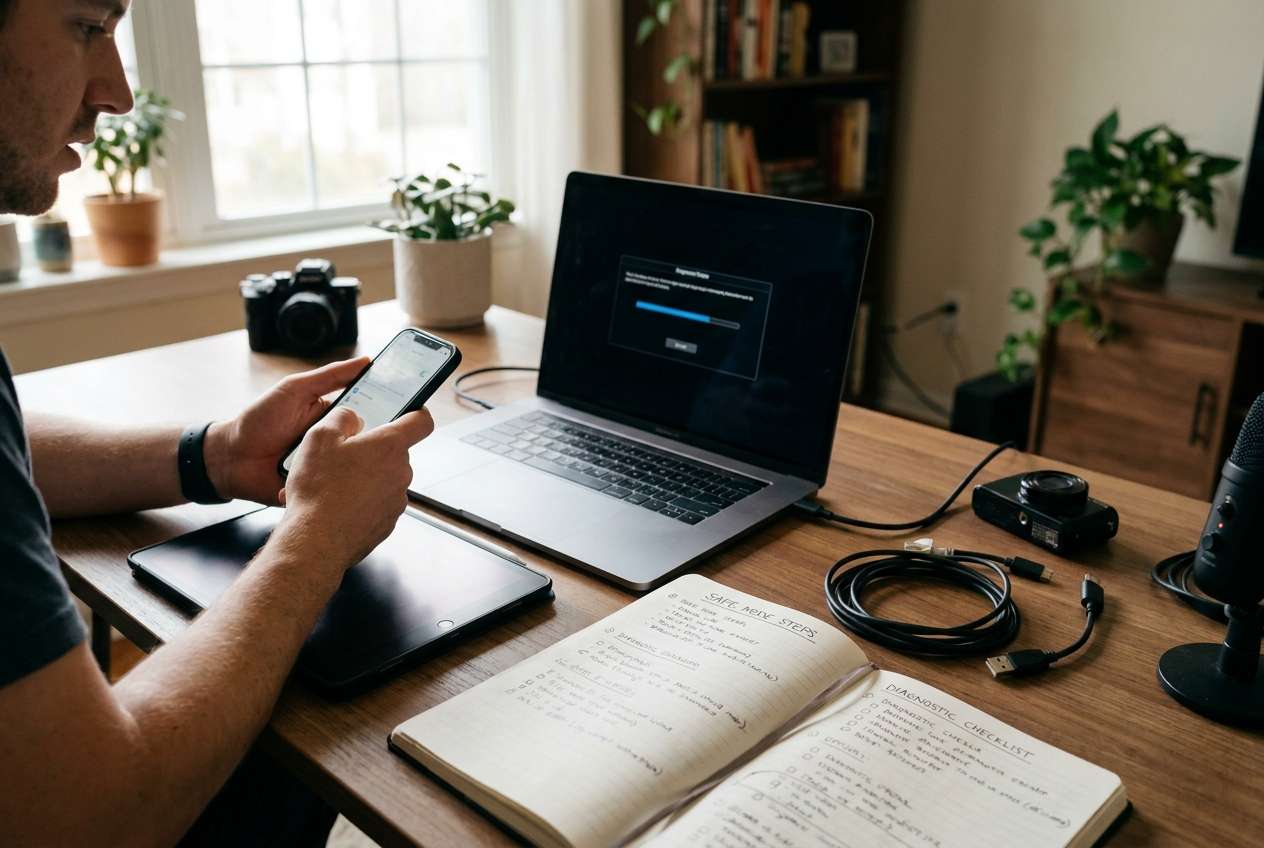
A common setup is: one primary phone for capture, a tablet for editing, a second phone as a backup camera, and a computer or drive for archiving. The stress point is that each device may hold unique originals, different app libraries, and different cloud logins—so “merge” can become “overwrite.”
After an AI answer, many creators still feel unsure about order: should you consolidate first, back up first, or sign into accounts first? The missing clarity is usually verification: how you’ll prove files, chats, notes, presets, and projects are complete before you change anything.
1. Define what “done” means and where originals live.
Before moving anything, identify which device/service holds the true originals for each data type (photos, projects, presets, notes) and what must be preserved (metadata, albums, project files).
2. Put verification gates before any sync/merge/cleanup.
Plan “stop and confirm” checkpoints (counts, spot-checks, open-file tests) so you can prove completeness before touching settings that can replace or delete libraries.
3. Delay “no-return” actions until prerequisites are met.
Only proceed to restore, enable new sync modes, dedupe, or consolidate after you confirm access, storage headroom, and a protected baseline backup you can roll back to.
1-1. The typical creator device map
Many creators spread work across a primary capture phone, an editing tablet, a spare phone for redundancy, and a laptop or external drive for archiving. This is practical—but it increases the chance that “unique originals” exist in multiple places.
1-2. Why “merge” can become “overwrite”
Different libraries, different logins, and different sync settings can cause one device’s “authoritative” library to replace another’s local folders or albums. If you enable syncing or restore in the wrong order, you can lose organization or even originals.
1-3. Add verification gates before changing anything
Verification is the difference between a plan that sounds safe and a workflow that is safe. Decide how you will prove completeness (counts, spot-checks across date ranges, and opening real project files) before you toggle sync, merge libraries, or run cleanup.
1-4. Know your “point of no return” actions
Your point-of-no-return moment is any action that can overwrite or delete originals (for example: enabling a new sync library that replaces local folders, restoring a backup to the wrong device, or “cleaning up duplicates” before confirming you have a complete archive). You should not reach that moment until checks are complete.
Part 2. What the AI Needs to Know
Share your current device map and what “done” looks like, so the plan can be sequenced and verified.
- Devices involved (e.g., iPhone 15 Pro, iPad Air, Android spare phone, Mac/PC)
- What you create and where it currently lives (camera roll, SD cards, app libraries, external drives)
- Apps that matter (editing, notes, password manager, cloud storage, social tools)
- Accounts and sync services in use (Apple ID/Google, iCloud/Google Photos, Dropbox, OneDrive, etc.)
- What must be preserved exactly (originals vs exports, metadata, albums, project files, presets)
- Storage constraints on each device (free space and any caps)
- Current backup status (when last backup happened, where it’s stored)
- Your risk tolerance and downtime window (can you be offline for 2 hours? 1 day?)
- Any special constraints (MDM/work device, two-factor access issues, broken screen device)
- Your preferred “source of truth” after setup (which device/cloud/archive is authoritative)
Part 3. Using AI Prompts to Build a Safer Multi-Device Setup Workflow
Use the prompts below to force a sequence with verification gates before any irreversible step.
3-1. Level 1: Basic Prompt
I’m a mobile creator setting up multiple devices and I’m worried about overwriting or losing originals. Create a step-by-step plan that prioritizes backups and verification before any syncing or cleanup. Include a short checklist of “stop and confirm” points.
3-2. Level 2: Advanced Prompt
Design a workflow for my multi-device creator setup with **Preparation / Execution / Verification** sections.
Mark steps as **Critical** vs **Optional**, and include explicit “do not proceed unless” checks before any action that could overwrite or delete data (sync enablement, restore, dedupe, library merge).
3-3. Level 3: Evidence Prompt
Here’s my situation—build a workflow with checks **before/during/after**, and define what evidence I should capture to prove completion.
Devices: (iPhone 15 Pro iOS 17), (iPadOS 17), (Android spare), (Windows laptop), (2TB external SSD)
Data types: photos/videos, edits/exports, project files, presets, notes, contacts, messages
Current storage: iPhone free (18GB), iPad free (42GB), SSD free (1.1TB)
Services: (iCloud Photos ON), (Google Photos OFF), (Dropbox used for exports)
Goal: one reliable archive + consistent working libraries across devices
Constraints: I can’t lose originals; metadata/albums matter; downtime max (4 hours)
Output:
1) A dependency map (source of truth, where originals live today)
2) A step sequence with verification gates
3) A “no-return actions” list and the exact prerequisites to satisfy first
4) A rollback plan if something looks wrong mid-way
3-4. Prompt Refinement
Convert my device list into a table with **Source of truth / Working copy / Archive copy** for each data type (photos, projects, presets, notes). Then propose the safest order of operations.
Identify every step that could cause **overwrite, dedupe deletion, or library replacement**, and add a “proof required” item for each (counts, spot-checks, timestamps).
Give me a verification checklist that uses **two methods** per category (e.g., count + spot-check; checksum + open-file test) and state pass/fail criteria.
Propose a minimal plan for a 2-hour window and a safer extended plan for a weekend, and show what risks increase if I choose the fast path.
Ask me only the missing questions needed to remove ambiguity, and don’t propose execution until those are answered.
Part 4. AI Plan vs. Real Device Constraints
| Planning with AI | What real devices/tools must handle |
|---|---|
| Sequencing steps to reduce overwrite risk | Running backups, transfers, and restores |
| Designing verification gates and pass/fail criteria | Confirming actual file presence, integrity, and account access |
| Identifying “no-return” actions and prerequisites | Executing sync toggles, merges, dedupe, and cleanup actions |
| Creating a rollback plan | Performing the rollback on-device (restore from backup, re-transfer data) |
AI improves planning, but cannot execute. Once the sequence and checks are clear, you need real device tools to do the work and confirm outcomes.
Part 5. When to Stop Planning and Start Execution
- You’ve identified the source of truth for each data type (originals vs exports vs projects).
- You have written verification gates (what you’ll check, how, and what “pass” means).
- You’ve listed no-return actions and confirmed prerequisites are met (space, access, backups).
- You have a rollback path you can actually perform if verification fails.
If any of these are unclear, keep planning—because execution will create consequences you can’t “prompt” your way out of.
Execute the Workflow Safely with Dr.Fone
Execution matters now because the safest plan only protects you if it’s performed in the right order and verified at each gate. For hands-on transfers between phones (and to avoid accidental overwrites caused by the wrong sync/restore path), Dr.Fone - Phone Transfer can help you carry out the planned moves after you’ve locked the sequence and verification checks.
 Move data between iOS to Android and vice versa.
- Transfer contacts, SMS, photos, videos, music, and more types.
- Available with all phones with Android and iOS versions.
- Simple, click-through process.

Use your AI-produced plan as the “decision document,” then execute with real tools while you actively verify outcomes. Keep your “no-return actions” blocked until verification gates pass.
-
Step 1 Open Phone Transfer and confirm you’re operating on the correct devices
Start the transfer workflow and double-check the connected devices match your source-of-truth map before you move anything.

-
Step 2 Set the transfer direction to avoid overwriting the wrong library
Ensure the source and destination are correct. A reversed direction can turn a safe plan into a “no-return” overwrite.

-
Step 3 Choose only the data categories you planned to move
Select the exact data types aligned with your plan (and your verification evidence), then transfer in the sequence you defined.

-
Step 4 Prevent sync conflicts while you verify
Before any cleanup or optimization, pause/disable conflicting sync behavior as needed so verification results reflect the true post-transfer state.





Conclusion
AI is your planning layer: it structures sequence, risk controls, and verification gates; Dr.Fone is the execution layer that performs the real device actions once you’ve verified you’re not about to cross an irreversible step.
FAQ
-
What’s the biggest risk in a multi-device creator setup?
Overwriting or silently replacing a library (photos, projects, or app data) due to sync/restore performed in the wrong order. -
When is the “point of no return”?
When you restore to the wrong device, enable a sync mode that replaces local data, or delete duplicates/old libraries before proving the archive is complete. -
How do I verify properly without overthinking it?
Use a defined gate per category: counts (items/GB), spot-checks across dates, and open-file tests for projects/exports—then record what “pass” looks like. -
Should I consolidate everything to one place first?
Only if your plan defines a source of truth and you have a verified baseline backup. Consolidation before backups is where most irreversible mistakes happen. -
Can AI tell me if my transfer worked?
No. AI can design checks and interpret the results you report, but it can’t inspect your devices or confirm integrity.
 Add Wondershare Dr.Fone as a preferred source on Google





