 Effortlessly manage data through preview, delete, export, etc.

 100% Security Verified | No Subscription Required | No Malware

 :
: 
 ChatGPT
 Perplexity
 Gemini
 Claude
 Grok
Grok

I tapped “Free up space/Clean” in Gallery, and now my videos are gone—albums look empty but I’m not sure if they were deleted, moved, or just hidden.
Samsung Community user
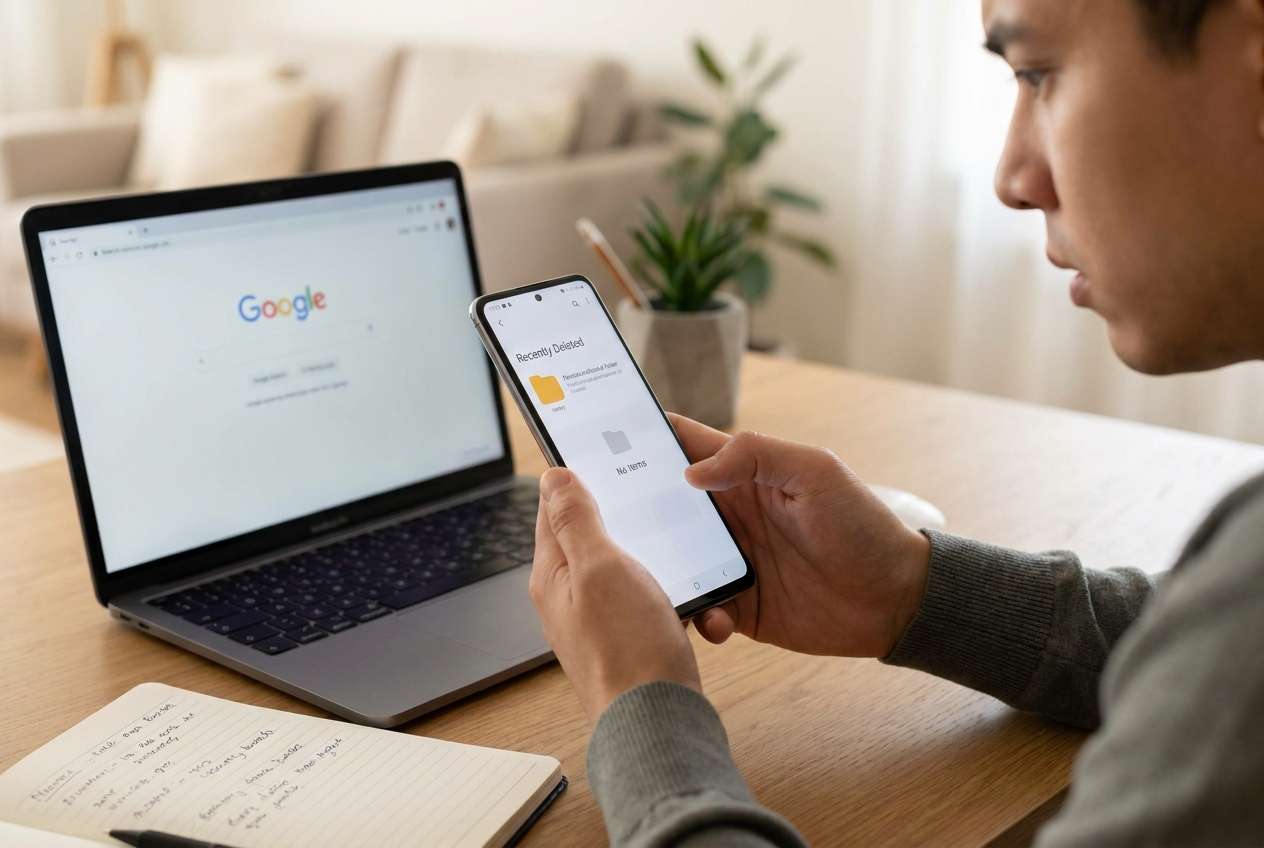
Videos can disappear right after a Gallery “cleanup” or “free up space” action on Android—especially if you tapped Clean / Delete in a storage manager, or removed “device copies” linked to cloud apps. It’s confusing because the Gallery may look normal, yet key folders are suddenly empty.
AI (like ChatGPT or Gemini) can help you map what happened, narrow likely causes (Trash vs cloud vs SD card vs file manager deletion), and choose low-risk checks in the right order—before you overwrite anything.
AI can’t see your phone’s real storage state, and trial-and-error actions (clearing app data, “optimizers,” repeated downloads) can reduce your chances of finding remaining copies. Use prompts to plan safely, then use tools only when you’re confident about the next step.
In this article
- Part 1. Why Android deleted videos after gallery cleanup happens and what it means
- What “deleted” can mean
- The key uncertainty to resolve
- Before you prompt the AI
- What details to gather
- Part 2. Using AI prompts to diagnose deleted videos after gallery cleanup safely
- Part 3. When to stop troubleshooting deleted videos after cleanup and avoid risks
- Part 4. Unlock Android screen after cleanup to verify missing videos
- Part 5. Recommended execution step (tool) when access is the blocker
Part 1. Why Android deleted videos after gallery cleanup happens and what it means
A common pattern: on a Samsung Galaxy or Pixel, you just used Gallery cleanup / storage cleanup after a prompt like “Free up space,” then your videos are gone from Albums. Sometimes this happens right after a restart, and it’s unclear whether the phone is still “organizing” files or if they’re actually deleted. (This can feel similar to storage surprises people report on devices like an iPhone 13 or iPhone 14 after an update.)
What “deleted” means can vary: the videos may be in Trash/Recycle Bin, removed only from the Gallery index, deleted from internal storage, moved to an SD card folder, or removed as “local copies” while still existing in Google Photos / OneDrive / Xiaomi Cloud, etc.
Your next step depends on one key uncertainty: did the cleanup delete files, or just remove duplicates/local copies and hide folders? The safest approach is to collect evidence first, then test the least risky checks.
1-1. Before You Prompt the AI
Gather a few details so the AI can rank causes accurately:
- Phone brand/model and Android version
- Which app did the cleanup (Gallery, Files by Google, Security/Cleaner, third-party optimizer)
- Where the videos originally were (Camera/DCIM, Downloads, WhatsApp, Telegram, Screen recordings, SD card)
- Whether a cloud app is involved (Google Photos, OneDrive, Samsung Cloud)
- Whether you can still search by filename/date, and whether Trash/Bin shows anything
- Any new symptoms (storage suddenly freed, SD card error, Gallery app crashing, phone locked out)
Part 2. Using AI prompts to diagnose deleted videos after gallery cleanup safely
2-1. Level 1: Basic Prompt
My Android videos disappeared right after I used Gallery cleanup/free up space. Give me the safest checklist to determine whether they’re in Trash, cloud-only, moved folders, SD card, or actually deleted—without doing anything that could overwrite data.
2-2. Level 2: Advanced Prompt
Act like a cautious Android data-loss triage assistant. Based on “videos missing after gallery cleanup,” rank the most likely causes from most to least likely.
For each cause, list: (1) what I should check first, (2) what evidence confirms/denies it, and (3) the risk level (low/medium/high) of each check.
Prioritize steps that avoid overwriting storage.
2-3. Level 3: Evidence Prompt
Diagnose my “videos missing after cleanup” issue using only low-risk reasoning.
Device: (e.g., Samsung Galaxy S22 / Pixel 7)
Android version: (e.g., Android 13)
What I tapped: (e.g., Gallery > Free up space > Delete / Files by Google > Clean)
Where videos were: (e.g., DCIM/Camera, WhatsApp/Media, SD card/DCIM)
Cloud apps installed: (e.g., Google Photos with Backup on/off)
Trash/Bin status: (e.g., empty / has items / no Trash option)
File Manager check: (e.g., “I can/can’t see .mp4 in Internal storage > DCIM”)
SD card status: (e.g., not detected / detected)
Storage change: (e.g., “freed 8 GB immediately”)
Anything else: (e.g., “I cleared Gallery data” / “phone rebooted”)
Output:
1) Top 3 likely causes with probabilities,
2) The single safest next step,
3) A “do-not-do” list for my situation.
2-4. Prompt Refinement
If the AI answer feels generic, push it to separate possibilities and request missing evidence:
What 5 questions do you still need answered to distinguish Trash vs cloud-only vs true deletion?
Split the causes into categories: Gallery indexing, cloud sync behavior, file deletion, SD card/path changes.
Rank causes again assuming I freed a large amount of storage immediately—what does that imply?
What single piece of evidence would most strongly confirm whether files still exist on internal storage?
List checks in order of lowest risk to highest risk, and explain why each step has that risk.
2-5. AI Output vs Reality
AI can guide your decision-making, but your phone’s actual state may differ from assumptions:
| What AI suggests | What you verify on your device |
|---|---|
| “Check Trash/Recycle Bin first.” | Whether Trash exists and whether videos are there (and how long they’re kept). |
| “It may be cloud-only now.” | Whether Google Photos/OneDrive still shows the videos and whether “device copy” was removed. |
| “The folder may be hidden or moved.” | Whether a file manager shows MP4 files in DCIM, Movies, or app-specific folders. |
| “SD card path may have changed.” | Whether the SD card is detected and browseable, and whether folders still exist. |
AI helps you choose the safest branch; it can’t perform the checks or confirm outcomes. Once you know whether the issue is access-related (can’t get into the phone) versus storage-related (files truly removed), you can decide the next execution step.
Part 3. When to stop troubleshooting deleted videos after cleanup and avoid risks
Stop and switch to a more controlled approach if you notice any of these:
- You’re about to install multiple “cleaner” or “recovery” apps that may write data to storage.
- You already tried risky actions (factory reset, formatting SD card, clearing storage) and results are getting worse.
- The phone becomes inaccessible (forgotten PIN/pattern, FRP prompts, repeated lockouts), blocking you from checking Trash or cloud settings.
- The device shows storage or hardware warnings (SD card errors, random reboots, overheating) that could escalate data loss.
At this point, use your AI diagnosis to decide what you need next in practice—for many people, that’s simply restoring access to the device so they can verify Trash, cloud libraries, and folder paths without guessing.
Part 4. Unlock Android screen after cleanup to verify missing videos
If the missing videos situation is now paired with an access problem—like you can’t unlock the phone to check Trash, Google Photos, or internal folders—Dr.Fone - Screen Unlock (Android) becomes relevant as an execution step to regain access and confirm what actually happened after the cleanup. The goal here isn’t to “recover” files with AI; it’s to restore your ability to verify evidence (Trash, cloud sync state, SD card contents) and act based on what you find, using a controlled, low-risk flow.
-
Step 1 Confirm your lock type and device model
Identify whether it’s PIN/pattern/password/fingerprint and your exact model, because unlock methods and data impact can differ.

-
Step 2 Review the lock removal guidance before proceeding
Follow the official walkthrough for Android lock screen removal so you understand prerequisites and avoid improvising steps that could increase risk.

-
Step 3 Run the unlock workflow on a stable computer connection
Use a reliable USB cable/port and avoid interruptions (like low battery or disconnects) during the process.

-
Step 4 After access is restored, verify the least-risk locations first
Check Gallery Trash/Recycle Bin, cloud app libraries (Google Photos/OneDrive), and then file-manager paths (DCIM/Camera, Movies, app media folders).

-
Step 5 Document what you see before making more changes
Take notes/screenshots of folder paths, missing dates, and cloud status so your next decision is evidence-based.

Part 5. Recommended execution step (tool) when access is the blocker
If you can’t get into the phone to verify Trash, cloud libraries, or folder paths, a practical next move is to restore access first—so you can confirm evidence instead of guessing.
 Unlock Android phone in seconds.
- Remove PIN, pattern, password, fingerprint.
- Bypass Google FRP lock easily.
- Works on all Android brands & models.
- No tech skills required – user-friendly.

After access is restored, return to the low-risk verification order: check Gallery Trash/Recycle Bin, then cloud libraries (Google Photos/OneDrive/Samsung Cloud), then file-manager paths (DCIM/Camera, Movies, app media folders), and finally SD card detection and folder integrity.




Conclusion
Use AI to structure the investigation—identify whether you’re dealing with Trash, cloud-only changes, moved folders, SD card issues, or true deletion—then hand off to practical execution when access is the blocker, such as restoring device access with Dr.Fone so you can verify evidence and choose the next low-risk step.
FAQ
-
Why did my videos disappear right after I cleaned up the Gallery?
Cleanup can remove local copies, delete items into Trash, or clear cached indexes so videos appear missing; the outcome depends on the app used and your cloud sync settings. -
Where is the Trash/Recycle Bin for deleted videos on Android?
Many Gallery apps have a Trash/Recycle Bin inside the Gallery menu/settings, but availability and retention time vary by brand and app version. -
Could Google Photos still have my videos even if Gallery is empty?
Yes—if backups were enabled, videos may still exist in Google Photos even after local “device copies” were removed during cleanup. -
Does clearing Gallery app data help bring videos back?
It can sometimes rebuild the media index, but it can also remove local album organization; it’s usually not the first step if you suspect true deletion. -
If I can’t unlock my Android phone, can I still check whether videos exist?
Not reliably—most checks (Trash, cloud status, internal folders) require access; restoring access first can prevent blind, risky actions. -
Will unlocking the Android screen erase my data?
It depends on the device brand/model and the method used; check the model-specific implications before proceeding.
 Add Wondershare Dr.Fone as a preferred source on Google





