 Effortlessly manage data through preview, delete, export, etc.

 100% Security Verified | No Subscription Required | No Malware

 :
: 
 ChatGPT
 Perplexity
 Gemini
 Claude
 Grok
Grok

My Android phone seems completely dead after charging overnight—no logo, no vibration, nothing. I mainly need the photos back. What’s the safest way to figure out what’s wrong without making it worse?
Reddit user, r/AndroidQuestions
A dead Android phone can feel like a total stop—especially when the photos you care about are still inside and the screen won’t turn on. This often happens right after a drop, after plugging in a charger overnight, or after a restart following an update.
AI tools like ChatGPT or Gemini can help you describe symptoms clearly, narrow likely causes (power, screen, storage, motherboard), and pick low-risk checks first—so you don’t accidentally make the situation worse.
AI can’t see your phone’s real hardware state, and trial-and-error can add risk (overheating, battery damage, or data loss). The goal is to diagnose and decide, then hand off execution to a dedicated tool when it’s time.
In this article
- Part 1. Why a dead Android phone won’t turn on and what it means for photos
- What “dead” can mean
- What happened right before failure
- Why Android variables matter
- Before you prompt the AI
- Part 2. Using AI prompts to diagnose a dead Android phone safely
- Part 3. When to stop troubleshooting a dead Android phone to avoid risks
- Part 4. Recover data from broken Android device with Dr.Fone
- FAQ
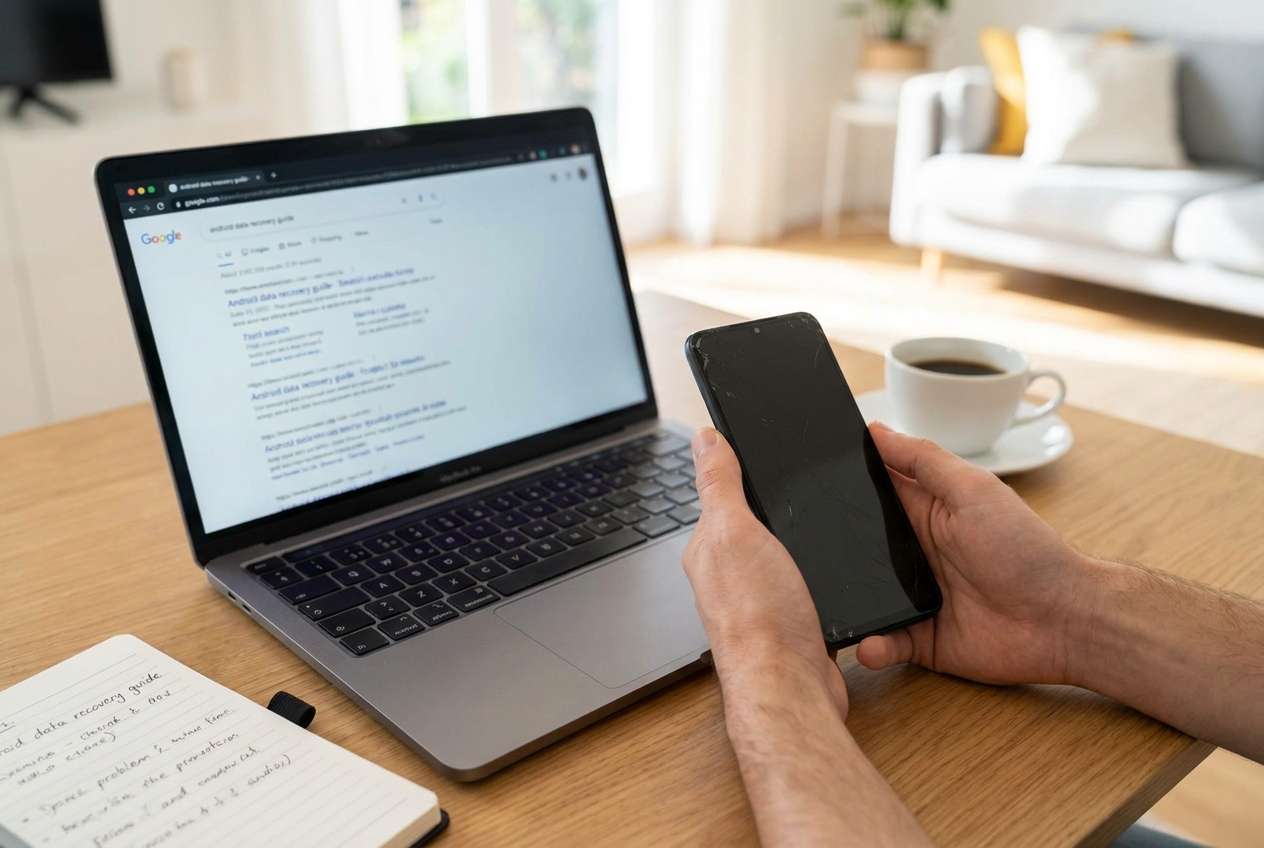
Part 1. Why a dead Android phone won’t turn on and what it means for photos
If your Android is “dead,” it may be truly not powering on—or it may be on but not displaying anything (screen failure), stuck in a boot loop, or unable to charge. These scenarios change what’s realistic for photo access.
Right before it died, you might have tapped Restart, installed an update, or connected to a new charger—then the phone stayed black with no vibration or logo. After several minutes, nothing changes, and it’s unclear whether it’s still booting or not.
Even if you’ve dealt with similar panic on an iPhone 13 or iPhone 14, Android adds extra variables (different manufacturers, charging behavior, and storage encryption), so identifying the type of “dead” matters before you attempt anything risky.
1-1. Before You Prompt the AI
Gather a few facts first so the AI can separate power issues from display/boot issues:
- Phone brand + model (if known)
- What happened right before it died (drop, update, water, new cable)
- Current signs of life (LED, vibration, heat, sounds, charging icon)
- Battery/charging context (wireless vs cable, fast charger, PC USB)
- Whether you need photos only or other data too
Part 2. Using AI prompts to diagnose a dead Android phone safely
2-1. Level 1: Basic Prompt
My Android phone seems dead and I need my photos. It won’t turn on and I see these signs: [LED/vibration/heat/sounds/none]. It happened after: [drop/update/charging/etc.]. Give me the most likely categories of failure (power, screen, boot, storage) and the safest first checks that won’t risk data.
2-2. Level 2: Advanced Prompt
Act as a diagnostic assistant. Based on my symptoms, rank the top 5 likely causes of a “dead Android phone” (with rough probabilities), and list low-risk checks in order.
Constraints: I want to avoid heat, repeated forced restarts, and any step that could overwrite data.
Symptoms:
- Phone model: [unknown/known]
- Trigger event: [e.g., dropped / update reboot / charged overnight]
- Signs of life: [none / LED / vibration / notification sounds / warms up]
- Charging behavior: [no icon / shows icon then stops / gets hot]
Output format:
1) Ranked causes + why each fits
2) “Safe checks” vs “riskier checks”
3) What evidence would change the ranking
2-3. Level 3: Evidence Prompt
Help me diagnose whether my Android is truly dead or just not displaying/booting, so I can choose a photo-recovery path with minimal risk. Use the info below, ask only the most important missing questions, then give a decision tree.
Device info
- Brand/model: (e.g., Samsung Galaxy S21 / Pixel 7 / unknown)
- Approx age of device: (e.g., 2 years)
- Storage free space before failure (if known): (e.g., ~5 GB free)
- Screen condition: (e.g., cracked / fine / previously flickering)
What happened
- Last action before failure: (e.g., tapped “Install now” then rebooted)
- Physical event: (e.g., dropped from pocket / water exposure / none)
- Charging setup used: (e.g., original cable + wall charger / laptop USB)
Current symptoms
- Any LED indicators: (e.g., red light while charging)
- Vibration/sounds: (e.g., vibrates when plugged in)
- Heat: (e.g., warms near camera area)
- PC detection: (e.g., shows in Device Manager / not detected)
- Recovery/boot menu attempts: (e.g., tried Power+Volume Down)
Goal & constraints
- Priority data: photos/videos only
- Avoid: heating/freezing, opening the phone, repeated forced restarts
Output:
1) Most likely scenario (power vs display vs boot vs storage)
2) Safest next 3 checks
3) Stop signals where I should avoid further DIY attempts
4) What a data-recovery tool would need from the phone (states/permissions)
2-4. Prompt Refinement
Use these follow-ups to make the AI’s diagnosis more accurate:
“What 3 questions would you ask first to distinguish dead battery/charging from broken screen from boot failure?”
“Separate causes into hardware vs software vs access/USB issues, and rank within each category.”
“Which single observation would most strongly confirm the top cause (e.g., LED pattern, PC detection, vibration)?”
“List checks that are non-invasive and don’t increase data risk, and label anything that could worsen damage.”
“If the phone is encrypted and not booting, how does that change what photo extraction methods are realistic?”
2-5. AI Output vs Reality
AI can help you decide; it can’t validate the phone’s actual electrical state. Use this to sanity-check the output:
| What AI suggests | What you should verify in reality |
|---|---|
| “It’s probably a charging issue.” | Try a known-good cable/adapter and check for any LED/vibration without overheating. |
| “It might be a broken screen.” | Confirm whether the phone vibrates, rings, or is detected by a PC even with a black display. |
| “It’s likely stuck booting after update.” | Watch for repeating logo/boot patterns and whether recovery mode is reachable. |
| “Data extraction should be possible.” | Ensure the phone state supports access (powered, stable connection, no worsening heat). |
AI outputs are hypotheses based on your inputs; execution depends on your phone’s actual condition and what access (power/USB/boot) is still possible.
Part 3. When to stop troubleshooting a dead Android phone to avoid risks
If the goal is photos, the safest strategy is often: stop early when symptoms suggest escalating hardware damage, then switch to a controlled recovery approach.
- The phone gets hot quickly when charging or attempting to power on.
- You smell burning/chemical odors, or the battery looks swollen.
- The phone shows intermittent power (flickers, repeated restarts) and worsens with each attempt.
- The device had water exposure, and you’re tempted to keep powering it to “check.”
Once you’ve identified the most likely failure type (power, display, boot, storage), you can move from diagnosis to a tool-based attempt that prioritizes data access over experimentation.
Part 4. Recover data from broken Android device with Dr.Fone
After AI helps you narrow what “dead” means (no power vs no display vs boot failure), the practical next step is using a purpose-built workflow designed for photo extraction from damaged devices. Dr.Fone - Data Recovery (Android) is relevant at this point because it focuses on executing the recovery process—especially through its Recover Data From Broken Android Device capability—once you’ve decided DIY poking around is no longer the safest path.
 Scan Android phones and tablets directly.
- Preview and recover only what you want.
- Supports WhatsApp, photos, videos, contacts, and more.
- Works with 6000+ Android devices.

-
Step 1 Install and open Dr.Fone - Data Recovery (Android)
Run it on a computer you trust, and avoid random third-party utilities that could add confusion or prompts you can’t verify.

-
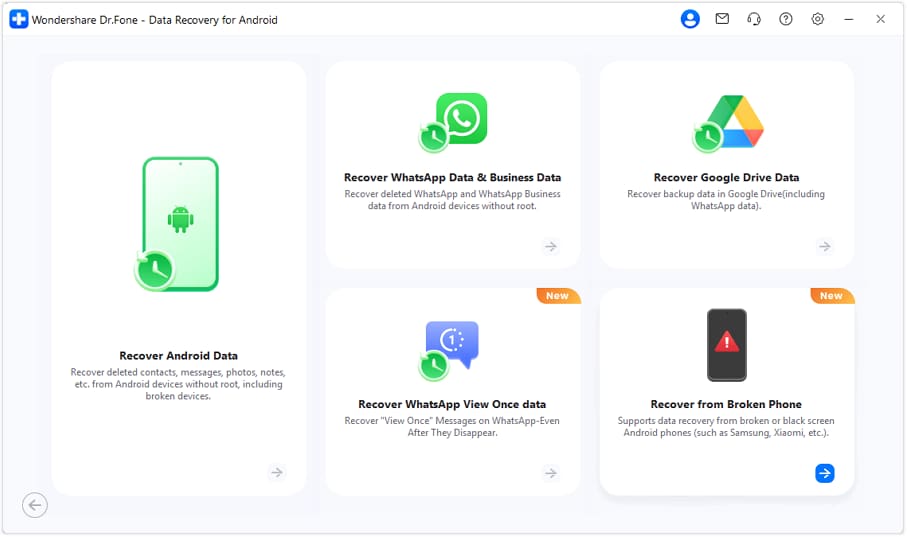
Step 2 Choose the broken-device recovery path
Select the option aligned with Recover Data From Broken Android Device, and proceed carefully if the phone’s state is unstable (stop if it starts overheating).

-
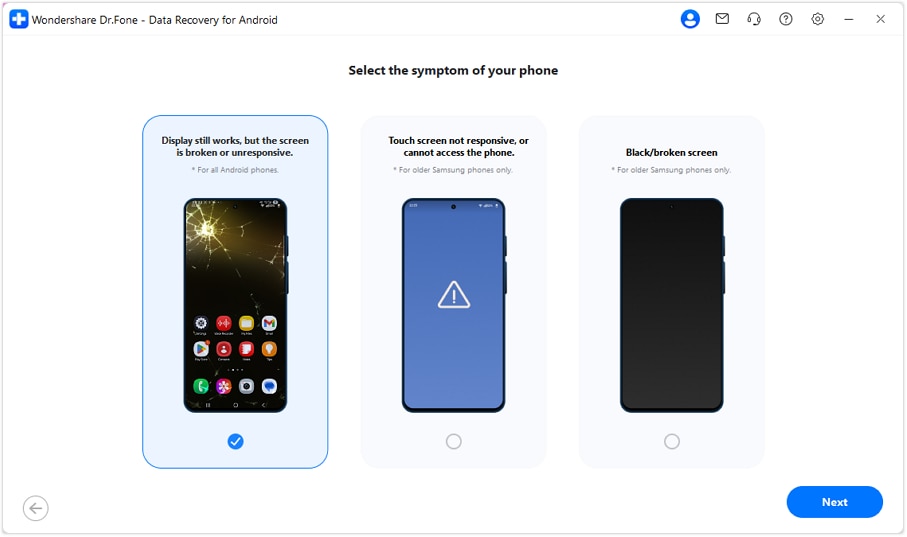
Step 3 Connect the phone and follow the on-screen device prompts
Use a reliable cable and a direct USB port; avoid repeated reconnect cycles if the phone keeps dropping connection.
-
Step 4 Preview and select photos to export
Prioritize irreplaceable albums first to reduce time connected if the device is failing intermittently.
-
Step 5 Save recovered files to the computer (not back to the phone)
Write results to the PC drive to avoid any chance of overwriting or stressing the device storage further.




Conclusion
Use AI to classify the symptoms of a “dead” Android phone, rank likely causes, and choose low-risk checks—then hand off to Dr.Fone - Data Recovery (Android) to carry out the recovery workflow when you need a controlled, execution-focused path for retrieving photos.
FAQ
-
Can photos be recovered if an Android phone won’t power on at all?
Sometimes, but it depends on whether the phone can be brought to a stable state for detection and access; true no-power hardware failures reduce options.
-
What if the phone is on but the screen is black?
That’s often a display issue rather than “dead.” If it still vibrates, rings, or connects to a PC, photo extraction may be more feasible than it looks.
-
Should I keep force-restarting the phone to “unstick” it?
Repeated forced restarts can worsen instability and, in some cases, increase risk—especially if the device heats up or restarts in a loop.
-
Does Android encryption prevent photo recovery?
Encryption can limit what’s accessible if the phone can’t boot/unlock. That’s why correctly identifying “bootable vs not bootable” is a key diagnostic step.
-
Is it safe to charge a phone that gets hot while charging?
No—heat is a stop signal. Overheating can indicate battery or board issues and can escalate damage.
 Add Wondershare Dr.Fone as a preferred source on Google





