 Effortlessly manage data through preview, delete, export, etc.

 100% Security Verified | No Subscription Required | No Malware

 :
: 
 ChatGPT
 Perplexity
 Gemini
 Claude
 Grok
Grok

I’m moving my WhatsApp Business to a new phone, but I can’t risk losing customer chats. I’m worried one wrong step will overwrite something and I won’t be able to get the full history back.
Reddit user, r/whatsapp
A WhatsApp Business migration with customer chat history can go wrong if you miss one small step—like the wrong backup type, a mismatched number, or an unreadable encryption key.
AI helps by turning a vague goal (“move everything to my new phone”) into a sequenced workflow with prerequisites, checkpoints, and clear stop/go decision points.
AI can’t access your phone, verify what’s actually on-device, or perform the transfer itself—so once the plan is verified, execution must be done with real tools.
In this article
- Part 1. Plan a WhatsApp Business migration without missing critical steps
- What you’re trying to protect (and why generic advice fails)
- Why the sequence matters more than “backup then restore”
- The point of no return to gate behind verification
- What “ready to execute” looks like
- Part 2. What the AI needs to know
- Part 3. AI prompts to build a safer workflow
- Part 4. AI plan vs. real device constraints (and when to stop planning)
- Part 5. Execute the workflow safely with Dr.Fone
Part 1. Plan a WhatsApp Business migration without missing critical steps
1-1. What you’re trying to protect (and why generic advice fails)
You’re switching phones (or platforms) and your WhatsApp Business account holds customer conversations you can’t afford to lose—orders, addresses, dispute history, and ongoing chats. You want the new device ready to work immediately, without gaps in history.
1-2. Why the sequence matters more than “backup then restore”
After asking AI, you may get general advice (“back up, then restore”), but not the exact sequence for your setup—cloud vs local backups, same vs different OS, multi-device state, storage limits, and whether media + chat history are equally preserved.
1-3. The point of no return to gate behind verification
There’s also a point of no return: once you register the same WhatsApp Business number on the new phone and start overwriting/initializing restores, you can lock yourself out of the old session and potentially lose access to the only complete message set if your backup/transfer path isn’t confirmed.
1-4. What “ready to execute” looks like
Before you do anything irreversible, your plan should include prerequisites, a verification checklist, and explicit stop/go gates (for example: “do not register on the new device until backup timestamp and storage checks pass”).
Part 2. What the AI needs to know
Share the details below so the workflow can be planned with the right checks and the right “stop before you commit” moments.
- Source phone OS and model (Android/iPhone)
- Target phone OS and model (Android/iPhone)
- WhatsApp Business app version (approx.) and whether you use multi-device
- Same phone number on the new device? (yes/no) and any upcoming SIM changes
- Backup situation today: Google Drive / iCloud / local only / unknown
- Encryption status you’re aware of (end-to-end encrypted backup on/off/unknown)
- Approx. chat + media size and free storage on both devices
- Any device management constraints (work phone, MDM restrictions, no iCloud/Google allowed)
- Your acceptable downtime window (e.g., 30 minutes vs overnight)
- What “success” means for you (all chats + media + business profile, or chats only)
Part 3. AI prompts to build a safer workflow
Use the prompts below to force a step-by-step plan with verification gates before you touch anything irreversible.
3-1. Level 1: Basic Prompt
I need a safe plan to migrate WhatsApp Business to a new phone while keeping full customer chat history.
Ask me the minimum questions you need, then give me a short checklist with verification steps before I register the account on the new device.
3-2. Level 2: Advanced Prompt
Build a structured workflow for my WhatsApp Business migration with customer chat history, split into Preparation / Execution / Verification.
Mark steps as critical vs optional, and include “stop points” where I should not proceed until a specific check passes (e.g., backup verified, storage confirmed, number/SIM confirmed).
3-3. Level 3: Evidence Prompt
Here’s my situation: Source device (Android, Samsung S21), target device (iPhone 15), same number (yes), backup status (Google Drive backup exists, last backup: yesterday), data size (WhatsApp Business ~18 GB), free space (Android: 12 GB free, iPhone: 40 GB free), downtime (max 1 hour).
Create a migration plan that includes checks before / during / after the move.
For each check, tell me what evidence to look for (e.g., “backup timestamp matches,” “chat count spot-check,” “media opens in older chats”).
Also list the top 5 failure modes and how to avoid them.
3-4. Prompt Refinement
Output the plan as a table with columns: Step / Why it matters / Evidence to confirm / Risk if skipped / Stop-Go rule.
Separate what is device-agnostic (always true) from what depends on Android→Android, iPhone→iPhone, Android→iPhone, iPhone→Android.
Define my “point of no return” steps and put them behind a hard gate (I must confirm X, Y, Z first).
Give me a minimum viable migration (chats only) and a full migration (chats + media), and tell me what I lose in each.
Provide a rollback plan if the new device restore/transfer is incomplete (what I should avoid doing so the old device stays usable).
List the exact items I should screenshot/write down before starting (backup time, storage, app versions, account state).
Part 4. AI plan vs. real device constraints (and when to stop planning)
| AI plan | Real constraint |
|---|---|
| Define the safest sequence and checkpoints | Only your devices can show actual backup timestamps, sizes, and restore results |
| Identify the “do not proceed” moments | One tap (register number, overwrite restore) can invalidate the old session |
| Reduce ambiguity (which path, which prerequisites) | OS rules, storage limits, network stability, and account state can block the path |
| Provide verification criteria (spot checks, counts, media tests) | Verification requires opening chats/media on the device and observing real outcomes |
AI improves planning, but cannot execute transfers, read your device state, or guarantee outcomes without real-world verification on the phones.
4-1. When to stop planning and start execution
- You can clearly state your migration path (same OS vs cross-OS) and why that path fits your constraints.
- You have confirmed prerequisites (storage headroom, stable power/network, correct number/SIM plan, and a verified backup/transfer method).
- You have a written verification checklist (what “complete” looks like) and a rollback rule (when to stop and revert).
- You have identified and gated the irreversible moment(s) (especially registering the number on the new device and overwriting/initializing restores).
Once those are true, planning is no longer the bottleneck—your risk shifts to careful, interruption-free execution.
Part 5. Execute the workflow safely with Dr.Fone
If you want an execution layer for the plan you designed, Dr.Fone - WhatsApp Transfer can be used to carry out the WhatsApp Business transfer/backup steps you’ve already verified (backup/space/number prerequisites, and your stop-go gates).
 Transfer WhatsApp across Android & iOS.
- Backup & restore WhatsApp to PC securely.
- Preview & export chats selectively.
- Works with all iPhone & Android models.
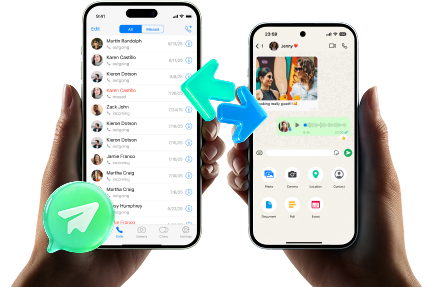
Execution now matters because the same plan can succeed or fail based on timing, interruptions, and whether you avoid irreversible actions until verification is complete.
-
Step 1 Open the WhatsApp transfer tool
On your computer, launch Dr.Fone and select the WhatsApp transfer feature to begin the workflow you planned.

-
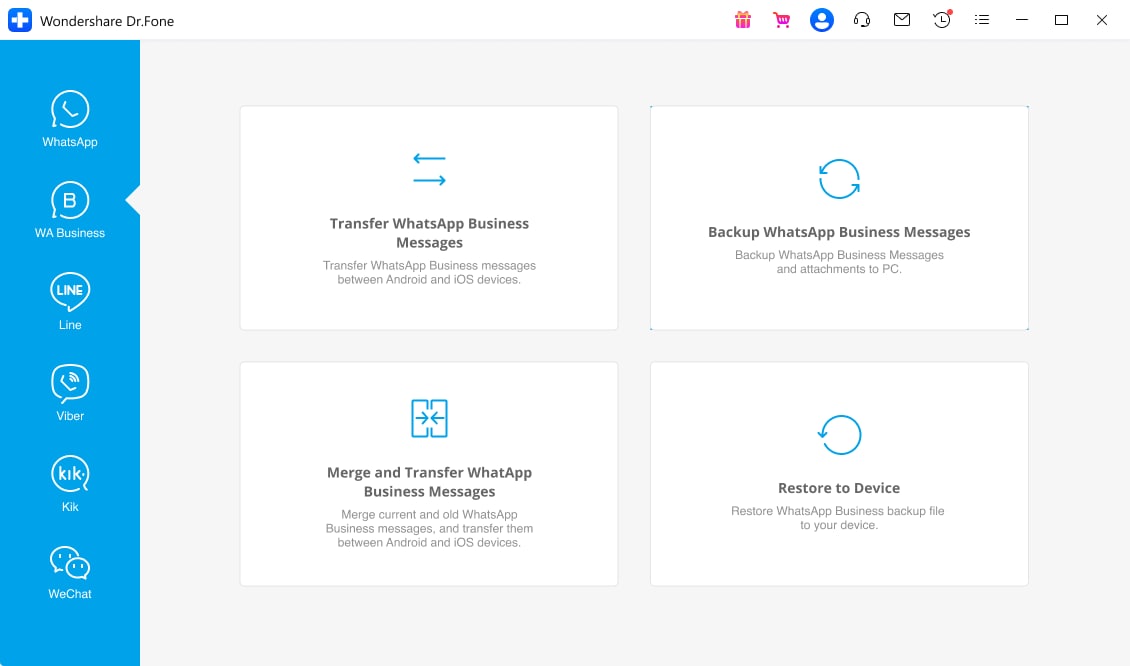
Step 2 Choose WhatsApp Business transfer
Select the option for transferring WhatsApp Business so you’re executing the correct path for a business account.
-
Step 3 Set the source and destination devices
Connect both devices and confirm which one is the source (current chats) and which one is the destination (new phone) before continuing.

-
Step 4 Run the transfer and do not interrupt it
Keep both devices powered and stable until the process completes. If anything fails mid-process, restart the execution step—don’t proceed to number re-registration or cleanup until your verification checks pass.




Conclusion
AI is best used to design the safest sequence, define stop/go gates, and create verification checks; a real tool like Dr.Fone is what executes the migration once you’ve confirmed you’re not about to cross an irreversible point without proof.
FAQ
-
What’s the biggest risk in a WhatsApp Business migration with customer chat history?
Hitting an irreversible step (registering the number on the new device, overwriting a restore, or deleting the old app/data) before you’ve verified that chats and media are intact. -
How do I verify the migration is actually complete?
Use evidence checks: spot-check very old conversations, confirm recent messages, open media inside older threads, and verify critical customer chats that would hurt to lose. -
When should I create or confirm a backup?
Before any device switch actions—especially before registering WhatsApp Business on the new phone—so you’re not relying on a partially migrated dataset. -
Can AI tell me whether my backup is valid?
No. AI can define what to look for (timestamps, sizes, restore results), but only your phone/apps can display the real backup/restore evidence. -
How much downtime should I plan for?
Plan for more than the “transfer time”: include pre-flight checks, the migration run, and post-migration verification before returning to business use.
 Add Wondershare Dr.Fone as a preferred source on Google





