 Effortlessly manage data through preview, delete, export, etc.

 100% Security Verified | No Subscription Required | No Malware

 :
: 
 ChatGPT
 Perplexity
 Gemini
 Claude
 Grok
Grok

I used Quick Start to set up my new iPhone and now most of my Reminders are gone. Some lists show up, but the items I need aren’t there—how do I tell if it’s syncing or actually missing?
Apple Support Community user
Reminders can disappear right after moving to a new iPhone (for example, an iPhone 13 or iPhone 14) using Quick Start, iCloud restore, or after you tapped Transfer / Restore and the phone restarted. You may still see some lists, but specific reminders—or all of them—look gone.
AI (like ChatGPT or Gemini) can help you describe what you’re seeing, narrow down likely causes (sync, account, iCloud settings, restore status), and identify the safest next checks to try first.

AI can’t see your Apple ID, sync state, or what’s actually stored on the device, so guessing and repeated resets can create risk (overwriting data, changing sync results, or masking the real cause). Use prompts to diagnose first, then use an execution tool only when you have a clearer plan.
In this article
- Part 1. Why reminders lost after moving to new iPhone happens and what it means
- What “missing” usually means after a move
- Sync delay vs account mismatch
- Restore/transfer not fully completed
- Before you prompt the AI
- Part 2. Using AI prompts to diagnose Reminders not syncing to new iPhone safely
- Part 3. When to stop troubleshooting missing Reminders on new iPhone and avoid risks
- Part 4. Recover Reminders from an iOS device with Dr.Fone
- Part 5. Recommended iOS recovery tool (download & next steps)
Part 1. Why reminders lost after moving to new iPhone happens and what it means
When reminders vanish after migration, it usually means one of three things: the reminders are still in iCloud but not syncing to the new phone yet, they’re tied to a different account (iCloud vs Gmail/Exchange), or the transfer/restore didn’t fully bring over the local cache.
This often happens right after setup when iCloud is still indexing in the background, or when Reminders is toggled off for iCloud on the new iPhone. It can also look “lost” if you changed Apple IDs, switched region/time settings, or only some reminder lists were stored under a non‑iCloud account.
From your perspective, nothing changes after several minutes: the Reminders app opens, but the expected lists or items don’t reappear, so it’s unclear whether the phone is still syncing or whether the data is actually missing.
1-1. Before You Prompt the AI
Collect a few facts first so the AI can separate sync delay from actual loss:
- iPhone model + iOS version (Settings > General > About)
- How you moved data (Quick Start, iCloud backup restore, Finder/iTunes restore)
- Apple ID(s) used on old vs new iPhone (same or different)
- Whether Reminders uses iCloud or another account (Gmail/Exchange)
- Whether any reminder lists still appear (and which ones)
Part 2. Using AI prompts to diagnose Reminders not syncing to new iPhone safely
2-1. Level 1: Basic Prompt
I moved from my old iPhone to a new iPhone and now my Reminders are missing.
Ask me the minimum questions needed to determine whether this is an iCloud sync issue, an account mismatch, or a restore/transfer problem, and then give me the safest next 3 checks to try first.
2-2. Level 2: Advanced Prompt
Diagnose my missing Reminders after moving to a new iPhone.
Task: Provide a ranked list of the most likely causes with probability estimates, and for each cause list: (a) what evidence would confirm it, (b) the lowest-risk check to do first, (c) what not to do yet to avoid making things worse.
Constraints: Avoid destructive steps (resets, sign-outs, deletes) unless clearly justified.
2-3. Level 3: Evidence Prompt
You are helping me triage “Reminders missing after moving to a new iPhone.”
Please:
1) Group causes into Sync/Account, Device/Restore, App/List configuration, Network/Apple services.
2) Rank the top 5 likely causes and tell me what evidence supports/refutes each.
3) Give a “low-risk first” action plan (max 6 steps) and label any step that could risk data loss or overwriting.
My details:
- iPhone model: (e.g., iPhone 13 Pro)
- New iPhone iOS version: (e.g., iOS 17.5)
- Old iPhone iOS version: (if known)
- Transfer method: (Quick Start / iCloud backup / Finder restore)
- Apple ID on old iPhone: (same as new? yes/no)
- Accounts enabled for Reminders: (iCloud / Gmail / Exchange)
- iCloud Reminders toggle on new iPhone: (on/off/unknown)
- Symptoms: (no lists / some lists missing / items missing within lists)
- Time since setup finished: (e.g., 20 minutes / 6 hours)
- Network: (Wi‑Fi / cellular / VPN on?)
- Any other iCloud data syncing fine (Photos/Notes): (yes/no)
- What I already tried: (e.g., force close app, reboot)
2-4. Prompt Refinement
If the AI’s answer feels generic, use these follow-ups to force clarity:
What 5 questions would most change your diagnosis, and why are they the highest impact?
Rank the causes again assuming iCloud Reminders is ON, then rank them assuming it’s OFF.
Separate “data exists in iCloud but not on device” vs “data not in iCloud at all”—what evidence distinguishes these?
Which single check best confirms an Apple ID/account mismatch, without signing out of anything?
List the top 3 actions that could accidentally overwrite or remove Reminders during troubleshooting.
2-5. AI Output vs Reality
AI can map possibilities and risks, but it can’t verify what’s actually stored on your device or in your iCloud container.
| What AI can infer from your answers | What you still must verify on-device/in-account |
|---|---|
| Likely cause category (sync vs account vs restore) | Which Apple ID and Reminders account is actually active |
| Lowest-risk checks to try first | Whether Reminders are present on iCloud.com / another device |
| Warning signs of destructive steps | Whether sign-out/restore would trigger merges or deletions |
| A decision tree for next actions | Whether data exists locally and is recoverable on the iPhone |
AI helps you choose the safest path; execution still depends on what your iPhone and accounts actually contain at the moment you check.
Part 3. When to stop troubleshooting missing Reminders on new iPhone and avoid risks
Stop “trying random fixes” when the next step might change or overwrite the current state.
- You suspect you might be signed into a different Apple ID, but you’re unsure what will merge/delete if you sign out.
- You see reminders flicker in/out, duplicate, or partially reappear (possible sync reconciliation in progress).
- You’re considering erase/restore again even though you haven’t verified whether the reminders exist in iCloud or another account.
- The device has been used heavily since the move (new photos/apps/downloads), increasing the chance of overwriting recoverable local data.
Once you’ve used AI to narrow the most likely scenario and identify low-risk checks, you can move from diagnosis to controlled execution with a recovery workflow.
Part 4. Recover Reminders from an iOS device with Dr.Fone
If your diagnosis suggests the reminders aren’t simply “waiting to sync” (or you can’t confirm they exist in iCloud/another account), the next practical step is to attempt a targeted recovery from the iPhone itself. Dr.Fone - Data Recovery (iOS) can be used to recover data from an iOS device in a structured way, which is helpful when you want a repeatable process rather than more trial-and-error.
Use it after you’ve captured your symptoms and risks via AI prompts, so you know what you’re looking for and can avoid unnecessary changes. (Relevant pages: Dr.Fone Data Recovery (iOS), iOS Data Recovery guide.)
-
Step 1 Prepare the iPhone for recovery
Stop adding new data on the new iPhone (new installs, downloads, large captures) to reduce the chance of overwriting remnants.

-
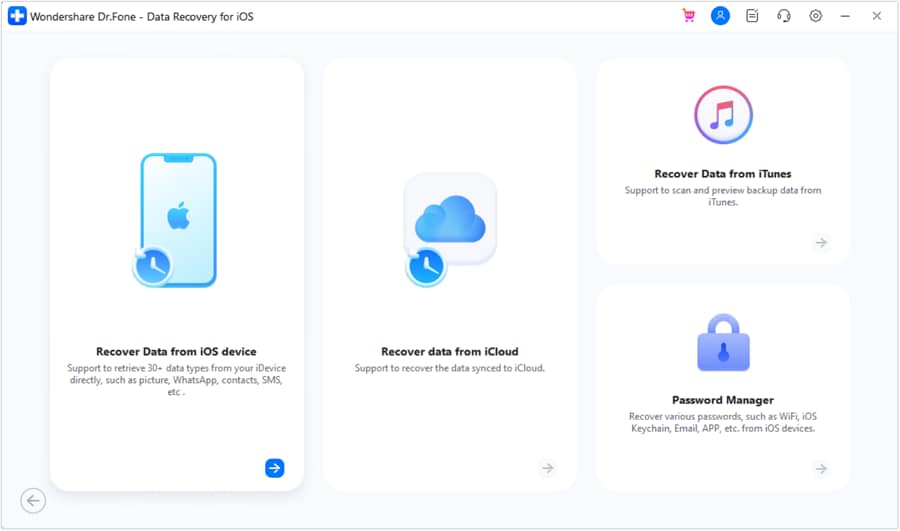
Step 2 Open Dr.Fone and choose iOS Data Recovery
Select the option that targets recovery from the iOS device, matching your goal to recover Reminders-related data.

-
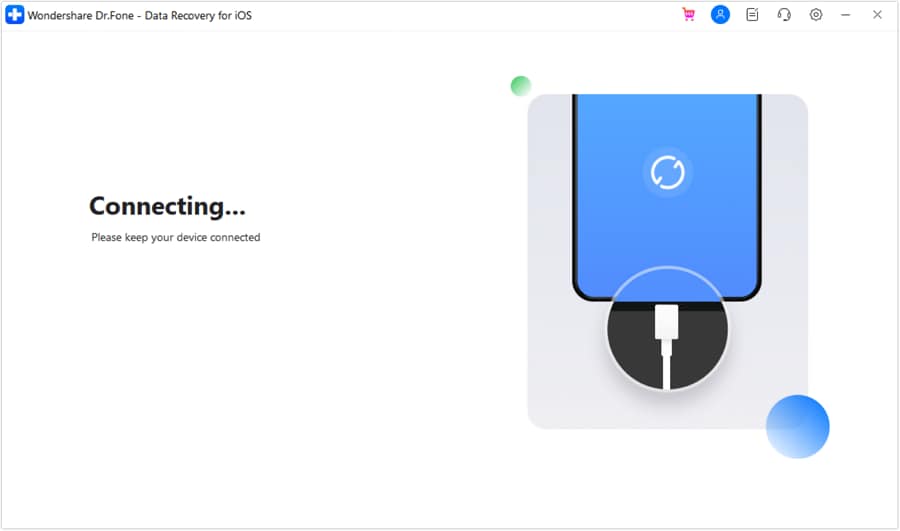
Step 3 Connect the iPhone and run a scan
Keep the cable stable during the scan to avoid interruptions and incomplete results.
-
Step 4 Preview and filter results
Review what’s found and focus on Reminders-related items before deciding what to export/recover.
-
Step 5 Complete recovery to a safe destination
Save the recovered output carefully and avoid immediately making large account/sign-out changes until you confirm what you got.

Part 5. Recommended iOS recovery tool (download & next steps)
If your checks suggest the reminders aren’t coming back via normal syncing (or you can’t confirm where the data exists), using a structured scan-and-preview workflow can help you proceed more cautiously than trial-and-error.
 Recovers data after deletion, crashes, or device damage.
- Supports photos, messages, contacts, WhatsApp, and more.
- Supports all major iPhone, iPad, and iPod models.
- Preview and recover only what you need.

After recovery, compare what you found against your AI-based diagnosis (sync vs account vs restore) before making any sign-out, reset, or restore decisions.




Conclusion
Use AI prompts to turn “Reminders are gone” into a ranked set of likely causes and a low-risk verification plan, then hand off to an execution step only when the situation points beyond normal syncing—where a structured iOS recovery workflow can help you proceed carefully.
FAQ
-
Why did my Reminders disappear after transferring to a new iPhone?
Most cases are iCloud sync delay, Reminders being tied to a different account (Gmail/Exchange vs iCloud), or an incomplete/partial restore state. -
How do I know if it’s an iCloud sync issue or real data loss?
If the same Apple ID is used and other iCloud data syncs but Reminders doesn’t, sync/config is likely; if Reminders are also missing on iCloud.com and other devices, true loss or account mismatch becomes more likely. -
Can a different Apple ID on the new iPhone hide my Reminders?
Yes. Reminders are associated with the signed-in account and enabled Reminders source; using a different Apple ID can make your original lists appear “gone.” -
Is signing out of iCloud a safe troubleshooting step?
Not always. Sign-out can trigger merges/deletions depending on what’s stored locally vs in iCloud, so it’s better to confirm account/source first. -
What should I avoid doing if I want the best chance to recover missing Reminders?
Avoid repeated erase/restore cycles and heavy device usage until you’ve confirmed where the data should exist and whether recovery is needed.
 Add Wondershare Dr.Fone as a preferred source on Google





