 Effortlessly manage data through preview, delete, export, etc.

 100% Security Verified | No Subscription Required | No Malware

 :
: 
 ChatGPT
 Perplexity
 Gemini
 Claude
 Grok
Grok

I bought a used Android phone, factory reset it, and now setup stops with “This device belongs to your organization” / Google sign-in. It looks wiped, but I still can’t activate it—what is this and what should I do next?
Reddit user, r/Android
Buying a used Android (for example, a Galaxy S21 or Pixel 7) can turn frustrating when setup stops at a “This device belongs to your organization” or Google sign-in screen right after you factory reset it or after you tap Start on first boot.
AI (like ChatGPT or Gemini) can help you describe what you see, identify whether it’s likely Google FRP, MDM/EMM management, Samsung Knox, or a normal Google account lock, and suggest the lowest-risk next checks.
AI can’t verify ownership or remove enterprise controls for you, and trial-and-error “bypass” attempts can increase lockouts or make the device harder to activate—so use AI for diagnosis, then choose a lawful execution path.
In this article
- Part 1. Why a used business phone still linked to company account happens and what it means
- What this lock usually means
- A common trigger during setup
- Why it feels like the reset didn’t work
- Before you prompt the AI
- Part 2. Using AI prompts to diagnose a used business phone still linked to company account safely
- Part 3. When to stop troubleshooting a used business phone still linked to company account and avoid risks
- Part 4. Used business phone still linked to company account: resolve it safely with Dr.Fone
- Part 5. What to ask the seller/company to unblock a legitimately purchased device
Part 1. Why a used business phone still linked to company account happens and what it means
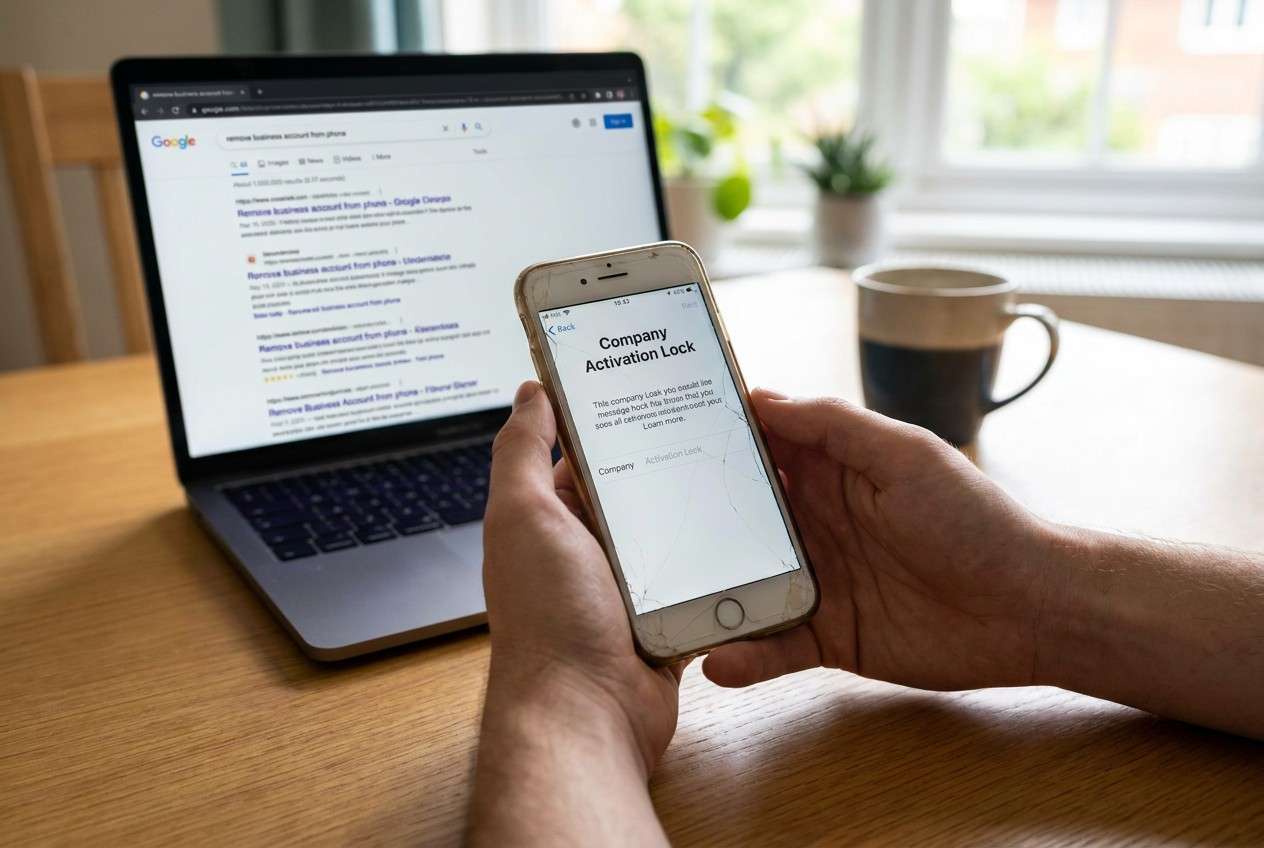
1-1. What this lock usually means
This usually happens when a company device wasn’t properly decommissioned before resale—so the phone is still enrolled in an organization’s device management (MDM/EMM) or still protected by Factory Reset Protection (FRP) tied to a previous Google account.
1-2. A common trigger during setup
A common trigger is: you received the phone, performed a factory reset (or it was already wiped), then during setup you’re asked for the previous owner’s Google credentials or you see a message indicating organizational control.
1-3. Why it feels like the reset didn’t work
From the user side, it’s confusing because the phone looks reset, yet nothing changes after several minutes of setup retries—so it’s unclear whether the device is “still configuring” or actively blocked by a policy.
1-4. Before you prompt the AI
Collect these details first so the AI can classify the lock correctly:
- Exact on-screen message (copy it verbatim if possible)
- Phone brand/model and Android version (if shown)
- Where the block appears (power-on screen, Google sign-in, “work profile,” device admin page)
- Whether you can reach Settings at all
- Proof-of-purchase status (invoice, listing, IMEI/serial on receipt)
- Any visible management clues (company name, “managed by,” QR enrollment prompt)
Part 2. Using AI prompts to diagnose a used business phone still linked to company account safely
Use AI to classify what you’re seeing (FRP vs MDM/enterprise enrollment vs something else) and to surface the lowest-risk checks—without escalating lockouts.
2-1. Level 1: Basic Prompt
I bought a used Android phone and during setup it says it’s linked to a company account. Here’s the exact message: “[paste].” Based on this message and where it appears in setup, what are the most likely causes (FRP vs MDM/enterprise enrollment vs something else), and what are the safest next checks that won’t risk data loss or lockouts?
2-2. Level 2: Advanced Prompt
Act as a mobile support triage assistant.
Goal: classify the lock as (1) Google FRP, (2) MDM/EMM (Intune, Workspace ONE, etc.), (3) Samsung Knox/enterprise enrollment, or (4) normal Google account sign-in.
Constraints: suggest only lawful, low-risk checks; avoid “bypass” steps; warn if a step could increase lockouts.
My details:
- Brand/model: [ ]
- Where it stops: [ ]
- Exact message: [ ]
- Can I open Settings? [yes/no]
- Was it factory reset? [yes/no/how]
Now: rank the most likely causes with probabilities, list the key evidence that would confirm each cause, and give the next 3 safest actions.
2-3. Level 3: Evidence Prompt
Help me diagnose whether this is FRP or company MDM enrollment and what evidence I should collect.
Evidence I have:
- Android phone model: (e.g., Galaxy S21 / Pixel 7)
- Region/carrier: (e.g., US unlocked / EU carrier)
- Android version shown on setup: (e.g., Android 13)
- Exact lock text: (e.g., “This device was reset. To continue, sign in with a Google Account…”)
- Any company name shown: (e.g., “Managed by Contoso”)
- Screens I can reach: (e.g., Wi‑Fi screen, Google sign-in, QR enrollment)
- Reset method used: (e.g., Settings reset / recovery wipe)
- Time since reset: (e.g., 10 minutes / 2 hours)
- Proof of purchase: (e.g., eBay invoice / store receipt / none)
Task:
1) Identify the most likely lock type(s) and what indicates each.
2) List the minimum-risk next steps and what NOT to do.
3) Tell me what I must ask the seller/company for (exact items/messages to request).
2-4. Prompt Refinement
Use these follow-ups to force clearer classification and safer decisions:
“What 5 questions do you still need answered to distinguish FRP from MDM enrollment in my case?”
“Separate causes into: Google-account-based locks vs enterprise management locks vs carrier/region restrictions vs hardware issues.”
“Rank the causes again, but only using evidence from the exact message text and the screen where it appears.”
“What single screenshot or menu item would be the strongest evidence to confirm MDM/EMM enrollment?”
“What actions could increase lockouts or permanently reduce my options, and how do I avoid them?”
2-5. AI Output vs Reality
AI can guide your reasoning, but it can’t guarantee what enforcement is active on your exact device.
| What AI suggests | What you should verify in real life |
|---|---|
| “It’s probably FRP.” | The screen explicitly asks for a previous Google account after a reset. |
| “It’s likely MDM enrollment.” | You see ‘managed by’, a company name, or an enrollment/QR step before the home screen. |
| “Try resetting again.” | Repeated wipes can trigger stricter prompts; confirm the lock type first. |
| “Contact the seller.” | You can obtain proof of authorized release (removal from Google account and/or MDM console). |
AI helps narrow the diagnosis and reduce risky guesses; execution still depends on ownership proof, the seller’s cooperation, and the security system actually controlling the device.
Part 3. When to stop troubleshooting a used business phone still linked to company account and avoid risks
Stop and switch to a proof/authorization path if any of the following are true:
- You see a clear organization identifier (company name, “managed by,” enterprise enrollment) and you’re not the admin.
- The setup flow demands a previous Google account you don’t control (classic FRP), and the seller can’t provide a valid sign-in or removal confirmation.
- You’ve already attempted multiple resets and the device is becoming more restrictive (longer delays, repeated verification prompts).
- Your proof of purchase is incomplete or inconsistent with the device identifiers (IMEI/serial mismatch).
Once you’ve used AI to classify whether this is FRP vs enterprise management, the next step is choosing a lawful execution method that matches the lock type and your ownership situation.
Part 5. What to ask the seller/company to unblock a legitimately purchased device
If the device is legitimately yours, the cleanest path usually requires seller or admin cooperation. Ask for items that match the lock type you’re seeing:
- Proof-of-purchase chain: invoice/listing plus device identifiers (IMEI/serial) that match the phone.
- If it looks like FRP: confirmation the device was removed from the prior Google account, or a valid sign-in from the authorized owner.
- If it looks like MDM/EMM enrollment: confirmation the device was removed (retired/un-enrolled) from the organization’s management console.
- If the setup shows a company name or “managed by”: request the exact organization/admin to contact for release confirmation.
Part 4. Used business phone still linked to company account: resolve it safely with Dr.Fone
If AI points to Google FRP on a device you legally own (for example, a phone you bought with a valid receipt) and you can’t complete setup because the prior Google account remains attached, you’ll likely need an execution tool that follows a guided workflow for access recovery. In those legitimate scenarios, Dr.Fone - Screen Unlock (Android) is relevant because it provides an assisted path for Google FRP lock handling on supported devices—after you’ve confirmed you’re authorized to use the device and you’ve exhausted seller/admin removal options.
 Unlock Android phone in seconds.
- Remove PIN, pattern, password, fingerprint.
- Bypass Google FRP lock easily.
- Works on all Android brands & models.
- No tech skills required – user-friendly.

-
Step 1 Confirm lock type
Re-check the exact setup screen to confirm it’s Google FRP (not MDM), because using the wrong approach can waste time and increase lockouts.

-
Step 2 Start Screen Unlock (Android)
Open Dr.Fone and choose the FRP-related option for your situation, proceeding only if you can affirm lawful ownership/authorization.

-
Step 3 Match the device details
Select the correct brand/model/Android version as prompted, since mismatches can cause the process to fail or loop.

-
Step 4 Follow the guided flow carefully
Use the on-screen instructions end-to-end without improvising extra resets in between steps.

-
Step 5 Re-verify account state after access
Once you can enter the device, immediately check account/management status so you don’t get re-blocked on the next reset.




Conclusion
Use AI to classify what you’re seeing (FRP bypass vs company management), identify the evidence that confirms it, and choose the lowest-risk next step; then hand off execution to an appropriate, lawful method—such as Dr.Fone’s guided FRP workflow when you can verify legitimate ownership and the lock is specifically Google FRP.
FAQ
-
Why does my used phone ask for a previous Google account after I factory reset it?
That’s typically Google Factory Reset Protection (FRP), which requires the prior Google account to prevent unauthorized reuse after a wipe. -
How can I tell if it’s company MDM enrollment instead of FRP?
MDM often shows “managed by,” a company name, or an enrollment/QR step; FRP usually appears as a Google sign-in requirement specifically after a reset. -
Should I keep factory resetting until it lets me in?
No—repeated resets can increase delays, trigger additional verification screens, and reduce your options; identify the lock type first. -
What should I ask the seller to provide to resolve this?
Ask for proof of purchase chain plus confirmation they removed the device from their Google account and (if applicable) from the organization’s management console. -
What if the seller says they don’t know the company account details?
Treat it as a red flag; without admin removal or proper authorization, enterprise-linked devices may remain blocked regardless of resets.
 Add Wondershare Dr.Fone as a preferred source on Google





