 Effortlessly manage data through preview, delete, export, etc.

 100% Security Verified | No Subscription Required | No Malware

 :
: 
 ChatGPT
 Perplexity
 Gemini
 Claude
 Grok
Grok

I updated my Pixel and now it’s warm all the time, scrolling stutters, and the battery drops fast even when I’m not doing anything. I can’t tell if it’s “normal post-update stuff” or something actually stuck.
Reddit user, r/GooglePixel
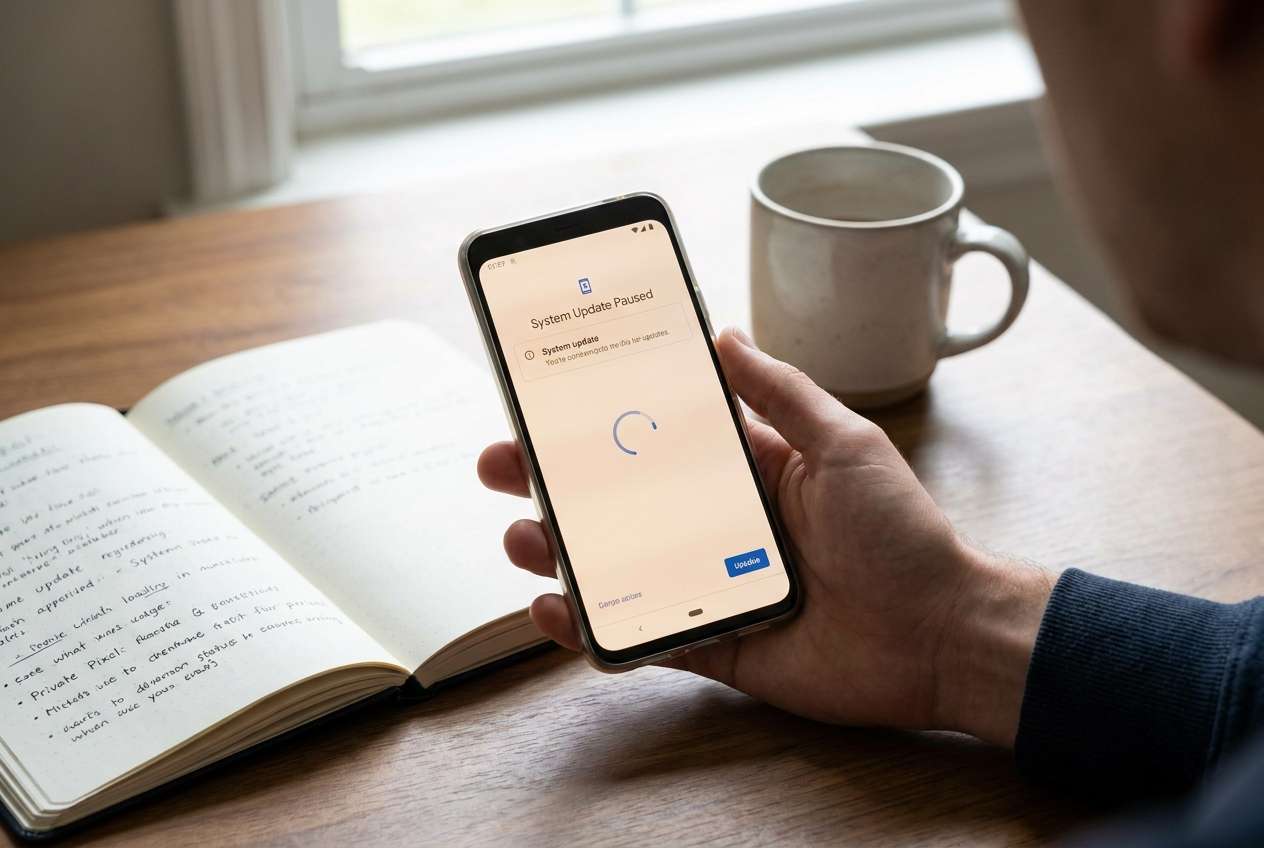
A Pixel phone (for example, Pixel 7 or Pixel 8) can feel unusually slow and run hot right after a system update—often after you tap Install and the device reboots. The symptoms can look like constant warmth, rapid battery drain, laggy scrolling, and apps taking longer to open.
AI can help you describe the symptoms clearly, narrow down likely causes (indexing, background optimization, app conflicts, thermal throttling), and identify which checks are low-risk versus which could make things worse.
AI can’t directly verify what your phone is doing internally, and trial-and-error (factory reset, flashing, repeated reboots) can introduce extra risk or data loss if you guess wrong—so the goal is to diagnose first, then act carefully.
In this article
- Part 1. Why Pixel phone is slow and overheating after update happens
- What’s normal right after an update
- Common drivers of persistent heat and lag
- Why it can look “idle” but still run hot
- Before you prompt the AI: what to collect
- Part 2. Using AI prompts to diagnose Pixel overheating after update safely
- Part 3. AI output vs reality: how to verify safely
- Part 4. When to stop troubleshooting Pixel slow after update and avoid risks
- Part 5. Resolve Pixel overheating safely with Dr.Fone System Repair
Part 1. Why Pixel phone is slow and overheating after update happens
Right after an update, Android may run background work like app optimization, media scanning, and account re-syncing. During that window, heat and sluggishness can be “expected”—but it should trend down, not persist for days.
If the heat is persistent, it often points to a specific driver: a misbehaving app stuck in a sync loop, a corrupted cache state, a runaway Google Play services process, weak cellular signal causing radio power spikes, or a system-level glitch introduced during the update.
What makes this confusing is that the phone can look “idle” while still working in the background, so after several minutes it may feel like nothing is changing—or it’s unclear whether the update process ever fully settled.
1-1. Before You Prompt the AI
Collect a few facts first so the AI can rank causes correctly:
- Pixel model and Android version (and update build if you can find it)
- When it started (immediately after update vs. hours later)
- Where heat is strongest (camera area, center, near charging port)
- Battery behavior (fast drain, charging slow, “phone getting hot” warning)
- Any recent app installs, restores, or account sign-ins after the update
- Whether Safe Mode changes anything
Part 2. Using AI prompts to diagnose Pixel overheating after update safely
2-1. Level 1: Basic Prompt
My Pixel is slow and overheating after a recent Android update. Ask me the minimum questions needed to narrow the cause, then give a ranked list of likely causes and the safest next steps that don’t risk data loss.
2-2. Level 2: Advanced Prompt
Act as a mobile diagnostics assistant. Based on my symptoms, rank the top 5 likely causes of Pixel overheating and lag after an update. For each cause: (1) why it fits, (2) what evidence would confirm/deny it, (3) a low-risk test, and (4) what not to do yet because it increases risk (like factory reset). Keep the plan cautious and reversible.
2-3. Level 3: Evidence Prompt
Diagnose my “Pixel slow + overheating after update” issue using the details below.
Goal: identify the most likely cause and the lowest-risk next steps first.
- Phone model: (e.g., Pixel 7 Pro)
- Android version/build: (e.g., Android 14, May security patch)
- When it started: (e.g., immediately after reboot from update)
- Heat pattern: (e.g., warm at top near camera; hot while idle)
- Battery drain: (e.g., 20% per hour on standby)
- Charging: (e.g., slow charging or stops due to temperature)
- Network state: (e.g., weak LTE/5G at home)
- Recent changes: (e.g., restored from backup; new VPN; new launcher)
- Top battery users (Settings → Battery): (paste list)
- Any warnings: (temperature, “System UI isn’t responding,” etc.)
- What I tried already: (e.g., rebooted, cleared one app cache)
Please:
1) Provide a ranked cause list with probabilities,
2) Separate app-level, network, battery/charging, and system-level possibilities,
3) Give a step-by-step test plan from safest to riskiest,
4) Flag any steps that could cause data loss.
2-4. Prompt Refinement
Use these follow-ups to force clearer, safer output:
What 3 questions would most change your ranking, and why?
Split your diagnosis into app-level vs system-level causes, then rank within each category.
What single piece of evidence should I check next (battery stats, Safe Mode result, temperature warning) to reduce uncertainty the most?
If the phone is hot even when idle, what causes rise to the top—and what low-risk test isolates each?
Which steps are reversible, and which could risk data loss or make symptoms harder to interpret?
Part 3. AI output vs reality: how to verify safely
AI can guide interpretation, but it can’t directly verify device state or apply system fixes. Use this table to keep expectations grounded:
| AI suggests | Reality check you should do |
|---|---|
| “It’s normal post-update optimization” | Confirm whether it improves after several hours and one full charge cycle |
| “A specific app is looping in background” | Verify via Battery usage, Safe Mode behavior, and recent app changes |
| “Network conditions are causing heat” | Compare heat on airplane mode/Wi‑Fi only vs. cellular in weak-signal areas |
| “System update left a corrupted state” | Look for persistent lag + heat across apps, plus UI stutters and warnings |
AI helps you choose the next best check and avoid risky guesses, but any actual system-level changes still require an execution tool or device-side actions.
Part 4. When to stop troubleshooting Pixel slow after update and avoid risks
If your checks keep cycling without new evidence, it’s time to stop experimenting and reduce risk.
- The phone shows repeated temperature warnings or becomes too hot to hold comfortably
- Lag + heat persists in Safe Mode (suggesting it’s not just third-party apps)
- Battery drain stays severe overnight with minimal use (and no clear app culprit)
- You see repeated crashes, boot instability, or core services failing (System UI, Play services)
Once you’ve narrowed the likely cause to a system-level problem, shift from diagnosis to a controlled execution approach that minimizes trial-and-error.
Part 5. Resolve Pixel overheating safely with Dr.Fone System Repair
When the evidence points to a system-level glitch after an update (persistent lag/heat across apps, Safe Mode doesn’t help, stability issues), a system repair workflow becomes relevant because it focuses on restoring Android system behavior without you having to guess which internal component is stuck. In that situation, Dr.Fone - System Repair (Android) can serve as the practical execution step to address Android system issues in a guided way (it’s commonly used for major Android brands, including Samsung-related issue profiles, and can be applied when update-related system behavior needs correction).
 Fix Android instantly – no skills needed.
- Solve boot loop, black screen, won’t turn on, etc.
- High success rate for all system issues.
- User-friendly interface with easy-to-follow steps.

-
Step 1 Install Dr.Fone and open System Repair (Android)
Download and launch Dr.Fone, then choose System Repair and select Android to avoid running unrelated modules.

-
Step 2 Connect your Pixel via USB and choose Android Repair
Connect the phone with a stable cable and keep the device powered to prevent interruptions during the repair flow.

-
Step 3 Confirm the device details carefully
Enter/select the correct model and system information as prompted, because mismatched details can lead to wrong firmware selection.

-
Step 4 Follow the on-screen steps to enter the required mode
Put the Pixel into the instructed mode and proceed only if the phone remains stable and connected throughout.

-
Step 5 Run the repair process and re-check heat/lag after the first reboot
After completion, test for improvement (idle temperature, scrolling, standby drain) before reinstalling boosters/VPNs/launchers.




Conclusion
Use AI to turn vague symptoms into a ranked, evidence-based shortlist and a low-risk test plan, then hand off to a controlled execution step (like an Android system repair workflow) when the signs point to an update-related system-level issue rather than a single misbehaving app.
FAQ
-
Why did my Pixel start overheating right after an update?
Post-update background optimization can raise temperature temporarily, but persistent heat often points to a stuck process, app sync loop, network radio strain, or an update-related system glitch.
-
How long should post-update slowdown last on a Pixel?
Typically hours, not days. If performance and heat don’t improve after a full charge cycle and normal use, treat it as abnormal and gather evidence (battery stats, Safe Mode result).
-
Does Safe Mode help identify the cause of overheating?
Yes. If heat and lag improve in Safe Mode, third-party apps are more likely. If nothing changes, system-level or network/charging factors move up the list.
-
Can weak cellular signal make my Pixel hot and slow?
Yes. Poor signal can increase radio power usage, causing heat and faster drain; testing Wi‑Fi only or airplane mode can help isolate this.
-
What evidence should I share with AI to get a better diagnosis?
Your Pixel model, Android version/build, when it started, heat pattern, battery usage top apps, network conditions, warnings, and whether Safe Mode changes the behavior.
 Add Wondershare Dr.Fone as a preferred source on Google





