 Effortlessly manage data through preview, delete, export, etc.

 100% Security Verified | No Subscription Required | No Malware

 :
: 
 ChatGPT
 Perplexity
 Gemini
 Claude
 Grok
Grok

My Android updated, restarted, and now the screen is just black—but I can still feel it vibrate. I need to get my photos and chats off before I take it to a repair shop.
Reddit user, r/AndroidQuestions
A broken Android phone can fail in ways that still leave your photos, chats, and files recoverable—especially right before you send it to a shop. This often happens after a restart, a drop, or after you tapped Install on an update and the screen never came back.
AI can help you sort the symptoms (screen dead vs. bootloop vs. not detected by PC), narrow the most likely causes, and choose the safest next checks. Tools like ChatGPT or Gemini are useful for structuring decisions when you’re stressed and time-limited.
AI can’t see your device, and trial-and-error can make things worse (overwriting data, triggering encryption locks, or causing more hardware stress). Use AI to diagnose and plan, then use a purpose-built tool to execute the data recovery steps carefully.
In this article
- Why extract data before sending broken phone for repair matters
- Repair policies and wipe risk
- Why the “broken” symptom changes the safest path
- What still works (display/touch/USB/authentication)
- Before you prompt the AI: facts to collect
- Using AI prompts to diagnose broken phone data extraction safely
- When to stop DIY data extraction from a broken phone
- Recover data from broken Android device with Dr.Fone
- AI output vs reality: what you still must verify

Part 1. Why extract data before sending broken phone for repair matters
If you’re about to hand over a broken phone (for example, a Samsung Galaxy S21 or Google Pixel 7), the biggest risk is losing access to your data due to parts replacement, factory reset, or service policies. Even reputable repair centers may need to wipe the device to test stability.
The “broken” symptom matters: a cracked screen with touch still working is very different from a phone that won’t boot, won’t charge, or isn’t recognized by a computer. The right approach depends on what still functions (display, touch, USB, storage, authentication).
Many people wait because it’s unclear whether the phone is “still starting up” or “still charging,” but nothing changes after several minutes—so you need a quick, low-risk way to decide what to try next.
1-1. Before You Prompt the AI
Collect a few facts first so the AI can reason accurately:
- Phone brand/model and Android version (if known)
- What happened right before it broke (drop, water, update, battery drain)
- Current symptom (black screen, bootloop, frozen logo, no touch, etc.)
- Does it vibrate, ring, or show charging indicator?
- Does a PC detect it via USB (device manager / file transfer prompt)?
- Is screen lock enabled (PIN/pattern/biometric) and do you know it?
- What data is most important (photos, WhatsApp, contacts, documents)
Part 2. Using AI prompts to diagnose broken phone data extraction safely
2-1. Level 1: Basic Prompt
My Android phone is broken and I need to extract my data before sending it for repair. Ask me the minimum questions needed to identify the safest next steps without risking data loss, then give me a short prioritized plan.
2-2. Level 2: Advanced Prompt
Act as a cautious Android data triage assistant. Based on my symptoms, rank the most likely causes (hardware vs software vs power vs USB/port) and for each cause list:
1) what evidence would confirm it,
2) the lowest-risk checks I can do,
3) what actions to avoid because they could overwrite data or trigger a reset.
End with a “Do this first / do this last / don’t do” list.
2-3. Level 3: Evidence Prompt
Help me decide how to extract data from a broken Android phone before repair using evidence-based triage.
Device info
- Brand/model: (e.g., Samsung Galaxy S21)
- Android version (if known): (e.g., Android 13)
- Storage size / free space guess: (e.g., 128 GB, unknown free space)
- Encryption/lock screen: (e.g., PIN enabled, I know it / I don’t)
What happened
- Trigger event: (e.g., dropped on tile / got wet / after update restart)
- Any previous issues: (e.g., overheating, low storage, random reboots)
Current symptoms
- Screen: (black / cracked / shows logo / flickers)
- Touch: (works / partial / no)
- Power signs: (vibration, sounds, LED, warms up)
- Charging: (shows charging icon / none / intermittent)
- Boot behavior: (boots normally / bootloop / stuck on logo)
Connectivity tests
- PC detection via USB: (not detected / detected as unknown / detected as device)
- File transfer prompt appears: (yes/no)
- Any backups available: (Google, vendor cloud, SD card, WhatsApp backup)
Goal + constraints
- Most important data types: (photos, WhatsApp, docs, contacts)
- Time limit before repair appointment: (e.g., 24 hours)
- Risk tolerance: (prefer low-risk checks only)
Now:
1) categorize my case (screen-only, boot issue, power issue, USB issue, storage issue),
2) give the safest extraction paths in order,
3) list red flags that mean I should stop troubleshooting and switch to a dedicated recovery tool.
2-4. Prompt Refinement
Use these follow-ups to make the AI’s plan more accurate:
“What 5 clarifying questions would change your recommendation the most, and why?”
“Separate your recommendations into no-data-change checks vs actions that could modify storage.”
“Rank the top 3 causes again, but this time tell me what single piece of evidence would eliminate each one.”
“If the phone is encrypted and the screen is dead, what options are realistic—and what options are unrealistic?”
“List the fastest safe path to get photos and WhatsApp first, even if I can’t get everything.”
Part 3. When to stop DIY data extraction from a broken phone
If your goal is to extract data before the phone goes to repair, the safest strategy is to stop once your actions start increasing risk faster than they improve access.
- The phone gets noticeably hot, cycles power repeatedly, or shows swelling/strong odor while you test
- You’re about to factory reset, reflash firmware, or run “cleanup” tools just to make it boot
- The device storage might be failing (clicking noises from external components are rare, but repeated freezes and random disconnects are common)
- You’re stuck in repeated lockouts (too many PIN attempts) or authentication prompts you can’t complete due to a dead screen
Once you’ve narrowed the likely scenario, it’s usually better to move from diagnosis to a controlled recovery workflow rather than continuing random fixes.
Part 4. Recover data from broken Android device with Dr.Fone
After you’ve used AI to identify whether this is primarily a screen, boot, or connectivity problem, the next step is to run a recovery process designed for broken-device situations. Dr.Fone - Data Recovery (Android) is relevant here because it focuses on the execution side of Recover Data From Broken Android Device—helping you attempt data extraction in a structured way instead of relying on ad-hoc troubleshooting. If you’re trying to collect key items (photos, messages, documents) before a repair shop possibly wipes the phone, following a dedicated flow can reduce unnecessary actions and keep the process consistent. You can reference the product workflow and supported scenarios from the official pages as you proceed.
 Scan Android phones and tablets directly.
- Preview and recover only what you want.
- Supports WhatsApp, photos, videos, contacts, and more.
- Works with 6000+ Android devices.

-
Step 1 Install Dr.Fone and prepare a stable setup
Install Dr.Fone – Data Recovery (Android) on a trusted computer, and use a reliable USB cable/port to avoid intermittent disconnects that can disrupt detection.

-
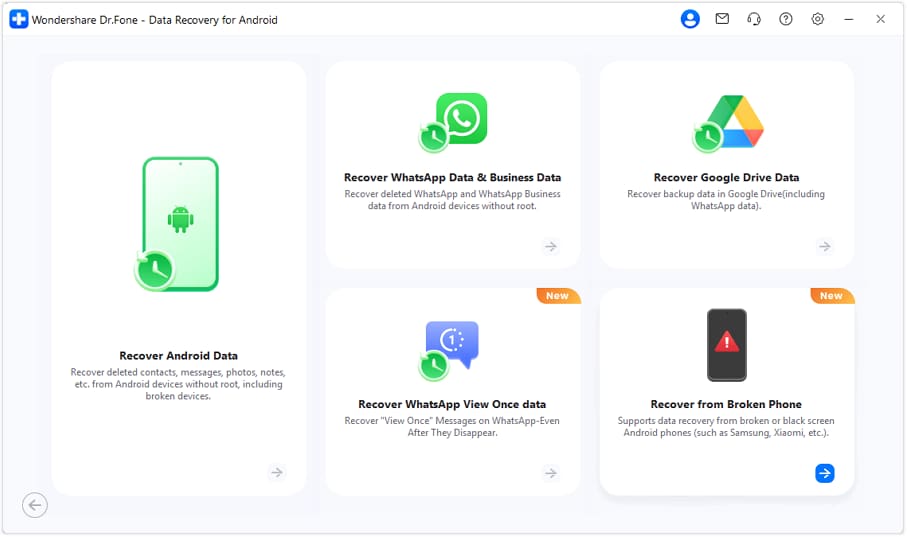
Step 2 Open Android Data Recovery and choose the broken-device path
In Dr.Fone, select the Android Data Recovery module and choose the option aligned with broken-phone extraction, matching your symptoms as closely as possible.

-
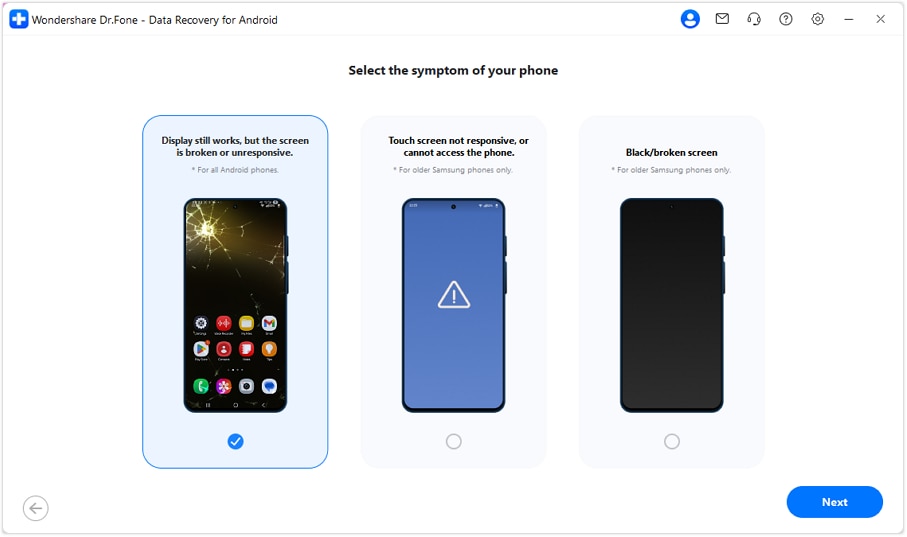
Step 3 Connect the phone and follow on-screen detection steps carefully
Connect the Android phone and follow the prompts without improvising resets or firmware changes unless the tool explicitly instructs them, since unnecessary changes can increase risk.
-
Step 4 Select data types and run a targeted scan
Choose only the data categories you need first (for speed and lower stress on the device), then start the scan and wait for results rather than repeatedly reconnecting.
-
Step 5 Preview and export recovered items to the computer
Preview what’s found and export to your computer storage immediately, keeping originals untouched where possible so you have a safe copy before handing the phone over.




Part 5. AI output vs reality: what you still must verify
AI can guide judgment, but it can’t verify what your device is actually doing in-hand.
| What AI can conclude | What you still must verify on the device/PC |
|---|---|
| Likely category (screen-only vs boot vs power vs USB) | Whether the phone truly powers on (sounds/vibration/heat) |
| Low-risk next checks to try first | Whether the PC recognizes the device consistently |
| What actions are high risk (factory reset, repeated failed boots) | Whether your lock screen credentials are available and accepted |
| Which extraction path is most promising | Whether data access is possible without damaging hardware further |
AI helps you avoid wasted moves and reduce risk, but the execution gap is that real extraction depends on how the phone enumerates over USB, whether it can be authenticated, and how stable the hardware is.
Conclusion
Use AI to quickly classify the failure, identify the safest evidence to collect, and avoid high-risk trial-and-error; then hand off to an execution tool like Dr.Fone – Data Recovery (Android) to attempt structured data extraction before you send the device for repair.
FAQ
-
Can a repair shop access my personal data if the phone still turns on?
Yes, potentially. If the device can be unlocked or is already trusted/unlocked, data exposure risk increases, so extracting what you need and securing accounts before repair is sensible.
-
Should I factory reset before sending my broken phone for repair?
Only if you’ve already secured the data you need and you’re sure you can complete the reset safely; otherwise a reset can permanently remove what you’re trying to keep.
-
What if my Android screen is dead but the phone still vibrates or rings?
That often indicates the device still boots, and the problem may be display/touch-related—AI can help you confirm the category, then a recovery workflow can focus on extraction without “fixing” the screen first.
-
What if my computer doesn’t detect the phone at all?
That points to cable/port/driver issues, power instability, or deeper hardware failure. Try low-risk checks (different cable/port, different PC) before escalating.
-
Does encryption or a lock screen affect recovery chances?
Yes. If the phone is encrypted and can’t be unlocked or trusted, access paths narrow significantly; AI can help you identify what’s realistic before you spend time on dead ends.
 Add Wondershare Dr.Fone as a preferred source on Google





