 Effortlessly manage data through preview, delete, export, etc.

 100% Security Verified | No Subscription Required | No Malware

 :
: 
 ChatGPT
 Perplexity
 Gemini
 Claude
 Grok
Grok

I tried moving WhatsApp from Android to iPhone and it “worked,” but a bunch of media is missing and I’m worried the next attempt will overwrite what’s already on my iPhone.
Reddit user, r/iphone
Transferring WhatsApp from Android to iPhone with full chat history is easy to derail if you miss a prerequisite or run steps in the wrong order. This guide shows how to use AI prompts to plan a gated workflow (with verification checks) before you execute the transfer with real tools.
In this article
- How to plan the transfer without missing critical steps
- Why sequencing matters
- The “point of no return” overwrite risk
- What to define as “success” before you start
- Common failure patterns to avoid
- What the AI needs to know
- AI prompts to build a safer workflow
- When to stop planning and start execution
- Execute safely with Dr.Fone
Part 1. How to Plan Transfer WhatsApp From Android to iPhone With Chat History Without Missing Critical Steps
You’re switching from Android to iPhone and need your WhatsApp chats, media, and groups to come along—ideally in one clean move without losing anything or duplicating threads.
1-1. Why sequencing matters (and why mixed advice causes misses)
The uncertainty usually starts after you read mixed advice: different methods, different requirements, and unclear order (backup first vs. install first vs. connect first). If you do steps out of sequence, you can end up with a partial restore or a transfer that fails late.
1-2. The “point of no return” overwrite risk
There’s also a point-of-no-return moment: once a transfer method begins writing WhatsApp data onto the iPhone, it can overwrite existing WhatsApp content on the iPhone (or force a reset/clean setup in some migration approaches). You shouldn’t reach that moment until you’ve verified what data exists on both devices and what will be replaced.
Part 2. What the AI Needs to Know
Answer these so the AI can build a workflow that matches your exact constraints.
- Android phone model and Android version
- iPhone model and iOS version (and whether it’s newly set up or already in use)
- WhatsApp type(s): standard WhatsApp vs. WhatsApp Business (and which one you need on iPhone)
- Whether WhatsApp is currently active on the iPhone (and if it contains chats you must keep)
- Rough WhatsApp data size (app storage size; e.g., “12 GB”)
- Your priority: completeness (all media) vs. speed vs. minimal risk
- Your available hardware: PC/Mac access, reliable USB cables, stable Wi‑Fi
- Any constraints: limited storage, damaged phone, unstable battery, flaky USB port
- Your tolerance for downtime (minutes vs. hours) and how soon you need WhatsApp working again
- Whether you can temporarily pause WhatsApp usage during transfer (to avoid new messages diverging)
Part 3. Using AI Prompts to Build a Safer Transfer Workflow
Use the prompts below to make the AI produce a sequence plus verification gates you can follow before you let any tool write data to your iPhone.
3-1. Level 1: Basic Prompt
I need a planning checklist to transfer WhatsApp from Android to iPhone with full chat history and media.
Please give me the safest step order and what to verify at each step before moving on.
Don’t give tool-specific button steps—focus on workflow and risk control.
3-2. Level 2: Advanced Prompt
Build a structured workflow to transfer WhatsApp from Android to iPhone with chat history.
Preparation: prerequisites, device conditions, and what I must record (versions, storage, WhatsApp account state).
Execution (high-level only): the order of actions without UI clicks.
Verification: what to check before, during, and after.
Also mark items as Critical vs Optional, and include a “stop-if” list (conditions that mean I should not proceed).
3-3. Level 3: Evidence Prompt
Here’s my situation: Android (Samsung S21, Android 14), iPhone (iPhone 15, iOS 17.5) already has WhatsApp installed with a small amount of new chats I might lose, and Android WhatsApp storage is ~18 GB (includes videos).
I have a Windows laptop and two USB cables (one sometimes disconnects).
Create a transfer plan that includes:
Pre-checks (account/number, encryption considerations, storage headroom on iPhone, cable stability checks).
During-transfer checks (what warning signs matter vs. what’s normal).
Post-transfer validation (spot-checks: oldest chat date, recent messages, media thumbnails vs. full-resolution downloads, groups, starred messages if applicable).
A clear “irreversible moment” warning describing what action could overwrite iPhone WhatsApp data and what I must confirm immediately before that moment.
Use example values where helpful (e.g., “Minimum free space target: 25–30 GB”).
3-4. Prompt Refinement (follow-up prompts)
Rewrite the plan as a gated checklist with “Pass/Fail” criteria per gate (Gate 1: device readiness, Gate 2: data inventory, Gate 3: overwrite decision, Gate 4: post-transfer validation).
Produce a one-page risk register: risk, likely cause, early warning sign, prevention, recovery option.
List the top 10 things that cause WhatsApp transfer failures in my setup, and for each, add a prevention step I can do before execution.
Give me a data-inventory template I can fill in (Android WhatsApp size, last backup time if any, oldest chat date, number of critical chats, iPhone WhatsApp present/empty, free storage on both).
Ask me only the missing questions you still need, then output the final workflow again with those answers integrated.
3-5. AI plan vs. real device constraints
| AI planning benefit | Real-world constraint |
|---|---|
| AI can draft a safe sequence | Your devices may show different prompts and warnings depending on OS and app versions. |
| AI can define verification checks | Only you can confirm what’s actually on-screen and on-device. |
| AI can flag overwrite risks | Only a real tool can perform (or abort) the write operation to the iPhone. |
| AI can suggest fallback paths | Your hardware limits (cables, ports, storage, battery health) decide what’s feasible. |
AI improves planning and reduces avoidable mistakes, but it cannot access your phones, confirm your real data state, or execute the transfer.
Part 4. When to Stop Planning Transfer WhatsApp From Android to iPhone With Chat History and Start Execution
- You’ve written down a data inventory (Android WhatsApp size, oldest/most recent chat dates, critical chats list) and verified it on-device.
- You’ve decided what happens to any existing iPhone WhatsApp data (keep it, accept overwrite, or back it up separately) and you can state the decision clearly.
- You’ve confirmed storage headroom plus stable connections (free space target met, reliable cable/port, sufficient battery, no pending OS updates likely to interrupt).
- You have a post-transfer validation checklist (exact chats/media to spot-check) and a rollback/fallback plan if validation fails.
If all four are true, you’re no longer guessing—you’re ready to let an execution tool perform the transfer under controlled conditions.
Part 5. Transfer WhatsApp From Android to iPhone With Chat History: Execute the Workflow Safely with Dr.Fone
Once your verification gates are satisfied, use Dr.Fone - Phone Transfer as the execution layer—because this is the phase where WhatsApp data can be written to the target iPhone and overwrite risk becomes real.
 Move data between iOS to Android and vice versa.
- Transfer contacts, SMS, photos, videos, music, and more types.
- Available with all phones with Android and iOS versions.
- Simple, click-through process.

AI can’t confirm which device is truly connected or authorized, can’t see progress states or error codes, and can’t decide for you whether your iPhone’s existing WhatsApp data will be overwritten. Treat the tool run as controlled execution: lock in prerequisites, keep connections stable, and validate results before you start using WhatsApp normally again.
-
Step 1 Pre-execution lock-in
Close WhatsApp on both devices. Connect Android and iPhone to your computer with stable cables. Confirm you’re moving the correct WhatsApp account/number and that you accept the overwrite implications identified during planning.

-
Step 2 Set the Android-to-iPhone path (high-level)
In the transfer workflow, ensure the source is the Android device and the target is the iPhone before you start any write operation.

-
Step 3 Run the WhatsApp transfer (do not disconnect)
Start the Android-to-iPhone WhatsApp transfer and avoid disconnecting cables or multitasking on the phones until the process completes. If you see repeated disconnects or permission prompts, pause and reassess hardware stability before reattempting.

-
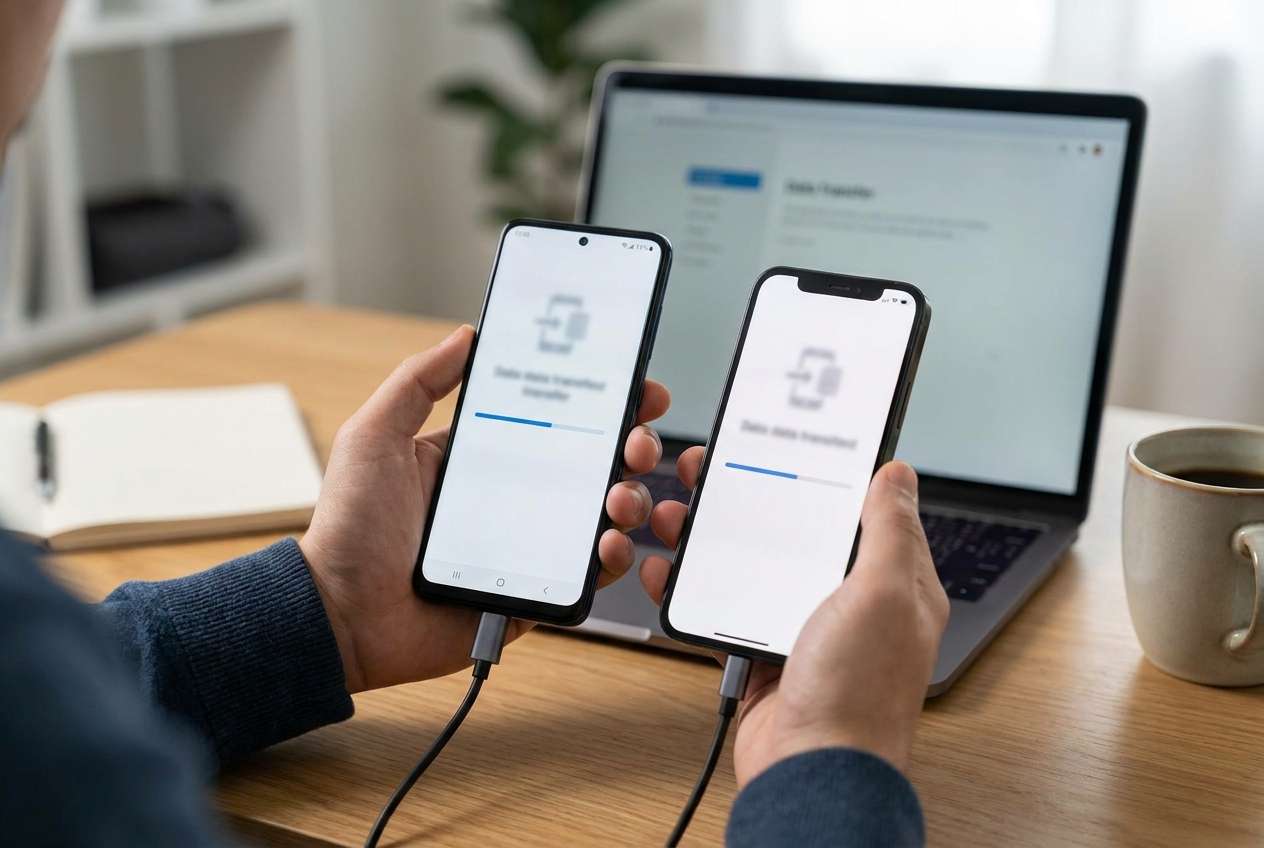
Step 4 Monitor transfer progress to completion
Let the transfer finish without interruptions and watch for errors or repeated retries that suggest a cable/port problem.

5-1. Post-transfer validation before you declare “done”
On the iPhone, open WhatsApp and validate against your checklist. If validation fails, stop sending/receiving new WhatsApp messages until you decide whether to retry, restore, or use an alternate recovery path.
- Spot-check oldest chat date and newest messages
- Check key groups you care about
- Test several media-heavy chats (thumbnails vs. full-resolution downloads/playback)
- Verify search works as expected




Conclusion
Use AI to design the safest sequence, define verification gates, and identify the irreversible overwrite moment before you reach it; then use Dr.Fone to execute the transfer on real devices and validate the result against your checklist.
FAQ
-
Will transferring WhatsApp from Android to iPhone overwrite my iPhone WhatsApp?
It can, depending on the method/tool and whether WhatsApp already exists on the iPhone. Treat “writing WhatsApp data to the iPhone” as a high-risk moment and confirm what will be replaced before you proceed. -
What should I verify before I start any transfer?
Account/phone number, WhatsApp type (standard vs Business), free storage on both devices, cable stability, and a quick data inventory (oldest/newest chat dates and total WhatsApp size). -
How do I know the transfer actually worked (not just partially)?
Validate a mix: oldest chat, latest chat, several groups, and several media items (including videos). Spot-check both thumbnails and actual playback/download behavior. -
Should I keep using WhatsApp during the transfer window?
No. Continued messaging can create divergence and make it harder to judge what’s missing after migration. -
Can AI perform the transfer or access my chats to confirm completeness?
No. AI can only plan the workflow and checks; it cannot access your devices, execute the transfer, or verify your data directly.
 Add Wondershare Dr.Fone as a preferred source on Google





