 Effortlessly manage data through preview, delete, export, etc.

 100% Security Verified | No Subscription Required | No Malware

 :
: 
 ChatGPT
 Perplexity
 Gemini
 Claude
 Grok
Grok

I hit “Restore Backup” during setup thinking it would bring everything back, but now I’m worried it overwrote newer photos and messages. How do I check what’s actually in the backup before I commit?
Reddit user, r/iPhone
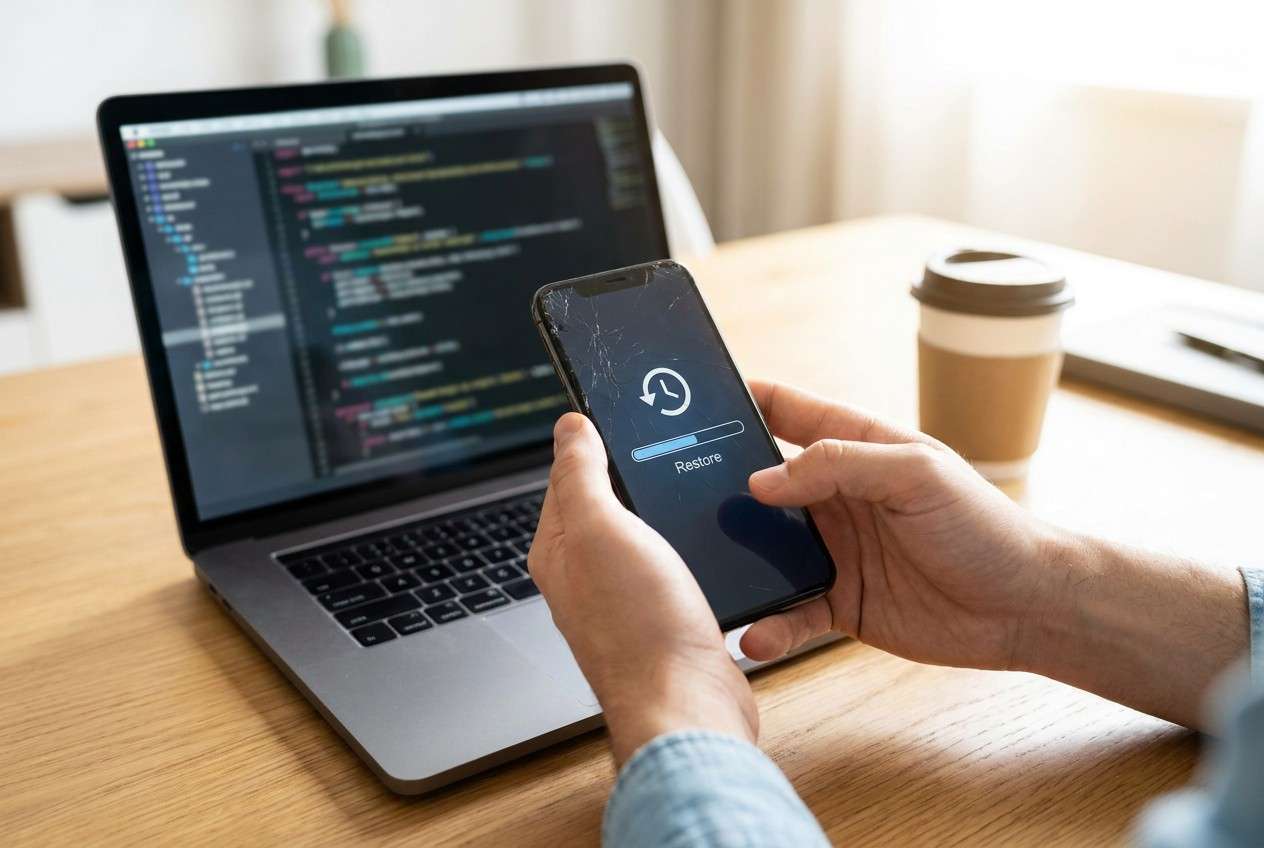
Restoring a phone backup can feel like the fastest way to get “everything back,” but it can also overwrite newer data, import corrupted settings, or bring back the same problem you’re trying to escape. This often happens right after you tap Restore during setup or after a reset, and then nothing seems to change for several minutes.
AI can help you slow down and verify what you actually have (backup type, date, contents, encryption, account ownership), then rank the safest restore path based on your risk level. You can use tools like ChatGPT or Gemini to structure the decision and catch blind spots before you commit.
AI can’t see your phone, your backup files, or your cloud account state—and trial-and-error restores can create avoidable loss. Treat AI as a diagnostic checklist builder, then use a dedicated tool for any data extraction you decide to perform.
In this article
- Part 1. Why restoring a phone backup can overwrite data and what it means
- A common restore scenario
- Restore is not a “merge”
- What can be overwritten or skipped
- Before you prompt the AI: details to collect
- Part 2. Using AI prompts to check backup integrity before restore
- Part 3. When to stop before restoring a backup to avoid data loss
- Part 4. Recover data from Android device safely with Dr.Fone
- FAQ
Part 1. Why restoring a phone backup can overwrite data, and what it means
A common scenario: you’re moving phones or recovering after issues, and you attempt a restore on a device like an iPhone 13 or iPhone 14, or an Android phone after a factory reset. The trigger is usually simple—tapping “Restore backup” (or selecting a Google account backup) during initial setup.
The risk is that a restore is not a “merge.” Depending on platform and backup type, it can replace local data, reintroduce problematic settings, or skip items you assumed were included (like certain app data, media, or messages).
The uncertainty is real: it’s often unclear whether the device is still processing, whether the backup is complete, or whether you’re about to overwrite newer photos, chats, or notes that were created after the backup date.
1-1. Before You Prompt the AI
Collect these details first so the AI can give you a safer, more precise checklist:
- Phone model and OS version
- What you’re restoring from (cloud backup, computer backup, SD card, OEM tool)
- Backup date/time and size (if visible)
- What you must not lose (photos, WhatsApp, contacts, notes, app data)
- Whether the phone currently has newer data you haven’t copied elsewhere
- Any errors shown (exact wording) and where they appear
Part 2. Using AI prompts to check backup integrity before restoring
2-1. Level 1: Basic Prompt
I’m about to restore a phone backup. Ask me the minimum questions needed to verify the backup is usable and won’t overwrite newer data, then give me a short “go / no-go” checklist.
2-2. Level 2: Advanced Prompt
Act as a cautious mobile data triage assistant. I want to restore a phone backup, but I’m worried about overwriting newer data or restoring a corrupted state.
1) Ask up to 10 targeted questions first.
2) Based on my answers, rank the most likely risks (top 5) from highest to lowest impact.
3) Propose 3 restoration approaches from safest to riskiest (explain what each might overwrite).
4) Include a “stop and preserve data first” branch if risk is high.
Keep suggestions low-risk and reversible where possible.
2-3. Level 3: Evidence Prompt
Help me verify what to check before restoring a phone backup. Use my details to produce:
- a pre-restore verification checklist,
- a risk ranking,
- and the safest next steps that minimize data loss.
Details:
- Phone model: (e.g., Samsung Galaxy S23 / iPhone 13 Pro)
- Current OS version:
- What I just did before the issue: (e.g., factory reset, tapped Restore during setup, updated OS)
- Backup source: (Google One, iCloud, computer backup, SD card, OEM switch tool)
- Backup date/time:
- Backup size (if known):
- Is backup encrypted? (unknown/yes/no)
- Account used for backup:
- Can I still access the old phone? (yes/no)
- What data matters most: (e.g., WhatsApp, photos, contacts, notes)
- What newer data exists on this phone right now:
- Any error messages (exact text):
- Time sensitivity:
- My risk tolerance: (prefer safest / okay with some loss)
Output format:
1) What to verify (must-check vs nice-to-check)
2) What could be overwritten (by category)
3) Safest path (step order)
4) Red flags that mean stop
2-4. Prompt Refinement
Use these follow-ups to make the AI’s checklist more accurate and less risky:
What are the missing questions you still need from me to decide whether a restore will overwrite newer data?
Separate risks into: (A) data overwrite, (B) incomplete restore, (C) account/permission issues, (D) corrupted backup. Then rank each category by likelihood.
Based on what I told you, list the top 3 pieces of evidence I should confirm on-screen (dates, sizes, account email, encryption indicators) before I proceed.
Give me a decision tree with clear stop points if I cannot confirm the backup date, encryption status, or account ownership.
If I restore and it goes wrong, what are the lowest-risk actions immediately after (what not to do, what to capture, what to preserve)?
2-5. AI Output vs Reality
AI can help you plan, but it can’t validate the backup itself without real signals from your device and accounts.
| What AI can conclude | What you must confirm in real life |
|---|---|
| Which restore path is likely safest based on your scenario | The actual backup date, size, and whether it completes without errors |
| What data is typically included/excluded by a backup type | Whether your specific apps include their data (and if they use separate cloud sync) |
| Which actions are lowest-risk and reversible | Whether your phone allows selective restore or only full-device restore |
| When to stop and preserve data first | Whether you can still access the old phone / SIM/authenticator needed for account login |
AI narrows possibilities and helps you avoid guesswork; execution still depends on what your device, backup service, and accounts truly contain at the moment you act.
Part 3. When to stop before restoring a backup to avoid data loss
If your answers point to uncertainty about what’s inside the backup—or you still have valuable newer data on the device—pause before proceeding.
- You can’t confirm the backup date, or it’s older than the data you need to keep.
- You’re unsure which account created the backup (or you can’t sign in reliably right now).
- The phone contains newer photos/chats/files that are not copied elsewhere.
- You see signs of backup corruption or restore failure (repeated errors, stuck progress, missing categories after restore).
Once you’ve used AI to identify the most likely risks and the missing evidence, the next step is choosing an execution method that preserves data rather than overwriting it—especially if you may need to extract items first.
Part 4. Recover data from an Android device safely with Dr.Fone
If you’ve already attempted a restore (or you’re avoiding a risky restore because newer data might be overwritten), it can help to switch from planning to extraction. Dr.Fone - Data Recovery (Android) is relevant at this stage because it focuses on recovering data from an Android device in a guided, tool-driven flow—useful when you need to retrieve specific data before you take any action that could replace what’s currently on the phone. You can align the AI’s risk checklist (what to preserve first) with Dr.Fone’s execution steps so you’re not relying on trial-and-error restores.
 Scan Android phones and tablets directly.
- Preview and recover only what you want.
- Supports WhatsApp, photos, videos, contacts, and more.
- Works with 6000+ Android devices.

-
Step 1 Define your “do not overwrite” data
Use the AI checklist to name the exact categories to prioritize (e.g., photos, messages, WhatsApp), and avoid resets or additional restore attempts until you’ve tried extraction.

-
Step 2 Connect the Android device to Dr.Fone Data Recovery
Launch Dr.Fone – Data Recovery (Android) and connect your phone via USB, keeping the connection stable to reduce interruptions during scanning.

-
Step 3 Select what to scan for
Choose only the data types you need first to keep the process focused and reduce time spent on unnecessary categories.

-
Step 4 Preview and recover to a safe location
Preview found items and recover them to your computer (not back onto the same phone storage) to minimize the chance of overwriting recoverable traces.

-
Step 5 Re-check restore decisions after extraction
After you’ve secured what you can, revisit the AI “go / no-go” checklist and decide whether a full restore is still necessary.




Conclusion
Use AI to turn your situation into a clear verification checklist—backup identity, date, contents, overwrite risk, and stop signals—then hand off execution to a data-focused tool when you need to extract items safely before making irreversible restore choices.
FAQ
-
What should I verify first before restoring a phone backup?
Confirm the backup date/time, the account that created it, whether it’s encrypted, and whether your current phone has newer data that isn’t saved elsewhere. -
Will restoring a backup merge with my current data?
Often it won’t. Many restores replace large parts of device data/settings; treat restore as potentially overwriting rather than merging unless your platform explicitly supports selective restore. -
Why does a restored phone still have missing apps or missing messages?
Backups may exclude some app data, and some apps rely on their own cloud sync. Also, account mismatch, encryption issues, or interrupted restores can leave categories incomplete. -
What if I can’t sign in to the account that made the backup?
Stop and resolve account access first. If you proceed with partial access, you may end up with an incomplete restore or lose the chance to retrieve data tied to that account. -
Can I recover Android data if a restore attempt went wrong?
It can be possible to retrieve some data from the Android device depending on what happened and how much was overwritten. A tool like Dr.Fone – Data Recovery (Android) is designed for executing that extraction workflow.
 Add Wondershare Dr.Fone as a preferred source on Google





