 Effortlessly manage data through preview, delete, export, etc.

 100% Security Verified | No Subscription Required | No Malware

 :
: 
 ChatGPT
 Perplexity
 Gemini
 Claude
 Grok
Grok

After a restart/update, part of my Samsung screen looks normal but won’t respond—like the top area won’t tap and one side won’t swipe. I’m not sure if it’s software or the screen itself.
Samsung Community user
Your Samsung phone can look fine, but parts of the screen stop responding—like the top row won’t tap, one side won’t swipe, or only certain apps register touches. This often shows up on models like a Galaxy S21 or Galaxy A54, sometimes right after you tapped Install now for an update or after a restart, and it’s unclear whether the phone is still “settling” or actually broken.
AI (like ChatGPT or Gemini) can help you describe the symptoms clearly, narrow likely causes (software vs hardware vs settings), and choose low-risk checks that reduce guesswork.
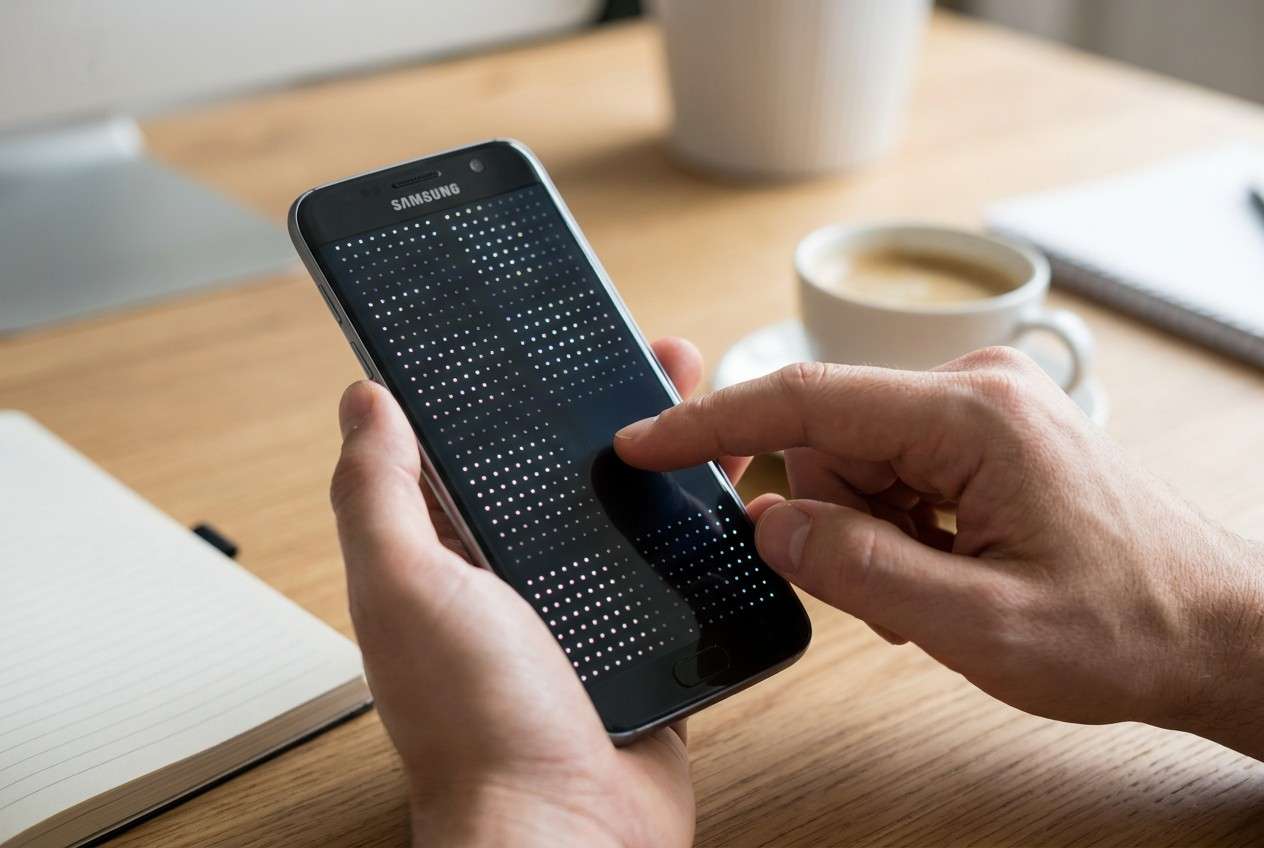
AI can’t confirm the physical condition of your display or safely “try everything” for you—trial-and-error can escalate risks (data loss, lockouts, worsening instability), so the goal is careful diagnosis first, then a controlled execution step.
In this article
- Part 1. Why Samsung screen has partial touch failure happens and what it means
- Before you prompt the AI
- Software vs hardware “cause buckets”
- What to record before testing
- When to stop waiting for it to self-resolve
- Part 2. Using AI prompts to diagnose partial touch screen on Samsung safely
- Part 3. When to stop troubleshooting touch not working on Samsung and avoid risks
- Part 4. How to verify AI suggestions on the phone (AI output vs reality)
- Part 5. Samsung screen has partial touch failure: fix or resolve it safely with Dr.Fone
Part 1. Why Samsung screen has partial touch failure happens and what it means
Partial touch failure usually means the phone is detecting some touches but not others: dead zones, intermittent response, ghost touches, or swipes that “break” mid-gesture. If it began after an update, a launcher change, a new screen protector, or moisture exposure, the “cause bucket” can change quickly.
In many cases, the issue is software-layer interference (accessibility settings, overlays, corrupted system UI, buggy app) or hardware-layer limitations (digitizer damage, connector issues, pressure damage). The same symptom can look identical from the outside.
If nothing changes after several minutes of waiting or repeated screen cleaning, it’s a signal to stop assuming it will self-resolve and start collecting evidence.
1-1. Before you prompt the AI
Capture a few basics first so the AI can reason from evidence:
- Samsung model + Android/One UI version (if known)
- When it started (after update, drop, water, screen protector change)
- Exact areas affected (top bar, keyboard region, left edge)
- Whether Safe mode changes anything
- Whether the phone responds to a mouse via USB-OTG (if available)
Part 2. Using AI prompts to diagnose partial touch screen on Samsung safely
2-1. Level 1: Basic prompt
My Samsung phone has partial touch failure: only part of the screen responds. Help me narrow the most likely causes and suggest the safest checks first (no risky steps). Ask me any key questions you need.
2-2. Level 2: Advanced prompt
Diagnose my partial touch issue on a Samsung phone using a ranked list of likely causes (software/settings/app vs system corruption vs hardware).
Requirements:
1) Ask up to 8 clarifying questions first.
2) Then rank 5 likely causes with brief reasoning and confidence.
3) For each cause, give 1–2 low-risk checks and label risk level (low/medium).
4) Avoid steps that could cause data loss unless clearly marked as “last resort.”
2-3. Level 3: Evidence prompt
Act like a diagnostic assistant. Use the evidence below to infer the most likely cause categories and the next low-risk actions.
**Device**
- Phone model: (e.g., Galaxy S21 / Galaxy A54)
- Android / One UI version: (if known)
- Screen type: original / replaced / unknown
**Trigger**
- What happened right before it started: (e.g., update installed, drop, moisture, new protector, app install)
- Time since it started:
**Symptoms**
- Non-responsive area(s): (e.g., top 1 cm, right edge, keyboard zone)
- Intermittent or constant:
- Ghost touches: yes/no
- Works with S Pen (if supported): yes/no/NA
- Works with USB mouse (OTG): yes/no/not tested
**Isolation tests (results)**
- Safe mode behavior: (same/better/not tested)
- Touch sensitivity setting: changed? result?
- Removed screen protector/case: result?
- Specific apps only vs everywhere:
**Constraints**
- I want to avoid data loss and account lockouts.
Now: (1) Separate software vs hardware indicators, (2) rank the most likely causes, (3) propose the safest next steps and what evidence each step should confirm.
2-4. Prompt refinement (follow-ups)
Use these follow-ups to make the AI’s diagnosis more reliable:
What are the missing questions that would most change your ranking?
Separate your hypotheses into settings/app, system-level, and hardware buckets.
Rank the top 3 causes again, but this time cite the specific symptom that supports each one.
What single test would best distinguish software interference from digitizer damage?
List red flags that mean I should stop testing to avoid making the issue worse.
Part 3. When to stop troubleshooting touch not working on Samsung and avoid risks
Stop “trying one more thing” when signals point to escalating damage or higher-stakes actions.
- Touch failure is paired with ghost touches, overheating, or random app presses you can’t control
- The dead zone is perfectly consistent across all screens and persists in Safe mode
- You can’t reliably enter your PIN/pattern and repeated attempts risk lockouts
- The phone shows broader instability (boot loops, freezes) and basic checks don’t change anything
Once you’ve narrowed the cause category, move from diagnosis to a controlled execution step that targets the system layer without piling on risky trial-and-error.
Part 4. How to verify AI suggestions on the phone (AI output vs reality)
AI can guide reasoning, but your device behavior is the truth source. Use this quick cross-check to validate what the model suggests before you act.
| AI suggests | What you verify on the phone |
|---|---|
| “Likely an overlay/accessibility issue” | Touch fails only in certain apps or improves in Safe mode |
| “Possibly a screen protector sensitivity problem” | Removing protector/case changes responsiveness immediately |
| “Could be system UI instability after update” | Issue appears system-wide and persists after reboot |
| “Hardware digitizer damage is likely” | Dead zone is consistent, OTG mouse works, touch never returns |
AI helps you decide what to try and what to avoid; execution still depends on controlled actions (and the right tool) to address system-level problems without random resets.
Part 5. Samsung screen has partial touch failure: fix or resolve it safely with Dr.Fone
If your evidence points to system instability (especially after an update) and basic isolation steps didn’t change the behavior, a structured Android system repair workflow can be the safer “next execution step” than repeated resets or random setting changes. Dr.Fone - System Repair (Android) is relevant here because it’s designed to address Android system issues in a guided way—useful when partial touch makes navigation unreliable and you need a more controlled path to stabilize the OS before you assume the screen hardware is the only cause.
 Fix Android instantly – no skills needed.
- Solve boot loop, black screen, won’t turn on, etc.
- High success rate for all system issues.
- User-friendly interface with easy-to-follow steps.

-
Step 1 Prepare a stable connection
Use a reliable USB cable and a steady PC connection to reduce interruption risk during the process.

-
Step 2 Open System Repair (Android)
In Dr.Fone, select the Android system repair option and choose Repair Samsung Phone Issues for device-specific guidance.

-
Step 3 Choose the Android repair workflow
Select the Android repair option to continue with the guided process.

-
Step 4 Confirm device details carefully
Enter the correct model information to avoid mismatched firmware steps that can worsen instability.

-
Step 5 Run the guided repair flow, then re-check touch
Follow the on-screen instructions from the official Dr.Fone Android Repair guide to complete the repair sequence with minimal guesswork. Then test the same dead zones and gestures; if the pattern is unchanged, hardware is more strongly indicated.




Conclusion
Use AI to structure your evidence, rank likely causes, and choose low-risk checks that clarify whether you’re dealing with software interference, system instability, or hardware damage—then move execution to a controlled tool like Dr.Fone - System Repair (Android) when the symptoms point to an OS-level issue and trial-and-error is no longer helping.
FAQ
-
Why does only part of my Samsung screen stop responding?
Common buckets are digitizer hardware issues, screen protector/case pressure, software overlays/accessibility conflicts, or system instability after updates. -
How can I tell if partial touch failure is hardware or software?
If Safe mode changes the behavior, software is more likely; if a consistent dead zone persists everywhere (and OTG mouse works), hardware becomes more likely. -
Does a screen protector really cause partial touch problems?
Yes—thick protectors, poor adhesion, or edge lifting can reduce touch registration in specific areas, especially near edges. -
Is it safe to keep rebooting and changing settings repeatedly?
It’s usually low risk at first, but repeated attempts can cause lockouts, missed backups, and confusion about what changed—log each test and stop when results are consistent. -
What if I can’t unlock my phone because touch won’t work in the PIN area?
Avoid repeated failed unlock attempts; try OTG mouse input if supported, and consider a controlled repair workflow if system instability is suspected.
 Add Wondershare Dr.Fone as a preferred source on Google





