 Effortlessly manage data through preview, delete, export, etc.

 100% Security Verified | No Subscription Required | No Malware

 :
: 
 ChatGPT
 Perplexity
 Gemini
 Claude
 Grok
Grok

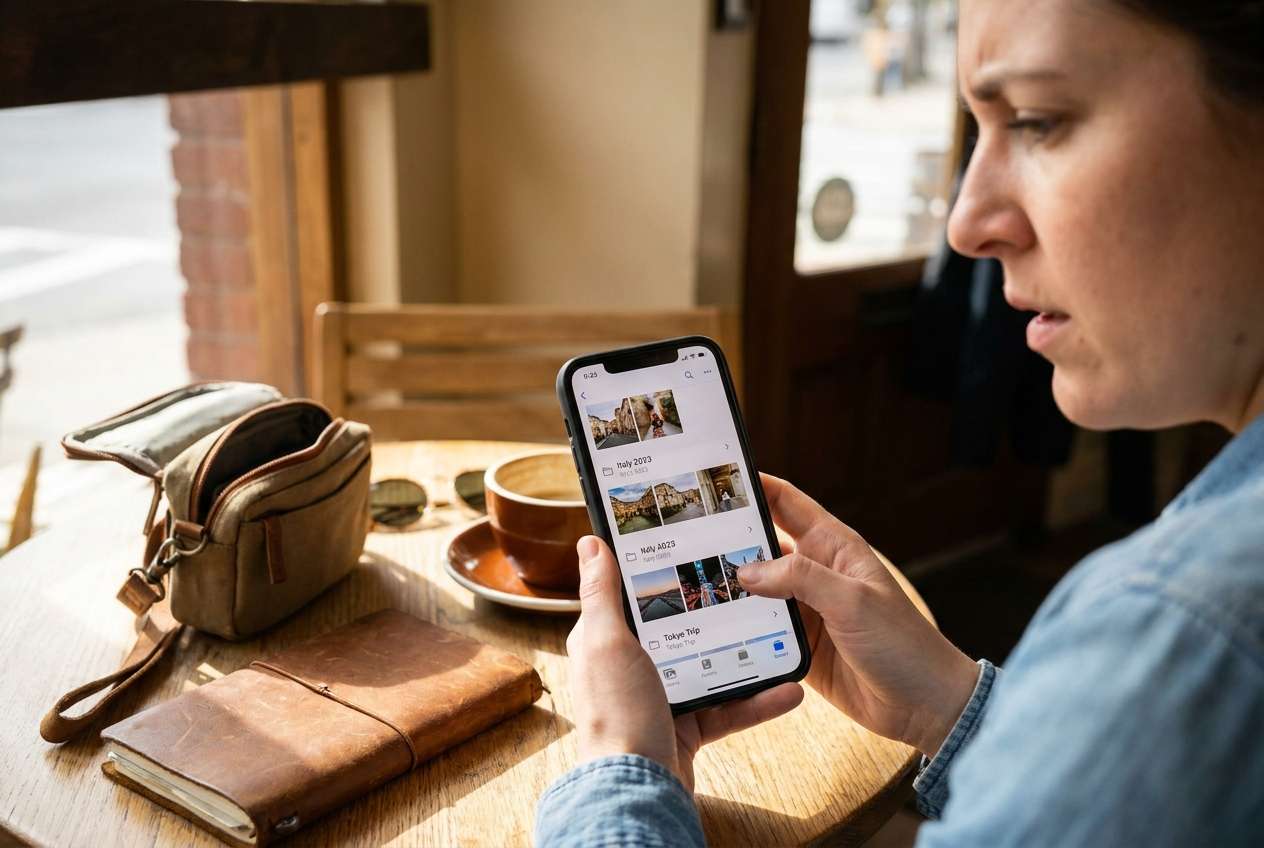
I tried to sort my travel photos into trips, but I’m scared I’ll mess up the “date taken” order or delete something that later disappears everywhere because of sync.
Forum user
Organizing travel photos by trip and date sounds simple, but missing one step can quietly create bigger problems—like losing originals, breaking “date taken” order, or duplicating thousands of images across phone and cloud.
AI helps by turning a vague goal (“sort my travel pics”) into a sequenced workflow: what to prepare, what to verify, what to avoid, and what must be true before you do anything irreversible.
AI can’t access your device, move files, or confirm what actually changed on your phone. Once the plan is stable, you need real tools to execute transfers, backups, and restores safely.
In this article
- How to plan without missing critical steps
- Why “source of truth” matters
- What to do first vs last
- Verification gates before cleanup
- What counts as “no-return” actions
- What the AI needs to know
- AI prompts to build a safer workflow
- AI plan vs. real device constraints
- Stop planning and start execution (Dr.Fone workflow)
Part 1. How to Plan Organize Travel Photos on Phone by Trip and Date Without Missing Critical Steps
You’ve got months (or years) of travel photos mixed with screenshots, memes, and duplicates. Some images are in camera roll, some in messaging apps, and some are partially synced to a cloud library—so you’re not fully sure what’s “source of truth.”
You ask AI how to organize by trip and date, and it gives general ideas (albums, folders, rename rules). But it’s still unclear what to do first, what to do last, and how to prove you didn’t lose anything—especially when multiple devices/cloud sync are involved.
The point-of-no-return moment is usually deletion or cleanup: once you remove originals (or let a sync process propagate deletions), recovery may be incomplete. Your plan should explicitly delay deletion until after you’ve verified counts, spot-checked dates, and confirmed the backup is usable.
Part 2. What the AI Needs to Know
Share the details below so the AI can build a workflow that matches your device and risk level.
- Phone OS and model (e.g., iPhone 14 iOS 17 / Samsung S23 Android 14)
- Where photos currently live (camera roll, “Recents,” WhatsApp/Telegram, Downloads, SD card)
- Cloud status (iCloud Photos / Google Photos / OneDrive): on/off, “optimize storage” enabled, multiple devices syncing
- Approximate volume (e.g., 25,000 photos, 1,200 videos) and free storage available
- Your target organization method (folders on computer + reimport, albums only, trip-based folders, year/month/trip)
- Naming convention preference (e.g., 2024-10 Japan Tokyo vs Japan_2024_10)
- Whether you must preserve original metadata (“Date Taken,” location, Live Photos/HEIC, burst photos)
- Whether you want deduplication, and how aggressive (exact duplicates only vs similar-looking)
- Your tolerance for disruption (can you pause cloud sync? do you need phone usable daily?)
- Where you want the “master library” to end up (phone only, computer, external drive, cloud)
Part 3. Using AI Prompts to Build a Safer Organize Travel Photos on Phone by Trip and Date Workflow
Use the prompts below to make the AI produce a step-by-step plan with verification gates before any destructive action.
3-1. Level 1: Basic Prompt
Help me plan how to organize my travel photos on my phone by trip and date without losing anything.
I want a simple sequence of steps and what to check after each step.
Don’t tell me to delete or “clean up” until verification is complete.
3-2. Level 2: Advanced Prompt
Build a structured workflow to organize travel photos on my phone by trip and date.
Separate it into Preparation, Execution, and Verification, and clearly label what is critical vs optional.
Include “stop points” where I should pause and confirm counts/metadata before moving on, and list the biggest risks (cloud sync, duplicates, metadata changes).
3-3. Level 3: Evidence Prompt
Here’s my context: phone (iPhone 13 iOS 17), library size (18,400 photos / 900 videos), cloud (iCloud Photos ON, Optimize Storage ON), goal (trip folders by date range like “2023-06 Italy”), and constraints (I can’t risk losing originals; I can pause sync for a day).
Create a workflow with checks before/during/after each stage, including:
- A folder/album naming scheme with examples (e.g., “2024-03 Spain - Barcelona”, “2024-03 Spain - Madrid”)
- A verification checklist with measurable tests (e.g., “export count matches,” “spot-check 30 items for Date Taken order,” “random video playback test”)
- A “no-return actions” list (e.g., deletion, duplicate merges, cloud sync propagation) and the exact conditions that must be true before I do them.
3-4. Prompt Refinement
Create a gated checklist with “Go/No-Go” criteria after each gate (counts, spot-checks, metadata).
Propose two organization designs (albums-only vs export-to-computer-folders-then-reimport) and tell me which is safer for preserving “Date Taken,” with tradeoffs.
Write a risk register table: risk, cause, impact, detection method, mitigation, and rollback plan (include cloud sync risks).
Define a sampling plan for verification: how many items to spot-check per trip, what to look for (date taken, location, file type, Live Photo behavior).
Give me a naming convention that sorts correctly and stays consistent across trips, and rules for edge cases (multi-city trips, overlapping dates, day trips).
Part 4. AI Plan vs. Real Device Constraints
| Planning Item | AI Can Help | Real Constraint | What You Must Verify |
|---|---|---|---|
| Trip structure & naming | Propose consistent folder/album rules | Phone/cloud apps may sort differently | Sort order matches your expectations |
| Backup & rollback plan | Define safest sequence and stop points | Backup tools/storage availability vary | Backup is complete and restorable |
| Metadata preservation | Flag risky operations (renaming/conversion) | Some transfers alter timestamps | “Date Taken” remains correct on samples |
| Deletion/dedup timing | Set “no-return” criteria | Deletions can sync across devices | Recovery path exists before deletion |
AI improves planning, but cannot execute transfers, pause sync, move files, or confirm results on your actual library.
Part 5. When to Stop Planning and Start Execution
- You have a single chosen “source of truth” (phone vs cloud vs computer) and you know which one you’re protecting.
- You wrote down your target structure (trip names, date ranges, and how you’ll handle multi-city trips).
- You defined verification tests (counts + spot-check rules) and a rollback plan.
- You identified the no-return actions (especially deletion and dedup merges) and the conditions required before you do them.
If those are true, planning is complete enough to execute without improvising mid-way.
5-1. Organize travel photos on phone by trip and date: Execute the workflow safely with Dr.Fone
Execution matters now because the biggest failures happen during real transfers: partial copies, unexpected cloud sync propagation, and changes you don’t notice until later. Use your plan as a checklist and don’t advance past gates without verification.
-
Step 1 Connect your phone and open the data manager
Use Dr.Fone Basic - Data Manager to connect your phone to a computer, so you can execute your plan without relying on fragile on-phone moves.

-
Step 2 Create a verified backup snapshot first
Action: Back up your photos/videos to a computer (and ensure the backup location has enough space). Limitation: the tool can perform the backup, but you still need your planned count checks and spot-checks before touching originals.

-
Step 3 Export and organize by trip/date off-phone
Action: Transfer/export photos to your computer, then place them into your planned trip/date folders (for example, 2024-03 Spain - Barcelona) and keep notes for edge cases. Limitation: your naming rules and “Date Taken” integrity still require verification on a sample.

-
Step 4 Restore/transfer back and verify before any deletion
Action: Transfer the organized set back to your phone (or target library), then run verification tests (counts, random playback, date sorting) before changing anything else. Limitation: do not delete originals or deduplicate until gates pass and you’re sure cloud sync won’t propagate unintended changes.

Recommended tool for executing your plan (backup, transfer, and verification)
If your workflow includes exporting to a computer, creating a backup snapshot, and moving organized sets back to your phone, a dedicated desktop tool can reduce the risk of partial copies and messy manual handling.
 Easily manage data through preview, delete, export, etc.
- Transfer all data between devices.
- Robust backup solutions for reliable data protection.
- Mirror screens to PC for meetings, teaching, and control.

Whatever tool you use, keep the same discipline: back up first, export and organize off-phone, restore/transfer back, and only then consider deletion or deduplication after your verification gates pass.




Conclusion
Use AI to lock in a safe sequence, verification gates, and no-return rules; then use Dr.Fone to carry out the backup and transfers on-device, without improvising past the moment where mistakes become irreversible.
FAQ
-
What’s the biggest risk when organizing travel photos on a phone?
Accidental loss or silent reordering—often caused by deleting before verification, or by cloud sync propagating deletions/changes across devices. -
When is it safe to delete duplicates or old folders?
Only after you have a verified backup, confirmed the organized library is complete, and you’ve checked that “Date Taken” and key media types (videos/Live Photos) behave correctly. -
How do I verify without checking every photo?
Use measurable checks (export/import counts) plus sampling (spot-check a fixed number per trip, include videos, older items, and items around midnight/timezone changes). -
Should I pause cloud sync during re-organization?
Often yes for control, but the right answer depends on your setup. Plan it explicitly, and confirm what will happen when sync resumes. -
Can AI tell me whether my photos actually transferred correctly?
No. AI can define the checks, but only you (and your tools) can run them and confirm the results on the real library.
 Add Wondershare Dr.Fone as a preferred source on Google





