 Effortlessly manage data through preview, delete, export, etc.

 100% Security Verified | No Subscription Required | No Malware

 :
: 
 ChatGPT
 Perplexity
 Gemini
 Claude
 Grok
Grok

I rushed setup on a new iPhone, then realized some messages and logins didn’t come over—and I wasn’t sure what to verify before wiping the old phone.
Apple Support Community user
Missing one step during a new iPhone setup can leave you with partial data, broken logins, missing messages, or overwritten content. The risk usually comes from rushing past verification points—what actually copied, what didn’t, and what can’t be recovered.
AI is useful for structuring a clear workflow: deciding between Quick Start vs. selective transfer, listing prerequisites, sequencing checks, and defining “stop points” before any irreversible actions. But AI can’t access your devices or confirm what transferred, so execution still requires real on-device steps and verifiable checks.
In this article
- How to plan Quick Start vs. selective transfer without missing critical steps
- Choose a route that matches your constraints
- Protect your “point of no return” actions
- Define verification gates (what “done” means)
- Prevent overwrites and irreversible sync mistakes
- What the AI needs to know
- Using AI prompts to build a safer workflow
- AI plan vs. real device constraints
- When to stop planning and start execution
Part 1. How to plan Quick Start vs. selective transfer without missing critical steps
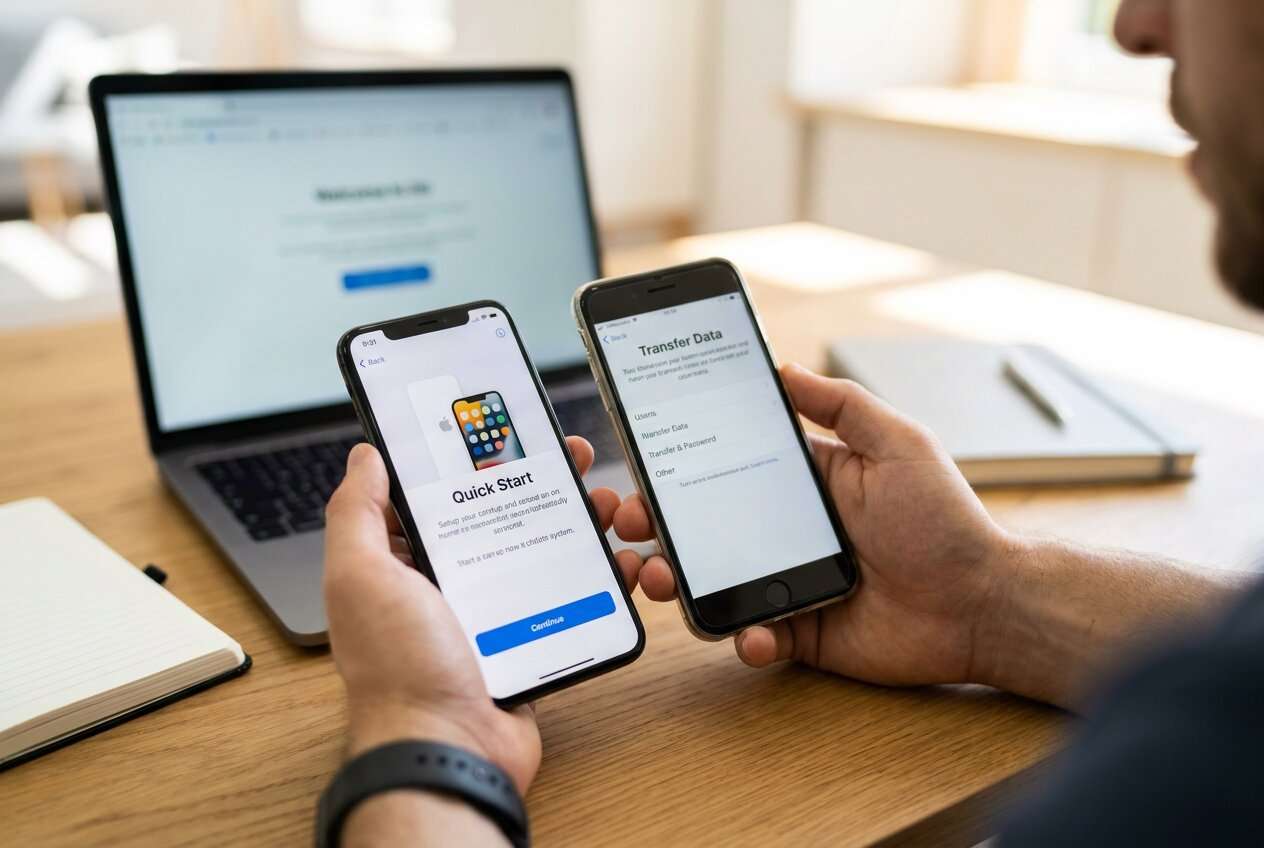
You’ve got a new iPhone and you’re choosing between Apple Quick Start (a full-ish migration flow) and a selective transfer approach (only certain data types). You may also be juggling constraints like limited iCloud storage, an old phone with low space, a work-managed Apple ID, or a deadline where you can’t afford downtime.
The uncertainty usually isn’t “what is Quick Start,” but “what order prevents mistakes.” For example: should you update iOS first, do you sign in to Apple ID before or after migrating, what happens to Messages and 2FA apps, and what counts as “done” before wiping the old phone.
Quick Start (full-ish migration)
- Typically simpler when you want most content moved in one flow.
- Can reduce manual selection errors (forgetting a category you needed).
- Works best when you have stable connectivity/time to complete and verify.
Selective transfer (pick what to move)
- Better when storage is tight or you want to avoid bringing over unwanted content.
- Requires clearer planning so you don’t miss critical items (e.g., Messages, Notes, messaging app media).
- Some apps still require re-login or re-enrollment even if data transfers.
A real point of no return is erasing or trading in the old iPhone before you’ve verified the new iPhone has the data you actually need (and that critical apps—banking, authenticator, WhatsApp/Signal, eSIM—are functional). Another high-risk moment is overwriting a newer backup or syncing incomplete data that replaces what you expected to keep.
Part 2. What the AI needs to know
Share the details below so the AI can build a step-by-step plan with clear verification gates.
- Old iPhone model + iOS version (e.g., iPhone 11, iOS 17.5)
- New iPhone model + iOS version (e.g., iPhone 15, iOS 17.6)
- Transfer goal: Quick Start (full) vs selective (what to move vs exclude)
- Your data priorities (Photos, Messages, WhatsApp, Contacts, Notes, app data, Health, Keychain)
- Current backup state (iCloud on/off, last iCloud backup date/time; Finder/iTunes backup yes/no)
- iCloud storage available (e.g., 5 GB free of 50 GB) and old phone free space
- Apple ID situation (same Apple ID or changing; personal vs managed/work Apple ID)
- Connectivity constraints (Wi‑Fi stability, cable available, time window)
- SIM/eSIM plan and whether carrier transfer is needed
- Any “cannot lose” apps (authenticator, banking, work VPN) and whether they require re-enrollment
- Whether you plan to wipe/sell/trade-in the old phone immediately after
Part 3. Using AI prompts to build a safer workflow
Use the prompts below to make the AI produce a sequence you can actually follow and verify.
3-1. Level 1: Basic prompt
I’m setting up a new iPhone and deciding between Quick Start and selective transfer.
Ask me the minimum questions you need, then output a simple checklist that prevents data loss and includes clear verification points before I erase the old phone.
3-2. Level 2: Advanced prompt
Design a workflow for moving from my old iPhone to a new iPhone with the lowest risk of missing data.
Separate the plan into **Preparation / Execution / Verification**, and label each step as **critical** or **optional**.
Include decision rules for choosing **Quick Start vs selective transfer**, and explicitly call out any “stop—do not proceed” gates before irreversible actions (like erasing/trading in the old phone).
3-3. Level 3: Evidence prompt
Use my context to produce a step-by-step transfer plan with checks **before, during, and after**.
Context: old iPhone (iPhone 12, iOS 17.5), new iPhone (iPhone 15, iOS 17.6), iCloud storage (8 GB free), Wi‑Fi (unstable), time window (2 hours), must keep (Photos, Messages, Contacts, Notes), must not break (Authenticator app, banking apps), WhatsApp (yes), SIM (eSIM).
I prefer selective transfer if it reduces risk.
Output: (1) prerequisites I must confirm, (2) the recommended transfer route and why, (3) the exact verification checklist (sample counts like Photos ~12,000; Messages “top 20 threads present”; Notes “folder list matches”), and (4) a “do not erase old iPhone until…” list.
3-4. Prompt refinement (follow-up prompts)
Put the workflow into a table with columns: **Step / Why it matters / How to verify / What could go wrong / Stop condition**.
List the **top 10 failure modes** for my situation (e.g., unstable Wi‑Fi, 2FA lockout, missing WhatsApp media) and add a prevention step for each.
Create a **minimal-data-loss path** that works even if iCloud backup fails, and include a fallback branch if the transfer is interrupted mid-way.
Define **acceptance criteria**: exactly what must be true on the new iPhone (counts, logins, app states) before I can wipe or trade in the old iPhone.
Ask me only **yes/no questions** first, then generate the plan; after that, ask for the remaining details needed to tighten verification.
Part 4. AI plan vs. real device constraints
| Planning with AI (safe) | Reality on devices (constraints) |
|---|---|
| Produces an ordered checklist with stop points | Transfer speed depends on Wi‑Fi, cables, and device health |
| Highlights app-specific risks (2FA, messaging apps) | Some apps require re-login or re-enrollment no matter what |
| Defines verification criteria (counts, spot checks) | You must manually confirm content is present and usable |
| Suggests fallback branches | Actual options depend on your iOS version, storage, and account status |
AI improves sequencing and reduces avoidable mistakes, but it cannot run the transfer, read your backups, or confirm that your data is intact on the new iPhone.
Part 5. When to stop planning and start execution
- You’ve chosen one route (Quick Start or selective transfer) and can explain why it fits your constraints (time, Wi‑Fi, storage, risk).
- You have a written verification checklist (what you will check, how you’ll check it, and what “pass” looks like).
- You’ve defined at least one no-return gate (e.g., “do not erase old iPhone until Photos count matches and authenticator works”).
- You have a fallback if the first attempt fails (what you’ll try next, and what you’ll preserve before trying it).
Once those are true, further planning tends to add noise rather than safety—and the next step is controlled execution.
Quick Start or selective transfer for new iPhone: execute the workflow safely with Dr.Fone
Execution now matters because the safest plan still fails if you improvise mid-transfer, skip verification, or cross an irreversible step too early. Use Dr.Fone - Phone Transfer only after your sequence and checks are locked.
 Move data between iOS to Android and vice versa.
- Transfer contacts, SMS, photos, videos, music, and more types.
- Available with all phones with Android and iOS versions.
- Simple, click-through process.

-
Step 1 Prepare and lock your verification gates
Confirm your “must-keep” data list and your pass/fail checks (counts, spot checks, key app logins) before initiating any transfer.
Limitation: Dr.Fone can execute transfers, but it can’t decide what you personally consider “complete” without your predefined acceptance criteria.

-
Step 2 Set the chosen transfer route (Quick Start alternative or selective transfer)
Follow the plan you already chose (full move vs. selective categories) and avoid changing scope mid-way.
Limitation: Transfer outcomes can still vary due to device state, iOS behavior, account locks, and app-specific rules that may require manual re-authentication.

-
Step 3 Choose exactly which data to transfer
Transfer only the categories you planned (for selective transfer) or confirm the scope is correct (for a fuller move), then run the transfer without improvising.
Limitation: Some app data may still require in-app sign-in or re-enrollment after the migration completes.

-
Step 4 Verify on the new iPhone before any irreversible action
Use your checklist to confirm data presence and usability (photos/messages/notes spot checks, key accounts, authenticator/banking readiness) before you erase, trade in, or factory reset the old iPhone.
Limitation: Verification is partly manual—if something is missing, stop and remediate before you cross the point of no return.





Conclusion
Use AI to choose the safest route, sequence the steps, and set verification gates—then use Dr.Fone to execute that plan without improvising. The goal is to reach the end with confirmed data integrity before any irreversible step.
FAQ
-
Is Quick Start always safer than selective transfer?
Not always. Quick Start can be simpler, but selective transfer may be safer when storage is tight, Wi‑Fi is unstable, or you only need specific data—if you define clear verification steps. -
What’s the highest-risk moment in this process?
Erasing, resetting, or handing over the old iPhone before verifying that the new iPhone has the data you need and that critical apps (especially 2FA/authenticator and banking) work. -
How do I verify without checking every single file or message?
Use acceptance criteria: approximate counts (photos/videos), folder/thread spot checks, recent items present, and “can I complete a login/2FA challenge” for critical apps. -
When should I update iOS—before or after transfer?
Plan it explicitly. Updating first can reduce compatibility issues, but it can also cost time and battery. The safest choice depends on your window, device state, and whether you need the newest fixes for transfer stability. -
Can AI tell me what successfully transferred?
No. AI can only define what to check and in what order. You must confirm on-device (and via tools) that the content is present and usable.
 Add Wondershare Dr.Fone as a preferred source on Google





