 Effortlessly manage data through preview, delete, export, etc.

 100% Security Verified | No Subscription Required | No Malware

 :
: 
 ChatGPT
 Perplexity
 Gemini
 Claude
 Grok
Grok

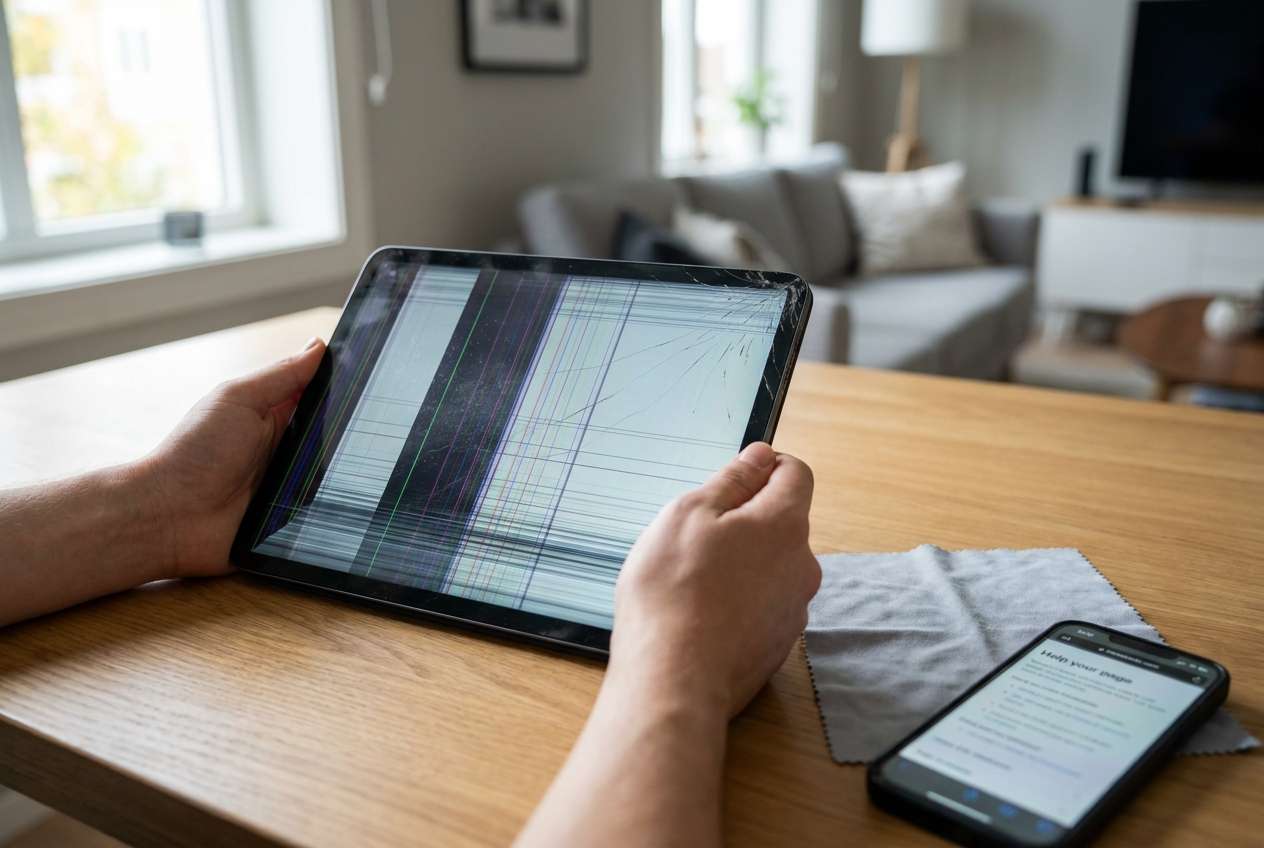
I dropped my tablet and now there are vertical lines on the screen. The glass isn’t cracked, but the lines show up even on the lock screen and restarting didn’t change anything. How do I tell if it’s hardware or software?
Reddit user, r/ipad
A tablet that shows new screen lines after an accidental fall can feel ambiguous: it might be a damaged display, a loosened connector, or a software-level glitch triggered by the shock. You may have just picked it up, tapped the screen, or restarted it—yet the lines don’t change after several minutes.
AI (like ChatGPT or Gemini) can help you describe symptoms precisely, narrow likely causes, and decide what evidence to collect before you take any action that could worsen the situation.
AI can’t confirm hardware damage remotely, and repeated trial-and-error (force restarts, random updates, third-party “fix” apps) can increase risk—especially if the device is unstable or you’re unsure whether it’s still booting normally.
In this article
- Why screen lines appear after a fall (and what it means)
- Boot-level vs app-level lines
- What a fall can trigger (hardware vs system)
- Quick triage checks
- Before you prompt the AI
- Safe AI prompts to diagnose the issue
- When to stop troubleshooting to avoid risk
- Fix it safely with Dr.Fone (guided iOS repair)
- Quick summary & evidence checklist
Part 1. Why tablet screen lines after accidental fall happens and what it means
If your tablet (for example, an iPad Air) started showing vertical or horizontal lines right after a drop—especially after you pressed Power or attempted a restart—the first question is whether the lines appear everywhere (including the Apple logo and lock screen) or only in certain apps.
1-1. Boot-level vs app-level lines
Screen lines that show up before iOS fully loads often point to a physical display/cable problem. If the lines appear only inside one app or disappear after UI changes, the odds shift more toward software/app rendering.
1-2. What a fall can trigger (hardware vs system)
There are cases where a fall coincides with a system crash, a corrupted display driver state, or an incomplete update. This is why “it fell” doesn’t automatically equal “the LCD is broken,” even though it’s a strong possibility.
1-3. Quick triage checks
To keep your decisions grounded, treat this like a quick triage: confirm where the lines appear, whether touch still works, and whether the device can stay on without overheating. (This same approach also helps if you notice related odd behavior on an iPhone 13 or iPhone 14 after impact.)
1-4. Before you prompt the AI
Gather a few facts first so the AI can narrow the cause without guessing.
- Confirm your device type and model (iPad model name, storage, iOS/iPadOS version if known)
- Note when lines appear (boot logo, lock screen, within apps, only at certain brightness)
- Check basic behavior (touch response, Face ID/Touch ID, overheating, random reboots)
- Record what you already tried (restart, charging, cable change, update attempt)
- If possible, take a photo or short video of the screen lines
Part 2. Using AI prompts to diagnose tablet screen lines after accidental fall safely
2-1. Level 1: Basic Prompt
My tablet started showing screen lines after an accidental fall. Ask me the most important questions to figure out whether this looks like hardware damage or an iOS/iPadOS system issue, and suggest the lowest-risk checks I can do first.
2-2. Level 2: Advanced Prompt
Diagnose my “screen lines after a fall” issue using a risk-aware approach.
1) List the top 5 likely causes, ranked by probability.
2) For each cause, give 2 signs that support it and 2 signs that argue against it.
3) Suggest a low-risk next step for each cause (avoid anything that could worsen damage or data loss).
4) Tell me what evidence would change your ranking most.
2-3. Level 3: Evidence Prompt
Use the details below to narrow down likely causes of screen lines after a fall, and propose the safest decision path.
Device: (e.g., iPad Air 5 / iPad Pro 11)
iOS/iPadOS version: (e.g., 17.x / unknown)
What happened: (e.g., fell from desk, landed on corner, no visible cracks)
Trigger: (e.g., lines appeared immediately / appeared after I restarted)
Line pattern: (e.g., vertical green lines, flicker, banding, half-screen)
Where it appears: (e.g., Apple logo, lock screen, in all apps, only in one app)
Touch response: (e.g., normal / delayed / dead zones)
Brightness impact: (e.g., worse at low brightness)
External display test: (e.g., via adapter—external display normal/also affected/not tested)
Power behavior: (e.g., random reboots, won’t stay on, heats up)
What I tried: (e.g., force restart, charge overnight, update attempt)
Goal: (e.g., confirm if software vs hardware; stabilize system without risky steps)
2-4. Prompt Refinement
Use these follow-ups to make the AI’s reasoning tighter and more actionable.
What 3 questions do you still need answered to separate hardware display damage from iOS display corruption?
Re-rank your causes if the lines show on the Apple logo screen (before unlock). What changes?
Split possibilities into categories: display panel, flex/connector, GPU/logic board, and iOS system state—then give 1–2 tests per category.
What single piece of evidence would be most decisive, and how can I capture it safely (photo/video/settings screen)?
Which steps should I avoid because they could hide symptoms, worsen instability, or complicate repair options?
2-5. AI Output vs Reality
AI can help you reason from symptoms, but it can’t directly verify the screen hardware or perform device-level actions.
| What AI can do | What you still must verify in reality |
|---|---|
| Turn vague symptoms into a checklist of observations | Whether lines appear during boot, on screenshots, or on an external display |
| Rank likely causes based on patterns (boot-level vs app-level) | Whether impact damage exists (micro-cracks, connector looseness, pressure marks) |
| Suggest low-risk steps in the right order | Whether the device remains stable (heat, battery drain, reboot loop) |
| Help you decide when software repair is worth attempting | Whether software steps are safe given the current state of the device |
Use AI to reduce guessing, then choose an execution method that matches your risk tolerance and what the evidence indicates.
Part 3. When to stop troubleshooting tablet screen lines after accidental fall and avoid risks
Stop “testing” when you’re no longer learning anything new and your next action could increase damage, instability, or data risk.
- The lines appear on the boot logo/lock screen and get worse with light pressure or device flex
- Touch becomes unreliable, the tablet overheats, or it starts rebooting repeatedly
- You see swelling, severe bending, shattered glass, or liquid exposure (even if it still turns on)
- Multiple restarts/charging attempts don’t change symptoms and you’re tempted to try random tools or repeated updates
Once you’ve captured the key evidence (where lines appear, stability, touch behavior), you can move from diagnosis to a controlled execution step—especially if you want to rule out iOS-level issues before assuming hardware replacement.
Part 4. Tablet screen lines after accidental fall: fix or resolve it safely with Dr.Fone
If your evidence suggests the tablet is powering on but behaving inconsistently (freezing, boot problems, or display issues that might be system-related), a structured iOS repair workflow can be a safer “next attempt” than repeated restarts or random updates. At this stage, Dr.Fone - System Repair (iOS) can be relevant because it focuses on executing Repair iOS Issues in a guided way—helping you attempt system-level recovery steps while you stay mindful of risk and stop conditions.
 Fix iOS issues, no data loss.
- One-click repair for all iOS problems.
- Solve recovery mode, Apple logo, black screen, etc.
- Upgrade or downgrade iOS without iTunes

You can follow the flow described in the official guide while you run the tool, keeping the process consistent instead of mixing multiple “fix attempts.”
-
Step 1 Stabilize the device state
Charge to a stable level and use a reliable cable/port before you begin, avoiding repeated force restarts if the device is overheating or rebooting.

-
Step 2 Open System Repair (iOS) on a computer
Launch Dr.Fone and choose the iOS System Repair option so you’re using a single, consistent workflow rather than mixing methods.

-
Step 3 Connect the device and continue
Connect your tablet, then proceed into the iOS repair flow so the tool can guide the next actions in the correct order.

-
Step 4 Select the lowest-risk repair mode first
Follow the on-screen mode selection carefully, choosing the lowest-risk option first to minimize unintended changes.

-
Step 5 Re-check the same evidence points after completion
Confirm whether lines still appear at boot, whether touch is stable, and whether the issue changed—this helps decide if hardware inspection is now the most likely next step.

Part 5. Quick summary & evidence checklist
1. Identify where the lines appear.
Check whether lines show on the Apple logo/boot screen and lock screen (often more hardware-leaning) versus only inside certain apps (often more software/app-leaning).
2. Compare “display-only” evidence vs “system stability” evidence.
Track touch response, heat, random reboots, and whether the device stays on reliably—instability changes what steps are safe to attempt next.
3. Capture the most decisive proof you can safely capture.
A short photo/video of boot and lock screens (and optional external display results, if available) helps you avoid repeating risky actions just to “see if it changes.”
If you use AI, feed it the same captured evidence each time so you’re reducing uncertainty rather than cycling through random fixes.




Conclusion
Use AI to turn “screen lines after a fall” into a clear symptom profile, rank likely causes, and choose the lowest-risk next step; then hand off execution to a structured tool like Dr.Fone - System Repair (iOS) when it’s time to attempt a system-level workflow without guesswork.
FAQ
-
Can a fall cause screen lines even if the glass isn’t cracked?
Yes. Internal LCD/OLED layers, backlight components, or display connectors can be affected without visible external cracks.
-
Do screen lines that show on the Apple logo mean hardware damage?
Often it points toward hardware, but it can also coincide with a system crash or corrupted state; confirming with consistent evidence (boot vs app-only) matters.
-
Should I keep restarting the tablet to see if the lines go away?
Repeated restarts usually don’t help with physical damage and can add stress if the device is overheating or unstable; limit restarts and focus on evidence.
-
If I take a screenshot, will the lines appear in the screenshot?
If the lines are in the screenshot, it may suggest a rendering/system-side issue; if not, it more strongly suggests a display hardware path issue.
-
What’s the safest next step if I suspect an iOS system issue after the fall?
Use a controlled, guided system-repair approach (rather than random tools), and stop if you see worsening instability or physical damage indicators.
 Add Wondershare Dr.Fone as a preferred source on Google





