 Effortlessly manage data through preview, delete, export, etc.

 100% Security Verified | No Subscription Required | No Malware

 :
: 
 ChatGPT
 Perplexity
 Gemini
 Claude
 Grok
Grok

I copied everything from my phone to my laptop, but now I have duplicate folders—and I’m scared to delete anything because I don’t know what’s actually safe to remove.
Forum user
Moving photos, videos, documents, and chats between your phone and laptop is simple—until one missed step causes overwrites, duplicate folders, or accidental deletion of originals.
AI helps by turning your goal into a structured plan: what to copy first, how to name and store it, which checks confirm integrity, and where the point-of-no-return risks are.
AI can’t access your devices, see your actual storage state, or perform transfers; once the plan is verified, you still need real device tools to execute safely.
In this article
- How to plan a phone-to-laptop handoff without missing steps
- Define the handoff sequence
- Identify true sources vs “Recents” views
- Delay deletion until evidence checks pass
- Keep a rollback option
- What the AI needs to know
- Using AI prompts to build a safer workflow
- AI plan vs. real device constraints (and when to start execution)
- Execution principles: protected transfer, verification, then cleanup
Part 1. How to plan set up phone and laptop file handoff workflow without missing critical steps
You’re setting up a repeatable “handoff” between phone and laptop: capture on phone → transfer to laptop → confirm → archive → free space on phone. The tricky part is deciding the sequence (and stopping yourself from “cleaning up” too early).
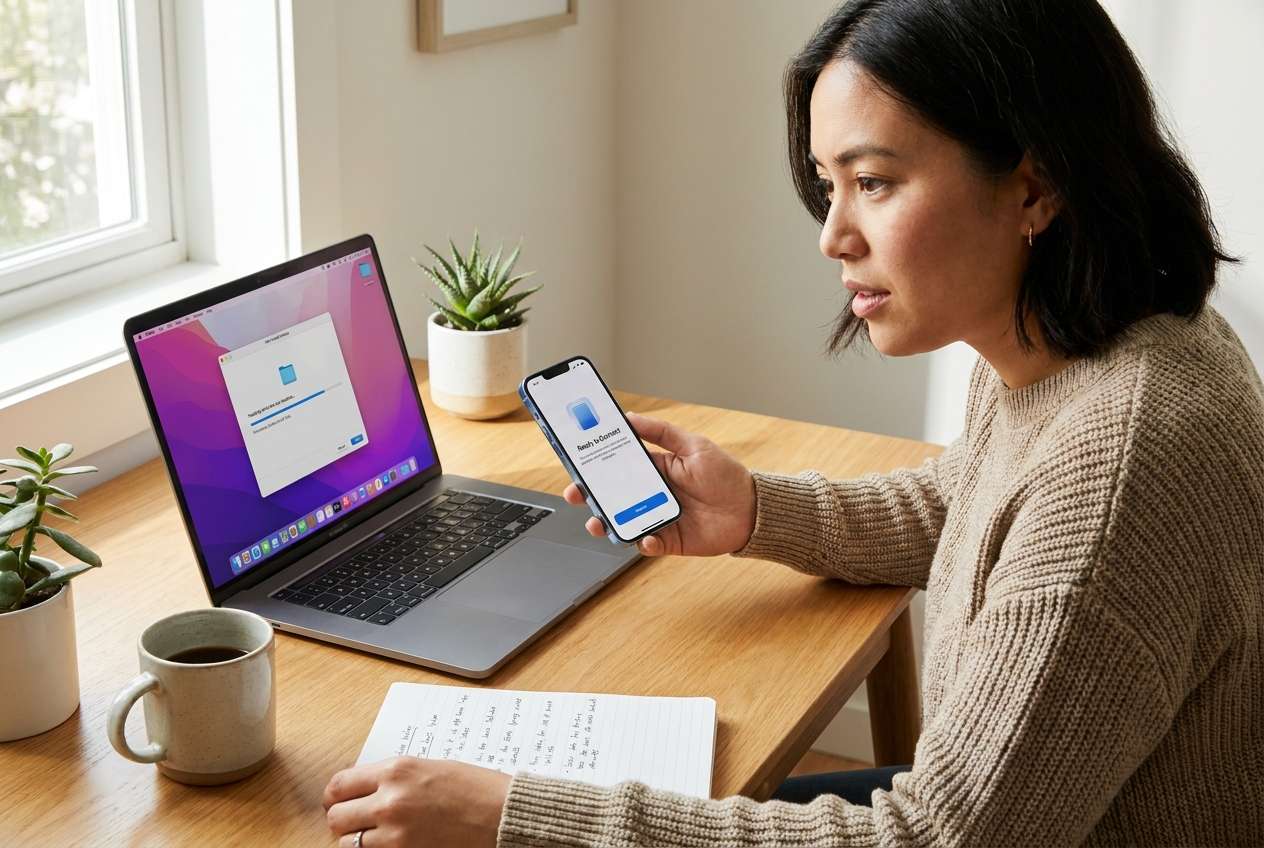
After AI gives a general answer, many people still don’t know what to verify before they touch anything: which folders are the true sources, how to avoid importing the same media twice, and how to detect partial copies.
The point of no return is usually deleting originals (or wiping/resetting a device) after “it seems copied.” Don’t reach that moment until you have concrete evidence checks and a rollback option.
Part 2. What the AI needs to know
Share the specifics below so the plan matches your devices, apps, and risk tolerance.
- Phone OS and model (Android / iPhone; model and OS version)
- Laptop OS (Windows / macOS) and available free disk space
- What you’re handing off (photos/videos, documents, WhatsApp data, music, app data, other)
- Source locations (Camera Roll/DCIM, Downloads, app-specific folders, iCloud/Google Photos, SD card)
- Target locations on laptop (one master folder vs multiple; external drive or internal)
- Connection method preferences (USB, Wi‑Fi, cloud sync) and any restrictions (work laptop policies)
- Your “must not lose” items (e.g., last 6 months of photos, family videos, work PDFs)
- Duplicate tolerance (none allowed vs “okay if a few duplicates”)
- Naming and organization preference (by date, by event, by app, by person/project)
- Security needs (encryption, shared computer, sensitive files)
- Your cleanup intent (free X GB, delete only after verification, keep phone as secondary copy)
Part 3. Using AI prompts to build a safer set up phone and laptop file handoff workflow workflow
Use the prompts below to force a clear sequence, define verification, and delay irreversible actions until checks pass.
3-1. Level 1: Basic prompt
I need a safe workflow to hand off files from my phone to my laptop without losing anything or creating duplicates.
Plan the sequence of steps and include a short checklist of what I must verify before I delete anything from the phone.
3-2. Level 2: Advanced prompt
Design a phone→laptop file handoff workflow in three phases: Preparation, Execution, Verification.
For each phase, list critical steps vs optional steps, and include “stop points” where I must confirm results before moving forward (especially before any deletion/cleanup).
3-3. Level 3: Evidence prompt
Create a handoff plan tailored to my setup and include concrete checks before, during, and after transfer.
Context: phone (Android, Pixel 7, Android 14), laptop (Windows 11), files (photos/videos in DCIM + screenshots + PDFs in Downloads), target folder (D:\PhoneArchive\2026\), connection (USB), goal (free 20 GB), duplicate tolerance (near-zero).
Include example folder naming rules (e.g., YYYY-MM_Device_Source) and verification methods (file counts, spot-checking random files, size comparisons, hash checks where practical).
Also define the exact “point of no return” actions I must not do until verification is complete.
3-4. Prompt refinement (follow-up prompts)
Give me the workflow as a table with columns: Step, Why it matters, What can go wrong, Verification, Rollback.
Separate media types into tracks (Photos/Videos, Documents/Downloads, App data) and tell me whether they can be transferred independently or must be handled together.
Define my duplicate-prevention rules: where duplicates usually come from (cloud re-downloads, re-imports, “recent” folders) and the exact checks to detect them.
Create a “Do Not Do Yet” list that blocks risky actions until specific evidence is collected (e.g., counts match, sample opens, storage shows expected change).
Provide two versions of the plan: USB-first and Wi‑Fi/cloud-first, and tell me which is safer given my constraints.
Part 4. AI plan vs. real device constraints (and when to start execution)
4-1. AI plan vs. real device constraints
| Planning with AI | Real device constraints you must account for |
|---|---|
| Defines a safe sequence and stop points | Devices may show different folder views (e.g., “Recents” vs actual storage paths) |
| Designs verification checks (counts, samples, hashes) | Some file metadata changes on copy (timestamps, HEIC/JPEG conversions, Live Photos behavior) |
| Predicts failure modes (partial transfer, duplicates, overwrites) | Transfers can fail silently due to cable issues, permissions, sleep mode, or low storage |
| Creates rollback ideas (keep originals, staged deletes) | Rollback depends on having a real backup/copy that’s readable and complete |
AI improves planning, but cannot execute transfers, confirm your real file counts, or guarantee what your devices will do under your exact connection, permissions, and storage conditions.
4-2. When to stop planning set up phone and laptop file handoff workflow and start execution
- You have a single, unambiguous source list (which folders/apps count as the originals) and a single destination structure on the laptop.
- You defined verification evidence you will collect (counts, spot checks, size comparisons, and/or hashes) and what “pass/fail” means.
- You wrote down the point-of-no-return actions (delete originals, empty trash, factory reset, format SD card) and the exact conditions required before doing them.
- You have a rollback option (at minimum: keep phone originals until verification passes; ideally: second copy or external backup).
Once these are true, the next step is device work—carefully and in order.
Part 5. Execution principles: protected transfer, verification, then cleanup
Execution is where most mistakes happen: interruptions, wrong targets, partial copies, and premature cleanup. Do the actions only after your plan’s verification rules are written and understood.
- Stage a protected transfer (no deletions yet). Transfer or back up the selected file categories into your pre-named destination folders first.
- Verify completeness and usability before any cleanup. Compare file counts by category, open a random sample across dates, and confirm expected storage impact on both devices.
- Only then perform the point-of-no-return cleanup. Don’t delete originals (or empty trash/recently deleted windows) if any verification step is incomplete or uncertain.
Recommended tool for execution: Dr.Fone phone-to-laptop transfer
If you already have a verified plan and need a clearer, safer way to move data between devices, Dr.Fone - Phone Transfer can help you run the transfer in a more controlled, click-through flow—so you can focus on verification and avoid premature cleanup.
 Move data between iOS to Android and vice versa.
- Transfer contacts, SMS, photos, videos, music, and more types.
- Available with all phones with Android and iOS versions.
- Simple, click-through process.

Important: A tool can execute the transfer, but it can’t decide whether your folder structure and “what counts as complete” rules are correct—you must apply your plan and verification checks.
-
Step 1 Open Phone Transfer on your computer
Launch the software on your laptop so you can choose the correct transfer mode before connecting devices.

-
Step 2 Set the transfer direction (source → destination)
Confirm the phone is the source and the laptop/target path matches your pre-named archive structure to reduce misplacement and duplicates.

-
Step 3 Choose data categories to transfer (stage first, no deletions)
Transfer in categories (e.g., photos/videos first, then documents) so your verification evidence is easier to collect and audit.

-
Step 4 Avoid conflicts with cloud sync during the handoff
Temporarily reducing sync conflicts (where appropriate for your setup) can help prevent unexpected re-downloads, re-imports, or “mystery duplicates” mid-transfer.

After the transfer, run your planned checks (counts, date ranges, spot-check opens, size comparisons, and hashes where practical). Only after verification passes should you perform any point-of-no-return cleanup on the phone.




Conclusion
Use AI to design the sequence, define verification evidence, and block irreversible steps until you’re confident; then use a real tool like Dr.Fone to carry out the transfer and cleanup according to that plan.
FAQ
-
What’s the biggest risk in a phone-to-laptop handoff workflow?
Deleting or overwriting originals before you’ve proven the laptop copy is complete and readable. -
How do I prevent duplicates on repeated handoffs?
Use consistent destination naming, avoid importing from “Recents,” and verify by counts/date ranges; keep each handoff in a dated batch folder so you can audit what changed. -
What should I verify before I delete anything from my phone?
At minimum: file counts by category, random spot-check opens (old/new items), and confirmation that the destination folders contain the expected date range and size footprint. -
When should I use hashes (checksums) instead of spot checks?
When the files are high value (legal/work), large, or you suspect transfer instability; hashes increase confidence but add time and complexity. -
Can AI tell me whether my transfer is complete?
No—AI can define what to check, but it can’t see your actual folders, counts, or whether files open correctly on your laptop.
 Add Wondershare Dr.Fone as a preferred source on Google





