 Effortlessly manage data through preview, delete, export, etc.

 100% Security Verified | No Subscription Required | No Malware

 :
: 
 ChatGPT
 Perplexity
 Gemini
 Claude
 Grok
Grok

I tapped “Install Now” for an update (or restarted my phone) and then realized I can’t get back in. After a few minutes, it looks like nothing is happening, and I can’t tell whether the device is still processing or fully locked.
Apple Support Community user
Forgetting a phone passcode can feel urgent—especially right after an update or restart. AI can help you sort what kind of lock you’re dealing with (passcode lockout vs Apple ID/iCloud activation lock vs Screen Time passcode vs Android lock screen), identify what changed right before the lockout, and choose safer next steps based on your priorities (data preservation, time, account access). Use AI for diagnosis and planning—not bypassing security—and avoid trial-and-error that can escalate lockout time or risk data loss.
In this article
- Why lockouts happen and what they mean
- Common triggers
- What the on-screen message usually indicates
- Don’t mix up iPhone vs Android device types
- What to capture before prompting AI
- Using AI prompts to diagnose safely
- When to stop troubleshooting to avoid risk
- If it’s Android: choose a compatible execution path
- Unlock Android screen with Dr.Fone (guided steps)
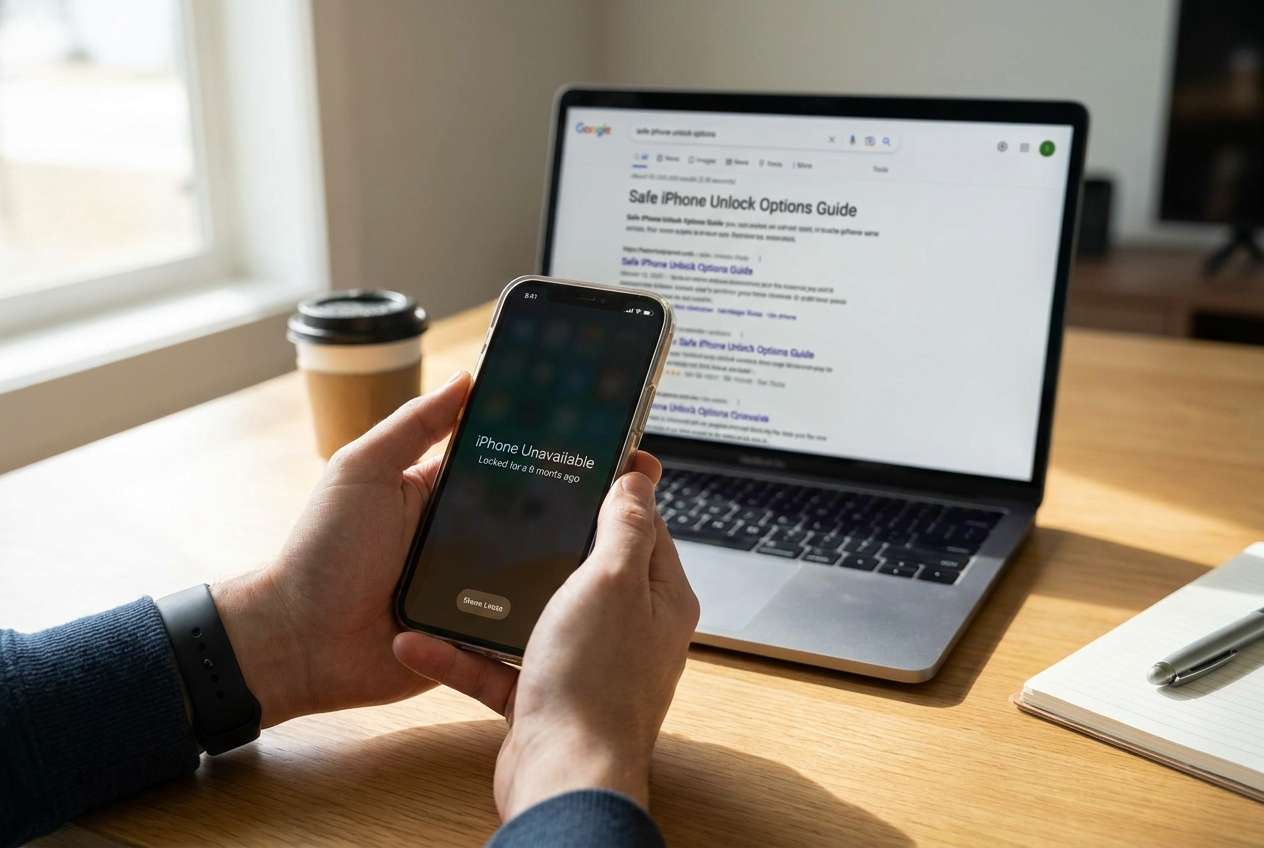
Part 1. Why forgot iPhone passcode and need safe unlock options happens and what it means
This situation often happens after repeated wrong entries, a rushed change to a new passcode, or when Face ID/Touch ID stops working and the device requires the passcode. If you recently updated iOS, restored from backup, or had a forced restart, iPhone security may prompt for the passcode even if biometrics usually work.
What it means depends on what you see on-screen: “iPhone Unavailable” / “Security Lockout” suggests too many attempts; “Activation Lock” points to Apple ID credentials; and Screen Time passcode is a separate code entirely. Each path has different risks for data and time.
It’s also common to mix up device types in a household: if the locked device is actually an Android phone with a PIN/pattern lock, your best execution options are different than for an iPhone.
1-1. Before You Prompt the AI
Capture these basics first so the AI can classify the lock correctly:
- Device type: iPhone or Android (check branding on boot screen / Settings label on the box)
- Model + OS version (if known)
- Exact lock message (quote it)
- What you did right before it happened (update, restart, new passcode, restore)
- Whether you know the Apple ID / Google account and have access to the email/phone number
- Your priority: keep data if possible vs regain access quickly
Part 2. Using AI prompts to diagnose forgot iPhone passcode and need safe unlock options safely
2-1. Level 1: Basic Prompt
I forgot my phone passcode. Ask me the minimum questions needed to identify whether this is (1) iPhone passcode lockout, (2) Apple ID/Activation Lock, (3) Screen Time passcode, or (4) an Android lock screen. Then give low-risk next steps for each possibility without guessing.
2-2. Level 2: Advanced Prompt
Diagnose my lockout case using a decision-tree. Rank the most likely causes and label each step by risk (low/medium/high) for data loss and account lockout. Only suggest actions I can reverse first. End with a “stop now” line if the next step could increase lockout time or wipe data.
2-3. Level 3: Evidence Prompt
Help me diagnose a passcode lockout safely. Use my evidence below and return: (A) likely scenario (ranked), (B) what evidence supports/contradicts each, (C) safest next step, and (D) what NOT to do yet.
Evidence:
- Device type: (iPhone or Android)
- Device model: (e.g., iPhone 13 Pro / Samsung Galaxy S22)
- OS version (if known): (e.g., iOS 17.x / Android 14)
- What I see on screen (exact words): (e.g., “iPhone Unavailable” / “Forgot Passcode?” / “Activation Lock”)
- Time-based behavior: (e.g., 1 minute / 1 hour lockout timer)
- What changed before this: (e.g., tapped Install Now, forced restart, changed passcode)
- Biometrics status: (Face ID/Touch ID stopped working? yes/no)
- Account access: Apple ID/Google account known? recovery email/phone accessible?
- Data priority: (must keep data / ok to reset)
- Prior attempts: (how many tries, any tools used, any wipes attempted)
Constraints: Do not provide bypass instructions; focus on diagnosis, safe sequencing, and risk control.
2-4. Prompt Refinement
If the AI response is vague, use these follow-ups to force clarity:
What’s the single missing detail that would change your recommendation most?
Separate this into: iPhone passcode lockout vs Activation Lock vs Screen Time passcode vs Android lock screen.
Rank the top 3 likely causes and tell me what exact on-screen text would confirm each one.
List “low-risk checks” I can do without increasing lockout time or triggering a reset.
If my goal is to avoid data loss, what should I stop doing immediately?
2-5. AI Output vs Reality
Use this table to sanity-check what the AI suggests before you act:
| AI says | Reality check you should do |
|---|---|
| “It’s probably an iPhone passcode lockout.” | Confirm the exact message (“iPhone Unavailable” vs “Activation Lock”). |
| “Try more passcode attempts.” | More attempts can increase lockout duration or remove options on-screen. |
| “Reset is the fastest route.” | A reset can erase local data; confirm backup/account access first. |
| “Use a tool to remove the lock.” | Tool suitability depends on device type (iPhone vs Android) and lock type. |
AI can help you choose the right path, but it can’t validate what device you have in hand, what security state it’s in, or which execution method is compatible—those checks happen during real-world steps and tooling.
Part 3. When to stop troubleshooting forgot iPhone passcode and need safe unlock options and avoid risks
Stop and reassess if you hit any of these signals:
- The screen shows escalating timers (minutes → hours) or “Security Lockout,” and you’re still guessing passcodes.
- You’re not 100% sure whether the device is iPhone or Android, or which account it’s tied to.
- You can’t access the Apple ID/Google account recovery email/phone number right now.
- A suggested next step requires a reset, and you haven’t confirmed backups or data priority.
Once you’ve used AI to classify the lock type and risks, hand off execution to the correct method for that device and scenario—this is where tools and official flows matter.
Part 4. If it’s Android: choose a compatible execution path
If your “iPhone passcode” situation turns out to be an Android lock screen (PIN/pattern/password/biometric fallback), you’ll want an execution path designed for Android. At this point, AI should have helped you confirm the device type, identify the lock category, and decide whether data loss is acceptable.
- Confirm the device is Android and identify the brand/model so you don’t follow an incompatible flow.
- Prefer guided, compatibility-aware steps over guessing, especially when timers or security states are involved.
- Proceed carefully: some removal paths can affect on-device data depending on the device and method.
- After access is restored, immediately set a new lock method you will remember.
Part 5. Unlock Android screen with Dr.Fone (guided steps)
If you’ve confirmed the locked device is actually Android, Dr.Fone - Screen Unlock (Android) provides a guided workflow to remove an Android lock screen (PIN/pattern/password) depending on device compatibility.
 Unlock Android phone in seconds.
- Remove PIN, pattern, password, fingerprint.
- Bypass Google FRP lock easily.
- Works on all Android brands & models.
- No tech skills required – user-friendly.

-
Step 1 Confirm it’s Android and prepare device details
Verify the device is an Android phone and note the brand/model so you don’t follow an incompatible flow.

-
Step 2 Open Screen Unlock and select the correct option
Launch Dr.Fone and select the Android screen unlock option, choosing the correct device category to reduce mismatch risk.

-
Step 3 Follow the guided removal prompts carefully
Proceed through the guided prompts carefully, since some paths may require device-mode steps and could affect on-device data.

-
Step 4 Complete access check and set a new lock method
After the process, confirm you can reach the home screen and immediately set a new lock method you will remember.





Conclusion
Use AI to classify what you’re actually facing (passcode lockout vs account lock vs separate passcode systems), rank likely causes from your on-screen evidence, and pick low-risk next steps—then switch from planning to execution with the method that matches your device type, such as Dr.Fone - Screen Unlock (iOS) for supported Android lock-screen scenarios.
FAQ
-
Can AI tell me my iPhone passcode?
No. AI can’t retrieve or infer a passcode; it can only help you identify the lock type and choose safer next steps. -
What’s the difference between iPhone passcode lockout and Activation Lock?
Passcode lockout blocks local access; Activation Lock requires the Apple ID credentials tied to the device and appears during setup/restore or on an activation screen. -
Does trying more passcodes make things worse on iPhone?
It can. Repeated incorrect attempts typically increase lockout time and may remove or delay on-screen options. -
If my device is Android, what does Dr.Fone Screen Unlock do?
It provides an execution workflow for removing an Android lock screen (PIN/pattern/password) following guided steps, depending on device compatibility. -
How do I avoid data loss while deciding what to do?
Pause attempts, document the exact on-screen message, confirm backup/account access, and only choose actions labeled low-risk until you’re sure of the lock type.
 Add Wondershare Dr.Fone as a preferred source on Google





