 Effortlessly manage data through preview, delete, export, etc.

 100% Security Verified | No Subscription Required | No Malware

 :
: 
 ChatGPT
 Perplexity
 Gemini
 Claude
 Grok
Grok

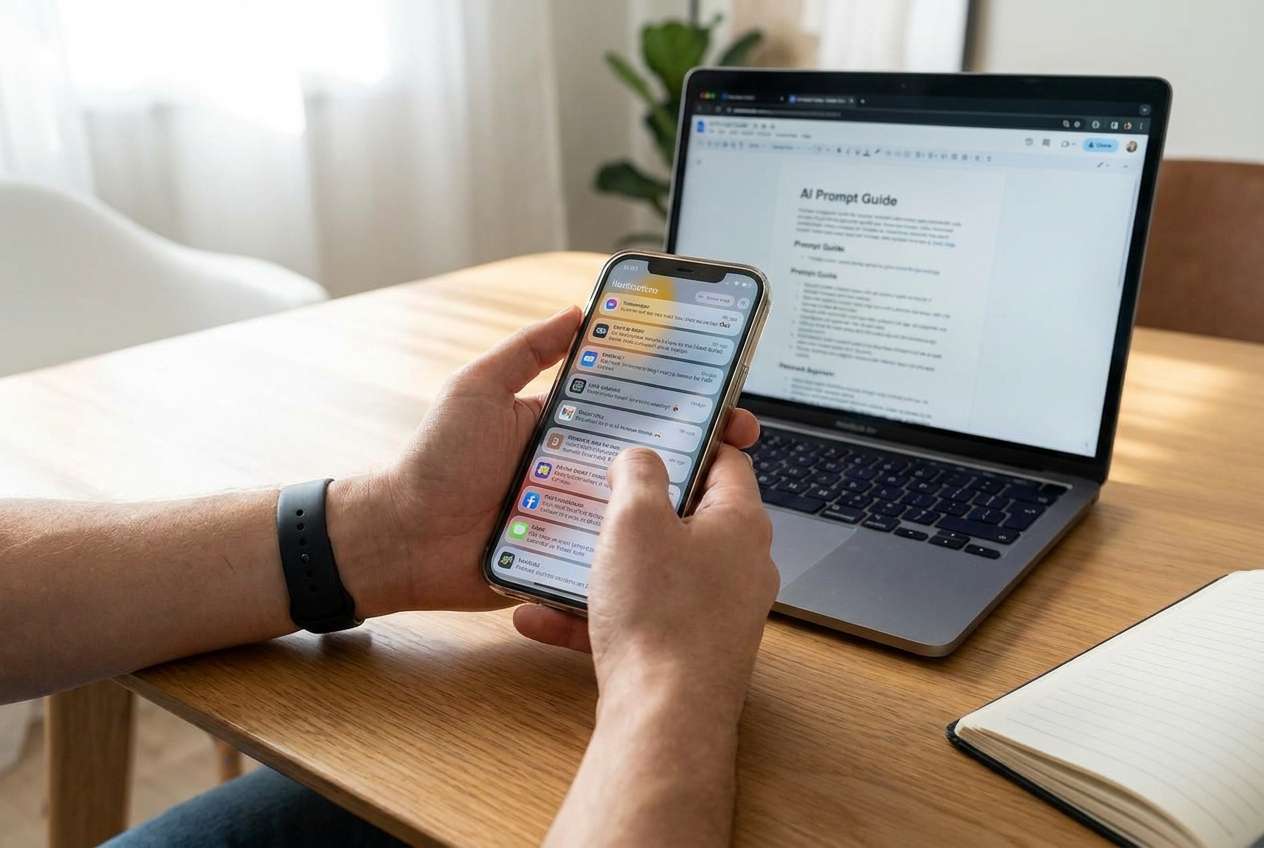
I turned off a bunch of notifications, but then I missed an important message—and now I don’t trust my settings. I want fewer pings without risking the stuff that actually matters.
Reddit user, r/iPhone
Notification overload usually isn’t a “best settings” problem—it’s a mismatch between what your phone allows and what your day actually needs.
AI can help by turning fuzzy preferences like “I want fewer pings but I can’t miss important stuff” into clear trade-offs and a short list of rules you can live with.
In this article
- Part 1. How to compare notification cleanup based on real priorities
- Why “just turn off notifications” feels risky
- Three workable strategies (filtering, Focus, batching)
- What actually determines the best choice
- How to pick a strategy you can sustain
- Part 2. What the AI needs to compare
- Part 3. Using AI prompts to evaluate more clearly
- Part 4. AI recommendation vs real-world fit
- Part 5. When to stop researching and make the call
Part 1. How to compare notification cleanup based on real priorities
1-1. Why “just turn off notifications” feels risky
Most people are torn between two fears: getting interrupted constantly vs missing something that matters. That tension makes “just turn off notifications” feel risky, even when it’s the simplest fix.
1-2. Three workable strategies (filtering, Focus, batching)
The real comparison is usually between three workable strategies:
- Filter harder (per-app rules): fewer alerts, but more setup.
- Use Focus/Do Not Disturb (context modes): calmer time blocks, but you must trust allowlists.
- Batch notifications (summaries/digests): fewer interruptions, but slower response.
1-3. What actually determines the best choice
Your best choice depends less on the phone model and more on your tolerance for delay, your job/social expectations, and how predictable your schedule is.
1-4. How to pick a strategy you can sustain
AI can’t feel your real-world friction (missed messages, anxiety, or lost momentum), so once you choose an approach, you still need a short trial run—and sometimes a cleanup/transfer step if you’re switching apps, phones, or preparing a device for resale.
Part 2. What the AI needs to compare
Share these details so the AI can compare approaches around your real constraints:
- Your phone OS (iOS/Android) and whether you use Focus/Do Not Disturb today
- The 3–5 apps that create most noise (chat, email, social, shopping, news, etc.)
- What counts as “urgent” (and who/what can bypass rules)
- Your typical day pattern (deep work blocks, meetings, commute, evenings)
- Your biggest pain: distraction, anxiety, battery, or missing important messages
- Your response expectations (minutes vs hours) for work and personal messages
- Your willingness to maintain rules (one-time setup vs ongoing tweaking)
Part 3. Using AI prompts to evaluate more clearly
Use these prompts to force a trade-off decision instead of endlessly tweaking settings.
3-1. Level 1: Basic Prompt
I’m trying to clean up my phone notifications. Compare these approaches: (1) per-app notification filtering, (2) Focus/Do Not Disturb with allowlists, (3) batching notifications via summaries/digests.
Ask me the minimum questions needed, then recommend one approach and why.
3-2. Level 2: Advanced Prompt
Help me choose the best notification strategy by priorities, not generic tips.
Compare filtering vs Focus modes vs batching using: interruption cost, risk of missing urgent info, setup/maintenance effort, and how well it fits an unpredictable schedule.
Then tell me who each approach fits best and what a “starter configuration” would look like in plain language.
3-3. Level 3: Evidence Prompt
Context: My biggest notification sources are: [list apps]. I miss important messages from: [people/apps], but I also get distracted during: [times]. My schedule is [predictable/unpredictable]. My tolerance for delayed replies is [low/medium/high].
Recommend one primary approach (filtering vs Focus vs batching), and a secondary fallback if it fails.
Explain what I gain and what I give up with each approach, and name one assumption (about my work/social expectations or urgency needs) that would change your recommendation.
3-4. Prompt Refinement
If I could only change five notification settings total, which five would deliver the biggest improvement—and what trade-off does each create?
Identify the two notifications I’ll most regret missing, and design rules that protect them while still reducing total interruptions.
Where is my plan likely to fail: allowlist too strict, too permissive, or maintenance fatigue? Suggest a fix for each failure mode.
Convert my goal (“fewer interruptions”) into a measurable target (e.g., max X alerts/hour) and propose a configuration that hits it.
If I’m wrong about what’s “urgent,” how will I notice quickly—and how should I adjust without undoing all progress?
Part 4. AI recommendation vs real-world fit
| Likely AI recommendation or conclusion | What real-life use may change or reveal |
|---|---|
| “Use Focus/Do Not Disturb with an allowlist for deep work.” | You may block a key person/app once and lose trust in the system. |
| “Do per-app filtering for noisy apps (social/shopping/news).” | Some apps hide critical account/security alerts inside the same category you disabled. |
| “Batch notifications so you check at set times.” | Your role or relationships may require faster replies than you estimated. |
| “Uninstall/disable the worst offenders to cut noise fast.” | You may still need the app occasionally, and re-installing reintroduces default notification spam. |
AI can clarify likely fit and trade-offs, but hands-on use, workflow friction, and daily habits (how often you unlock, who expects instant replies) ultimately decide whether you feel calmer or constrained.
Part 5. When to stop researching and make the call
- You can clearly name your top priority (e.g., fewer interruptions, never miss urgent messages, or less maintenance).
- You’ve chosen one primary strategy (filtering vs Focus vs batching) and a fallback if it fails.
- You’ve defined what “urgent” means and listed the small set of exceptions that can break through.
- You have a realistic plan to test for 3–7 days and adjust only once, instead of daily tinkering.
At this point, the comparison is “done enough”—what you need next is execution and a short trial, not more debating.
Recommended tool for smoother execution (backup/transfer/prep)
Once you’ve decided your approach, the practical risk is that notification cleanup often overlaps with bigger actions—switching phones, consolidating apps/accounts, or preparing a device for resale—where missing data or leftover personal content creates problems. If you’re also dealing with iOS system issues during that process, Dr.Fone - System Repair (iOS) can help you repair iOS system errors as part of a smoother transition plan.
 Fix iOS issues, no data loss.
- One-click repair for all iOS problems.
- Solve recovery mode, Apple logo, black screen, etc.
- Upgrade or downgrade iOS without iTunes

5-1. After choosing: switch or prepare smoothly
Back up what you can’t afford to lose
Action: Use Dr.Fone to create a computer-based backup of key data (photos, messages, contacts) before major app removals, resets, or a phone switch.
Limitation: A backup doesn’t automatically fix notification chaos—you still need to apply your chosen rules on the device.
Transfer essentials cleanly when switching devices
Action: If you’re moving to a new phone, use Dr.Fone to transfer the data you actually need so you don’t “panic-enable” every app/alert during setup.
Limitation: Some app-specific notification preferences may not carry over and may need reconfiguration.
Prepare the old phone for handoff or resale
Action: Use Dr.Fone tools to help remove personal data and reduce the chance of leaving accounts or sensitive content behind before selling/gifting a device.
Limitation: You should still manually sign out of critical apps/services and confirm your device is fully reset according to your phone’s official steps.
5-2. Optional: run an iOS System Repair flow (Standard Mode)
-
Step 1 Open Dr.Fone toolbox on your computer
Launch Dr.Fone so you can access the repair features when iOS system issues get in the way of a smooth switch or preparation process.

-
Step 2 Choose System Repair and select iOS
Enter the System Repair module and pick iOS to proceed with an iPhone/iPad repair workflow.

-
Step 3 Continue to the iOS repair screen
Confirm you’re in the iOS System Repair path and continue to the next screen.

-
Step 4 Proceed with Standard Mode
Select Standard Mode to continue the guided repair process.





Conclusion
AI can help you choose a notification strategy by making trade-offs explicit and clarifying what you’ll likely regret, but real use is the final proof—and once you’ve decided, tools like Dr.Fone can help you back up, transfer, and prepare devices smoothly if switching or resale is part of the plan.
FAQ
-
Can I trust AI to tell me the best notification settings?
AI is good at structuring trade-offs and designing a rule set from your priorities, but it can’t verify your real interruption patterns or the consequences of a missed alert in your specific life. -
What’s the single most important trade-off in notification cleanup?
It’s almost always speed vs calm: the faster you want to respond, the more interruptions you must allow (or the more complex your allowlists become). -
How do I avoid a generic spec-like checklist approach?
Describe your day in blocks (work, commute, family time, sleep), define “urgent,” and limit yourself to a small number of exception rules. Then test for a week. -
Which approach is best if my schedule is unpredictable?
Per-app filtering is often safer than strict Focus schedules, because it reduces noise without relying on you being in the “right mode” at the right time. -
What should I prepare after I choose an approach?
List your must-not-miss contacts/apps, decide your check-in times (if batching), and plan a 3–7 day trial with one adjustment window. -
Does switching phones or reselling affect notification cleanup?
Yes—new devices and reinstalls often restore default notification spam. Backups/transfers and a proper wipe (when reselling) help you execute the change without losing data or leaving personal info behind.
 Add Wondershare Dr.Fone as a preferred source on Google





