 Effortlessly manage data through preview, delete, export, etc.

 100% Security Verified | No Subscription Required | No Malware

 :
: 
 ChatGPT
 Perplexity
 Gemini
 Claude
 Grok
Grok

I’m returning my company phone tomorrow and I’m worried one wrong sign-out will lock me out of MFA, or I’ll wipe it before I’ve saved what I’m allowed to keep.
Reddit user, r/sysadmin
Returning a company phone sounds simple until one missed step locks you out of work apps, deletes personal data you still need, or leaves accounts attached to a device you no longer control.
In this article
- How to plan the workflow without missing critical steps
- Why order matters (lockouts & MDM triggers)
- Identify the “point of no return”
- Define a verification gate
- Prepare proof/evidence requirements
- What the AI needs to know
- Using AI prompts to build a safer workflow
- AI plan vs. real device constraints (and when to start execution)
- Execute the workflow safely with Dr.Fone
Part 1. How to plan remove work accounts before returning a company phone without missing critical steps

You’re leaving a job, your return window is short, and the phone has a mix of work accounts (Microsoft/Google/VPN/Slack) and personal stuff (photos, contacts, authenticator codes). You’re not sure what the company can still access after you hand it back.
Even after an AI answer, the uncertainty usually isn’t “what” to do—it’s the order: which sign-outs break access you still need today, which removals trigger MDM protections, and what you must verify before you proceed.
1-1. Why order matters (lockouts & MDM triggers)
Signing out of a managed account, removing a work profile, or uninstalling a “Company Portal” app can immediately change what you can access and what the device will allow next (especially on managed devices).
1-2. Identify the “point of no return”
The biggest point of no return is a factory reset / secure erase (or an MDM “retire” action) that permanently removes data and can also remove the only working path to retrieve personal items or export proofs.
1-3. Define a verification gate
Create a “verification gate” checklist that must be passed before anything irreversible: backup complete (if allowed), MFA continuity confirmed, required evidence captured, and device management/enrollment status checked.
1-4. Prepare proof/evidence requirements
If your company expects compliance evidence, decide what you’ll capture (screenshots, sign-in tests, unenrollment status, return receipt) and when to capture it—before access changes.

Part 2. What the AI needs to know
Share the context so the workflow matches your device, accounts, and company controls.
- Device type and OS (iPhone iOS version / Android model + version)
- Company management type (MDM/Intune, Workspace ONE, MobileIron, Jamf, “not sure”)
- Work accounts present (Microsoft 365, Google Workspace, Exchange, VPN, Teams/Slack, etc.)
- Any authenticator setup on the phone (Microsoft Authenticator, Google Authenticator, Duo)
- Whether the SIM/eSIM is personal or company, and if it must be removed
- What personal data exists on the device (photos, notes, contacts, WhatsApp, files)
- Whether you still need access to anything after account removal (pay stubs, benefits portals, contacts)
- Your deadline and whether IT is available to confirm offboarding steps
- Any required proof (screenshots of sign-out, device “unenrolled,” return receipt)
Part 3. Using AI prompts to build a safer remove work accounts before returning a company phone workflow
Use these prompts to make the sequence explicit before you touch anything irreversible.
3-1. Level 1: Basic prompt
Draft a step-by-step checklist to remove work accounts from my company phone before returning it, including what to verify before and after each step.
Include the main risks and the point where I should stop if I’m not sure.
3-2. Level 2: Advanced prompt
Build me a structured workflow with **Preparation / Execution / Verification** for removing work accounts before returning a company phone.
Mark steps as **critical vs optional**, include a “stop and confirm” gate before any irreversible action (like wipe/factory reset), and list what evidence I should capture for compliance.
3-3. Level 3: Evidence prompt
I’m returning a **(company-owned iPhone 13, iOS 17)** tomorrow.
It has **(Microsoft 365 + Intune Company Portal)** plus **(Outlook, Teams, VPN)** and also personal **(Photos ~4,000, WhatsApp, personal Apple ID)**.
I use **(Microsoft Authenticator)** for 2FA.
Create a workflow with checks **before/during/after** each action, including: how to confirm I have a working 2FA method after removal, how to confirm device is no longer enrolled (if applicable), and exactly when it’s safe to do a final wipe.
Include a short “if X happens, do Y” troubleshooting branch (e.g., sign-out fails, device shows still managed).
3-4. Prompt refinement (follow-ups)
List all steps in a table with columns: **Step / Why / What can go wrong / Proof to capture / Stop condition**.
Ask me exactly **10 yes/no questions** to resolve the biggest unknowns (MDM present, authenticator dependency, eSIM ownership, backup needs), then regenerate the workflow.
Create two variants: **“IT available”** vs **“No IT response”** and highlight which steps I should not attempt without IT.
Add a dedicated **Verification Gate** right before wipe: include **minimum required confirmations** and **how to record them** (screenshots, account sign-in test, device management status).
Generate a “last 30 minutes” checklist for return day that avoids actions that could lock me out while I’m still on-site.
Part 4. AI plan vs. real device constraints (and when to start execution)
| AI can plan | Real-world constraint |
|---|---|
| Safe ordering to avoid lockouts | Your device may enforce MDM rules the AI can’t see |
| Risk flags (2FA, enrollment, wipe) | Buttons/menus differ by OS version and policy |
| Verification checklist and evidence plan | Only you can confirm status on the actual device |
| Decision gates before irreversible steps | Wipe/reset is permanent once executed |
AI improves planning and reduces avoidable mistakes, but it cannot execute removals, sign-outs, unenrollment, or wiping on your device.
4-1. When to stop planning and start execution
- You can name the exact accounts to remove and the apps they’re tied to (email, VPN, chat, authenticator).
- You have a clear 2FA continuity plan (Authenticator moved/backup codes saved) before you remove work access.
- You’ve defined the verification gate that must be passed before any wipe/reset.
- You know who to contact (IT/manager) if the device shows still managed/enrolled after your steps.
If those are true, you’re ready to follow the execution workflow without improvising midstream.
Part 5. Remove work accounts before returning a company phone: execute the workflow safely with Dr.Fone
Execution matters now because the risks are time-based: once accounts are removed or the device is wiped, recovery options shrink fast. If you need a reliable way to clean up personal data you’re allowed to remove before return, Dr.Fone - Data Eraser can help you back up what you’re permitted to keep and permanently erase what you must remove.
 Erase all data on iOS & Android
- Military-grade wiping to fully protect your privacy.
- Generate verified erasure reports better for device resale.
- Selectively erase private data and remove junk & large files.
Before you do anything irreversible: back up any personal data you’re allowed to keep, and confirm your MFA/2FA continuity plan (e.g., authenticator moved, backup codes saved, alternative method verified). Dr.Fone can help with data cleanup, but it can’t tell you what’s compliant—only your policy/IT can.
-
Step 1 Open Dr.Fone and choose Data Eraser
Connect your phone and open the module you’ll use for erasing private data. Do not erase anything until your verification gate is complete.

-
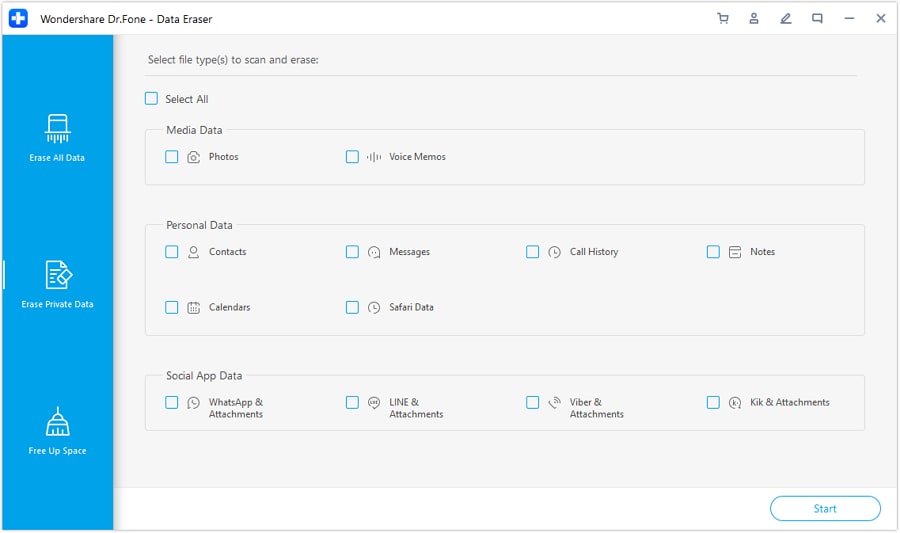
Step 2 Review what data types can be erased
Check which categories are available so you can match them to your “allowed to remove/keep” decision (photos, messages, app data, etc.).
-
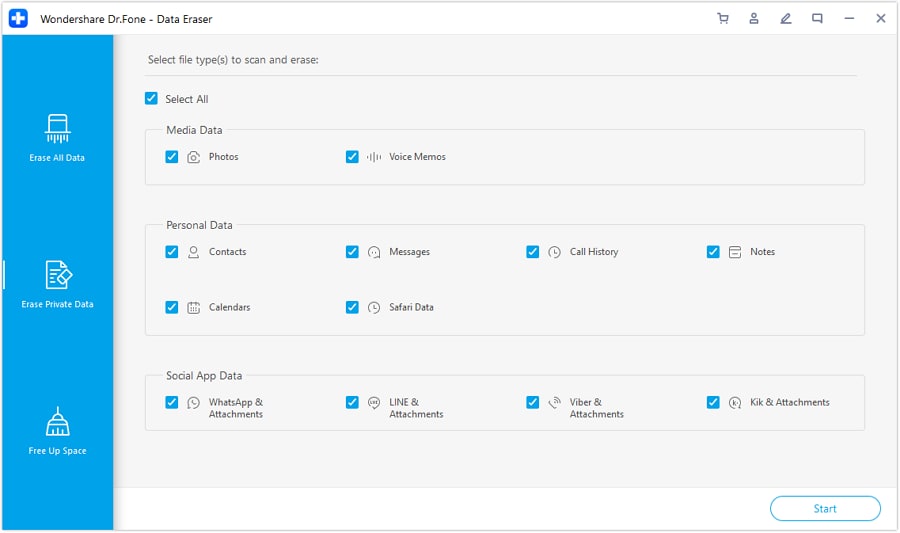
Step 3 Select the private data types you want to remove
Select only what you intend to erase. If anything is uncertain (e.g., work data mixed with personal), pause and confirm with IT/policy before proceeding.
-
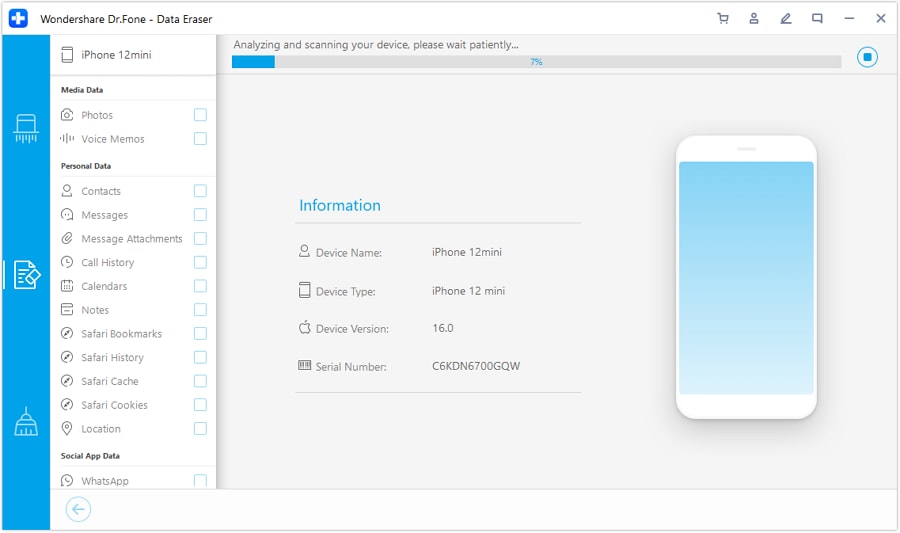
Step 4 Analyze and confirm the items to erase
Review the scan results, verify you’ve captured required evidence (screenshots/sign-in tests/management status), then erase only when all verification items pass.




Conclusion
Use AI to design the safest sequence, define verification gates, and identify lockout/wipe risks; then use real tools to execute—Dr.Fone for backup/cleanup actions—only after you’ve confirmed you’re ready for any irreversible step.
FAQ
-
What’s the biggest risk when removing work accounts before returning a phone?
Breaking access you still need (especially 2FA) or wiping data before you’ve saved what’s permitted.
-
How do I avoid getting locked out by an authenticator app?
Verify a replacement method first (move authenticator, ensure backup codes, or confirm alternative MFA). Don’t remove the work account until you can still sign in without that phone.
-
When should I factory reset or erase the device?
Only after your verification gate passes: personal backup done, required proofs captured, and you’ve confirmed there’s no remaining personal data you need.
-
Can AI tell me whether the phone is still MDM-managed or enrolled?
No. AI can list where to check and what “managed” indicators look like, but only the device/IT portal can confirm actual enrollment state.
-
What if the device won’t let me remove the work profile/account?
Stop and route to IT. Policy restrictions can block removal, and forcing changes can trigger security actions or loss of access at the worst time.
 Add Wondershare Dr.Fone as a preferred source on Google





