 Effortlessly manage data through preview, delete, export, etc.

 100% Security Verified | No Subscription Required | No Malware

 :
: 
 ChatGPT
 Perplexity
 Gemini
 Claude
 Grok
Grok

I switched from Android to iPhone and my WhatsApp chats showed up, but a lot of photos and videos didn’t. I wish I had known the “don’t do this yet” steps before I started.
Reddit user, r/whatsapp
Moving WhatsApp chats with media from Android to iPhone is easy to get wrong because one missed prerequisite can force a restart, overwrite data, or leave media behind. AI is useful for turning a messy goal (“move everything”) into a checklist workflow with prerequisites, decision gates, and verification checks you can complete before you trigger any changes. But AI can’t access your devices, accounts, cables, storage, or WhatsApp state—so it can’t actually perform the migration.
In this article
- Part 1. Plan the migration (with media) before you touch anything
- Why people lose media or have to restart
- Point-of-no-return moment to plan around
- What the AI needs to know
- How AI prompts turn “move everything” into a safe workflow
- Part 2. What the AI needs to know (inputs checklist)
- Part 3. AI prompts to build a safer workflow (Level 1–3 + Refinement)
- Part 4. AI plan vs. real device constraints (comparison table)
- Part 5. Execute the workflow safely with Dr.Fone (steps + validation)
Part 1. Plan the migration (with media) before you touch anything
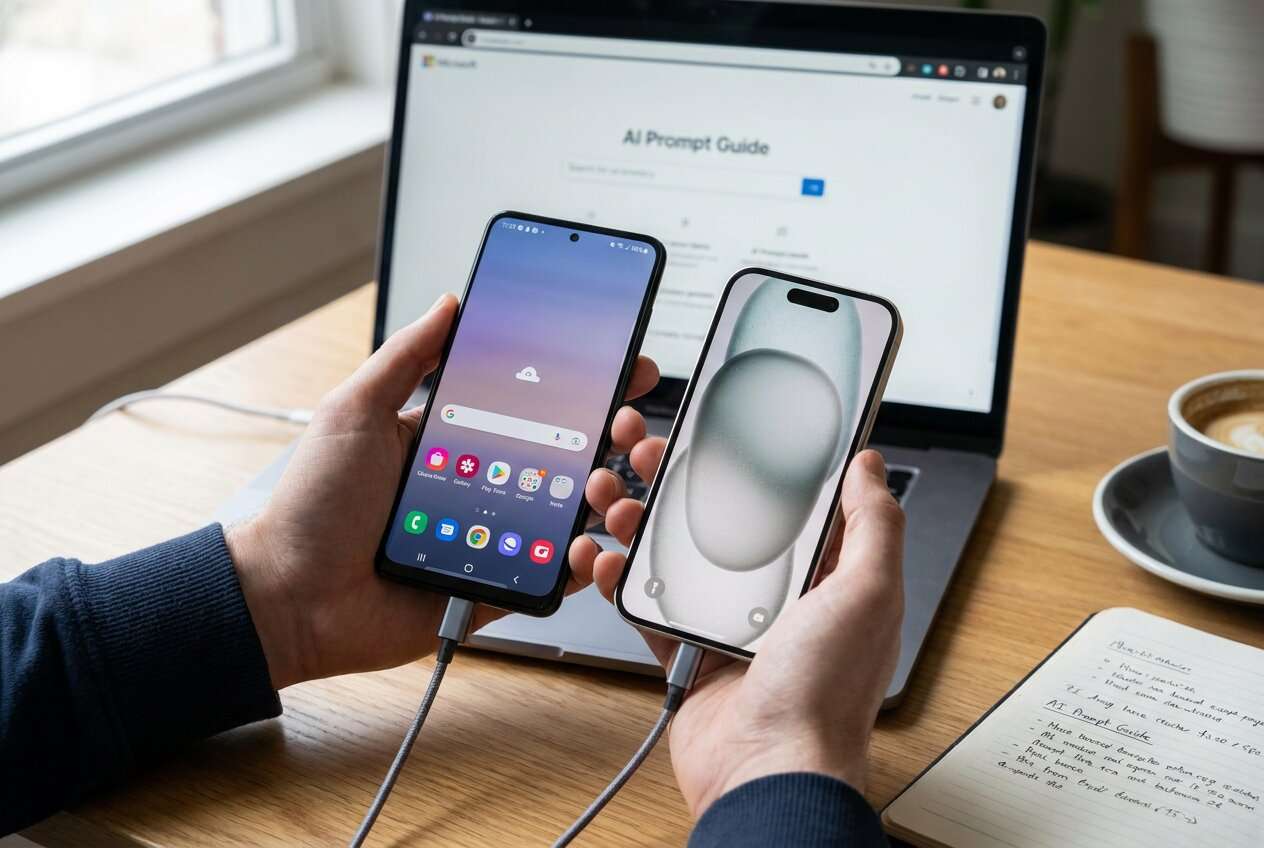
You have an Android phone with WhatsApp chats and years of photos/videos in chat threads, and you’re switching to a new iPhone. You want everything to appear in WhatsApp on iOS—not just messages, but media continuity too.
The uncertainty usually starts after you read a few different answers: some mention cloud backups, others mention cables, others mention needing a “fresh” iPhone setup. Without a clear order of operations, people log into WhatsApp on the iPhone too early, reset something unnecessarily, or discover too late that their Android WhatsApp account state changed.

Part 2. What the AI needs to know (inputs checklist)
Answer these so the workflow can be tailored to your exact constraints:
- Android model + Android version
- iPhone model + iOS version
- WhatsApp version on Android (and whether it’s the same phone number you’ll use on iPhone)
- Do you need media fully migrated (photos/videos/voice notes), or are messages-only acceptable?
- Current WhatsApp state on iPhone (not installed / installed but not activated / already activated and in use)
- Is the iPhone already set up with personal data, or can it be wiped if required?
- Available connection method (reliable cable, adapter, stable Wi‑Fi)
- Approximate WhatsApp size on Android (e.g., 8 GB, 25 GB) and free storage on both devices
- Any encryption/lock constraints (screen lock, MDM/work profile, restricted USB mode)
- Your tolerance for downtime (minutes vs hours) and acceptable risk level (must not lose anything vs can accept partial media)
Part 3. AI prompts to build a safer workflow (Level 1–3 + Refinement)
Use these prompts to force a clear sequence with verification gates before you do anything irreversible.
3-1. Level 1: Basic Prompt
Help me plan a safe Android-to-iPhone WhatsApp migration that includes media. Give me the correct order of steps and the top 5 mistakes that cause chat/media loss. Don’t tell me to click buttons—focus on prerequisites and verification checks.
3-2. Level 2: Advanced Prompt
Design a structured workflow for migrating WhatsApp (including media) from Android to iPhone with Preparation / Execution / Verification phases.
- Mark each step as Critical or Optional
- Add “Stop and verify” checkpoints
- Include a “do not do yet” list to avoid triggering irreversible changes (e.g., activating WhatsApp on iPhone too early)
3-3. Level 3: Evidence Prompt
Create a migration plan for this scenario and include checks before, during, and after the transfer:
- Android: (Samsung S21, Android 14), WhatsApp size: (18 GB), free storage: (30 GB)
- iPhone: (iPhone 15, iOS 17), free storage: (40 GB)
- iPhone status: (already set up; WhatsApp installed but NOT activated)
- Number: (same SIM/number will be used)
- Connection: (USB‑C to Lightning cable + adapter available)
Output:
- A prerequisites checklist I can tick off
- A risk table (what can go wrong, how to detect it, how to recover)
- A “point of no return” callout and what must be verified before reaching it
- Post-migration validation steps that confirm media actually carried over (not just message placeholders)
3-4. Prompt Refinement (follow-up prompts)
Ask me exactly 10 questions that determine whether I must wipe the iPhone or can migrate without erasing it. Then output two workflows based on my answers.
Rewrite the workflow as a decision tree with gates like: iPhone already active in WhatsApp? storage enough? cable stable? Then give the next step.
Add a verification checklist that proves media migrated (photos/videos/voice notes) and not just message text—include how to spot missing media quickly.
List the top 7 irreversible actions in this migration context and for each one: why it’s risky, what to back up first, and what ‘good’ verification looks like.
Compress the plan into a one-page runbook: prerequisites, execution window, checkpoints, rollback options, and final acceptance criteria.
Part 4. AI plan vs. real device constraints (comparison table)
| Planning with AI | What happens on real devices |
|---|---|
| Produces a clear sequence and checkpoints | Devices can behave differently due to OS, permissions, and WhatsApp state |
| Identifies risk gates (storage, account state, activation timing) | Transfers can fail from cables, adapters, battery, or background restrictions |
| Defines verification criteria (what “success” looks like) | Verification requires opening WhatsApp and checking real chat/media artifacts |
| Suggests rollback strategy (what to do if something fails) | Rollback depends on what was overwritten and what backups still exist |
AI improves planning, but it cannot execute the migration, read your chat database, or confirm what actually transferred—those require working tools and real device access.
Part 5. Execute the workflow safely with Dr.Fone (steps + validation)
5-1. When to stop planning and start execution
- You have confirmed the iPhone’s WhatsApp status (not activated / safe to proceed) and you know whether a wipe is required for your chosen method.
- You’ve validated storage headroom on both devices and decided how you’ll handle a large media library (time window, power, stable connection).
- You have a written “point of no return” gate: what must be true before you start the transfer that could overwrite target data.
- You have acceptance criteria for success (specific chats/media types to spot-check) and a fallback plan if the first attempt fails.
Once those are true, you’re no longer “planning”—you’re ready to run the workflow with real device actions.
5-2. Android to iPhone WhatsApp migration (with media): run the transfer and validate
Execution matters now because the main risks come from timing, connectivity, and irreversible overwrites—things that planning can’t prevent once you start without safeguards.
-
Step 1 Preflight and lock the state
Ensure both phones are charged, stable, and unlocked, and that the iPhone’s WhatsApp state matches your plan (for example, installed but not activated) before you begin.

-
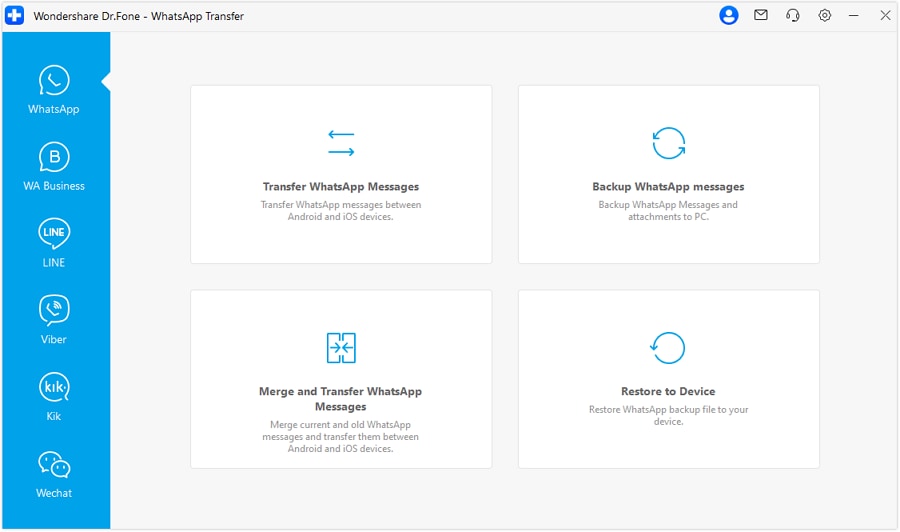
Step 2 Choose WhatsApp transfer (Android to iOS)
Start the transfer workflow and confirm you are using the Android-to-iPhone direction before you connect everything and proceed.
-
Step 3 Connect devices and keep the connection stable
Use a reliable cable/adapter and avoid interruptions. Don’t switch accounts or let either device go to sleep mid-process.

-
Step 4 Start the migration (point of no return) and complete it fully
Only proceed once all verification gates are satisfied. Interrupting the process or starting with the wrong target state can lead to partial transfers or overwritten WhatsApp data.

5-3. Post-migration validation (media acceptance check)
Open WhatsApp on the iPhone and spot-check a defined sample set (recent chat, oldest important chat, media-heavy thread, voice notes, videos) to confirm content is present and usable.
Recommended tool for reliable execution
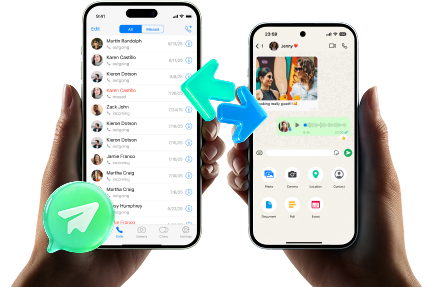
After you’ve used AI to lock prerequisites and “stop-and-verify” gates, use a real transfer tool to run the migration on-device. Dr.Fone - WhatsApp Transfer is designed to transfer WhatsApp chats across Android and iOS, including media, with a more controlled execution flow than ad-hoc methods.
 Transfer WhatsApp across Android & iOS.
- Backup & restore WhatsApp to PC securely.
- Preview & export chats selectively.
- Works with all iPhone & Android models.
To keep risk low, treat the transfer like a controlled change: don’t improvise mid-run, don’t change WhatsApp activation state unexpectedly, and don’t accept “messages appear” as proof until you confirm photos/videos/voice notes open correctly.




Conclusion
Use AI to turn “move WhatsApp with media” into a verified workflow with checkpoints and a clear point of no return; then use Dr.Fone to execute the transfer on real devices where planning alone can’t guarantee outcomes.
FAQ
-
Will all my WhatsApp media (photos/videos/voice notes) transfer automatically?
Not always—media completeness depends on the migration path and device conditions. Plan for media-specific verification, not just “messages appear.” -
What’s the biggest mistake that causes loss or a forced restart?
Reaching the point of no return without confirming the iPhone WhatsApp state and the chosen method’s prerequisites (often activating WhatsApp on iPhone too early or needing a wipe after you’ve already set it up). -
How do I verify success quickly without checking every chat?
Define a sample: 1 recent chat, 1 old chat, 1 media-heavy chat, and 1 thread with voice notes/videos. Confirm media opens and plays, not just that thumbnails exist. -
If something fails mid-transfer, what should I do first?
Stop and preserve the current state: don’t uninstall apps or re-register numbers impulsively. Re-check prerequisites (storage, cable, activation state) and only retry once the failure cause is understood. -
Can AI tell me which exact buttons to press on my devices?
AI can outline an order and checkpoints, but it can’t see your screens or device state. Device actions should be executed with real tools once your plan is locked.
 Add Wondershare Dr.Fone as a preferred source on Google





