 Effortlessly manage data through preview, delete, export, etc.

 100% Security Verified | No Subscription Required | No Malware

 :
: 
 ChatGPT
 Perplexity
 Gemini
 Claude
 Grok
Grok

My iPhone got stuck on the Apple logo right after my storage filled up. It happened after I tapped Install Now / restarted, and now it just sits there or keeps rebooting. I can’t tell if it’s still updating.
Forum user
An iPhone can get stuck on the Apple logo right after storage fills up—often after you tap Install Now, restart the phone, or it reboots during cleanup. On models like iPhone 13 or iPhone 14, it may sit on the logo for a long time or repeatedly reboot, and it’s unclear whether it’s still “updating.”
AI (such as ChatGPT or Gemini) can help you describe the symptoms clearly, narrow likely causes, and choose low-risk checks based on what you see (looping, progress bar, computer detection, storage history).
AI can’t see your device state directly, and repeated trial-and-error can raise risk (extra reboots, failed updates, or data loss). Use AI to decide what to try, then use a dedicated tool to carry out the safest execution steps.
In this article
- Why iPhone stuck on Apple logo when storage is full happens and what it means
- What full storage breaks during boot
- Why timing makes it confusing
- Before you prompt the AI
- What details matter most
- Using AI prompts to diagnose an iPhone stuck on Apple logo after storage full safely
- When to stop troubleshooting and avoid risks
- Resolve iPhone stuck on Apple logo after storage full with Dr.Fone
- AI output vs reality: what to verify on the device
Part 1. Why iPhone stuck on Apple logo when storage is full happens and what it means
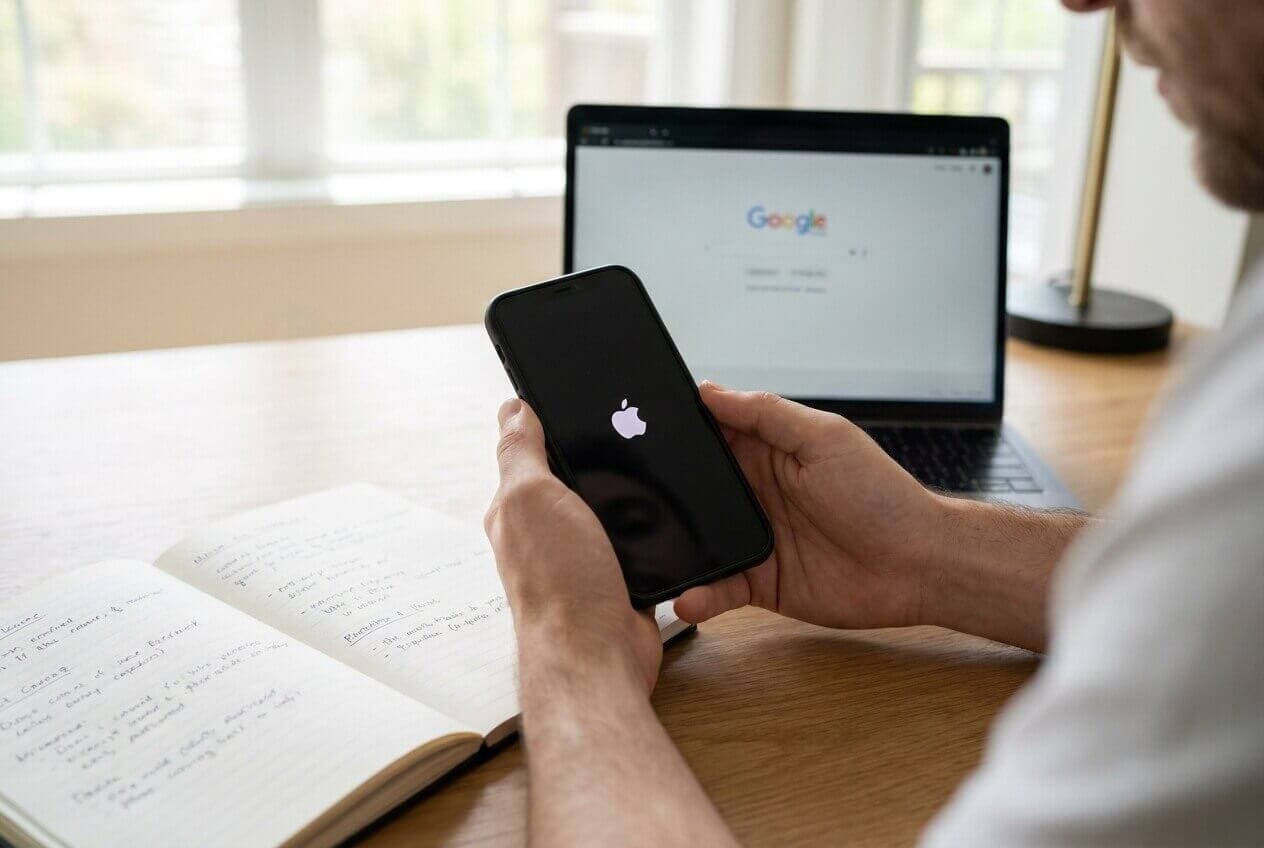
When iPhone storage is completely full, the system may not have enough working space to finish key tasks like booting, indexing, updating, or verifying files. That can leave the device stuck at the Apple logo (sometimes with a progress bar, sometimes without one).
This often happens right after a restart or an update attempt, because iOS needs temporary space for system processes. If that space isn’t available—or if the filesystem gets into a fragile state—the phone may loop at startup.
What makes it confusing is timing: it can look like a normal boot that’s “taking longer,” but nothing changes after several minutes, and the device may warm up or reboot again.
Before You Prompt the AI
Gather a few details first so the AI can narrow causes without guesswork:
- iPhone model and iOS version (if known)
- What happened right before (restart, update, low storage warning, app download)
- Apple logo behavior (steady logo, looping, progress bar %)
- Approximate storage state before it happened (nearly full vs totally full)
- Whether a computer detects the iPhone (Finder/iTunes, recovery mode prompt)
- Any recent drops, water exposure, or battery issues
Part 2. Using AI prompts to diagnose an iPhone stuck on Apple logo after storage full safely
Level 1: Basic Prompt
My iPhone is stuck on the Apple logo after my storage was full. It happened right after I restarted / tapped Install Now. The Apple logo is [steady / looping / shows a progress bar]. After [X minutes], nothing changes. Give me the most likely causes and the safest first checks that minimize data loss.
Level 2: Advanced Prompt
Act like a mobile triage assistant. My iPhone is stuck on the Apple logo after storage filled up.
Goal: identify likely causes and suggest low-risk next steps.
Constraints: avoid steps that increase data-loss risk unless clearly justified.
1) Ask up to 8 clarifying questions first.
2) Then rank the top 4 causes with confidence levels.
3) For each cause, list 1–2 observations that would support it and 1–2 that would contradict it.
4) Give a “safest next step” plan in phases (no wipe → controlled repair → last resort).
Level 3: Evidence Prompt
Diagnose this iPhone boot issue using only the evidence I provide, and tell me what evidence is missing.
Device: iPhone model (e.g., iPhone 13 Pro)
iOS version (known/unknown):
Trigger event: (e.g., storage full warning, tapped Install Now, forced restart)
Storage before failure: (e.g., 63.9/64GB, “Storage Almost Full”)
Current screen: (Apple logo only / Apple logo + progress bar / black screen)
Loop pattern: (reboots every X minutes / stays on logo)
Time waited:
Heat/battery: (warm, normal; battery % if known)
Computer detection: (Finder/iTunes sees it? asks to update/restore? not detected)
Cable/port tried: (official cable, different port)
Prior issues: (random reboots, low battery shutdowns, drops/water)
Data priority: (must avoid data loss / backup exists / ok to wipe)
Output:
- Top 4 likely causes (ranked)
- The single most important next observation to collect
- A low-risk action plan with stop conditions
Prompt Refinement
Use these follow-ups to force clearer, safer reasoning:
“What’s the minimum set of questions you need to distinguish ‘stuck updating’ vs ‘boot loop’ vs ‘hardware issue’?”
“Separate the causes into categories: storage-related iOS failure, update failure, cable/computer detection issue, and hardware.”
“Rank causes again assuming the iPhone was at 64/64GB and rebooted during background cleanup.”
“What specific evidence would indicate Recovery Mode vs DFU Mode is appropriate, and which is lower risk for data?”
“List actions I should avoid right now if my priority is preventing data loss.”
Part 3. When to stop troubleshooting an iPhone stuck on Apple logo and avoid risks
Stop and switch to a controlled repair approach if you notice any of the following:
- The iPhone reboots to the Apple logo repeatedly for more than ~15–20 minutes with no change.
- Finder/iTunes detects the device only intermittently or fails consistently across cables/ports.
- The phone becomes unusually warm during repeated boot attempts.
- You’ve already tried basic checks and each retry increases instability (shorter loops, new error screens).
Once the symptoms point to a persistent boot failure (often aggravated by full storage), the safest move is to stop repeating random steps and use a structured system repair workflow.
AI Output vs Reality: what to verify on the device
AI guidance is only as good as the signals you can confirm. Use this quick check to validate what the AI suggests against what your iPhone is actually doing.
| What AI may suggest | What you should verify on the device |
|---|---|
| “It’s just finishing an update” | Progress bar movement or clear change after waiting a reasonable time |
| “Try a forced restart” | Whether the phone returns to the same loop immediately |
| “Use Recovery Mode update” | Whether Finder/iTunes detects the device and offers Update (not only Restore) |
| “It could be hardware” | Unusual heat, repeated rapid reboots, no detection on multiple cables/ports |
AI can help you choose the least risky path, but it can’t execute device-level repair steps or guarantee outcomes. Once you’ve identified the most likely scenario, hand off the execution to a controlled repair method.
Part 4. Resolve iPhone stuck on Apple logo after storage full with Dr.Fone
After you’ve used AI to narrow the likely cause (storage-triggered boot failure vs update hang vs deeper system issue), the next step is execution. Dr.Fone - System Repair (iOS) can run a guided Repair iOS Issues workflow designed for situations like an iPhone stuck on the Apple logo, helping you apply an appropriate system-level repair action with fewer manual guesses. This is especially useful when the device won’t boot normally and you need a controlled path forward rather than repeating restarts.
 Fix iOS issues, no data loss.
- One-click repair for all iOS problems.
- Solve recovery mode, Apple logo, black screen, etc.
- Upgrade or downgrade iOS without iTunes

-
Step 1 Open System Repair (iOS)
Launch Dr.Fone on your computer and select System Repair (iOS), keeping the iPhone connected with a reliable cable.

-
Step 2 Choose a repair mode
Select the recommended repair option first, since more aggressive options can increase data-loss risk depending on device state.

-
Step 3 Follow the on-screen device connection steps
Put the iPhone into the requested connection state (e.g., recovery-related steps) exactly as shown to avoid repeated failed attempts.

-
Step 4 Install the iOS firmware package
Confirm the device details and proceed carefully; don’t disconnect during the firmware download/verification process.

-
Step 5 Run the repair and re-check boot behavior
Start the repair and wait for completion, then verify whether the iPhone boots past the Apple logo and remains stable.




Conclusion
Use AI to translate what you’re seeing (loop timing, progress bar behavior, computer detection, storage context) into a ranked set of likely causes and low-risk next steps, then hand off the actual system-level execution to a controlled workflow like Dr.Fone’s iOS System Repair when basic checks aren’t moving the device past the Apple logo.
FAQ
-
Why does full storage make an iPhone stuck on the Apple logo?
iOS may lack temporary working space for boot-time tasks (file checks, indexing, update finalization), causing a startup loop or hang. -
How long should I wait on the Apple logo before assuming it’s stuck?
If there’s no visible progress (or it keeps rebooting) after roughly 15–20 minutes, treat it as stuck and stop repeated restarts. -
Is forced restart safe when storage was full?
It can be reasonable once, but repeating it may worsen instability if the system is failing during boot; use it sparingly. -
What’s the difference between “Update” and “Restore” in Finder/iTunes?
“Update” attempts to reinstall iOS without wiping, while “Restore” typically erases the device; always confirm which option you’re selecting. -
If my computer doesn’t detect the iPhone, what does that imply?
It may indicate a cable/port issue, a deeper system lockup, or hardware-related problems; detection consistency is an important diagnostic signal.
 Add Wondershare Dr.Fone as a preferred source on Google





