 Effortlessly manage data through preview, delete, export, etc.

 100% Security Verified | No Subscription Required | No Malware

 :
: 
 ChatGPT
 Perplexity
 Gemini
 Claude
 Grok
Grok

I freed space in WhatsApp once and later realized some photos were only in the chat, not in my gallery. I don’t want to make that mistake again—how do I find the biggest chats safely first?
Reddit user, r/whatsapp
Finding which WhatsApp chats are bloated with photos and videos is easy to start—and easy to mess up if you skip a verification step and delete media you still need.
AI can help you map the safest sequence: what to check first, which screens to use in WhatsApp, how to set a “too much media” threshold, and how to confirm you’re targeting the right chat before any cleanup.
AI can’t access your device storage, see your WhatsApp sizes, or perform backups/deletions; once your plan is locked, execution needs real device tools and a deliberate verification moment before anything irreversible happens.

In this article
- How to Plan “Identify Chats with Too Much Media” Without Missing Critical Steps
- Clarify where the storage spike is coming from
- Choose a safe review order (storage view first vs backup first)
- Set a clear “too much media” threshold
- Define a stop-point before any irreversible cleanup
- What the AI Needs to Know
- Using AI Prompts to Build a Safer Workflow
- When to Stop Planning and Start Execution
- Execute the Workflow Safely (Backup + Verification)
Part 1. How to Plan “Identify Chats with Too Much Media” Without Missing Critical Steps
You’re low on phone storage, WhatsApp is one of the biggest offenders, and you want to identify the specific chats causing the problem (not just “WhatsApp” as a whole). You may also be unsure whether the size is coming from forwarded videos, auto-downloaded media, voice notes, or large documents.
After reading general advice, the uncertainty is usually about sequence: Should you check WhatsApp’s storage view first, or back up first? Do you review by chat, by media type, or by date? How do you avoid deleting media that exists only in WhatsApp (not in your camera roll)?
There’s also a point of no return: clearing a chat’s media or deleting large videos inside WhatsApp can be irreversible if you don’t have a verified backup and you later realize those files weren’t saved anywhere else.
Part 2. What the AI Needs to Know
Share the minimum details below so the workflow can be planned around your device and risk level.
- Device OS (Android / iPhone) and model (if relevant)
- WhatsApp version status (up to date / not sure)
- Your goal (identify only / identify + safely reduce storage)
- Risk tolerance (must not lose anything vs OK deleting memes/forwards)
- Backup situation today (iCloud/Google Drive enabled? last backup date?)
- Storage pressure (e.g., “need to free 5–10 GB”)
- Any special cases (work chats, legal/medical files, important voice notes)
- Whether “Save to Camera Roll/Photos” is enabled (if you know)
Part 3. Using AI Prompts to Build a Safer Workflow
Use the prompts below to make the plan explicit, checkable, and hard to misread before you touch deletion/cleanup.
3-1. Level 1: Basic Prompt
Help me plan the safest way to identify which WhatsApp chats contain the most media and take up the most storage on my phone. I’m not asking you to perform any actions—just list the exact checks and the safest order. Include a “stop before deleting” checkpoint.
3-2. Level 2: Advanced Prompt
Build a structured workflow to identify WhatsApp chats with too much media, separated into Preparation, Execution, and Verification.
Mark steps as Critical vs Optional, and include a clear “point of no return” step that must not happen until verification is complete. Also include what to record (chat name, size, top media type) so I can compare before/after.
3-3. Level 3: Evidence Prompt
Context: I’m on (iPhone 13, iOS 17) / (Samsung S22, Android 14). WhatsApp storage is high and I need to free (8 GB). I’m worried about losing important photos/voice notes from (Family chat) and (Work group).
Create a plan to identify the biggest chats using WhatsApp’s built-in storage views, then define a “too much media” threshold (e.g., >1 GB per chat or top 5 chats). Include checks before/during/after:
- Before: confirm backup status (e.g., last backup date), confirm whether media is saved to Photos, and list what not to delete.
- During: how to confirm a chat’s size is mostly videos vs docs vs voice notes.
- After: how to verify WhatsApp size dropped and that important media is still accessible.
End with a checklist that I can tick off before any deletion.
3-4. Prompt Refinement
Ask me 10 targeted questions, then output a one-page workflow with gates: “Do not proceed unless X is confirmed.”
Create two variants of the plan: Identify-only (no deletion) and Identify + cleanup, and show exactly where they diverge.
Define a simple decision rule for “too much media” (e.g., by GB, by % of WhatsApp storage, or by top-N chats) and explain the tradeoffs.
Write a verification checklist that specifically prevents me from deleting media that exists only inside WhatsApp (not in my gallery/photos).
Produce a “risk register” table: risk, how it happens, how to prevent it, and how to recover if it happens.
3-5. AI Plan vs. Real Device Constraints
| Planning need | What AI can do | Real constraint on your device |
|---|---|---|
| Identify biggest chats safely | Propose the safest sequence and what to capture as evidence | Only your device can show actual chat sizes and media breakdown |
| Prevent irreversible loss | Define stop-points and backup verification gates | Deletions inside WhatsApp can be hard/impossible to reverse without a verified backup |
| Reduce ambiguity | Turn goals into thresholds and decision rules | WhatsApp settings/layout can differ by OS/version, so screens may not match exactly |
| Confirm results | Specify before/after checks and what “success” looks like | Only real checks (storage, chat media still viewable) validate outcomes |
AI improves planning, but cannot execute backups, access WhatsApp storage screens, or perform deletions/transfers—those require direct device actions and reliable tools.
Part 4. When to Stop Planning and Start Execution
- You can name the exact method you’ll use to identify “largest chats” (and where you’ll record the results).
- You have a defined “too much media” threshold (by size, top-N, or % of WhatsApp storage).
- You have a verified safety net (you can state what backup exists, when it last completed, and what it includes).
- You have a written stop-point: no deleting/clearing media until the verification checklist is fully satisfied.
If all four are true, you’re ready to move from plan to controlled execution.
Part 5. Execute the Workflow Safely (Backup + Verification)
Execution is where most mistakes happen, because it’s easy to delete first and verify later—so treat backup/verification as mandatory before any irreversible cleanup.
-
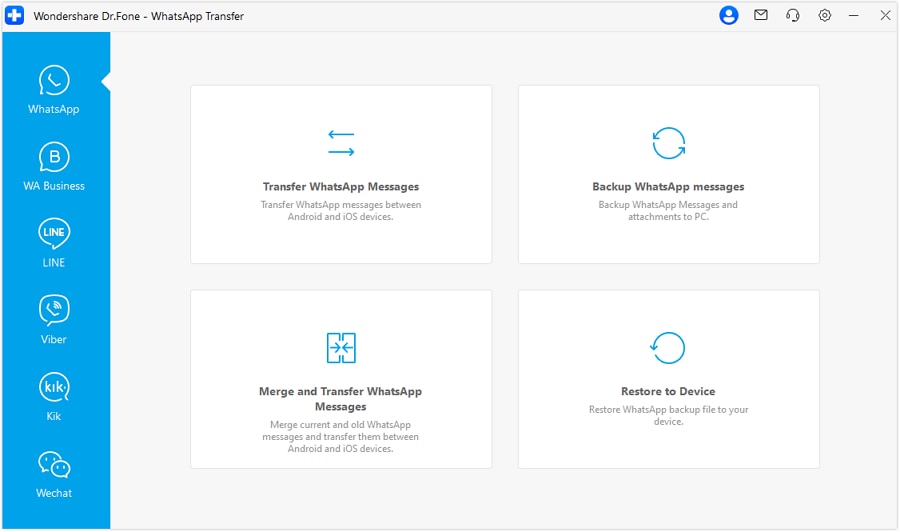
Step 1 Create a verifiable safety copy
Back up WhatsApp first, and confirm the backup finishes successfully before you change anything in your chats.

 Note: AI cannot confirm whether your backup completed or what it contains—verify completion in the tool you used before proceeding.
 -
Step 2 Identify the biggest chats on the device (no deletion yet)
On your phone, use WhatsApp’s built-in storage/management view to list the largest chats and record: chat name, size, and the dominant media type (videos vs photos vs documents vs voice notes).
-
Step 3 Only after verification, perform controlled cleanup
After confirming your backup and reviewing your notes, remove media only from the specific high-size chats you intentionally selected (not from uncertain chats). This is the high-risk moment—don’t proceed if any verification item is unresolved.

-
Step 4 Confirm results after cleanup
Re-check WhatsApp storage to confirm the app’s size dropped, and open a few critical chats to ensure important media is still accessible.

Recommended Tool for Backup and Transfer Before Cleanup
If you want a more verifiable, PC-based safety copy before you clear anything, Dr.Fone - WhatsApp Transfer can help you back up and restore WhatsApp data and reduce the risk of “delete first, regret later.”
 Transfer WhatsApp across Android & iOS.
- Backup & restore WhatsApp to PC securely.
- Preview & export chats selectively.
- Works with all iPhone & Android models.
Even with a good tool, keep the same discipline: identify first (on-device), write down which chat(s) you’re targeting, and stop before any deletion until your backup and verification checklist are complete.




Conclusion
Use AI to define the safest sequence, thresholds, and verification gates for identifying media-heavy WhatsApp chats; then rely on real tools and on-device checks before you reach any irreversible deletion moment.
FAQ
-
What’s the safest way to identify “too much media” without deleting anything?
Use WhatsApp’s storage management view to sort chats by size and record the top chats (name, size, main media type) before making any changes. -
What’s the most common mistake when freeing WhatsApp space?
Deleting media before confirming a working backup and before confirming whether the media exists anywhere else (Photos/Gallery or only inside WhatsApp). -
How do I set a practical threshold for “too much media”?
Pick one rule and stick to it: top 5 chats by size, or any chat over 1 GB, or any chat exceeding 20–30% of total WhatsApp storage—then verify each chat’s content type before cleanup. -
When is deletion irreversible?
When you clear or delete media in WhatsApp and you don’t have a verified backup that contains that media (or the media was never saved elsewhere). -
Can AI tell me which specific chats are the largest on my phone?
No. AI can only help you plan the steps and checks; your phone’s WhatsApp storage screen is the source of truth.
 Add Wondershare Dr.Fone as a preferred source on Google





