 Effortlessly manage data through preview, delete, export, etc.

 100% Security Verified | No Subscription Required | No Malware

 :
: 
 ChatGPT
 Perplexity
 Gemini
 Claude
 Grok
Grok

Moving from iPhone to Samsung sounds simple until one missed step leaves you with partial photos, duplicated contacts, or missing notes.
Forum user
AI can help you map the workflow, choose the right order, and define what “done” means before you touch any real data. But AI can’t read your devices, confirm what actually transferred, or undo mistakes—execution and verification require real tools and real checks.
In this article
- Plan a safer transfer (why order and gates matter)
- What can go wrong (missing items, duplicates)
- What information AI needs from you
- AI prompt levels (basic → evidence-based)
- Refinement prompts (checklists, dedupe, rollback)
- What the AI needs to know (your setup checklist)
- AI prompts to design a safer workflow
- AI plan vs real device constraints (comparison table)
- When to stop planning and start execution
Part 1. Plan a Safer iPhone to Samsung Transfer (Photos, Contacts, Notes) Without Losing Data
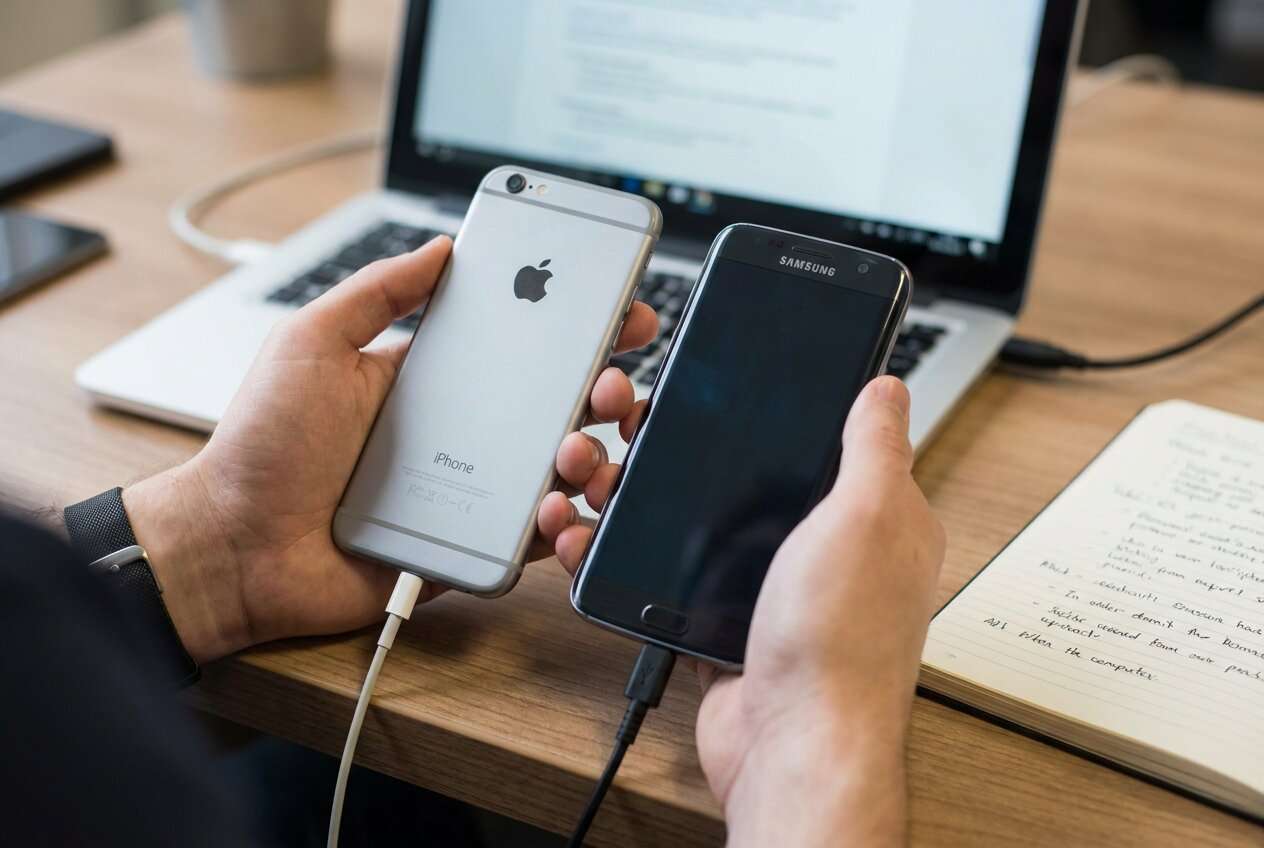
You’re switching phones and want your photos, contacts, and notes to arrive intact—without chaos from iCloud/Google sync conflicts, missing albums, or notes that don’t exist outside Apple’s ecosystem.
After asking AI for “how to transfer,” you often get a list of options but no clarity on sequence (what must happen first), what to verify at each stage, or how to avoid duplicates and partial transfers.
There’s also a point of no return: wiping/resetting the iPhone, disabling iCloud without confirming exports, or deleting cloud content can permanently remove items you haven’t actually copied.
Part 2. What the AI Needs to Know
Share your current setup so the AI can design a safe, verifiable sequence.
- iPhone model + iOS version (e.g., iPhone 13, iOS 17)
- Samsung model + Android version (e.g., Galaxy S23, Android 14)
- Photos location: iCloud Photos on/off, “Optimize iPhone Storage” on/off
- Contacts source of truth: iCloud, Gmail/Google, Exchange/Outlook, SIM, “On My iPhone”
- Notes type: iCloud Notes, Gmail notes, Exchange notes, or “On My iPhone”
- Two-factor access: can you receive iCloud/Apple ID codes and access Gmail/Outlook?
- Storage + network constraints: free space on Samsung, Wi‑Fi availability, time window
- Risk tolerance: must avoid duplicates vs ok to dedupe later
- Your “done” definition: what exact counts or spot-checks will prove success
Part 3. Using AI Prompts to Build a Safer iPhone to Samsung Workflow
Use these prompts to force a clear order, verification gates, and a rollback mindset before you execute anything.
3-1. Level 1: Basic Prompt
Create a step-by-step plan to move photos, contacts, and notes from my iPhone to my Samsung.
Include the correct sequence and the top mistakes that cause missing notes or duplicated contacts.
Don’t tell me to execute—only plan and verification steps.
3-2. Level 2: Advanced Prompt
Design a workflow with Preparation → Execution → Verification to transfer photos, contacts, and notes from iPhone to Samsung.
Separate critical vs optional steps, and add “stop points” where I must verify results before continuing (especially before any reset, deletion, or turning off iCloud sync).
3-3. Level 3: Evidence Prompt
Here’s my situation: iPhone (iOS 17, iCloud Photos ON, Optimize Storage ON), Samsung (Android 14), contacts currently in (iCloud + some Gmail), notes stored in (iCloud Notes), time window (2 hours), risk tolerance (no data loss; duplicates acceptable only if unavoidable).
Build a workflow that includes:
- Before: what to inventory and export (e.g., photos count in Photos app, contacts count, note folder list)
- During: checks to confirm transfers are progressing (e.g., phone stays awake, stable Wi‑Fi, enough storage)
- After: verification checklist with pass/fail criteria (e.g., “10 random photos across years open full-res,” “notes with images render,” “contacts searchable by last name”)
Also identify the irreversible steps (e.g., factory reset old iPhone, deleting iCloud content) and place them only after verification passes.
3-4. Prompt Refinement (Follow-up Prompts)
Give me a single ordered checklist with gates: Do not proceed to Step X until Check Y passes. Keep it to one page.
For each data type (photos/contacts/notes), list source of truth, transfer method options, and the most reliable verification for that type.
Assume I have duplicates risk (contacts in iCloud + Gmail). Add a dedupe-avoidance plan and define which account should ‘win’ going forward.
Write a rollback plan: if notes don’t appear on Samsung, what should I check and what should I avoid doing that could make recovery harder?
List the minimum evidence I should capture before starting (screenshots of counts, album list, notes folders) so I can prove what’s missing later.
Part 4. AI Plan vs. Real Device Constraints
| AI plan item | Real device constraint |
|---|---|
| Inventory counts & sources | Devices/cloud may show different totals due to sync delays |
| Define verification gates | Some items (notes with attachments) require manual spot-checking |
| Choose safest sequence | OS/account settings can hide data (filters, accounts toggled off) |
| Schedule irreversible steps last | Once wiped/reset/deleted, recovery may be impossible |
AI improves planning, sequencing, and risk control—but it cannot access your phones, run the transfer, or confirm what truly arrived without you checking on-device.
Part 5. When to Stop Planning and Start Execution
- You can name the source of truth for each item: photos (iCloud Photos or local), contacts (iCloud/Gmail/Exchange), notes (iCloud/Exchange/local).
- You have pre-transfer evidence (counts + screenshots) and enough time/power/storage for the move.
- Your plan includes verification gates and explicitly delays irreversible actions (reset/wipe/delete/turn off sync) until after checks pass.
- You know what “success” looks like (minimum checks + acceptable gaps) and what you’ll do if one category fails.
Once those are true, you’re no longer guessing—you’re ready to follow the plan on real devices.
Recommended: Execute the Workflow Safely with Dr.Fone
Execution is where most losses happen, not because the tool is “bad,” but because verification and order weren’t locked before starting. If you want an execution layer after you’ve planned the gates, Dr.Fone - Phone Transfer can help you run the transfer on real devices.
 Move data between iOS to Android and vice versa.
- Transfer contacts, SMS, photos, videos, music, and more types.
- Available with all phones with Android and iOS versions.
- Simple, click-through process.

Run the transfer workflow with Dr.Fone (execution layer). Limitation: Dr.Fone can’t decide your source-of-truth accounts or confirm your intent—you must follow your planned gates.
Verify results on the Samsung before touching the iPhone’s data. Limitation: Some issues look fine at first (missing older photos, notes not fully synced) and only appear after time or deeper spot-checks.
Only after verification passes: finalize (cleanup) and keep the old iPhone unchanged for a buffer period. Limitation: Factory reset/wiping the iPhone or deleting iCloud content is irreversible if something was not actually transferred or exported correctly.
-
Step 1 Launch the phone transfer tool on your computer
Open the transfer module so you’re ready to connect both phones for a direct device-to-device workflow.

-
Step 2 Set the correct source and destination (iPhone → Samsung)
Double-check direction before starting to avoid overwriting or sending data the wrong way.

-
Step 3 Choose data types and start transfer
Select the categories you intend to move (for example, photos and contacts), then begin and keep devices stable during the process.

-
Step 4 Monitor progress and wait for completion
Let the transfer finish fully, then proceed to your verification gates on the Samsung before making any irreversible changes on the iPhone.




Conclusion
Use AI to design the sequence, risk controls, and verification gates; then use Dr.Fone to execute the plan on real devices—especially before you reach any irreversible step like wiping the iPhone.
FAQ
-
What’s the most common reason notes don’t transfer?
Notes may be stored in iCloud (or “On My iPhone”) and not in an account that syncs cross-platform; also, notes with attachments need extra verification. -
When is the point of no return?
When you factory reset the iPhone, delete iCloud content, or disable syncing in a way that removes cloud data—do not do this until verification passes. -
How do I prevent contact duplicates?
Pick one account as the “winner” (often Google for Android going forward), verify where contacts currently live, and avoid syncing the same contacts into multiple accounts at once. -
How much verification is “enough”?
Use counts + targeted spot-checks: random photos across years (including Live Photos/videos), search contacts by multiple fields, and open notes with images/formatting. -
Can AI tell me if everything transferred correctly?
No. AI can define what to check and when to stop, but it cannot read your devices or confirm real transfer outcomes.
 Add Wondershare Dr.Fone as a preferred source on Google





