 Effortlessly manage data through preview, delete, export, etc.

 100% Security Verified | No Subscription Required | No Malware

 :
: 
 ChatGPT
 Perplexity
 Gemini
 Claude
 Grok
Grok

My iPhone update failed and now it won't boot—stuck on the Apple logo and sometimes it just keeps restarting. I can't tell if I should try Recovery Mode or DFU Mode, and I'm worried about losing my data.
Reddit user, r/iPhone
An iOS update fails, and now your iPhone won't boot normally—maybe it's stuck on the Apple logo, keeps restarting, or shows the “connect to computer” screen. This often happens right after tapping Install Now or after an automatic restart, and on devices like an iPhone 13 or iPhone 14 it can still feel ambiguous because nothing changes after several minutes.
AI (like ChatGPT or Gemini) can help you describe the symptoms clearly, narrow down likely causes, and decide whether Recovery Mode is enough or whether DFU Mode is more appropriate—without rushing into risky trial-and-error.
AI can't see your device state directly, and repeated restore attempts or the wrong mode choice can increase the chance of data loss. Treat AI as a diagnosis assistant, then use a dedicated tool for the execution steps.
In this article
- Part 1. Why iPhone enters Recovery Mode after a failed iOS update and what it means
- What “Recovery Mode after update” usually indicates
- Common triggers that make updates fail
- Why “waiting longer” feels ambiguous
- What to collect before you ask AI
- Part 2. Using AI prompts to decide on DFU mode for a failed iOS update safely
- Part 3. When to stop iOS update troubleshooting to avoid data loss
- Part 4. Fix iPhone stuck in Recovery Mode after update with Dr.Fone
- Part 5. FAQs
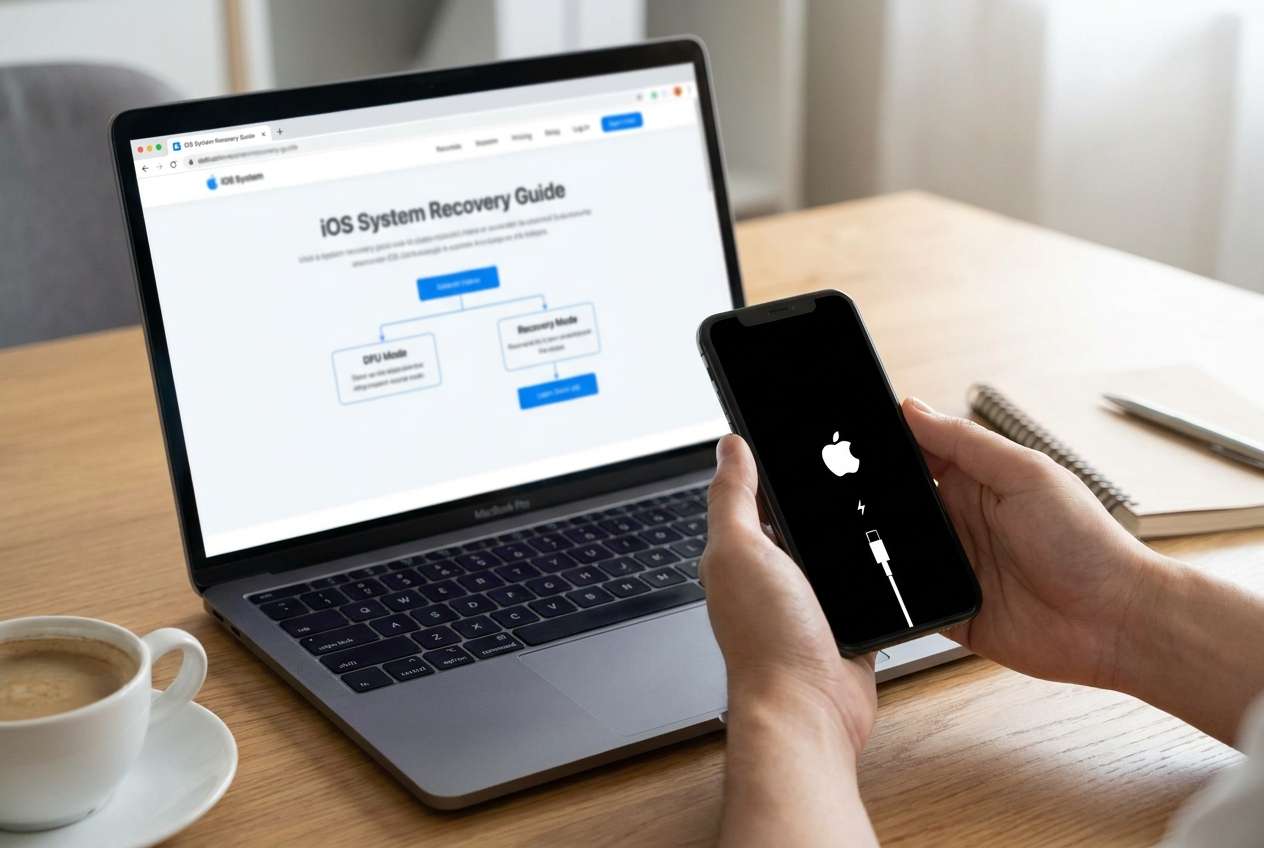
Part 1. Why iPhone enters Recovery Mode after a failed iOS update and what it means
After a failed update, iOS may fail to complete verification, migration, or bootstrapping steps, so the phone loops at startup or falls back into a limited boot state. In practical terms, that's why you might see the Apple logo for a long time, a reboot loop, or the Recovery Mode screen.
If you started the update with low battery, limited storage, unstable Wi‑Fi, or a previous incomplete update, the phone can end up in a “can't finish booting” situation. This doesn't automatically mean hardware damage, but it does mean iOS needs a clean, consistent path to start again.
It's also common to feel unsure: the phone looks like it's updating, but after 10–30 minutes it still hasn't progressed, and you don't know whether waiting helps or hurts.
1-1. Before You Prompt the AI
Collect a few basics first so the AI can reason from evidence instead of guesses:
- iPhone model and iOS version you attempted (if known)
- What you see now (Apple logo, progress bar, “connect to computer,” boot loop)
- Approximate time stuck and whether it ever changes
- Battery level when you started and whether it's charging now
- Storage situation before the update (tight / comfortable / unknown)
- Whether a computer is available (Mac/Windows) and cable type used
Part 2. Using AI prompts to decide on DFU mode for a failed iOS update safely
2-1. Level 1: Basic Prompt
My iPhone update failed and now it won't boot normally. Based on my symptoms, help me decide whether I should try Recovery Mode first or consider DFU Mode. Ask me only the minimum questions needed, and flag any steps that could cause data loss.
2-2. Level 2: Advanced Prompt
Act as a diagnostic assistant for iOS boot failures after an update.
1) Ask up to 6 clarifying questions.
2) Then rank the most likely causes (with brief reasoning).
3) Recommend the lowest-risk next step sequence (prioritize data preservation).
4) Explicitly compare Recovery Mode vs DFU Mode for my situation, including what each mode can and cannot indicate.
5) Stop and warn me before any action that could erase data.
2-3. Level 3: Evidence Prompt
Diagnose my “failed iOS update” boot issue using only the evidence below. If evidence is missing, list exactly what to collect next and why. Then give a risk-ranked plan that starts with the safest checks.
Device info
- iPhone model: (e.g., iPhone 13 Pro)
- Approx age/condition: (e.g., 2 years, original battery / replaced battery)
- Storage before update: (e.g., 3 GB free / unknown)
- Update method: (Settings OTA / Finder / iTunes)
Trigger
- What I did right before it failed: (e.g., tapped Install Now, phone restarted)
- Power/battery at the time: (e.g., ~20%, not charging)
- Network: (e.g., hotel Wi‑Fi, unstable)
Current symptoms
- Screen state: (Apple logo / progress bar stuck / connect-to-computer screen / black screen)
- Timing: (e.g., stuck 45 minutes, no movement)
- Button response: (e.g., can force restart / no response)
- Computer detection: (Finder/iTunes sees it? yes/no; as normal/recovery/DFU)
Constraints
- Data priority: (high/medium/low)
- Do I have a computer + cable: (Mac/Windows/none)
Output format
- Most likely causes (ranked)
- What evidence supports/weakens each cause
- Safest next steps (ordered)
- Clear “stop” conditions to avoid data loss
2-4. Prompt Refinement
Use these follow-ups to tighten the diagnosis without escalating risk:
What *one* missing detail would most change your recommendation between Recovery Mode and DFU Mode?
Separate possibilities into: software update failure, storage-related failure, cable/port/computer issue, and hardware signs.
Rank the causes again, but this time explain what I should observe in the next 5 minutes to confirm or rule out each one.
Which actions are reversible, and which actions might lead to erasing the device?
If Finder/iTunes detects the phone as ‘recovery,' what are the safest options before considering restore?
List the key evidence that would suggest DFU Mode is appropriate rather than just Recovery Mode.
2-5. AI Output vs Reality
AI can help you reason about modes and risks, but real-world execution depends on what the device and computer actually report.
| AI may conclude | Reality check you should do |
|---|---|
| “It's likely just a stalled update; try waiting longer.” | Confirm whether the progress bar moves at all and whether the phone heats up or reboots repeatedly. |
| “Recovery Mode should be enough.” | Verify whether a computer detects the iPhone in Recovery and offers an Update option (not only Restore). |
| “DFU Mode is needed.” | Confirm you can reliably enter DFU and that your goal justifies the higher risk/complexity. |
| “It might be hardware.” | Check for consistent signs (random disconnects, no charge, repeated failures across cables/ports) before assuming hardware. |
AI can't validate your screen state, cable stability, or computer detection in real time. Once you've chosen the safest next step, you'll still need a tool that can reliably perform the mode transition and system procedure you decided on.
Part 3. When to stop iOS update troubleshooting to avoid data loss
Stop and reassess if any of these occur:
- You're about to choose an option that clearly says Restore (erase) but you haven't accepted the data-loss tradeoff.
- The iPhone repeatedly disconnects during computer-based steps (suggesting an unstable connection or deeper fault).
- You cannot keep the device powered (battery drops fast, won't charge, or shuts off mid-process).
- You've repeated the same force restart / reconnect cycle multiple times with zero change in symptoms.
Once you've identified the most likely path (Recovery Mode first vs DFU Mode), the next step is careful execution—ideally with a method that minimizes unnecessary retries.
Part 4. Fix iPhone stuck in Recovery Mode after update with Dr.Fone
When your iPhone is stuck after a failed update, the immediate need is usually to enter or exit Recovery Mode cleanly and proceed with a controlled system repair path—without guessing button timing or repeating risky attempts. Dr.Fone - System Repair (iOS) is relevant at this stage because it's built to execute the mode transitions and repair workflow you've already decided on, including Enter/Exit Recovery Mode, in a more guided way than manual trial-and-error.
 Fix iOS issues, no data loss.
- One-click repair for all iOS problems.
- Solve recovery mode, Apple logo, black screen, etc.
- Upgrade or downgrade iOS without iTunes

-
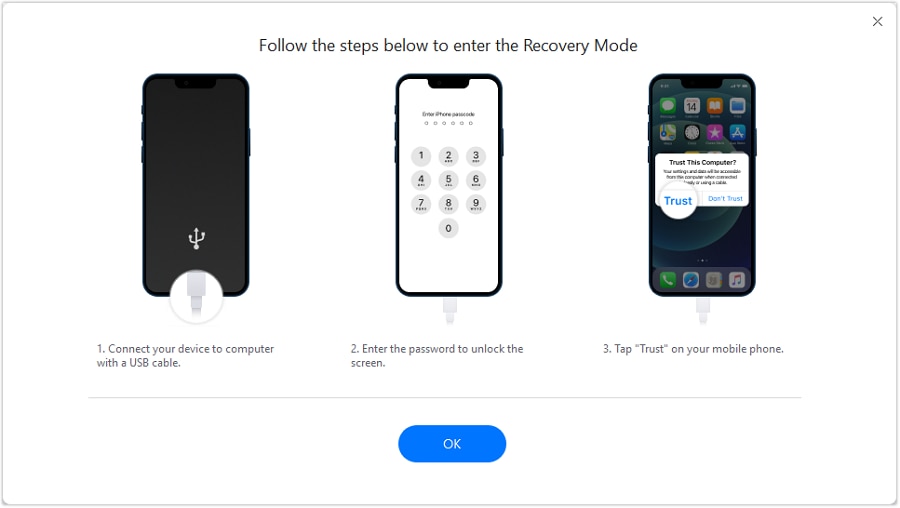
Step 1 Connect the iPhone to a computer
Plug your iPhone into a Mac/Windows computer with a reliable cable and keep it connected to power if battery is uncertain.

-
Step 2 Open Dr.Fone and choose System Repair (iOS)
In Dr.Fone, select System Repair (iOS) so you're working within the system-focused workflow rather than ad-hoc reconnect attempts.

-
Step 3 Use Enter/Exit Recovery Mode
Run Enter/Exit Recovery Mode to move in or out of Recovery Mode as needed, avoiding repeated button-sequence retries that can add confusion.

-
Step 4 Select a repair option aligned with your data priority
Choose the mode that best matches your risk tolerance (prioritizing data preservation when available) and follow the on-screen steps carefully.
-
Step 5 Re-check boot behavior after completion
After the process, observe whether the phone boots normally, stays stable for several minutes, and is recognized normally by the computer before attempting any further actions.




Conclusion
Use AI to translate your symptoms into a ranked set of likely causes and a lowest-risk decision between Recovery Mode and DFU Mode, then hand off to an execution tool like Dr.Fone - System Repair (iOS) to carry out the chosen mode transition and repair flow more consistently than trial-and-error.
FAQ
-
Is Recovery Mode safer than DFU Mode after a failed iOS update?
Usually, yes—Recovery Mode is typically the first escalation step because it's simpler and often sufficient for update-related boot issues. -
What symptoms suggest I should consider DFU Mode?
If standard Recovery Mode steps repeatedly fail to load iOS or complete an update attempt, DFU may be considered—but it's a higher-stakes step and should be chosen deliberately. -
How long should I wait on the Apple logo after an update before acting?
If there's no progress after a reasonable window (often 20–60 minutes depending on context) and the phone shows no change, it's reasonable to shift from waiting to structured diagnosis. -
Will attempting system repair erase my data?
Some paths aim to preserve data, while others may require erase/restore depending on device state; always read the option wording and treat “Restore” as data loss. -
What if my computer doesn't detect the iPhone at all?
First rule out cable/port issues and power problems; if detection remains inconsistent, avoid repeated cycles and focus on stabilizing the connection before further steps.
 Add Wondershare Dr.Fone as a preferred source on Google





