 Effortlessly manage data through preview, delete, export, etc.

 100% Security Verified | No Subscription Required | No Malware

 :
: 
 ChatGPT
 Perplexity
 Gemini
 Claude
 Grok
Grok

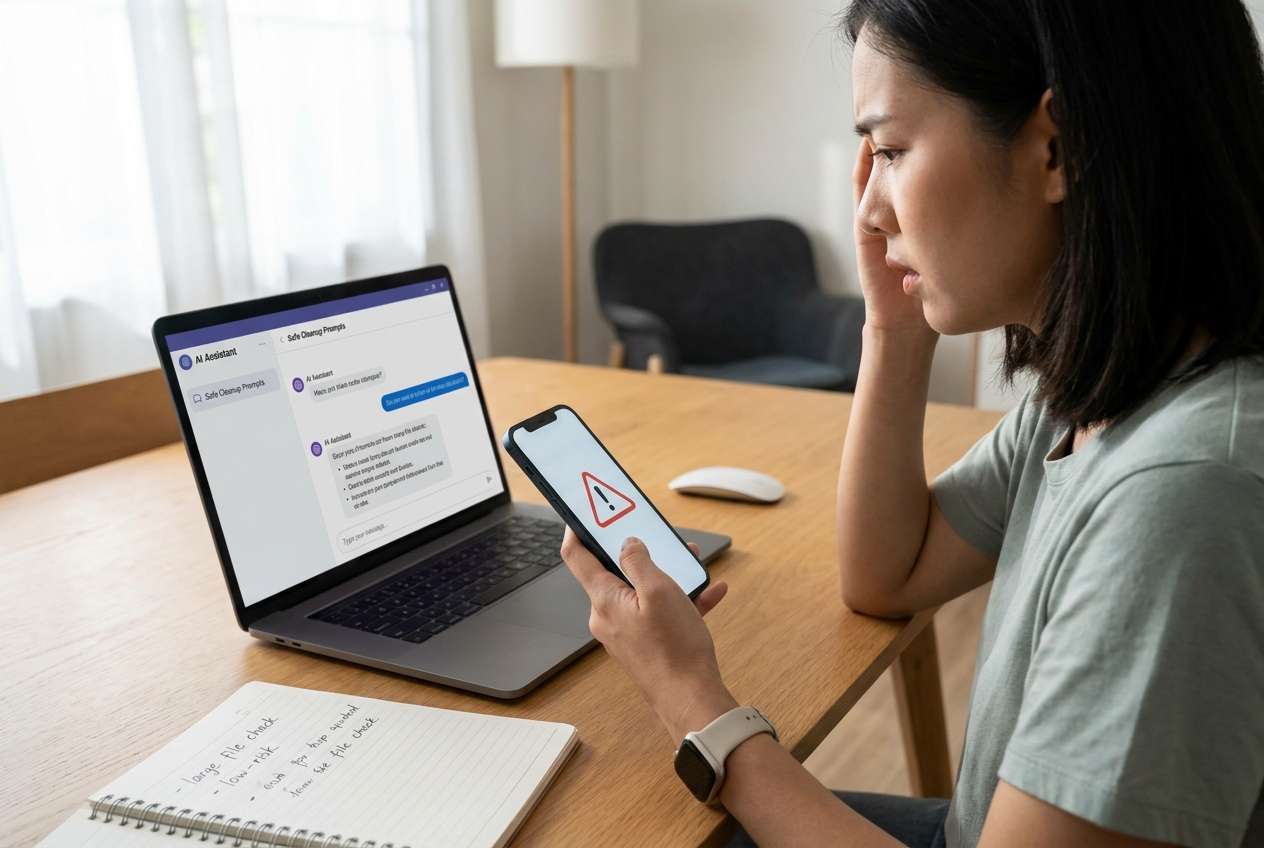
My work phone is almost full and downloads/updates keep failing—but I can’t risk deleting anything that might be work-related or needed for compliance. I need a safe way to find what’s actually removable.
Forum user
Cleaning up large “useless” files on a work phone sounds simple, but one missed step can delete evidence, break an app, or violate company retention rules.
AI helps by turning a vague goal (“free space fast”) into a sequenced plan with decision gates: what to scan first, what to exclude, and what must be verified before anything is removed.
AI can’t see your device, your MDM policies, or what your company considers record-keeping—so it shouldn’t execute deletions. Real device tools are needed once the plan is locked.
In this article
- Plan a safe workflow (before you delete anything)
- What can go wrong on a work phone
- Where the “point of no return” happens
- What “verification” means
- When to stop planning and start execution
- What the AI needs to know
- AI prompts (Level 1–3) + prompt refinement
- AI plan vs. real work-phone constraints
- Execute the workflow safely with Dr.Fone
Part 1. Plan a safe workflow (before you delete anything)
You’re low on storage on a work phone and updates, camera, or Teams/Slack downloads are failing. You suspect huge media, cached data, offline files, or duplicate downloads—but you can’t risk deleting something business-critical.
Even after AI suggests “clear cache” or “delete big videos,” there’s usually missing clarity: which locations to check first, how to confirm ownership (personal vs. work), and how to prove a file is safe to remove.
The point-of-no-return moment is when you delete or “clean” items that aren’t recoverable under your organization’s policies (for example, removing app data, deleting device storage items, or triggering an irreversible cleanup that empties a recycle/bin equivalent). You should not reach that step until verification is complete.
Part 2. What the AI needs to know
Answer these so the AI can build a safer sequence and verification plan:
- Phone OS and model (Android/iPhone; make/model if known)
- Work management setup (MDM, work profile, supervised device, company portal apps)
- What “useless” means in your context (e.g., downloads older than 90 days, duplicate media, app caches)
- What must not be touched (work apps, chat logs, compliance records, project media)
- Current storage pressure and target free space (e.g., “need 8–10 GB free”)
- Backup/restore constraints (allowed or forbidden; where backups may be stored)
- Any retention or legal requirements you’re aware of (eDiscovery, audit, regulated data)
- Time window and acceptable disruption (can you sign out of apps? can you restart?)
- Risk tolerance (only remove obvious trash vs. aggressive cleanup)
- Whether you need a proof trail (screenshots/log of what was removed)
Part 3. AI prompts (Level 1–3) + prompt refinement
Use the prompts below to force a clear order, explicit exclusions, and verification checks before any deletion.
3-1. Level 1: Basic Prompt
Create a cautious, step-by-step plan to find large useless files on my work phone and free up space without deleting business-critical data.
Include a short “stop and verify” checkpoint before any removal actions.
Keep it planning-only—no tool-specific execution.
3-2. Level 2: Advanced Prompt
Design a workflow with Preparation / Execution / Verification phases to find large useless files on a work phone.
Mark each action as Critical or Optional, and list explicit exclusions (work apps, managed storage, compliance records).
Include a decision gate that prevents irreversible cleanup until verification criteria are met.
3-3. Level 3: Evidence Prompt
I’m using a work phone (Android 13, Samsung; managed by MDM/work profile). Storage is almost full (1.2 GB free) and I need at least (8 GB) free today.
Build a planning checklist to identify large “safe-to-remove” categories (e.g., Downloads > (500 MB), duplicated installers (same filename), app caches above (1 GB), offline media older than (60 days)) while protecting work data (Teams/Outlook/OneDrive, company docs).
Provide:
- checks before scanning (policy/backup/ownership)
- checks during identification (how to confirm file origin, age, location)
- checks after cleanup (what to test, what screenshots/notes to keep)
Also name the irreversible step and the exact criteria that must be true before reaching it.
3-4. Prompt Refinement
Convert the workflow into a table with columns: Location/Category, Why it gets large, Safe-to-remove rule, Proof needed, Risk level, Rollback option.
Create a “do-not-touch list” specifically for managed/work containers and apps, and explain how I can recognize them during scanning.
Write a verification checklist that must be completed before any deletion, including “ownership confirmed,” “policy checked,” and “backup/rollback available.”
Generate two versions of the plan: Conservative (low risk) and Aggressive (higher risk), and clearly define the irreversible point in each.
Produce a short script of questions I should ask IT/admin if I’m uncertain (MDM restrictions, retention rules, recoverability).
Part 4. AI plan vs. real work-phone constraints
| Planning element | AI can help with | Real constraint on a work phone | What to verify before acting |
|---|---|---|---|
| Identify likely storage hogs | Prioritize categories/locations to inspect | MDM may hide/lock storage areas | What areas are visible and allowed to inspect |
| Define “useless” safely | Create rules (age/type/ownership) | Work data may look like personal files | File origin, app ownership, and retention policy |
| Risk gating | Add stop-points and criteria | One-tap cleanup can be irreversible | Recovery options and proof trail requirements |
| Post-clean checks | List tests (apps, email, sync) | Work apps may need re-auth/re-sync | Downtime window and sign-in readiness |
AI improves planning, sequencing, and risk checks—but it cannot access your phone, confirm policy constraints, or execute deletions safely on your behalf.
4-1. When to stop planning and start execution
- You can state clear “safe-to-remove” rules (type, age, location) and a “do-not-touch” list.
- You’ve identified the irreversible moment (final deletion/cleanup) and set pass/fail criteria before it.
- You have a rollback path (approved backup or recovery method) or you’ve chosen a conservative approach that avoids needing one.
- You know how you’ll verify success (GB freed + work apps still function + evidence captured if required).
If these aren’t true yet, keep refining the plan rather than taking cleanup actions.
Part 5. Execute the workflow safely with Dr.Fone
Once your plan is locked, execution matters: storage pressure can cause failed updates, broken messaging sync, and data corruption risks—yet rushed deletion can create compliance or productivity incidents. To carry out the approved cleanup actions on a real device, you can use Dr.Fone Basic - Data Manager.
 Easily manage data through preview, delete, export, etc.
- Transfer all data between devices.
- Robust backup solutions for reliable data protection.
- Mirror screens to PC for meetings, teaching, and control.

-
Step 1 Connect the phone and prepare to review storage
Connect the work phone to your computer and get ready to review on-device categories for large files. Keep the process review-focused—your “safe-to-remove” rules and exclusions should already be defined.

-
Step 2 Navigate to the area you want to inspect first
Open the data/category area you plan to scan first (for example, videos, downloads, or other high-growth categories), based on your AI-planned sequence.

-
Step 3 Identify candidates and apply your verification rules
Review large items and categories, then verify ownership and risk before removal. Cross-check candidates against your do-not-touch list (managed/work data, business apps, regulated folders) and confirm your “safe-to-remove” criteria are met.

-
Step 4 Clean up only after the verification gate passes
Perform cleanup actions you’ve approved, and stop before any irreversible deletion/cleanup if your criteria aren’t fully satisfied or rollback is unclear—especially on MDM-managed devices where restrictions may apply.





Conclusion
Use AI to define what to scan, what to exclude, where the irreversible risk is, and what must be verified first; then rely on Dr.Fone to carry out the approved cleanup actions on the real device.
FAQ
-
What counts as “large useless files” on a work phone?
Usually caches, duplicate downloads, old installers, oversized media in personal areas, and app offline data—but only if policy and ownership checks confirm they’re safe. -
What’s the highest-risk moment in this workflow?
The final deletion/cleanup step—especially anything that removes app data or empties a bin/recycle area—because recovery may be impossible or disallowed. -
How do I verify I’m not deleting work or managed data?
Use a do-not-touch list (work profile/managed apps/company document folders) and confirm the file’s source location and app association before removal. -
Should I clear app caches to free space quickly?
Only if your plan marks it as safe for specific apps and you understand the impact (re-downloads, sign-ins, offline data loss). -
When should I involve IT?
If the phone is supervised/MDM-managed, you see restricted storage areas, you suspect compliance records are involved, or you can’t confirm recoverability/retention rules.
 Add Wondershare Dr.Fone as a preferred source on Google





