 Effortlessly manage data through preview, delete, export, etc.

 100% Security Verified | No Subscription Required | No Malware

 :
: 
 ChatGPT
 Perplexity
 Gemini
 Claude
 Grok
Grok

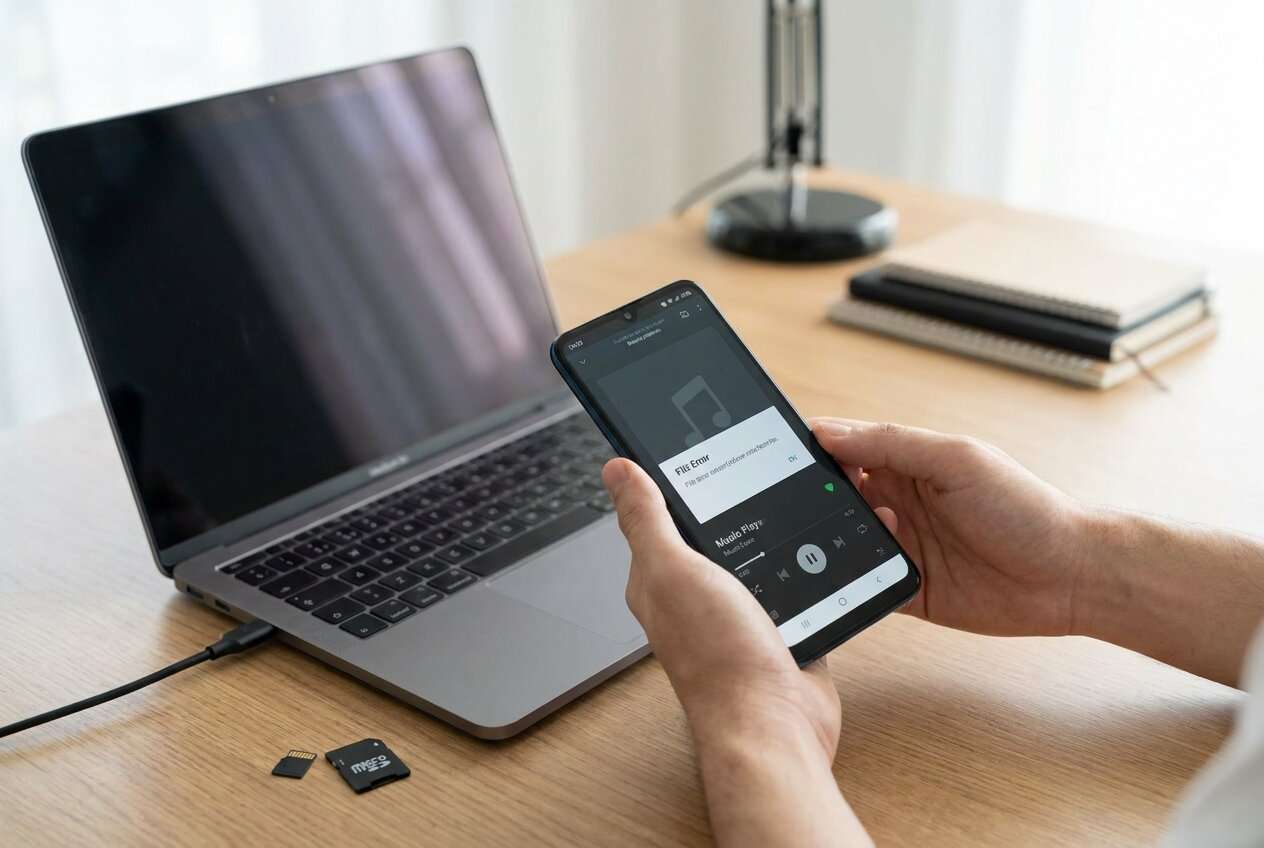
I moved my music to an SD card and now half the tracks won’t play—some say “file format not supported,” and a few albums just disappeared. I don’t want to make it worse by reformatting or using random “repair” apps.
Reddit user, r/Android
Music tracks that suddenly won’t play, show “file format not supported,” or disappear after you moved them to an Android SD card usually point to file-system, transfer, or card health issues. This often happens right after a copy/move, a reboot, or removing the card without ejecting—then nothing changes even after waiting, so it’s unclear whether the phone is still “processing” the files.
AI (like ChatGPT or Gemini) can help you describe symptoms precisely, narrow likely causes, and choose low-risk checks first—so you don’t accidentally make corruption worse.
AI can’t see your SD card, verify hardware damage, or guarantee outcomes. Trial-and-error actions (reformatting, “repair” apps, repeated writes) can overwrite remaining good data, so you want a cautious sequence.
In this article
- Part 1. Why music files get corrupted on Android SD card and what it means
- Common triggers (move/copy, reboot, unsafe removal)
- What “corrupted” can mean
- Why scope (few files vs many) matters
- What to collect before asking AI
- Part 2. Using AI prompts to diagnose Android SD card music corruption safely
- Part 3. When to stop troubleshooting corrupted music files on Android SD card
- Part 4. Unlock Android screen to access SD card files with Dr.Fone
- Part 5. AI output vs reality: safe verification checklist
Part 1. Why music files get corrupted on Android SD card and what it means
If you’re on an Android phone with expandable storage (for example, a Galaxy S22), corruption often appears after you tapped Move to SD card, transferred music from a computer, or removed the SD card during a copy. It can also happen after copying files that originally came from another device (for example, exported from an iPhone 13 or iPhone 14 via a computer) if the transfer was interrupted.
“Corrupted” can mean different things: the audio file itself is damaged, the SD card file system has errors, the card is failing/counterfeit, or Android’s media database is out of sync (so files exist but won’t index/play correctly).
Your first goal is to identify whether the issue is limited to a few songs or affects many file types/folders, because that strongly changes what you should try next.
1-1. Before You Prompt the AI
Collect a few facts first so the AI can rank causes correctly:
- Android phone model + Android version
- SD card brand/capacity + how long you’ve used it
- What you did right before it happened (move/copy, unplug, reboot, battery died)
- What exactly you see (error text, 0B size, missing files, won’t play in any app)
- Whether the SD card works in a PC/card reader
Part 2. Using AI prompts to diagnose Android SD card music corruption safely
2-1. Level 1: Basic Prompt
My Android phone says some music files on my SD card are corrupted / won’t play.
I moved/copied them recently and now they show errors.
Ask me the minimum questions needed, then give me the top 3 most likely causes and the lowest-risk checks to try first (no reformatting unless absolutely necessary).
2-2. Level 2: Advanced Prompt
Diagnose my “music files corrupted on Android SD card” issue using a risk-aware approach.
Output format:
1) Clarifying questions (max 7)
2) Ranked likely causes (with confidence % and why)
3) Low-risk steps first, then medium-risk, then high-risk (explicitly label risk and what data could be lost)
4) Stop conditions (when I should stop to avoid overwriting data)
Constraints: Assume I want to preserve existing files and avoid write operations to the SD card as much as possible.
2-3. Level 3: Evidence Prompt
Use the evidence below to determine what “corrupted” most likely means and what I should do next with minimal data-loss risk.
Phone model: (e.g., Samsung Galaxy S22)
Android version: (e.g., Android 13)
SD card: brand/capacity/class (e.g., Samsung EVO 128GB) + age
How files were added: (e.g., moved from internal storage / copied from PC / downloaded in-app)
Trigger event: (e.g., unplugged during transfer / battery died / reboot right after move)
Symptoms: (e.g., files show 0 bytes, “can’t play this file,” missing folders, only certain albums affected)
Scope: (e.g., 10 files vs most files; only music vs photos too)
Test results:
- Plays from internal storage? (yes/no)
- SD card visible on PC via reader? (yes/no)
- Any OS messages like “SD card corrupted” or “needs formatting”? (quote exact text)
Goal: (e.g., preserve what’s there, restore playback, prepare safe backup)
Now: rank the most likely causes, list the safest next steps, and tell me what NOT to do yet.
2-4. Prompt Refinement
If the first answer is too generic, use these follow-ups:
What key questions are you missing that would change your diagnosis the most?
Separate causes into: file-level damage vs SD card file-system errors vs failing/counterfeit card vs Android media indexing issues.
Rank the causes again assuming I removed the SD card without ejecting once during transfer—how does that change the order?
What single piece of evidence should I check next to distinguish between a failing SD card and a media database/indexing problem?
List actions that create writes to the SD card and mark which ones increase overwrite risk.
2-5. AI Output vs Reality
AI can help you choose the next safest check, but it can’t perform the checks or protect files from overwrite. Execution still depends on what you do on the device and card.
Part 3. When to stop troubleshooting corrupted music files on Android SD card
Stop early when symptoms suggest the next “easy fix” could make things worse.
- The phone repeatedly prompts to format the SD card or says it’s corrupted/unsupported.
- File sizes show 0 bytes, or many filenames turn into garbled characters across folders.
- The SD card mounts/unmounts randomly, becomes extremely slow, or fails to read on multiple devices.
- You only have one copy of the music and your next step would involve writing to the SD card (re-download, re-sync, “repair,” or reformat).
Once you’ve used AI to narrow the likely cause and pick the least risky path, the next priority is stable access to the phone so you can back up or validate what’s still readable before changing anything else.
Part 4. Unlock Android screen to access SD card files with Dr.Fone
If your Android is locked (forgotten PIN/pattern, unresponsive screen, or lockout after too many attempts), you may not be able to properly mount the SD card, change USB mode, or copy files out to verify what’s corrupted. At this point, using Dr.Fone - Screen Unlock (Android) becomes relevant as an execution step: it helps you regain access to the device so you can continue the low-risk validation and backup steps your AI diagnosis recommended, without guessing inside the lock screen.
 Unlock Android phone in seconds.
- Remove PIN, pattern, password, fingerprint.
- Bypass Google FRP lock easily.
- Works on all Android brands & models.
- No tech skills required – user-friendly.

-
Step 1 Confirm your goal
Decide whether you need access mainly to copy SD card contents out first, because any “fix” attempts can increase overwrite risk.

-
Step 2 Run Unlock Android Screen
Use Dr.Fone’s Unlock Android Screen workflow to remove the lock so you can reach Storage/USB settings (follow the device-specific flow carefully).

-
Step 3 Stabilize connectivity
After access is restored, set USB mode appropriately and avoid moving/copying to the SD card until you’ve copied from it.

-
Step 4 Export what’s readable first
Copy the SD card folders to a computer as a read-first step before trying repairs or reorganizing files.





Part 5. AI output vs reality: safe verification checklist
Use AI guidance as a decision aid, then verify with simple tests:
| AI output (what it suggests) | Reality check (what you can verify safely) |
|---|---|
| “It’s probably just the music app cache.” | Try a different player app; see whether the same files fail everywhere. |
| “The SD card file system is corrupted.” | Check if the card mounts reliably on a PC/card reader and whether folders/file sizes look normal. |
| “Some files were interrupted mid-transfer.” | Compare file sizes against originals on the source device/computer for a few samples. |
| “The SD card may be failing or counterfeit.” | Watch for slow reads, frequent remounts, or widespread errors across multiple file types. |
Conclusion
Use AI to turn vague “corrupted music” symptoms into a ranked set of likely causes and a low-risk action order, then hand off execution to practical steps—starting with regaining device access (if locked) via Dr.Fone so you can verify, copy out what’s readable, and proceed without avoidable trial-and-error.
FAQ
-
Why do some songs say “corrupted” but others play fine?
Partial transfer interruptions, app indexing issues, or damage limited to certain files/folders can affect only part of a library. -
Is it safe to tap “Format SD card” when Android recommends it?
Not if you need the existing files—formatting can remove file references and reduce recovery options; back up readable data first. -
How can I tell if it’s the music app versus the SD card?
Try playing the same file in a different player and check whether the file plays on a PC; if it fails everywhere, it’s likely file/card related. -
What does 0 bytes mean on an SD card file?
Often the file entry exists but the content wasn’t written correctly (interrupted transfer) or the file system is damaged. -
If my phone is locked, can I still verify SD card corruption?
Not reliably—without access you may not be able to mount the card properly, change USB mode, or copy files out for comparison.
 Add Wondershare Dr.Fone as a preferred source on Google





