 Effortlessly manage data through preview, delete, export, etc.

 100% Security Verified | No Subscription Required | No Malware
 :
: 
 ChatGPT
 Perplexity
 Gemini
 Claude
 Grok
Grok

I dropped my iPhone and now the screen is cracked and unresponsive, but the phone still turns on (sounds/vibrates/notifications). I can’t unlock it to get my photos, chats, or notes.
Forum user
AI can help you sort the symptoms into likely buckets (display-only damage vs. touch failure vs. security lockouts), decide what evidence matters, and choose the lowest-risk next step based on your setup (Face ID/Touch ID, trusted computer, iCloud, backups).
AI can’t “do” the extraction for you, and trial-and-error can increase risk (lockouts, overwriting data, or losing the only trusted pairing). Use AI for careful diagnosis and planning, then use a dedicated tool to execute the recovery steps.
In this article
- Part 1. Why iPhone data extraction can still work
- Display damage vs. touch (digitizer) failure
- Unlock status is the key decision point
- Trusted paths: paired computer, iCloud sync, backups
- What details to collect before asking AI
- Part 2. AI prompts to diagnose safely
- Part 3. AI output vs reality (planning vs execution)
- Part 4. When to stop trying to unlock to avoid risks
- Part 5. Extract data with Dr.Fone - Data Recovery (iOS)
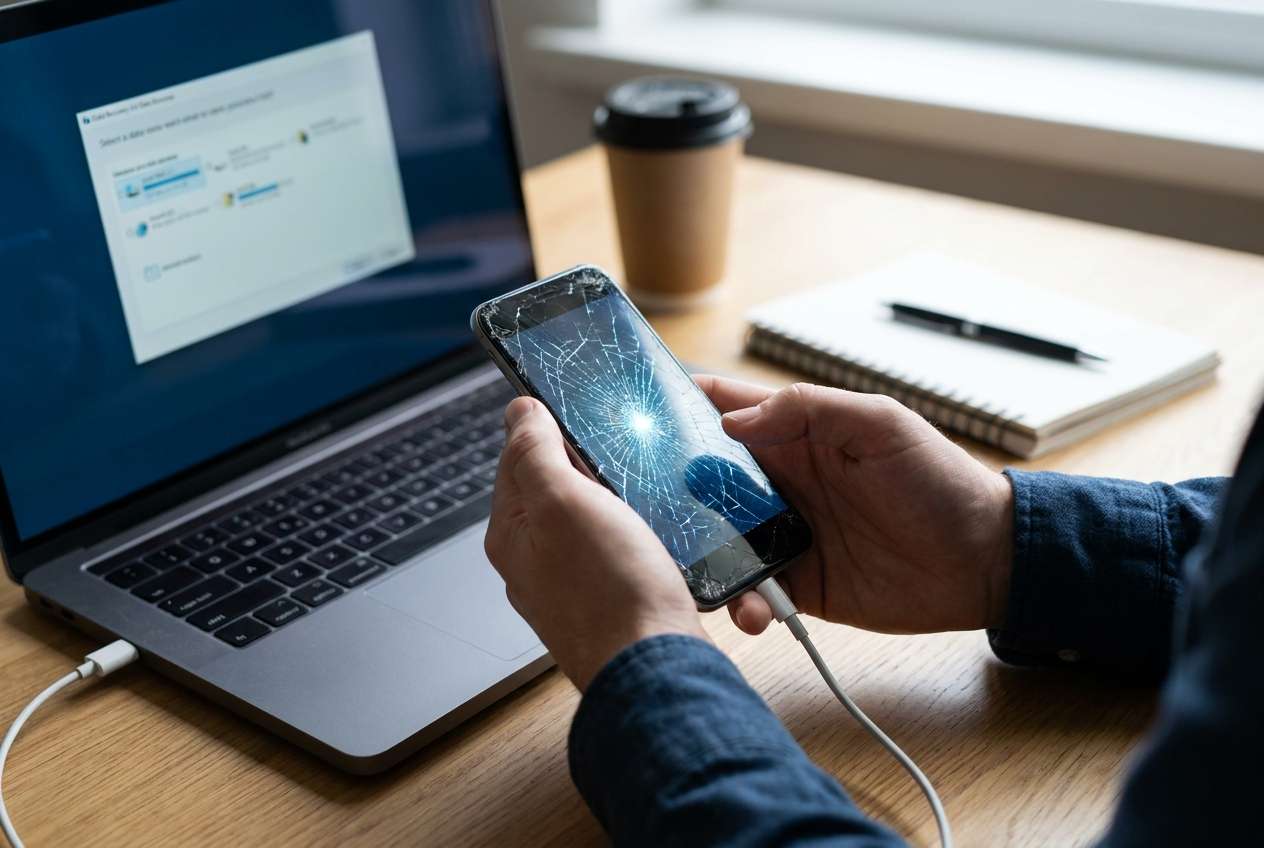
Part 1. Why iPhone data extraction works when the screen is broken but the phone turns on
If your iPhone still turns on, the logic board and storage may be fine—even if the display glass, OLED/LCD, or digitizer (touch layer) failed. That’s why data extraction is sometimes possible without “fixing” the screen first.
1-1. What matters most: unlock and a trusted access path
What matters most is whether the phone can be unlocked and whether you already have a trusted path (previously paired computer, iCloud sync, or an existing backup). A broken screen can block the final step—tapping Trust This Computer or entering the passcode.
Your uncertainty is normal: you may hear notification sounds and feel haptics, but you can’t tell if the device is asking for a passcode, stuck at the lock screen, or showing a “Trust” prompt you can’t press.
1-2. Before you prompt the AI
Collect the basics first so the AI can narrow causes quickly:
- iPhone model and iOS version (if known)
- What happened right before (drop, water exposure, force restart, update)
- Screen behavior (black, flickering, shows image but no touch)
- Unlock method (passcode only vs Face ID/Touch ID)
- iCloud status (Photos/Messages/Drive enabled or not)
- Any trusted computer previously used with this iPhone
Part 2. Using AI prompts to diagnose broken iPhone screen data extraction safely
2-1. Level 1: Basic Prompt
My iPhone screen is broken but the phone still turns on (sounds/vibrates). I need to extract my data with the lowest risk. Ask me the minimum questions needed, then suggest the safest next steps based on whether I can unlock the phone and whether I have iCloud or a trusted computer.
2-2. Level 2: Advanced Prompt
Diagnose my situation and rank the most likely paths to extract data from an iPhone that turns on but has a broken/unusable screen.
Requirements:
1) Start by listing the top 5 questions that change the outcome.
2) Then rank options by lowest risk first (avoid lockouts/overwrites).
3) Separate “possible without unlocking” vs “requires unlocking/trust.”
4) Flag any step that could trigger a passcode requirement or erase risk.
2-3. Level 3: Evidence Prompt
Help me decide the safest way to extract data from my broken-screen iPhone. Use the details below and tell me: (a) most likely situation, (b) best next 3 actions, (c) what to avoid.
Device
- iPhone model: (e.g., iPhone 13 Pro)
- iOS version: (unknown / estimated)
- Storage almost full?: (yes/no/unknown)
What happened
- Trigger event: (e.g., dropped on tile / got wet / after tapping Restart)
- Any heat, smell, or bulging?: (yes/no)
Current symptoms
- Powers on?: (yes/no)
- Screen shows image?: (black / flickers / dim / normal)
- Touch works anywhere?: (yes/no/partially)
- Sounds/vibration/notifications?: (yes/no)
- Can you unlock via Face ID/Touch ID?: (yes/no/unknown)
- Do you see any prompts you can’t tap (Trust, passcode, etc.)?: (yes/no/unknown)
Data importance
- Most important data: (Photos / WhatsApp / Notes / Contacts / Files)
- Any recent backup (iCloud or computer)?: (yes/no/unknown)
- iCloud sync enabled for key apps?: (yes/no/unknown)
What you already tried
- Cable to computer / Finder / iTunes?: (yes/no + result)
- Another cable/port/computer?: (yes/no)
- Force restart attempted?: (yes/no)
Constraints
- I must avoid data loss and avoid triggering lockouts.
- I can access: (Mac/Windows) and have: (Apple ID password / 2FA access yes/no)
2-4. Prompt Refinement
If the AI answer feels generic, push it to be specific:
What 3 questions are you still missing from me that would change your recommendation?
Rank the likely blockers: broken display only, broken digitizer, passcode required after restart, untrusted computer, iCloud not syncing.
Separate your plan into categories: iCloud route, trusted-computer route, on-device unlock route, recovery-tool route.
What single piece of evidence should I check next to confirm which category I’m in?
List what not to do if I want to minimize lockouts or overwriting any local data.
Part 3. AI Output vs Reality
AI can guide decisions, but it won’t perform the actions on your device. Use AI to choose the lowest-risk path and identify what evidence matters; execution still depends on your lock/unlock and trust state.
| AI output (planning) | Reality check (what you may still need) |
|---|---|
| “Use a trusted computer to access the device.” | You may still need to unlock the iPhone or tap Trust on the screen. |
| “Check iCloud for synced data.” | Only data that was enabled for sync (and successfully uploaded) will appear. |
| “Try standard connection troubleshooting.” | A damaged port/cable or unstable power can interrupt access attempts. |
| “Use a recovery approach for on-device data.” | Execution requires a compatible tool and careful steps to avoid unwanted changes. |
Part 4. When to stop trying to unlock a broken iPhone screen to avoid data risks
Stop and reassess if you see any of these signals:
- The phone gets hot, shows battery swelling signs, or randomly restarts during attempts
- You’re close to a long passcode lockout (or already see “iPhone Unavailable” / timer behavior)
- The Lightning/USB connection is unstable (disconnects mid-attempt) or the port seems damaged
- You’re about to try a step you don’t fully understand that could overwrite data or reset settings
Once you’ve used AI to narrow the likely scenario (unlockable vs not, trusted vs not, iCloud synced vs not), hand off to a controlled execution method to reduce trial-and-error.
Part 5. Extract data from broken screen iPhone that still turns on with Dr.Fone - Data Recovery (iOS)
When your iPhone still powers on but the screen prevents normal access, the practical next step is using an execution tool designed to recover data from an iOS device while you follow a cautious, evidence-driven plan. Dr.Fone - Data Recovery (iOS) is relevant at this point because it focuses on the recovery workflow (connect, scan, preview, export) after you’ve clarified the safest path with AI—especially when you can’t rely on on-screen taps or manual copying.
 Recovers data after deletion, crashes, or device damage.
- Supports photos, messages, contacts, WhatsApp, and more.
- Supports all major iPhone, iPad, and iPod models.
- Preview and recover only what you need.

-
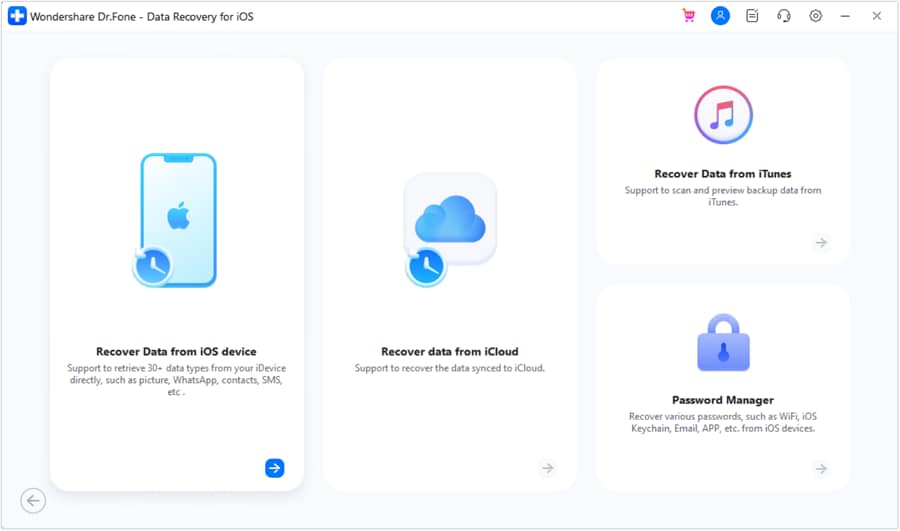
Step 1 Install and open the recovery module
Launch Dr.Fone - Data Recovery (iOS) on your computer and choose the iOS device recovery option.

-
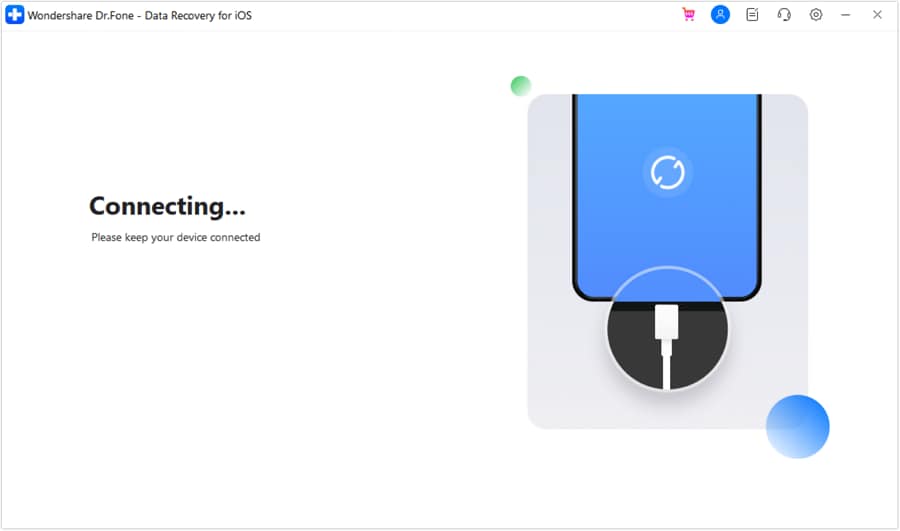
Step 2 Connect the iPhone carefully
Plug in with a stable cable/port and avoid moving the device to reduce disconnects mid-process.

-
Step 3 Select what to scan
Choose the data types you need (e.g., photos, messages) to keep the process focused.
-
Step 4 Scan and preview results
Let the scan complete, then preview what’s found to confirm it matches what you’re trying to extract.
-
Step 5 Recover to your computer
Export the selected items to your computer so you have an accessible copy outside the phone.




Conclusion
Use AI to translate your symptoms into a clear decision tree (unlock/trust status, iCloud/backup coverage, connection stability) and to choose the lowest-risk next step; then use Dr.Fone - Data Recovery (iOS) to execute the actual recovery workflow in a controlled way once you’ve identified the safest path.
FAQ
-
Can I extract data if the iPhone screen is totally black but the phone is on?
Sometimes, yes—if the phone is functioning and you have a trusted access path (backup, iCloud sync, or a previously trusted computer), but a black screen can also indicate deeper hardware/display failure that blocks confirmation prompts. -
Will Face ID still work with a broken screen?
Face ID can work if the TrueDepth system is intact, but you may still need the passcode after a restart or if Face ID is disabled by policy, which becomes hard if you can’t see or tap. -
Why does my computer not recognize my iPhone after the screen broke?
Common causes include a damaged port/cable, a required on-screen “Trust” prompt, the device being locked, or instability from impact/water damage. -
Is iCloud enough to get my photos and messages back?
Only if iCloud sync/backup was enabled and completed before the screen broke; otherwise, recent local-only items may not be in iCloud. -
How do I avoid making data loss more likely while testing options?
Avoid repeated passcode attempts, avoid uncertain reset/restore actions, keep power stable, and focus on evidence-first steps (what’s synced, what’s trusted, what’s unlockable).
 Add Wondershare Dr.Fone as a preferred source on Google

staff editor
James is a tech writer and editor with expertise in both Android and iOS, known for translating technical concepts into practical guidance for everyday users.





