 Effortlessly manage data through preview, delete, export, etc.

 100% Security Verified | No Subscription Required | No Malware

 :
: 
 ChatGPT
 Perplexity
 Gemini
 Claude
 Grok
Grok

I thought everything was backed up, deleted the originals, and only then realized some files never made it to my archive. I wish I had a verification checklist before I cleaned up.
Reddit user, r/iPhone
Building an annual phone photo archive is simple to start—but easy to mess up if you skip a verification step or mix up what’s already backed up versus what’s only on-device.
AI can help you plan the workflow (scope, folder naming, duplicate handling, and verification evidence), but you’ll still need real tools and your own checks to execute safely.

In this article
- Plan the archive without missing critical steps
- Define your “year folder” archive
- Choose the right sequence (dedupe/export/folders)
- Set the point of no return (deletion/overwrite)
- What the AI needs to know
- AI prompts to generate a safer workflow
- AI plan vs. real device constraints
- Execute the workflow safely (with verification gates)
- Verification checks you should actually run
Part 1. Plan the archive without missing critical steps
You want one reliable “year folder” archive (for example, 2025 Photos) that includes camera photos, screenshots, downloads, and key albums—without losing Live Photos, metadata, or the only copy of something.
1-1. Define your “year folder” archive
Before you touch files, define what “done” means: the exact year range, which media types count (photos/videos/screenshots/Live or Motion Photos), and whether cloud-only items are included or excluded.
1-2. Choose the right sequence (dedupe/export/folders)
The uncertainty usually starts after you get general advice but no clear sequence: should you dedupe first, export first, or create the folder structure first? A safer default is to create structure first, export/transfer next, and dedupe only after you have a verified “raw archive” copy.
1-3. Set the point of no return (deletion/overwrite)
There’s a point of no return: deleting originals from the phone (and then emptying “Recently Deleted”) or overwriting an existing archive folder can permanently remove files if you didn’t verify completeness and playability first.
1-4. What the AI needs to know
Share the details below so the AI can produce a step-by-step archive plan with clear checks.
- Phone OS and model (e.g., iPhone 14 iOS 17 / Samsung S23 Android 14)
- Where your photos currently live (device only, iCloud Photos, Google Photos, OneDrive, mixed)
- What you mean by “archive” (offline copy, external drive, computer folder, cloud + local)
- Target storage location(s) and capacity (e.g., 1TB external SSD + laptop)
- Year range and scope (e.g., only 2025, or 2023–2025; include videos or not)
- Must-preserve properties (EXIF dates, location, Live Photos/Motion Photos, album structure)
- Your tolerance for duplicates (keep, dedupe, or dedupe only within the year)
- Your cleanup intention (remove from phone after archiving, or keep everything)
- Any constraints (slow internet, limited computer storage, shared family library, work device policy)

Part 2. AI prompts to generate a safer workflow
Use the prompts below to make the AI produce a sequenced plan with explicit verification gates before any irreversible action.
2-1. Level 1: Basic Prompt
Create a safe, step-by-step annual phone photo archive plan for my device and storage setup.
Include a checklist of what I must verify before I delete or move anything.
Keep it planning-only—no assumptions about what my phone shows.
2-2. Level 2: Advanced Prompt
Design a structured workflow to build an annual phone photo archive plan with three phases: Preparation, Execution, and Verification.
In each phase, mark steps as critical vs optional, and include stop points where I should not proceed until specific checks pass (especially before any deletion or overwriting).
2-3. Level 3: Evidence Prompt
I’m archiving my phone photos for a single year and want a plan that prevents data loss and preserves metadata. Here’s my context:
- Device/OS: (iPhone 13, iOS 17)
- Current storage: (iCloud Photos ON, “Optimize iPhone Storage” ON)
- Target archive: (Windows PC + external SSD `ArchiveSSD`)
- Scope: (All photos + videos from 2025, include Live Photos, include screenshots)
- Cleanup: (I want to delete 2025 media from the phone after archiving)
Build a planning-only workflow with:
- A folder naming convention (e.g., `2025/2025-01`, `2025/Events/TripName`)
- Checks before export (what could cause missing originals?)
- Checks during transfer (how do I detect stalls/partial copies?)
- Checks after transfer (spot-check rules, counts, random sampling, metadata checks)
- A clear “point of no return” warning: what exact verification must be complete before I delete originals and empty Recently Deleted.
2-4. Prompt Refinement
Use these follow-up prompts to force clearer outputs (tables, media separation, minimum verification standards, and rollback plans).
Return the plan as a table with columns: Step, Goal, Evidence to Collect, Stop/Go Rule, Risk if Skipped.
Separate media types: photos, videos, Live/Motion Photos, screenshots; list how each should be handled and verified.
Define a minimum verification standard: exact counts, sampling size (e.g., 50 random files), and metadata fields to confirm (date taken, location, duration for videos).
Add a rollback strategy: if I discover missing files after cleanup, what’s the least risky recovery path and what should I avoid doing immediately?
Part 3. AI plan vs. real device constraints
AI improves planning, but cannot execute transfers, confirm what actually copied, or validate your device/account state without your checks and real tools.
| Planning item | What AI can do | Real-world constraint | What you must verify |
|---|---|---|---|
| Scope definition (year, albums, file types) | Turn your goal into an unambiguous checklist | Your gallery/cloud may not match what you think is “local” | Confirm year filters and media types are truly included |
| Storage & naming scheme | Propose a consistent folder structure and naming rules | Existing folders may already contain similar archives | Confirm no overwrite/merge risk before copying |
| Verification gates | Specify evidence and stop/go rules | Some platforms hide originals or compress previews | Confirm you have originals and metadata intact |
| Risk controls before deletion | Identify the irreversible moment and prerequisites | Deletion may propagate to cloud/synced devices | Confirm cleanup behavior across accounts/devices |
3-1. When to stop planning and start execution
- You have a defined scope: year, media types, and whether cloud items count as “already archived.”
- You have a destination with enough space and a naming convention you will actually follow.
- You have written verification rules (counts + spot checks + metadata checks) and a clear stop/go gate.
- You have identified the irreversible moment (deleting originals / emptying Recently Deleted / overwriting an existing archive) and set it after verification.
If those are true, you’re no longer deciding—you’re ready to run the workflow exactly as planned.
Part 4. Execute the workflow safely (with verification gates)
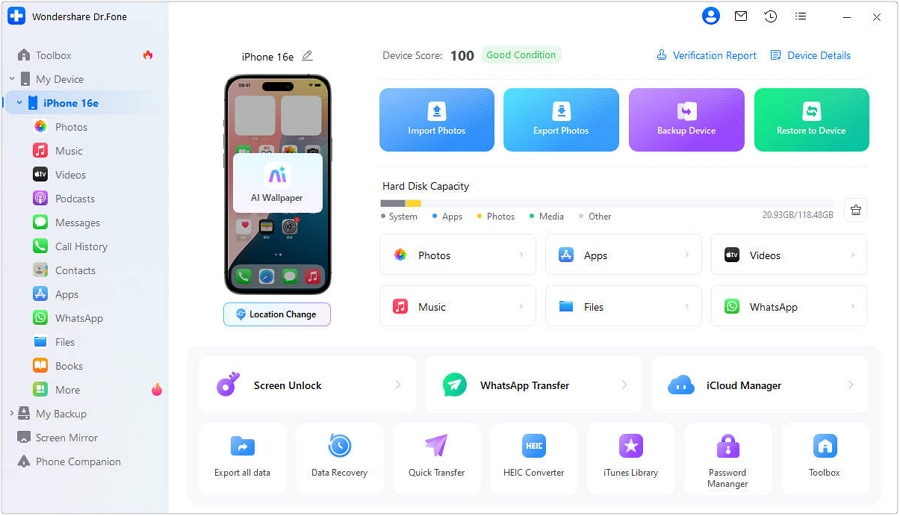
Execution is where most losses happen: partial transfers, silent failures, and premature cleanup. Once your plan is confirmed, use a real device workflow tool such as Dr.Fone Basic - Data Manager to run the transfer/export steps—and collect the evidence you decided you need before any irreversible step.
-
Step 1 Prepare the archive destination (folders + log)
Create the year folder structure and a simple log file (date, device, scope, intended destination) so you can prove what you meant to archive. Confirm the destination is clean and has enough free space to avoid overwrite/merge collisions.
-
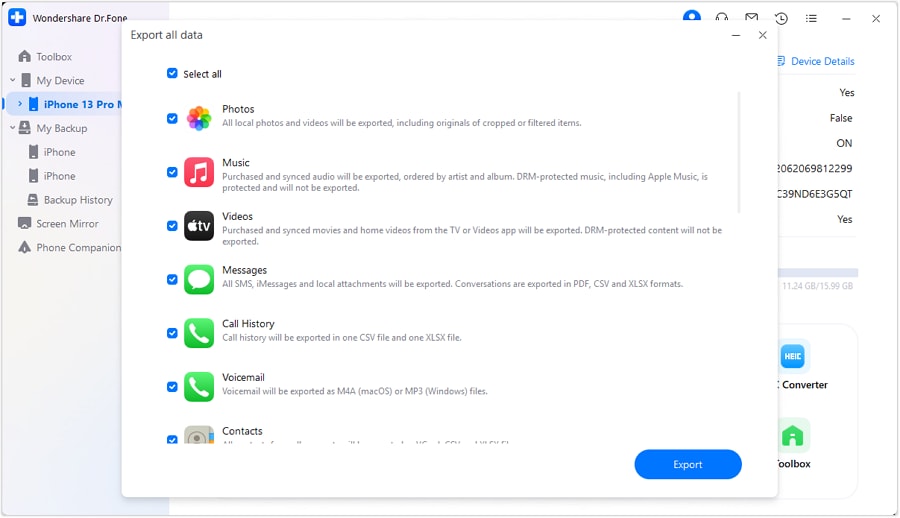
Step 2 Export/transfer the selected year to the archive (no deletions yet)
Run the transfer/export you planned, keeping target folders and scope consistent with your checklist (year filter, media types, and must-preserve properties like EXIF dates and Live/Motion Photos). Watch for signs of partial copies or stalled transfers.
-
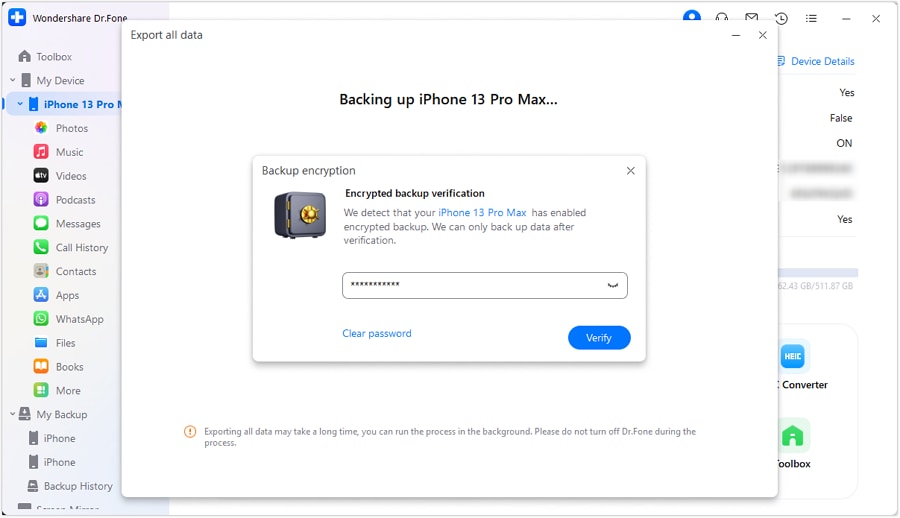
Step 3 Protect what you exported (backup settings + audit trail)
If your workflow includes encryption or protected exports, set and store the password safely. Keep your log updated (what you exported, where it landed, and when) so you can reproduce the process if something looks missing later.
-
Step 4 Verify first, then (only if verified) clean up on-device
Perform your post-transfer verification (counts, random file opens, metadata/date checks, video playback checks). Only then delete originals if that’s your plan—do not empty “Recently Deleted” until verification passes.

Part 5. Verification checks you should actually run
Your goal is to prove: (1) the archive is complete for the defined scope, (2) files open and play correctly, and (3) metadata is intact (date taken, location, video duration, and Live/Motion components where applicable).
- Counts by year: Compare total items for the target year on the source vs. the archive destination (photos and videos separately if possible).
- Fixed-size random sampling: Open a set number of random files (for example, 50–100) across months; include edge cases like burst/Live/Motion Photos.
- Targeted spot checks: Verify the largest videos, a few items from each month, and representative screenshots/downloads.
- Metadata checks: Confirm date taken, location (if used), and video duration. If metadata is critical, check it in at least a subset of files, not just one.
- Stop/go rule before deletion: No deletion until counts match your defined standard and your spot checks pass (including playback).
Recommended tool to run the plan (after planning is complete)
If you’ve already used AI to define scope, naming, and verification gates, the next step is running a consistent export/transfer workflow and capturing evidence (counts + spot checks) before any cleanup.
 Easily manage data through preview, delete, export, etc.
- Transfer all data between devices.
- Robust backup solutions for reliable data protection.
- Mirror screens to PC for meetings, teaching, and control.

Keep the workflow conservative: export/transfer first, verify second, and only then do any dedupe, reorganization, or deletion. This sequencing reduces the chance that a “helpful cleanup” step becomes an irreversible loss.




Conclusion
Use AI to define scope, sequence, verification gates, and the “do not cross yet” deletion rule; then use a real execution tool to perform the transfer and validate results before any irreversible cleanup.
FAQ
-
What’s the single highest-risk moment in this workflow?
Deleting originals and then emptying “Recently Deleted” (or trash) before you’ve verified the archive is complete, readable, and correctly dated. -
How do I verify without checking every photo?
Use a mixed method: total item counts by year + a fixed-size random sampling (for example, 50–100 files) + targeted checks (largest videos, Live/Motion Photos, and a few items from each month). -
Should I deduplicate before or after archiving?
Usually after you have a confirmed “raw archive” copy. Dedupe can mistakenly remove near-identical shots; keep the first archive pass as conservative as possible. -
What if my phone uses cloud storage optimization?
Assume some “local” items may be placeholders until downloaded. Your plan should include a check to ensure originals are available before export/transfer and that metadata remains intact after copying. -
Can AI tell me if the archive is complete?
No. AI can define what evidence to collect, but only you (and your tools) can confirm what actually transferred and whether files open correctly.
 Add Wondershare Dr.Fone as a preferred source on Google





