 Effortlessly manage data through preview, delete, export, etc.

 100% Security Verified | No Subscription Required | No Malware

 :
: 
 ChatGPT
 Perplexity
 Gemini
 Claude
 Grok
Grok

Moving notes and documents from Android to iPhone sounds simple, but one missed step can mean duplicate files, broken note formatting, or missing attachments you only notice weeks later.
Forum user
AI can help you map what you have, decide what “done” looks like, and build a sequence with verification checks—so you don’t improvise mid-transfer.
AI can’t actually access your devices, move files, or confirm what arrived correctly. For execution, you’ll need a real tool to perform the transfer and complete device-level actions reliably.
In this article
- How to plan the move without missing critical steps
- What makes this move risky
- Why generic advice fails
- Define “done” before you start
- Delay the point of no return
- What the AI needs to know
- Using AI prompts to build a safer workflow
- When to stop planning and start execution
- Execute the workflow safely with Dr.Fone
Part 1. How to Plan Move Notes and Documents From Android to iPhone Without Missing Critical Steps
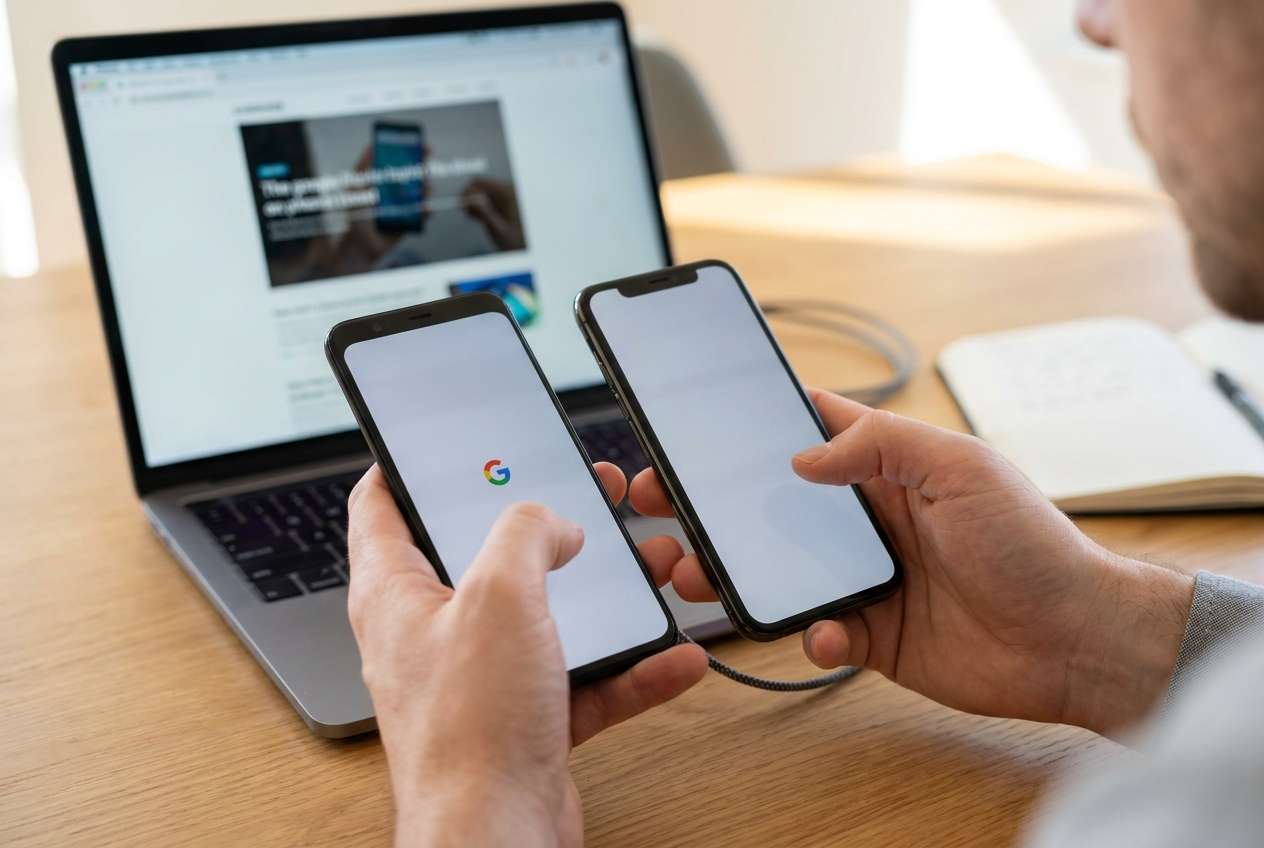
You’re switching phones and you have important notes (personal, work, school) plus documents spread across apps and folders. Some notes include images, checklists, or attachments, and some documents live in chat apps or “Downloads” where they’re easy to forget.
1-1. What makes this move risky
Notes and documents often aren’t stored in one place. They can be split across note apps, cloud drives, messaging apps, local folders, and email attachments. The more locations you have, the easier it is to miss one source.
1-2. Why generic advice fails
After asking AI for help, you may get generic advice like “use cloud sync” or “email yourself files,” but it’s unclear what to do first, what to verify, and how to avoid overwriting newer versions.
1-3. Define “done” before you start
A reliable plan needs an explicit definition of done (what must exist on the iPhone, in what structure, and what quality level is acceptable—like preserved formatting vs. text-only).
1-4. Delay the point of no return
There’s also a point-of-no-return moment: once you factory reset, trade in, or wipe the Android device, anything not transferred and verified is effectively unrecoverable. Your plan needs to delay that moment until checks are complete.
Part 2. What the AI Needs to Know
Share a clear inventory and constraints so the AI can build a transfer plan you can actually verify.
- Android device model and Android version (if known)
- iPhone model and iOS version (if known)
- What “notes” means for you (Google Keep, Samsung Notes, OneNote, Evernote, plain text files, etc.)
- Where documents currently live (Downloads, SD card, Google Drive, Dropbox, WhatsApp/Telegram files, email attachments)
- Total volume (rough count/size: e.g., “800 notes,” “12 GB PDFs,” “3,000 photos embedded in notes”)
- Whether notes have attachments, handwriting, audio, tags/labels, or folders
- Whether you need formatting preserved (checklists, tables) or just text content
- Your acceptable duplication level (none vs. “some duplicates OK if nothing is missing”)
- Time constraints (e.g., “must finish tonight”)
- Risk constraints (work/compliance, personal privacy, shared device, MDM/work profile)
- Your “no-go” action (e.g., “do not erase Android until verified on iPhone”)
Part 3. Using AI Prompts to Build a Safer Move Notes and Documents From Android to iPhone Workflow
Use the prompts below to force a clean sequence, define verification, and surface risks before you touch either device.
3-1. Level 1: Basic Prompt
I need a planning checklist to move my notes and documents from Android to iPhone without losing anything.
Ask me only the minimum questions you need, then give me an ordered workflow with verification points before I erase or trade in my Android.
3-2. Level 2: Advanced Prompt
Design a structured workflow to move notes and documents from Android to iPhone.
Split it into Preparation / Execution / Verification, and label each step as Critical or Optional.
Include a “stop-the-line” checklist that must be true before any irreversible action (like factory reset, trade-in, or deleting originals).
3-3. Level 3: Evidence Prompt
Build me a transfer plan with evidence-based checks. Here’s my context:
- Notes apps: (Google Keep + Samsung Notes)
- Documents: (Downloads folder ~6 GB, Google Drive ~3 GB, WhatsApp PDFs ~200 files)
- iPhone: (iPhone 15, iOS 17) Android: (Galaxy S21)
I need checks before/during/after transfer, including: sample-based verification (e.g., “check 20 random notes across 4 folders”), attachment verification (images/PDFs/audio), and a final reconciliation method (counts, folder lists, and spot checks).
Also tell me what not to do until verification is complete.
3-4. Prompt Refinement
Output a table with columns: Data type / Source app or folder / Transfer method / Expected count or size / Verification method / Failure symptoms / Recovery action.
List the top 10 failure modes for this move (missing attachments, formatting loss, partial sync, duplicates), and for each: prevention + how I’ll detect it fast.
Create a verification script I can follow: exact checks at T+0, T+30 minutes, and T+24 hours after transfer.
Ask me 8 yes/no questions to classify my risk level, then adjust the workflow and verification depth accordingly.
Define my “point of no return” actions and place them at the end with explicit prerequisites.
3-5. AI Plan vs. Real Device Constraints
| Planning with AI (what it’s good at) | Reality on devices (what AI can’t do) |
|---|---|
| Builds an ordered workflow with checkpoints | Actually transfers notes/files between devices |
| Identifies risks (duplicates, missing attachments, version conflicts) | Confirms what truly arrived on the iPhone |
| Designs verification methods (counts, spot checks, sampling) | Accesses your apps, logs in, grants permissions |
| Creates a rollback/contingency plan | Performs device actions (sync, export, restore, reset) |
AI improves planning and reduces avoidable mistakes, but it cannot execute transfers, access your accounts, or verify device state. Execution needs real device tooling once the plan is settled.
Part 4. When to Stop Planning Move Notes and Documents From Android to iPhone and Start Execution
- You can name every source of notes/documents you care about (apps + folders + cloud locations).
- You have a written “definition of done” (what must be present on iPhone: counts, folders, attachments, formatting expectations).
- You have a verification plan that includes both counts/sizes and spot checks (including attachments).
- You have explicitly delayed any irreversible step (factory reset/trade-in/deleting originals) until verification passes.
Once those are true, planning has done its job and uncertainty should drop enough to move forward carefully.
Part 5. Move Notes and Documents From Android to iPhone: Execute the Workflow Safely with Dr.Fone
Execution now matters because the biggest failures happen during “quick moves” where permissions, partial transfers, and missing attachments go unnoticed until the Android device is already wiped or returned.
AI can support you during execution by reminding you of scope and verification, but it still cannot operate apps on your behalf or confirm what arrived correctly on your iPhone.
Recommended Tool to Execute the Plan (After You Finalize Scope)
If you want an execution layer that follows a clear, device-to-device flow after you’ve defined scope and verification, consider Dr.Fone - Phone Transfer to help carry out the transfer on real devices while you keep originals intact until checks pass.
 Move data between iOS to Android and vice versa.
- Transfer contacts, SMS, photos, videos, music, and more types.
- Available with all phones with Android and iOS versions.
- Simple, click-through process.

Use the steps below as a practical execution checklist. Keep your Android data intact until your verification plan confirms the iPhone result.
-
Step 1 Prepare devices and launch the transfer tool
Ensure both devices are charged, unlocked, and on stable Wi‑Fi. Confirm the exact scope you’re moving (note sources + document locations) before starting.

-
Step 2 Set the Android-to-iPhone device path correctly
Select Android as the source and iPhone as the destination. Don’t proceed until the direction is correct to reduce overwrite/duplication risk.

-
Step 3 Choose data types and start the transfer (no irreversible actions yet)
Select the data categories that match your pre-written scope, then run the transfer while keeping originals intact on Android.

-
Step 4 Monitor progress, then verify on iPhone before you wipe or trade in
After the transfer completes, run your verification checklist (counts/sizes + random samples + attachment checks). Only after verification passes should you consider any point-of-no-return action like factory reset or trade-in.




Conclusion
Use AI to design a clear sequence, define verification, and delay irreversible actions until the checks pass; then use Dr.Fone as the execution layer to carry out the move on real devices safely.
FAQ
-
What’s the most common way people lose notes during this move?
They assume “sync” equals “complete,” don’t check attachments/embedded media, and erase the Android before confirming the full set arrived. -
How do I verify without checking every single note and file?
Combine reconciliation (counts, folder lists, total size by folder where possible) with sampling (random picks across folders/labels and time ranges), plus targeted checks for attachment-heavy items. -
When is it safe to factory reset the Android?
Only after your verification checklist passes on the iPhone and you’ve confirmed you can open critical items (recent notes, older notes, attachments, and key documents) without relying on the Android. -
What if I see duplicates after the move?
Pause before deleting anything. Identify whether duplicates are harmless copies or indicate a partial sync/merge issue; then decide a cleanup method that won’t delete the only good copy. -
Can AI tell me whether everything transferred correctly?
No. AI can propose what to check and how to interpret discrepancies, but it can’t access your apps, confirm counts, or open files on your devices.
 Add Wondershare Dr.Fone as a preferred source on Google





