 Effortlessly manage data through preview, delete, export, etc.

 100% Security Verified | No Subscription Required | No Malware

 :
: 
 ChatGPT
 Perplexity
 Gemini
 Claude
 Grok
Grok

I tried to clear space on my phone and ended up with duplicate backups—and I’m still not 100% sure I didn’t delete the only copy of some photos. I wish I had a step-by-step plan with “stop and verify” checkpoints before anything irreversible.
Apple Support Community user
Cleaning up mobile files sounds simple, but missing one step can lead to permanent loss, duplicate archives, or broken album structure.
AI is useful for turning a vague goal (“free space, keep memories”) into a clear workflow with checkpoints, naming rules, and a safe order of operations.
AI can’t see your actual phone storage, cloud sync state, or what will really be deleted when you tap a button—so execution needs real tools, and it should only happen after verification is complete.
In this article
- How to Plan the Workflow Without Missing Critical Steps
- Why the sequence matters
- Source of truth decision
- Stop-and-check checkpoints
- The point of no return
- What the AI Needs to Know
- Using AI Prompts to Build a Safer Workflow
- AI Plan vs. Real Device Constraints
- Start Execution: Verified, Controlled, and Reversible
Part 1. How to Plan archive delete keep workflow for mobile files Without Missing Critical Steps

You’re trying to decide what to archive, what to keep on the phone, and what to delete—usually because storage is full, backups feel messy, and you don’t trust what’s already in the cloud.
The uncertainty usually isn’t “what should I keep?”—it’s the sequence: where files should go first, how to confirm they’re safe, and how to avoid creating duplicates or deleting the only copy.
The point-of-no-return moment is typically when you empty “Recently Deleted/Trash” (or remove items from a cloud “Recently Deleted” area). After that, recovery may be impossible or extremely limited, so your plan must include checks that happen before that step.

Part 2. What the AI Needs to Know
Share the details below so the AI can produce a workflow you can verify before you touch any delete button:
- Device type (iPhone/Android), model, and OS version (if known)
- What you’re cleaning (photos, videos, downloads, WhatsApp media, documents, screen recordings)
- Current storage pressure (e.g., “128GB phone, 2GB free”)
- Your “source of truth” goal (phone vs computer vs external drive vs cloud)
- Cloud/sync status (iCloud Photos / Google Photos / OneDrive / Dropbox) and whether “optimize storage” is enabled
- Whether you also use messaging app backups (WhatsApp/LINE/Telegram) and if media auto-saves
- Your archive destination (Windows/Mac, external SSD, NAS) and available space
- Your organization preference (by date, by album, by event, by person)
- Duplicate tolerance (none / okay / only remove obvious duplicates)
- Time window and risk tolerance (fast cleanup vs cautious cleanup)
Part 3. Using AI Prompts to Build a Safer archive delete keep workflow for mobile files Workflow
Use the prompts below to make the AI produce a sequence + checks you can follow without guessing.
3-1. Level 1: Basic Prompt
I need a safe archive/delete/keep workflow for mobile files to free space without losing anything.
Plan the steps in the correct order, and include “stop-and-check” points before any irreversible deletion.
Assume I will execute only after verification.
3-2. Level 2: Advanced Prompt
Design a structured workflow for my mobile file cleanup with three sections: Preparation, Execution, and Verification.
Mark each step as critical or optional, and include clear criteria for “archive vs keep vs delete” plus a rule to prevent duplicates.
Also list the exact “do not proceed” conditions before permanent deletion.
3-3. Level 3: Evidence Prompt
Build a cautious workflow for my situation and include checks before / during / after execution:
- Device: (iPhone 13, iOS 17)
- Files: (Photos/Videos, WhatsApp media, Downloads)
- Storage: (128GB total, 3GB free)
- Cloud: (iCloud Photos ON, Optimize Storage ON)
- Archive target: (Windows PC + 1TB external SSD)
- Organization: (YYYY/MM folders + keep key albums on phone)
Output:
1) A decision tree for archive vs keep vs delete
2) A checklist of evidence to confirm the archive is complete (sample counts, spot-check method, naming convention, duplicate detection approach)
3) A “point of no return” warning step (e.g., emptying Recently Deleted) that must not occur until all checks pass.
3-4. Prompt Refinement
Return the plan as a table with columns: Step, Goal, Critical/Optional, Proof to collect, Risk if skipped, Stop condition.
Ask me exactly 10 clarifying questions, but only the ones that change the workflow order or verification.
Define what “archived successfully” means in measurable terms (e.g., expected item counts, folder size range, spot-check sample size).
Add a rollback plan: if I discover missing items after cleanup, list the fastest recovery actions in priority order.
Separate guidance for photos/videos vs app media (WhatsApp/Telegram) vs downloads, and note where duplicates usually come from.
Include a dedicated step to reconcile cloud sync: how to avoid deleting a file locally that also removes it from the cloud.
Part 4. AI Plan vs. Real Device Constraints
| AI planning help | Real constraint on devices/tools |
|---|---|
| Proposes a safe sequence and checkpoints | Can’t see what’s truly on-device vs cloud-only vs optimized |
| Suggests verification methods (counts, spot checks) | Can’t access your actual file totals, hidden folders, or metadata quirks |
| Flags irreversible moments (Trash empty, cloud delete) | Can’t stop you from tapping a destructive button at the wrong time |
| Recommends an archive structure | Can’t perform transfers/backups; tools must execute and confirm |
AI improves planning and reduces avoidable mistakes, but it cannot execute transfers, backups, or deletions on your real device.
4-1. When to Stop Planning archive delete keep workflow for mobile files and Start Execution
- You have a single “source of truth” decision (where the long-term archive will live).
- Your verification rules are measurable (counts, folder size ranges, spot-check sample size).
- You have identified the irreversible step (e.g., emptying Recently Deleted) and placed it after all checks.
- You have enough destination space and a fallback option if the first transfer is incomplete.
If all four are true, planning is complete and you can move into controlled execution.
Part 5. Archive delete keep workflow for mobile files: Start Execution (Verified, Controlled, and Reversible)
Execution is where most losses happen—because real devices have sync rules, optimized storage, and “delete everywhere” behaviors that planning must respect.
-
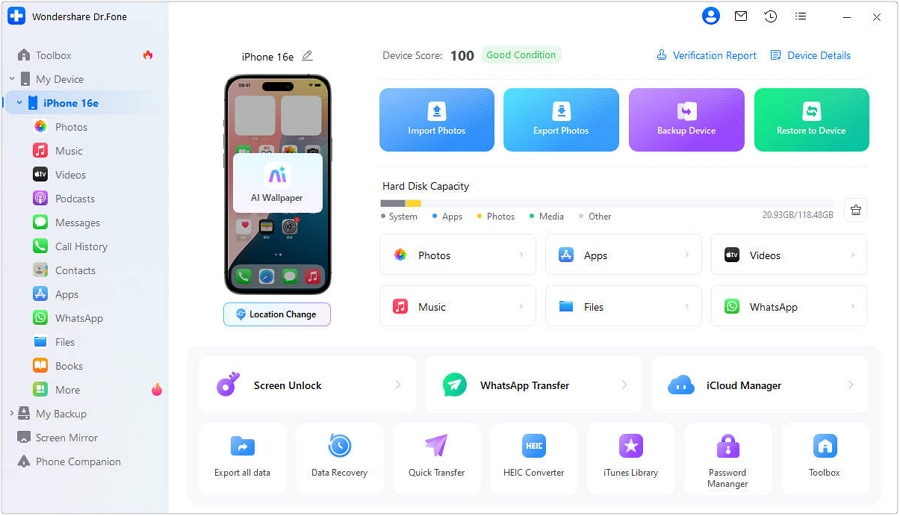
Step 1 Create a recoverable baseline backup
Action: Use Dr.Fone Basic - Data Manager to run a full backup of the device data you’re about to clean up, and save it to your computer/storage target.
Limitation: AI can’t verify the backup contents or integrity on your machine; you must confirm the backup completes successfully before changing anything on the phone.
-
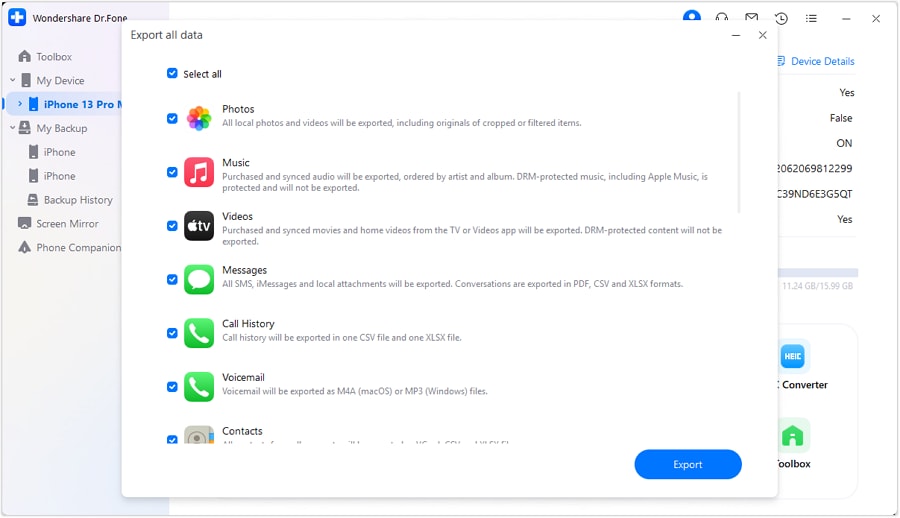
Step 2 Archive to your chosen destination with a fixed structure
Action: Transfer/export the files you plan to archive to your computer/external drive using a consistent folder scheme (for example, by year/month).
Limitation: AI can suggest a structure and naming rules, but it can’t confirm you exported the correct items or avoided duplicates—you must validate counts and spot-check samples.
-
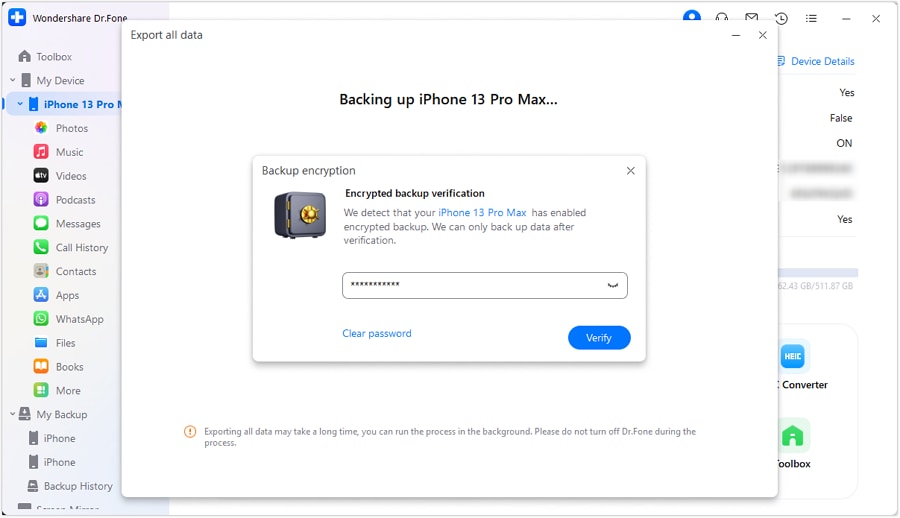
Step 3 Protect the archive job and track progress
Action: If your export/backup process supports protection (such as an export/backup password), set it and keep it recorded securely.
Limitation: AI can’t confirm whether protection was applied correctly or whether the resulting archive can be restored; verify by opening a small sample after completion.
-
Step 4 Verify first, then delete in the safest order (don’t rush the point of no return)
Action: After verification passes, delete only the items you marked as safe-to-delete, and only then proceed to irreversible cleanup (like emptying “Recently Deleted/Trash”) once you’re sure the archive is complete.
Limitation: AI can’t see whether a delete action also removes cloud copies; you must confirm your cloud/sync behavior before any permanent deletion step.

Recommended Tool: Use Dr.Fone to Execute the Plan Safely
If your AI-generated plan is ready, the next risk is execution: transfers that silently skip items, archives that aren’t verifiable, and deletion actions that propagate to the cloud. Dr.Fone can help you back up and export data to a computer/external drive so you can verify results before you delete anything.
 Easily manage data through preview, delete, export, etc.
- Transfer all data between devices.
- Robust backup solutions for reliable data protection.
- Mirror screens to PC for meetings, teaching, and control.

Before you delete, make your verification measurable: compare counts (or reasonable ranges), spot-check a sample across dates/albums, and confirm your archive destination structure matches your plan. Only then should you move to the irreversible steps like emptying Trash/Recently Deleted.




Conclusion
Use AI to design the sequence, define verification, and identify irreversible moments; then use real tools (like Dr.Fone) to execute backups/transfers safely—only deleting after your checks prove the archive is complete.
FAQ
-
How do I avoid deleting something that’s only in the cloud (or only on my phone)?
Treat cloud sync as uncertain until proven: verify whether items are “optimized”/cloud-only and confirm what “delete” does in your specific setup before removing anything.
-
What’s the most dangerous step in this workflow?
Emptying “Recently Deleted/Trash” (and any cloud equivalent). Do not do it until your archive verification is complete and repeatable.
-
How much verification is enough before deleting?
At minimum: compare item counts (or reasonable ranges), confirm folder sizes look plausible, and do a spot-check of a sample across old/new dates and different albums.
-
When should I archive vs keep?
Archive when you don’t need the file offline daily; keep when you need quick access or the file supports ongoing apps/work (and you’ve confirmed it’s safely backed up elsewhere).
-
Can AI tell me exactly what to delete?
No. AI can propose criteria (age, duplicates, low-value categories like screenshots), but you must make the final call after checking what’s truly stored and synced.
 Add Wondershare Dr.Fone as a preferred source on Google





