 Effortlessly manage data through preview, delete, export, etc.

 100% Security Verified | No Subscription Required | No Malware

 :
: 
 ChatGPT
 Perplexity
 Gemini
 Claude
 Grok
Grok

I’m cleaning up tablet storage before school starts, but I’m scared I’ll delete class photos/notes or mess up the apps my kid needs on day one.
Forum user
Tablet storage cleanup before a school term seems simple, but one missed step can erase class photos, notes, or app data you’ll need on day one.
AI is useful here to structure the sequence: what to check first, what to back up, what to delete, and what to verify before doing anything irreversible.
AI can’t actually scan your tablet, confirm what’s safely backed up, or perform deletions; you’ll still need real device tools to execute the plan once it’s verified.

In this article
- How to plan a safe cleanup (without missing critical steps)
- What you’re trying to achieve
- Where people usually lose data
- What “safe proof” looks like
- The point-of-no-return gate
- What the AI needs to know
- AI prompts (Level 1–3) + prompt refinement
- When to stop planning and start execution
- Execute the workflow safely with Dr.Fone
Part 1. How to Plan tablet storage cleanup before school term Without Missing Critical Steps
1-1. What you’re trying to achieve
You’re trying to free space on a tablet before school starts: install required apps, download textbooks, and stop “Storage full” popups. The tablet might be shared with a child, and it likely contains a mix of school and personal files.
1-2. Where the uncertainty usually is
The uncertainty usually isn’t what to delete—it’s what order to do things in, and how to confirm you won’t break logins, lose photos, or remove offline downloads you actually need.
1-3. What causes the highest risk
The point-of-no-return moment is when you permanently delete media/files (or reset the device) before confirming backups and sign-in details; once you cross that, recovery may be impossible or incomplete.
Part 2. What the AI Needs to Know
Answer these so the workflow can be sequenced safely:
- Tablet type and OS (iPadOS/Android), model, and current storage (e.g., 64 GB with 1.2 GB free)
- Who uses it (student only vs shared family device)
- What must be ready for school (required apps, offline textbooks, accounts, MDM/school portal)
- What data matters most (photos/videos, notes, downloads, messages, app data)
- Current backup options already in use (iCloud/Google, local computer, external drive)
- Connectivity constraints (slow Wi‑Fi, limited data plan, deadline date)
- Your tolerance for risk (no data loss allowed vs okay to lose old downloads)
- Whether you’re considering a factory reset (yes/no)
Part 3. Using AI Prompts to Build a Safer tablet storage cleanup before school term Workflow
Use the prompts below to force a clear sequence and verification gates before any deletion.
3-1. Level 1: Basic Prompt
Draft a safe, step-by-step plan to free up storage on my tablet before school starts.
Include what to check before deleting anything and how to confirm I didn’t remove something needed for school.
Do not include execution instructions beyond high-level planning.
3-2. Level 2: Advanced Prompt
Create a structured workflow for tablet storage cleanup before school term with three phases: Preparation, Execution, Verification.
Within each phase, label steps as Critical or Optional, and include “stop points” where I must confirm backups/login access before continuing.
Also list the top 5 common mistakes that cause data loss or school app issues.
3-3. Level 3: Evidence Prompt
Here’s my context:
tablet type (Android tablet), storage (64 GB total, 0.9 GB free), deadline (school starts in 3 days)
must-have apps (Google Classroom, Zoom, school portal app)
must-keep data (photos from 2023–2026, PDF notes folder, offline math videos)
backups (Google Photos ON but not sure it’s complete; no computer backup yet)
users (shared with parent)
Build a cleanup workflow with checks before/during/after each major action.
Include explicit verification examples like “confirm backup shows (12,400 photos)” or “confirm free space reaches (10–15 GB)”.
Add a “do not cross” gate before any irreversible deletion or reset.
3-4. Prompt Refinement (follow-up prompts)
Turn this into a checklist with three columns: Action, Proof to collect, Risk if skipped; keep it under 20 rows.
Identify my “irreversible actions” list and add a required verification step immediately before each one.
Separate “safe to remove anytime” items from “remove only after confirmation,” and explain the difference using my school apps/files.
Ask me only the minimum 8 questions needed to finalize the plan, then output a single ordered workflow with stop/go gates.
3-5. AI Plan vs. Real Device Constraints
| AI planning output | Real-world constraint on the tablet |
|---|---|
| A prioritized list of what to delete first | AI can’t see which files are truly large or duplicated on your device |
| Backup/verification checkpoints | AI can’t confirm backups completed or that files open correctly |
| Risk flags (e.g., “don’t delete Downloads yet”) | Some apps store data in locations that vary by OS/version |
| A “point of no return” gate (e.g., before factory reset) | Only actual tools can execute deletion/reset—and mistakes are permanent |
AI improves planning, sequencing, and verification logic, but it cannot perform or validate the real device actions.
Part 4. When to Stop Planning tablet storage cleanup before school term and Start Execution
- You have a written “keep list” (must-keep folders, apps, and accounts) and it’s agreed by everyone who uses the tablet.
- You have a backup target and proof standard (what “successful backup” looks like, in counts/samples).
- You know your “do not cross” irreversible actions (permanent delete, empty trash, factory reset) and the exact checks required beforehand.
- You have a storage goal that matches school needs (enough free space for apps + updates + offline content).
If those are true, planning is complete enough to move forward without improvising mid-cleanup.
Part 5. Tablet storage cleanup before school term: Execute the Workflow Safely with Dr.Fone
Execution now matters because storage cleanup is where accidental deletion happens; the plan only works if you follow the verification gates before any irreversible step. To carry out the plan with real device controls, you can use Dr.Fone Basic - Data Manager for backup, transfer/export, and on-device data management.
 Easily manage data through preview, delete, export, etc.
- Transfer all data between devices.
- Robust backup solutions for reliable data protection.
- Mirror screens to PC for meetings, teaching, and control.

-
Step 1 Capture a verifiable backup first
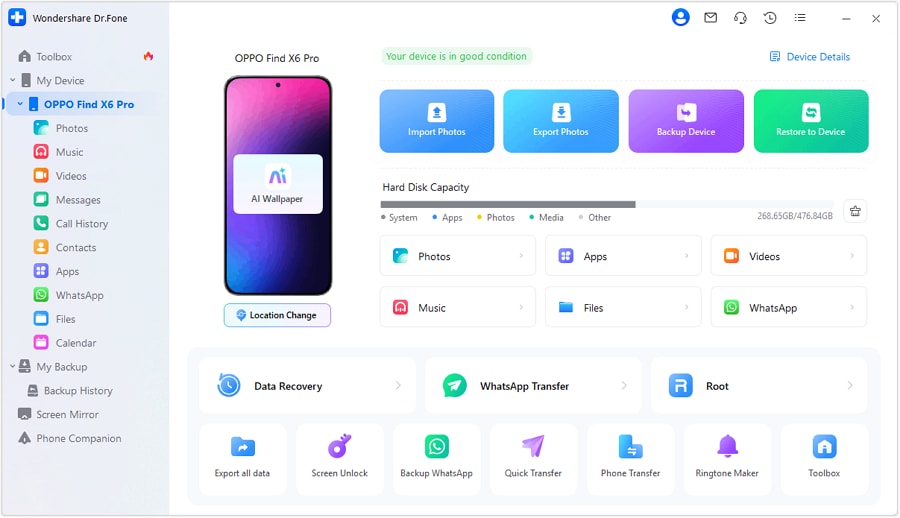
Action: Use Dr.Fone to back up the tablet’s important data to a computer so you have a restore point before removing anything.
Limitation: AI cannot confirm the backup is complete or that files are readable—you must verify with spot-check opens and expected counts.
-
Step 2 Move large, low-risk files off the tablet (then re-check space)
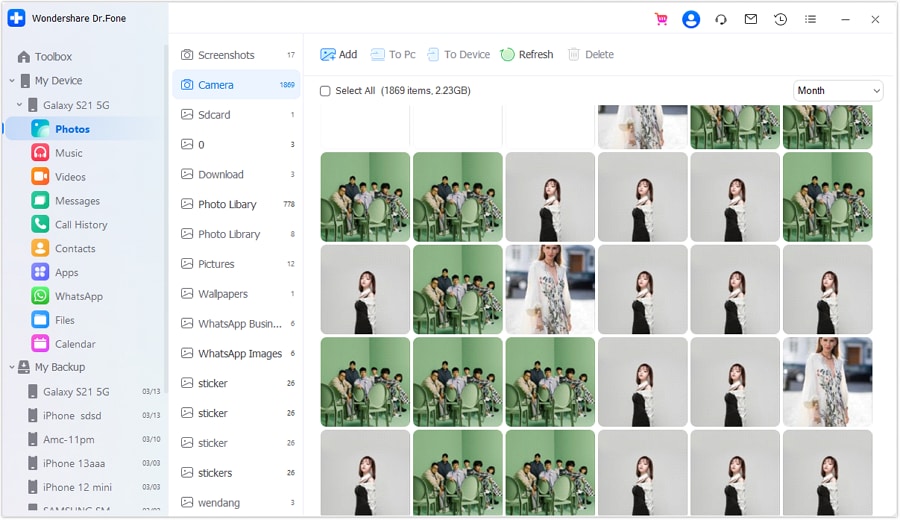
Action: Use Dr.Fone to access and transfer/export large media (photos/videos) and other identified large files off the device.
Limitation: AI cannot see which items actually transferred successfully—verify the destination files exist and open before removing local copies.
-
Step 3 Verify the transfer with previews and proof checks

Action: Preview your media and confirm your proof standard is met (for example, expected counts/samples and that key school files open correctly from the backup/export location).
Limitation: AI can propose what to verify, but it can’t validate your tablet’s actual backup integrity or file readability.
-
Step 4 Perform irreversible cleanup only after verification gates
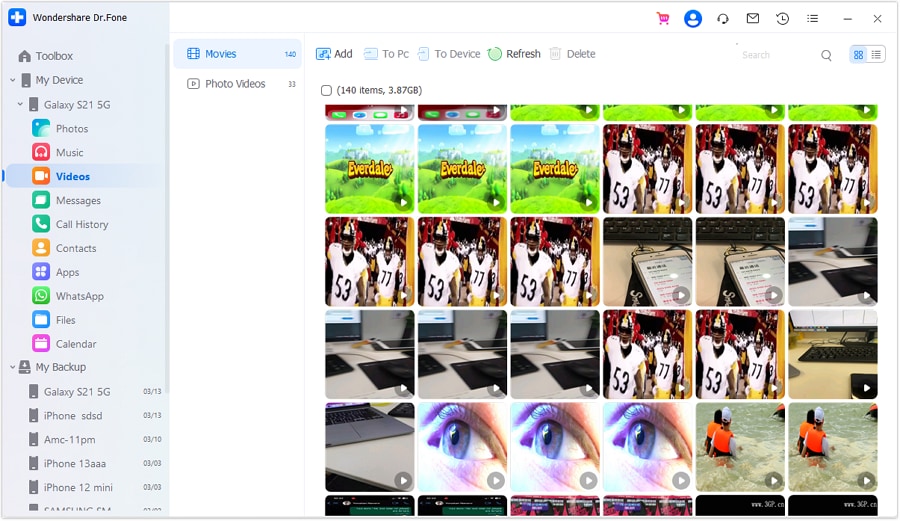
Action: After backups and transfers are proven, use Dr.Fone to remove unwanted data from the tablet (and only then consider high-risk actions like permanent deletion).
Limitation: AI cannot undo an irreversible action; do not proceed unless your “proof to collect” checks are complete.




Conclusion
Use AI to design a cautious, verification-first workflow with clear stop/go gates, then use real tools to carry out the backup, transfer, and deletion steps—planning reduces risk, but execution is where data loss is prevented or caused.
FAQ
-
What’s the biggest risk in tablet storage cleanup before school term?
Deleting something you can’t restore (photos, notes, downloads) or breaking school access (lost credentials, removed required apps/data).
-
What should I verify before I delete anything?
That your backup is real (not just “enabled”), your most important files open from the backup location, and you can still sign in to required school accounts.
-
How much free space should I aim for before school starts?
Enough for app installs, OS updates, and offline content—commonly a buffer like 10–15 GB, but use your school requirements and planned downloads.
-
When is a factory reset appropriate?
Only if storage issues persist after safe cleanup and you have verified backups plus confirmed you can re-install and sign in to all school apps; it’s a point-of-no-return action.
-
Can AI tell me what’s safe to delete on my specific tablet?
Not reliably—AI can suggest categories and a sequence, but it can’t inspect your device’s actual files, app storage, or backup integrity.
 Add Wondershare Dr.Fone as a preferred source on Google





