 Effortlessly manage data through preview, delete, export, etc.

 100% Security Verified | No Subscription Required | No Malware

 :
: 
 ChatGPT
 Perplexity
 Gemini
 Claude
 Grok
Grok

I traded in my old Galaxy and only afterward realized some messages and my authenticator setup didn’t come over. Once the old phone was wiped, there was no way back.
Samsung Community user
Before you trade in an old Samsung, the real risk isn’t “how to transfer”—it’s wiping or signing out too early, then discovering missing SMS threads, media folders, Secure Folder items, or 2FA/authenticator access. This guide gives AI prompts that force a verification-first plan, plus a hands-on execution checklist so you can validate everything before the point of no return.
In this article
- Plan a Samsung-to-Samsung transfer before trade-in (with verification gates)
- Why this transfer is risky right before trade-in
- What the AI needs to know
- Level 1–3 planning prompts
- Prompt refinement follow-ups
- AI planning vs. real device constraints
- When to stop planning and start execution
- Execute the workflow safely (hands-on steps)
- Recommended tool for device-to-device transfer
Part 1. Plan a Samsung-to-Samsung transfer before trade-in (with verification gates)
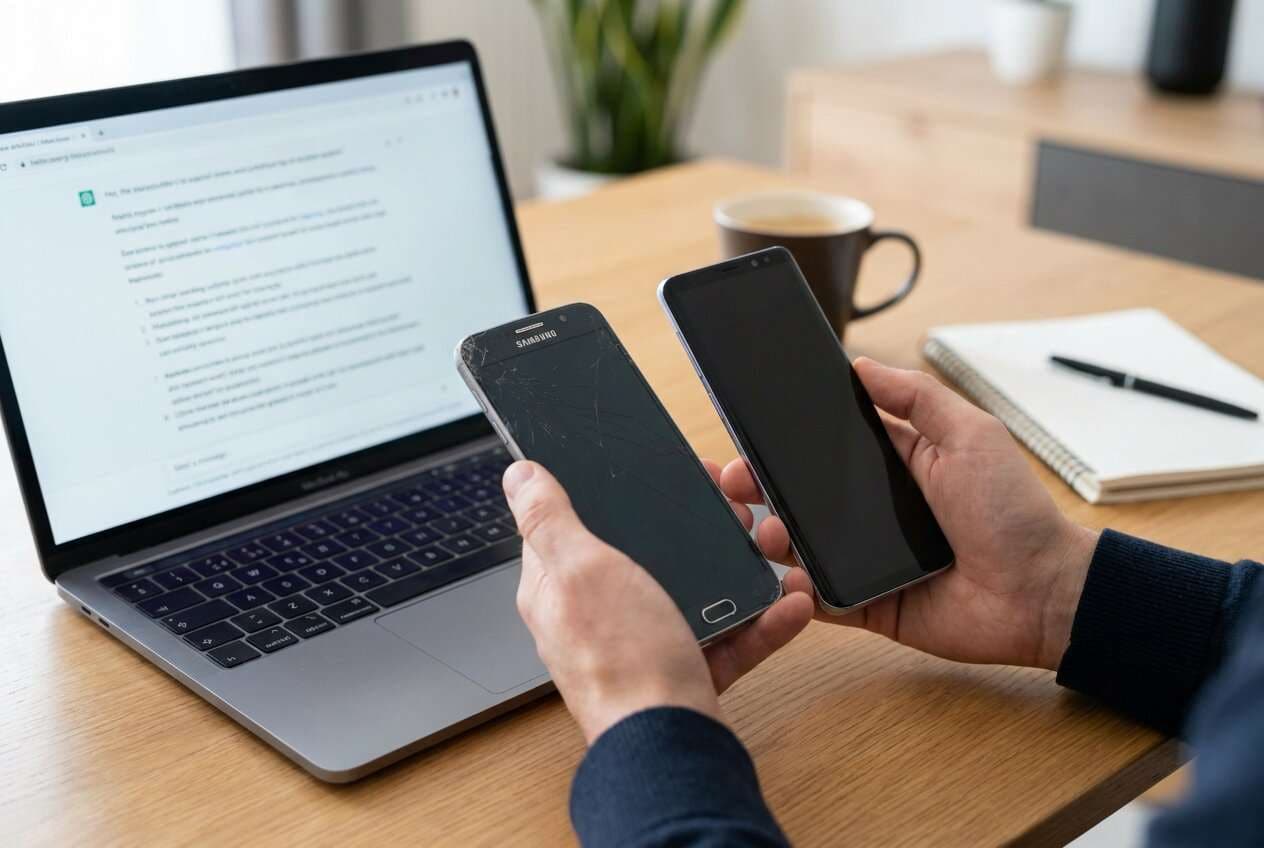
1-1. Why this transfer is risky right before trade-in
Trade-ins often require you to remove accounts, disable anti-theft protections, and wipe the device. The problem is that wiping (or handing the phone over) is a point of no return if anything important didn’t transfer.
Even if an AI answer says “back up your data and restore it,” it can still be unclear what exactly counts as “done,” what order avoids lockouts, and what to check before you sign out or erase anything.
The highest-risk moment is initiating a factory reset/wipe (or completing trade-in intake) before verifying that critical items—photos, messages, authenticator access, and app-specific local files—are present and usable on the new phone.
1-2. What the AI needs to know
Share the details below so the workflow can be sequenced safely.
- Old phone model and Android/One UI version (if known)
- New phone model and whether it’s already set up or still on the welcome screen
- Transfer method preferences/constraints (cable available, Wi‑Fi only, time limit)
- Data scope: photos/videos, WhatsApp/Signal, SMS/MMS, call logs, contacts, calendar, notes, downloads, secure folder data
- Account/lock considerations: Samsung account, Google account, work profile/MDM, SIM/eSIM status
- 2FA/authenticator usage (Google Authenticator, Microsoft Authenticator, Authy, bank tokens)
- Encryption/secure storage: Secure Folder, locked notes, password managers, encrypted files
- Trade-in deadline and whether a store will wipe it for you
- Storage sizes on both phones (e.g., old 128GB used 110GB; new 256GB)
- Any known issues (old phone slow, damaged screen, unstable Wi‑Fi, failing battery)
1-3. Using AI prompts to build a safer workflow
Use the prompts below to force a clear sequence with verification gates before any irreversible step.
Level 1: Basic Prompt
Create a step-by-step plan to transfer everything from my old Samsung to my new Samsung before a trade-in. Include a “do not proceed” checkpoint before any sign-outs or factory reset. Keep it planning-only and list what I must verify on the new phone.
Level 2: Advanced Prompt
Build a structured workflow for a Samsung-to-Samsung transfer before trade-in with three phases: Preparation, Execution, and Verification. In each phase, separate critical tasks (must do) vs optional tasks (nice to do), and include explicit stop/go gates—especially before removing accounts, disabling anti-theft, or wiping the old phone.
Level 3: Evidence Prompt
Design a transfer plan for this situation and include checks before, during, and after transfer, plus a final “point of no return” checklist before wiping:
- Old phone: (Galaxy S21, Android 14), New phone: (Galaxy S24, Android 14)
- Data: (photos/videos, SMS, contacts, WhatsApp, Notes, Downloads, Secure Folder files)
- Accounts: (Samsung + Google), 2FA apps: (Google Authenticator + banking app)
- Constraints: (I have a USB‑C cable; 2 hours available; trade-in tomorrow)
Output: (1) exact sequence, (2) what can break and how to prevent it, (3) how to verify each data type on the new phone, and (4) what to keep until the very end (SIM, old device access, authenticator, etc.).
1-4. Prompt refinement (follow-up prompts)
Output the plan as a table with columns: Step, Why it matters, What to verify, Failure signs, Recovery option, Stop/Go gate.
List the top 10 items that are commonly missing after transfer (e.g., SMS, hidden folders, authenticator codes, Secure Folder data) and add a verification method for each.
Create a trade-in safe final checklist that I must complete before I sign out of Samsung/Google or start a factory reset, and include if/then rules (e.g., “If 2FA is on the old phone, then…”).
Ask me only the minimum 8 questions needed to eliminate ambiguity, then regenerate the plan with assumptions removed.
Produce a time-boxed plan for (30 minutes / 1 hour / 2 hours) and show what gets cut in each version without increasing risk.
Part 2. AI planning vs. real device constraints
| Planning with AI | What happens on real devices |
|---|---|
| AI can list a safe sequence and checkpoints | Transfers can fail due to cable/port issues, permissions, or app restrictions |
| AI can identify high-risk moments (sign-out, wipe, FRP/anti-theft) | Account protections may trigger lockouts if steps are done out of order |
| AI can propose verification tests for each data type | Some data is app-encrypted or non-transferable without the app’s own export/restore |
| AI can suggest recovery paths if something is missing | Recovery may be impossible after the old phone is wiped or handed in |
AI improves planning, but it cannot execute the transfer, observe what actually moved, or confirm your device state—those require hands-on checks and an execution tool.
Part 3. When to stop planning and start execution
- You have a single, ordered sequence with verification gates before sign-out and before any wipe/reset.
- You’ve identified critical data categories (especially 2FA/authenticator access, messages, media, and app-specific local data) and how you’ll verify each.
- You’ve minimized ambiguity: which phone has the SIM/eSIM, whether the new phone is already set up, and which accounts must remain until the end.
- You have a rollback stance: if verification fails, you will pause and keep the old phone intact (no reset, no trade-in handoff).
Once these decision checks are satisfied, the next step is to execute carefully and validate outcomes in real time.
Part 4. Execute the workflow safely with Dr.Fone - Phone Transfer
Execution matters because the real risks show up during transfer and at the irreversible moment—when you remove accounts or wipe the old phone—so you need to run the transfer and confirm results before crossing that line.
-
Step 1 Launch the phone transfer tool on your computer
Open Dr.Fone and enter the Phone Transfer feature so you can run a device-to-device migration aligned with your plan (critical categories first if you’re time-limited).

-
Step 2 Connect both Samsung phones and set the correct transfer direction
Connect the old Samsung and the new Samsung, then confirm source vs. destination to avoid overwriting anything on the wrong device.

-
Step 3 Choose data types and start the transfer
Select the data scope you planned (e.g., contacts, messages, photos/videos). If any apps require in-app migration, treat those as separate verification items rather than assuming the device transfer covers them.

-
Step 4 Monitor progress, then verify before any sign-out or wipe
After the transfer completes, check your predefined proof points (sample photos across dates, message threads, key contacts, recent downloads, notes, WhatsApp history, and 2FA access). Only after verification passes should you proceed to trade-in preparation steps.


Part 5. Recommended tool for device-to-device transfer
If you already have a solid AI plan, your next priority is executing the transfer in a controlled way and validating outcomes before the trade-in “point of no return.” A dedicated transfer tool can help you move key categories efficiently and reduce missed steps under time pressure.
 Move data between iOS to Android and vice versa.
- Transfer contacts, SMS, photos, videos, music, and more types.
- Available with all phones with Android and iOS versions.
- Simple, click-through process.

Recommended execution mindset: transfer first, then verify, and only then start account removals and factory reset. This reduces the chance you get locked out by anti-theft protections or discover missing data after the old phone is already erased.




Conclusion
Use AI to design a strict sequence with verification gates and to identify the irreversible moments; then use Dr.Fone to execute the transfer and confirm results before you remove accounts or wipe the old phone.
FAQ
-
What’s the biggest “point of no return” in this process?
Factory reset/wipe or handing the phone to a trade-in agent—after that, you may not be able to recover missing data. -
Do I need to keep my old phone signed in to Samsung/Google until the end?
Usually yes—stay signed in until your new phone passes verification, because sign-outs can trigger protections and complicate recovery. -
What should I verify first on the new phone?
2FA/authenticator access, core accounts (Google/Samsung), messages (SMS/MMS), and photos/videos—these are the most painful to recover after a wipe. -
Why do some app data types not transfer cleanly?
Some apps encrypt data or store it server-side or in protected containers; they may require an in-app backup/restore rather than a device-level transfer. -
If I’m short on time, what can I safely skip?
Skip optional media cleanup and non-essential app data moves—but don’t skip verification of identity/2FA, messages, and media integrity before wipe. -
Can AI tell me whether my transfer worked?
No—AI can define checks and expected results, but only you (and your tools/devices) can confirm what actually transferred.
 Add Wondershare Dr.Fone as a preferred source on Google





