 Effortlessly manage data through preview, delete, export, etc.

 100% Security Verified | No Subscription Required | No Malware

 :
: 
 ChatGPT
 Perplexity
 Gemini
 Claude
 Grok
Grok

I switched from iPhone to Pixel and thought “everything transferred,” but then texts stopped showing up and some photos were missing. I wish I had a checklist with verification steps before I changed anything on my iPhone.
Forum user
Moving messages and media from an iPhone to a Pixel can go wrong if you miss one dependency (storage, account sync, iMessage settings, cable permissions) and only notice after data is split across devices.
AI helps you turn a vague “transfer everything” goal into a sequenced workflow with clear pre-checks, stop points, and pass/fail verification so you don’t improvise under time pressure.
AI cannot access your devices, confirm what actually transferred, or perform the migration actions—execution still requires real tools and on-device confirmation before any irreversible steps.
In this article
- How to plan iPhone to Pixel migration for messages and media
- Define your “done” criteria
- Sequence dependencies (storage, accounts, iMessage)
- Set verification gates and stop points
- Avoid split-brain media outcomes
- What the AI needs to know
- Using AI prompts to build a safer workflow
- When to stop planning and start execution
- Execute the workflow safely with Dr.Fone
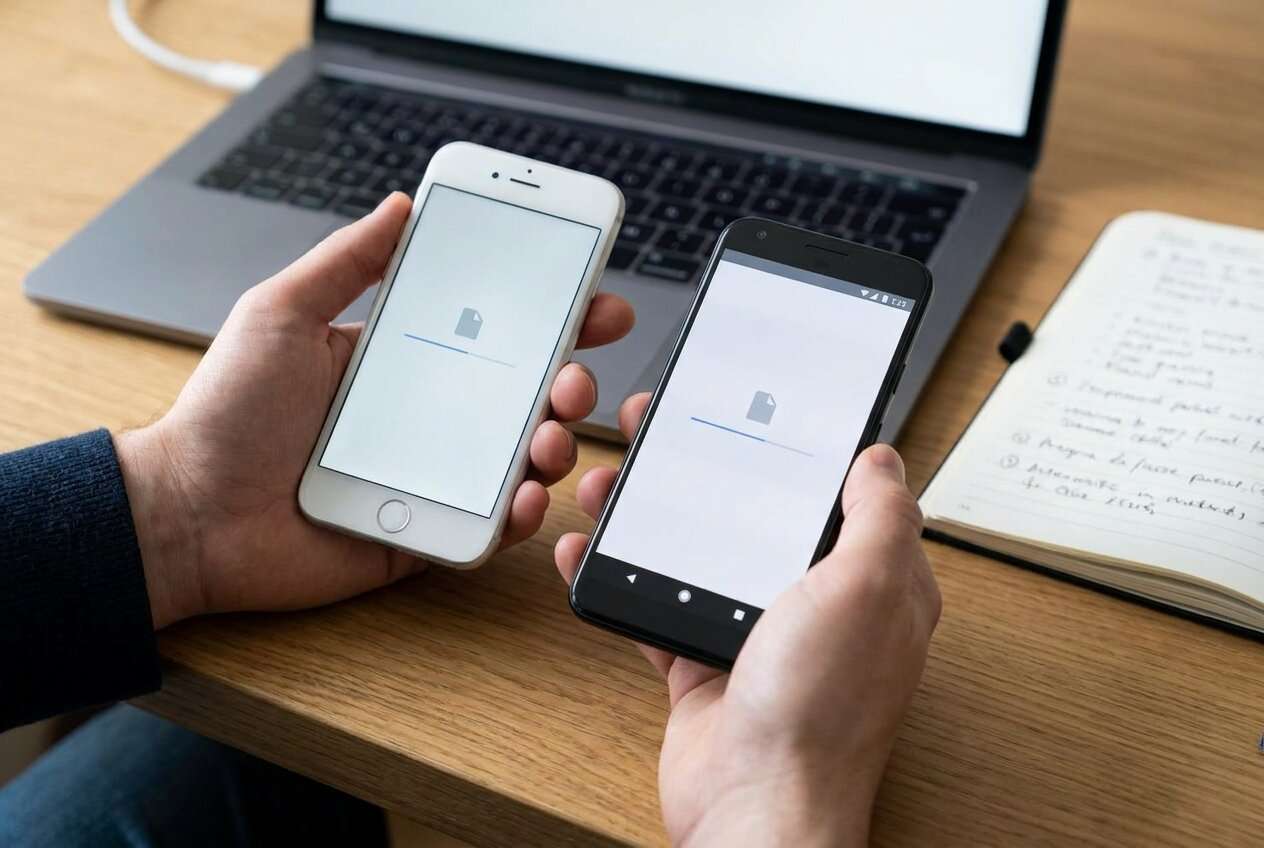
Part 1. How to Plan iphone to pixel migration plan for messages and media Without Missing Critical Steps
You’re switching to a Pixel and you want your message history to be usable (at least SMS/MMS continuity) and your photos/videos to arrive intact, organized, and playable—not partially missing or duplicated.
The uncertainty usually starts after you get generic advice like “use Google Photos” or “just transfer via cable,” but you still don’t know the safest sequence, what to verify first, or how to handle iMessage so you don’t lose inbound texts.
The point-of-no-return moment is wiping or trading in the iPhone (or disabling services) before you’ve verified that the Pixel has the media you expect and that texting works end-to-end for your number.
Part 2. What the AI Needs to Know
Answer these so the plan can be sequenced and verified correctly:
- iPhone model + iOS version
- Pixel model + Android version (if known)
- What “messages” means for you: SMS/MMS only, or iMessage history expectations
- Where your media currently lives: Photos app only, iCloud Photos on/off, Google Photos already used or not
- Total media size (e.g., 80 GB photos/videos) and available storage on Pixel + Google account
- Your urgency and constraints (e.g., “I must trade in the iPhone today”)
- What you can use for connection: Lightning-to-USB-C cable, Wi‑Fi only, computer available
- Any special media needs: Live Photos, HDR/4K videos, shared albums, hidden photos
- Security requirements: encryption, keeping originals, deleting data after transfer (and when)
- Whether you’re keeping both devices active for a transition period (days/weeks) or doing a same-day cutover
Part 3. Using AI Prompts to Build a Safer iphone to pixel migration plan for messages and media Workflow
Use these prompts to force a clear sequence with verification gates before you touch anything on-device.
3-1. Level 1: Basic Prompt
I’m migrating from an iPhone to a Pixel and I need a step-by-step plan to move messages (at least SMS/MMS continuity) and all photos/videos. Build a safe sequence with checkpoints so I don’t erase or disconnect anything too early. Include what to verify before I consider the transfer “done.”
3-2. Level 2: Advanced Prompt
Create a structured workflow for iPhone → Pixel migration focused on messages and media, split into Preparation / Execution / Verification.
Mark each step as critical or optional, list common failure modes (storage, iMessage, partial photo sync, duplicates), and add “stop conditions” that prevent me from proceeding until verification passes.
3-3. Level 3: Evidence Prompt
Design a migration plan with checks before, during, and after transfer using this context: iPhone (iPhone 13, iOS 17), Pixel (Pixel 8), media size (~90 GB), iCloud Photos (ON), Google Photos (OFF), limited time (trade-in in 24 hours), cable available (Lightning → USB‑C).
Include: (1) a pre-flight checklist, (2) a verification checklist with example pass/fail criteria (e.g., “Pixel shows X items in Photos,” “send/receive SMS from 2 carriers”), (3) a rollback/safety plan (what I keep unchanged until I’m sure), and (4) an explicit list of irreversible actions I must not do until the final verification passes.
3-4. Prompt Refinement
If the first output is too generic, use follow-up prompts like these to force tighter sequencing and better verification.
Rewrite the plan as a gated checklist with sections: Must-Do, Nice-to-Do, Do-Not-Do-Yet, and Final Go/No-Go.
Add a verification matrix for media: counts, date ranges, spot-check samples (e.g., 10 random videos), and how to detect missing Live Photos or 4K playback issues.
Force the plan to handle iMessage-to-SMS continuity: what to change, when, and how to confirm inbound texts won’t disappear after switching SIM/eSIM.
Make two variants: (A) same-day cutover (no overlap) and (B) 7-day overlap (both phones active). For each, list the biggest risks and the minimum verification required.
Convert the workflow into a time-boxed schedule (e.g., 30 min prep, 2 hrs transfer, 45 min verification) and list what I should do if any step runs long.
3-5. AI Plan vs. Real Device Constraints
| What AI can do (planning) | What the real devices/tools must do (execution) |
|---|---|
| Create an ordered checklist with stop points and risks | Actually transfer files/messages and request device permissions |
| Define verification tests (counts, spot-checks, send/receive tests) | Display real item counts, complete sync, and confirm message delivery |
| Identify irreversible actions to delay (wipe, trade-in, deregistration timing) | Perform resets, SIM changes, account sign-outs only when you choose |
| Suggest rollback strategy (keep originals, overlap period) | Preserve original data and maintain access to both phones/accounts |
AI improves planning and reduces avoidable mistakes, but it cannot connect to your iPhone/Pixel, run the transfer, or confirm what truly arrived—those are device-level actions you must execute and verify.
Part 4. When to Stop Planning iphone to pixel migration plan for messages and media and Start Execution
- You have written down your success criteria (what “done” means for messages and for media) and a minimum verification set you will run.
- You have confirmed storage and connectivity (Pixel space, Google account space if used, cable/Wi‑Fi reliability) and set aside uninterrupted time.
- You have a clear list of irreversible actions you will delay (factory reset, trade-in handoff, deleting iCloud library, turning off services) until verification passes.
- You have chosen one primary transfer route (single source of truth) to avoid split-brain outcomes (some media in iCloud, some in Google Photos, some copied manually).
If those bullets are true, planning has done its job and the next risk is overthinking instead of validating with real transfers.
Part 5. Iphone to pixel migration plan for messages and media: Execute the Workflow Safely with Dr.Fone
If you’re ready to run the plan in a controlled way, Dr.Fone - Phone Transfer can help you move data between phones—then your job is to verify the Pixel’s results before you do anything irreversible on the iPhone.
 Move data between iOS to Android and vice versa.
- Transfer contacts, SMS, photos, videos, music, and more types.
- Available with all phones with Android and iOS versions.
- Simple, click-through process.

Execution now matters because the only trustworthy signal is what your Pixel actually receives and can use—your plan should be tested against reality before you cross any irreversible line.
-
Step 1 Launch the transfer tool and open Phone Transfer
On your computer, open Dr.Fone and enter the Phone Transfer module so you can run a controlled, repeatable transfer process.

-
Step 2 Connect iPhone and Pixel and set the source/target direction
Connect both phones, approve any permission prompts, and confirm the direction is iPhone → Pixel before you begin.

-
Step 3 Choose data types, run a small pilot transfer, then proceed to full transfer
Start with a small batch (recent photos/videos and a small message sample if supported), verify results on Pixel, then run the full transfer once the pilot passes.

-
Step 4 Monitor transfer progress and confirm completion status
Watch for connection drops and completion messages. If anything fails mid-transfer, stop and resolve it before making any changes to the iPhone.

5-1. Verify on the Pixel before changing anything on the iPhone
On the Pixel, verify media by counts/date ranges and spot-check playback (including a few long videos) and verify messaging by sending/receiving SMS/MMS with at least two contacts.
AI can tell you what to check, but only you can confirm what’s actually present, playable, and deliverable on your devices/network.
5-2. Only after verification, complete cutover and protect against irreversibility
After verification passes, complete SIM/eSIM cutover and finalize any cleanup you planned—do not factory reset, trade in, or delete the iPhone’s media until you’re satisfied the Pixel is complete.
Once you wipe/trade in the iPhone, recovery may be impossible; AI cannot undo that outcome or retrieve data from a device you no longer control.




Conclusion
Use AI to design a gated, verifiable migration plan with clear stop points and irreversible-action warnings, then rely on real execution tools to perform the transfer and prove—on-device—that your messages and media are actually safe.
FAQ
-
Do I need my full iMessage history on the Pixel for “messages” to count as migrated?
Often the practical goal is SMS/MMS continuity on your phone number; if you require full iMessage history, define that explicitly as a separate requirement and plan for extra constraints and verification. -
What’s the biggest mistake people make in iPhone → Pixel media migration?
Changing or deleting the source (turning off a library, signing out, wiping the iPhone) before verifying the destination has complete and usable media. -
How do I verify media without checking every photo?
Use a verification mix: item counts (if available), date-range checks (oldest/newest), and random spot-checks (e.g., 10 photos + 10 videos across different years, including 4K/60fps if you have it). -
When is it safe to factory reset the iPhone?
Only after your Pixel verification passes and you’ve had at least one “real life” day of use (messages arriving, photos showing up, videos playing) or after your chosen minimum confidence window. -
Can AI guarantee the transfer won’t create duplicates or miss items?
No—AI can highlight where duplicates/missing items usually happen and how to detect them, but only the actual transfer results and your verification can confirm integrity.
 Add Wondershare Dr.Fone as a preferred source on Google





