 Effortlessly manage data through preview, delete, export, etc.

 100% Security Verified | No Subscription Required | No Malware

 :
: 
 ChatGPT
 Perplexity
 Gemini
 Claude
 Grok
Grok

I tried moving my iCloud photos to my Android and ended up with duplicates and missing albums. I’m scared to delete anything from iCloud now because I’m not sure what actually transferred.
Reddit user, r/Android
Moving photos from iCloud to an Android phone sounds simple until you realize one missed step can cause duplicates, missing albums, lost Live Photo motion, or accidental deletion of originals.
AI can help you map the safest sequence—what to export first, what to verify, what formats to expect, and where the “stop and confirm” checkpoints belong—before you touch your library.
AI can’t actually access iCloud, download files, keep transfer sessions stable, or confirm what landed on your Android correctly; execution requires real device-and-file tools once the plan is locked.
In this article
- How to plan the workflow without data loss
- Critical risks and the point of no return
- What the AI needs to know
- What to verify before you change anything
- How to decide you’re ready to execute
- AI prompts to build a safer workflow
- AI plan vs. real device constraints
- When to stop planning and start execution
- Execute the workflow safely with Dr.Fone
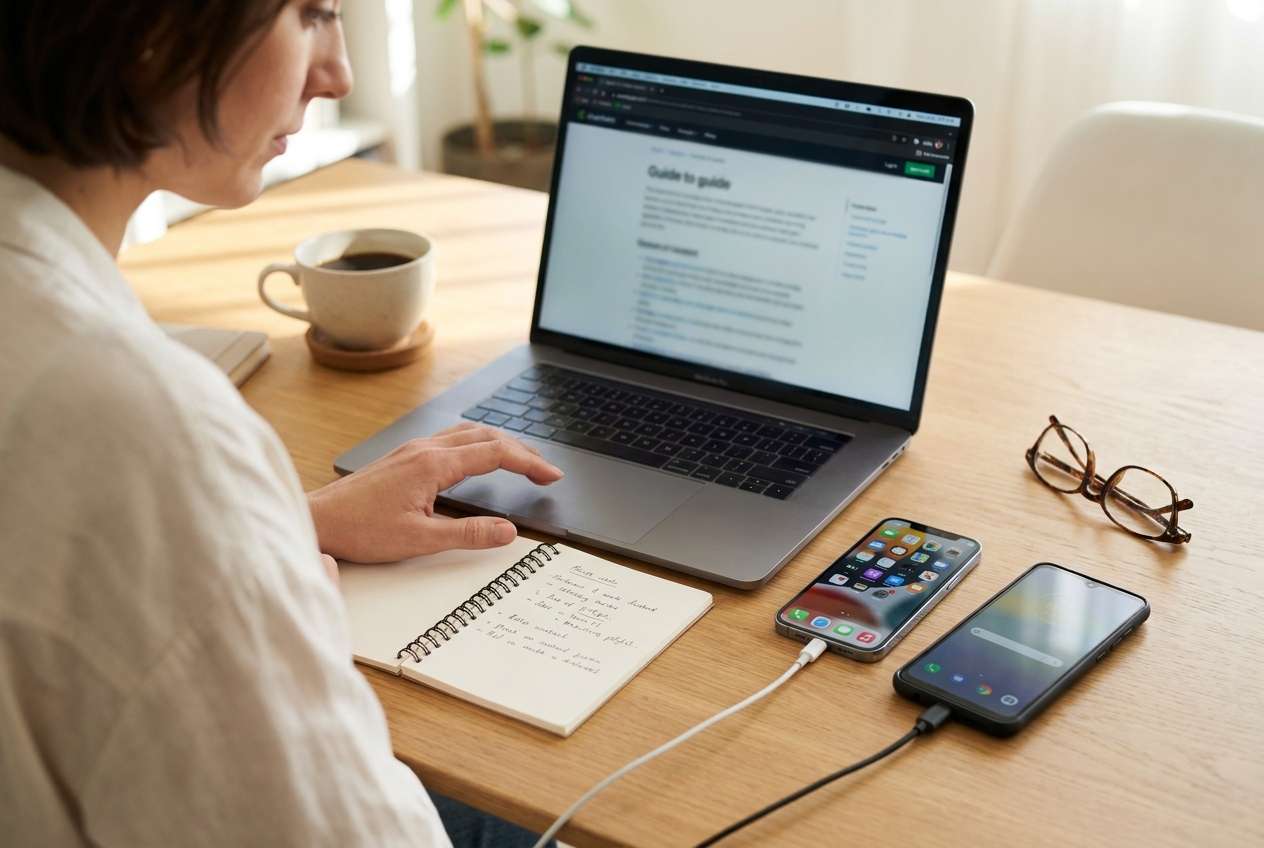
Part 1. How to Plan Move Photos From iCloud to Android Phone Without Missing Critical Steps
You have years of photos in iCloud (possibly with Live Photos and HEIC files), and you need them on an Android phone without wrecking your library structure or losing quality.
The uncertainty usually isn’t whether you can download—it's how to do it in the right order: export method, file formats, album expectations, storage limits on Android, and how to confirm completeness before cleanup.
One concrete point of no return: deleting photos from iCloud (or disabling iCloud Photos in a way that removes originals from devices) before you’ve verified the Android library—by count, spot-checks, and file integrity—can permanently remove items you meant to keep.
1-1. What the AI Needs to Know
Share the specifics below so the AI can sequence the workflow safely and flag risks early:
- Your iCloud Photos status (on/off) and approximate library size (e.g., “65,000 items / 420 GB”)
- Your Apple access method (iPhone available? only iCloud.com? iCloud for Windows? Mac Photos?)
- Your Android device model and free storage (e.g., “Pixel 8, 120 GB free”)
- Your preferred outcome: exact originals vs “good enough” viewing copies
- Whether Live Photos matter (keep motion + audio vs still images only)
- Whether you need album structure preserved (and how important it is)
- Your tolerance for duplicates (none vs acceptable)
- Your network limits (slow Wi‑Fi, metered data, corporate restrictions)
- Your verification standard (photo count match, date range checks, random sample checks)
Part 2. Using AI Prompts to Build a Safer Workflow
Use the prompts below to make the AI produce a step-by-step plan with verification gates before any irreversible actions.
2-1. Level 1: Basic Prompt
I need a planning-only workflow to move my photos from iCloud to my Android phone safely.
List the steps in the correct order and include the key verification checks before I delete or change anything in iCloud.
Keep it practical and risk-focused.
2-2. Level 2: Advanced Prompt
Design a structured workflow to move photos from iCloud to an Android phone.
- Preparation: prerequisites, storage checks, export method choice, and format considerations (HEIC/Live Photos).
- Execution: the safest order to export/download, then transfer to Android, minimizing duplicates.
- Verification: exact checks to confirm completeness (counts, spot-check rules, date ranges, random sampling).
Also label each step as critical or optional, and highlight any irreversible actions I must not take until verification is complete.
2-3. Level 3: Evidence Prompt
Build me a planning checklist and workflow using my context:
- iCloud library: (e.g., “18,500 photos, 1,200 videos, mostly HEIC + Live Photos”)
- Access: (e.g., “I can log into iCloud.com on Windows; no Mac available”)
- Android: (e.g., “Samsung Galaxy S23, 80 GB free”)
- Goal: (e.g., “Keep originals where possible; keep dates correct; albums are nice-to-have”)
Deliver:
- A prep / execution / verification plan
- Checks before / during / after
- A small risk register (top 5 failure modes + prevention)
- A “do-not-cross” gate for the point of no return (e.g., deleting iCloud items or disabling iCloud Photos)
- Expected file outcomes (e.g., Live Photos become a still + a video; HEIC compatibility notes)
2-4. Prompt Refinement (Follow-up Prompts)
Convert the plan into a single page checklist with “Stop / Verify / Proceed” gates after each phase.
Give me two alternative export paths (iCloud.com vs iCloud for Windows vs using an iPhone as an intermediate), and tell me when to choose each.
Add a duplicate-prevention strategy (naming, folder structure, and what not to re-import) that fits my situation.
Define a verification protocol: exact sample size (e.g., “check 50 random items”), what metadata to confirm (date taken, location, resolution), and pass/fail rules.
Identify format risks (HEIC, Live Photos, video codecs) and propose a compatibility plan for Android viewing and backup.
Part 3. AI Plan vs. Real Device Constraints
| AI can help you plan | But reality may block it |
|---|---|
| Pick the safest sequence and checkpoints | iCloud download limits, timeouts, or throttling can interrupt exports |
| Identify format/metadata risks (HEIC, Live Photos) | Some conversions happen implicitly and may change quality/metadata |
| Create a verification protocol (counts, samples, date ranges) | File managers and galleries may index slowly or hide folders |
| Define “do-not-delete-until” gates | Actual transfer failures can occur mid-stream due to cable, drivers, storage, or permissions |
AI improves planning, but it cannot access your iCloud library, move files, or confirm what your Android device truly received—execution and validation need real tools and real checks.
Part 4. When to Stop Planning and Start Execution
- You can state exactly which export method you’ll use (and why) and what the downloaded output will look like (folders/files, formats).
- You have confirmed available storage on the download destination and on Android (with a buffer for indexing and thumbnails).
- You have a written verification standard (counts + spot-check rules) and you will not delete anything until it passes.
- You have identified the point of no return (deleting from iCloud / disabling iCloud Photos in a destructive way) and placed it after verification.
Once those are true, continuing to “research” usually increases confusion more than safety—now the workflow needs controlled execution.
Part 5. Move Photos From iCloud to Android Phone: Execute the Workflow Safely with Dr.Fone
Execution now matters because the main risks (partial exports, duplicates, missing metadata, interrupted transfers) appear during real downloads and device transfers—not during planning. If you want a more guided transfer between devices, Dr.Fone - Phone Transfer can help you move your photo library to Android while you control the order and verification gates you defined in the AI plan.
 Move data between iOS to Android and vice versa.
- Transfer contacts, SMS, photos, videos, music, and more types.
- Available with all phones with Android and iOS versions.
- Simple, click-through process.

Before you transfer: Keep your “staging copy” (your downloaded/exported photos on a computer drive) until verification on Android passes. That independent copy is your safety net if anything goes wrong.
-
Step 1 Open Phone Transfer
Launch Dr.Fone and enter the Phone Transfer module so you can prepare a controlled device-to-device transfer.

-
Step 2 Set the iOS → Android transfer direction
Confirm the source and destination devices and make sure the transfer path is set correctly to avoid sending data the wrong way.

-
Step 3 Choose Photos (and other media if needed) and start the transfer
Select the photo-related data you intend to move, then run the transfer while monitoring for interruptions (cable/driver/storage issues).

-
Step 4 Verify on Android before any cleanup (the “no return” gate)
Verify the Android result against your plan (counts where possible, date-range spot checks, random samples, Live Photo expectations). Only after verification passes should you consider any iCloud cleanup actions (like deleting items or changing iCloud Photos settings).





Conclusion
Use AI to design a cautious, checkpointed plan with clear verification gates, then use a real execution tool (Dr.Fone) to perform the transfer and confirm the results before any irreversible cleanup.
FAQ
-
What’s the biggest risk when moving photos from iCloud to Android?
Deleting or altering iCloud Photos behavior before confirming the Android copy is complete and usable. -
How do I avoid duplicates?
Use one consistent pipeline (one export source, one staging folder, one transfer pass) and don’t re-export the same date ranges unless you can identify what already transferred. -
Will Live Photos transfer perfectly to Android?
Often not as a single “Live Photo” experience; expect a still image plus a short video in many workflows, so plan verification around that outcome. -
How can I verify completeness without checking every file?
Use a protocol: total item counts where feasible, confirm earliest/latest dates, and spot-check a defined random sample (including bursts, screenshots, and videos). -
When is it safe to delete photos from iCloud?
Only after Android verification passes and you still have an independent copy (your staging folder and/or another backup). Deletion is the irreversible moment.
 Add Wondershare Dr.Fone as a preferred source on Google





