 Effortlessly manage data through preview, delete, export, etc.

 100% Security Verified | No Subscription Required | No Malware

 :
: 
 ChatGPT
 Perplexity
 Gemini
 Claude
 Grok
Grok

I moved to Android and thought I copied everything, but later realized a bunch of PDFs and “Downloads” weren’t actually on the new phone. I don’t want to wipe the iPhone until I’m 100% sure.
Apple Support Community user
Moving files and downloads from an iPhone to an Android device sounds simple, but missing one step can lead to lost documents, broken file organization, or accidental overwrites.
AI can help you map the safest sequence—what to collect first, what to verify, and what to avoid doing too early—so you’re not improvising mid-transfer.
AI can’t access your devices, confirm what actually transferred, or prevent irreversible actions; you still need real tools to execute the plan and confirm results on-device.
In this article
- How to plan the move without missing critical steps
- Clarify what “Downloads” means on iPhone
- Map storage locations (On My iPhone vs iCloud Drive)
- Avoid the point-of-no-return actions too early
- Define verification evidence before transfer
- What the AI needs to know
- Using AI prompts to build a safer workflow
- AI plan vs. real device constraints
- Execute the workflow safely
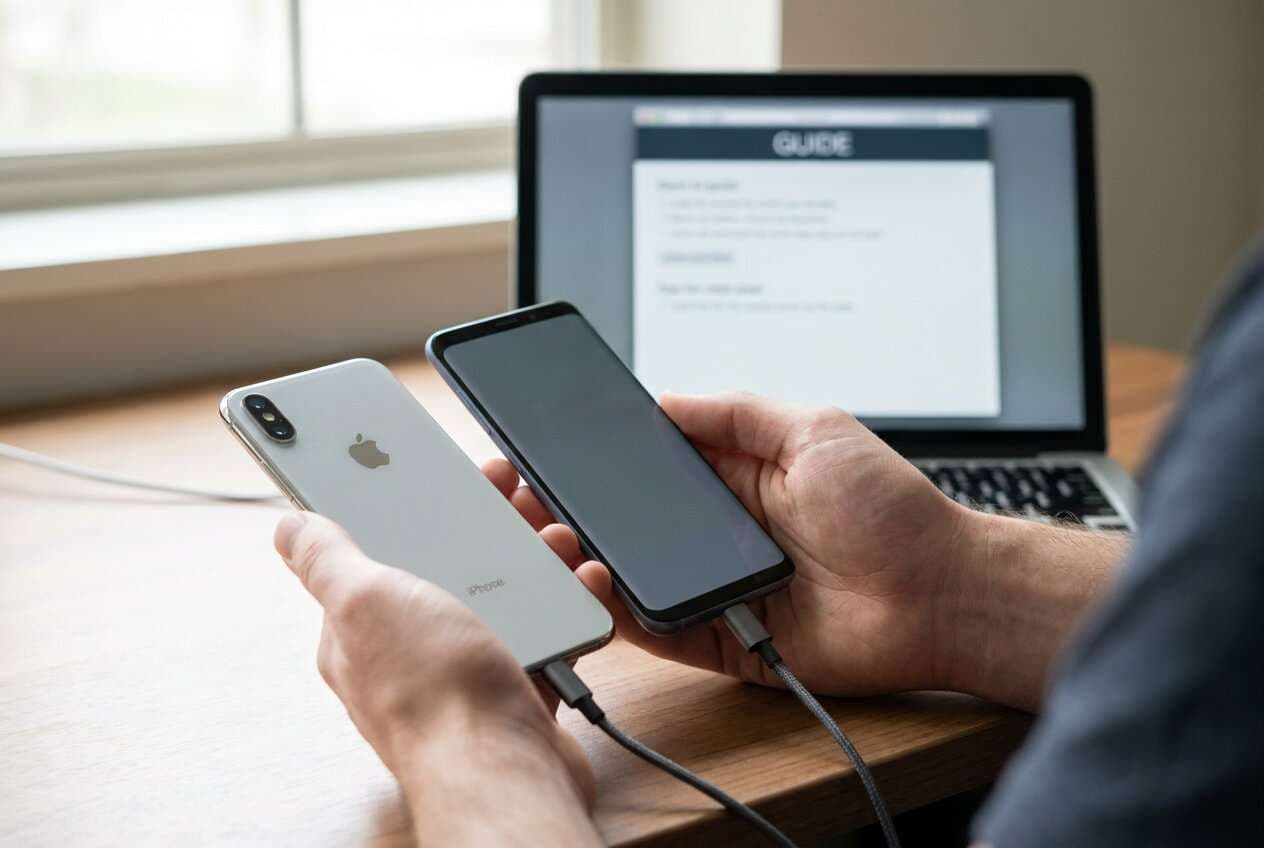
Part 1. How to Plan Move Files and Downloads From iPhone to Android Without Missing Critical Steps
You have an iPhone with a messy mix of “Downloads,” Files app folders, and attachments saved from apps, and you’re switching to Android. You want everything moved—not just photos—without spending hours hunting for missing PDFs later.
AI answers often explain possible methods, but they don’t tell you the exact order to do things in, how to confirm completeness, or how to handle edge cases like duplicates, unnamed files, or “On My iPhone” storage vs iCloud Drive.
The point-of-no-return moment is when you delete files from the iPhone, sign out of Apple ID, or wipe/reset the old device. If you do that before you confirm the Android has the files (and they open correctly), recovery may be difficult or impossible.
Part 2. What the AI Needs to Know
Share your situation so the workflow can be sequenced and verified correctly.
- iPhone model + iOS version (e.g., iPhone 13, iOS 17)
- Android model + Android version (e.g., Galaxy S24, Android 14)
- Where the files currently live: Files app locations (On My iPhone / iCloud Drive), Downloads folder usage, app-specific storage
- File types you must move (PDFs, DOCX, ZIP, MP3, videos, etc.)
- Approximate volume (e.g., “8 GB downloads,” “1,200 files,” “largest file is 3 GB”)
- Whether you have a computer available (Windows/Mac) or want phone-to-phone only
- Whether you care about preserving folder structure and filenames
- Whether you need deduplication or “keep newest” rules
- Your risk tolerance: is “no loss” more important than “fast”
- The deadline and whether you can run a test transfer first
Part 3. Using AI Prompts to Build a Safer Move Files and Downloads From iPhone to Android Workflow
Use the prompts below to force a clear sequence with checkpoints before you touch anything irreversible.
3-1. Level 1: Basic Prompt
Help me plan the safest workflow to move my files and downloads from iPhone to Android without losing anything.
I want a step-by-step plan with verification checks, and I don’t want to delete anything from my iPhone until I’m sure the Android copy is complete.
3-2. Level 2: Advanced Prompt
Design a structured workflow to move files and downloads from my iPhone to my Android with Preparation / Execution / Verification phases.
Mark each step as critical or optional, list the most common failure points (missing folders, duplicates, files that won’t open), and include a “stop and verify” checklist before any irreversible actions like deleting files or wiping the iPhone.
3-3. Level 3: Evidence Prompt
I’m switching from (iPhone 13, iOS 17) to (Pixel 8, Android 14).
I have about (12 GB) of documents and downloads in the iPhone Files app across (On My iPhone + iCloud Drive), including (PDF, DOCX, ZIP, MP3).
Create a workflow that includes:
- checks before transfer (where to inventory files, how to estimate totals, how to identify iCloud-only items)
- checks during transfer (how to spot skipped items, duplicates, naming conflicts)
- checks after transfer (spot-checking openability, counts/size comparisons, folder structure validation)
Also tell me exactly when it is safe to do the point-of-no-return steps (sign out of Apple ID / delete originals / wipe old phone), and what evidence I should have first.
3-4. Prompt Refinement
Give me a one-page checklist with three gates: “Ready to start,” “Transfer complete,” and “Safe to delete/wipe,” and list the pass/fail criteria for each gate.
Create a file inventory plan: where to look in iOS Files, how to list the top folders, and how to capture totals (file count + total size) I can compare against Android.
Propose deduplication rules (keep newest vs keep both) and tell me where duplicates are most likely to appear in an iPhone→Android move.
Ask me 10 clarifying questions you need answered to eliminate ambiguity (storage locations, cloud-only files, app containers, encryption/ZIP passwords), then produce an updated workflow based on my replies.
Output the workflow as a table with columns: Step, Critical/Optional, What could go wrong, How to verify, Stop condition.
Part 4. AI Plan vs. Real Device Constraints
| Planning item (AI can help) | What reality can break | What to verify | Why it matters |
|---|---|---|---|
| Inventory what “Downloads” means on your iPhone | Files may be spread across app folders or cloud-only | Confirm exact storage locations (On My iPhone vs iCloud) | Prevents missing entire folders |
| Decide transfer path and order | Some methods skip certain file types/paths | Test-transfer a small folder first | Avoids discovering gaps too late |
| Define naming/duplicate rules | Existing duplicates can overwrite silently | Check for conflicts and “keep both” behavior | Prevents accidental overwrites |
| Define proof of completeness | Counts/sizes can differ due to hidden/system files | Compare totals + spot-open samples | Confirms usability, not just presence |
AI improves planning, but it cannot access your iPhone/Android storage, confirm what copied successfully, or enforce safe handling at the point-of-no-return—you still need to perform and verify the transfer on real devices.
4-1. When to Stop Planning and Start Execution
- You have an inventory baseline (key folders listed, rough total size, and a short list of “must-not-miss” files).
- You’ve chosen one primary transfer route and one fallback route if something fails.
- You defined verification evidence (what “done” means: counts, sizes, folder structure, and openability spot-checks).
- You committed to a rule: no deleting, signing out, or wiping until verification passes.
Once those are true, you’re ready to execute without improvising midstream.
Part 5. Move Files and Downloads From iPhone to Android: Execute the Workflow Safely
Execution is where most avoidable mistakes happen (wrong direction transfer, overwrites, unplugging early, skipping verification). Now that the plan is locked, the goal is to transfer and then prove the result is complete before any irreversible cleanup.
-
Step 1 Prepare the devices and protect against overwrites
Connect both devices as needed, ensure they stay powered, and confirm you’re transferring from iPhone to Android with a “keep originals” mindset until verification is complete.

-
Step 2 Set the correct transfer direction before you start
Double-check the source/target path in the transfer tool so you don’t accidentally reverse the direction or overwrite the wrong side.

-
Step 3 Run the transfer in a controlled scope
Transfer the planned file categories (documents/downloads you identified). If you didn’t do a prior test folder, keep the first run small to confirm the path and results.

-
Step 4 Verify on Android before any point-of-no-return actions
On Android, validate totals and usability: check representative folders, open a sample set of PDFs/ZIPs/audio, and confirm your “must-not-miss” files exist and open correctly.
If your source files are cloud-only or not actually stored locally, they may not transfer as expected—confirm local availability before assuming a tool failure.

Recommended Tool (Optional): Use a Dedicated Phone-to-Phone Transfer Utility
If you want a guided, click-through execution flow after you’ve finalized your scope and verification rules, Dr.Fone - Phone Transfer can help you run the transfer and reduce avoidable mistakes like choosing the wrong direction or skipping key categories.
 Move data between iOS to Android and vice versa.
- Transfer contacts, SMS, photos, videos, music, and more types.
- Available with all phones with Android and iOS versions.
- Simple, click-through process.

Even with a transfer tool, keep the “point-of-no-return” actions (deleting originals, signing out of Apple ID, wiping the old iPhone) strictly gated behind your verification evidence: counts where possible, size comparisons, folder structure checks, and openability spot-checks for critical files.




Conclusion
Use AI to lock the scope, sequence, and verification gates for moving files and downloads from iPhone to Android; then use Dr.Fone to execute the transfer and rely on real on-device checks before any irreversible cleanup.
FAQ
-
What’s the biggest risk when moving “Downloads” from iPhone to Android?
“Downloads” may not be a single folder; files can be split across Files locations (On My iPhone vs iCloud Drive) and app-specific storage, causing silent omissions. -
When is it safe to delete files from my iPhone or wipe it?
Only after your verification criteria pass on Android (counts/size comparisons where possible, folder checks, and opening a sample of critical files), and you have a fallback copy if your risk tolerance is low. -
How do I verify without checking every file manually?
Use layered proof: compare approximate totals (size and number of key folders), then spot-check “must-not-miss” files plus a random sample from each major folder. -
What if I see duplicates or filename conflicts on Android?
Stop and decide a consistent rule (keep both vs keep newest). Apply it consistently—random overwrites are where permanent loss happens. -
Can AI tell me exactly where each file is on my iPhone?
No. AI can suggest where to look and how to inventory, but it can’t see your on-device storage or confirm what’s local vs cloud-only.
 Add Wondershare Dr.Fone as a preferred source on Google





