 Effortlessly manage data through preview, delete, export, etc.

 100% Security Verified | No Subscription Required | No Malware

 :
: 
 ChatGPT
 Perplexity
 Gemini
 Claude
 Grok
Grok

I’m moving to a new phone and I’m worried one wrong step in LINE will wipe my chat history. I need a plan that tells me what to do first—and what not to do until I’ve verified everything.
Forum user
Moving LINE chat history to a new phone is easy to get wrong because one missed setting or login choice can lead to partial restores—or no history at all.
AI helps by turning your situation (old/new device types, backup options, account state, time limits) into a clear sequence with checkpoints, so you don’t improvise under pressure.
AI can’t access your phones, verify what’s actually backed up, or complete transfers inside apps—so the plan still needs real tools and on-device verification before you reach any irreversible step.
In this article
- Plan the migration without missing critical steps
- Why the sequence matters
- Verification before irreversible actions
- Point-of-no-return risks
- What “success” should mean
- What the AI needs to know
- AI prompts to build a safer workflow
- AI plan vs. real device constraints
- When to stop planning and start execution

Part 1. How to plan LINE chat migration to a new phone without losing history
You’re switching phones and want your LINE chats to appear exactly as-is on the new device, but you’re not sure which order to do things in (account login, chat backup, restore, media checks), and conflicting advice online makes it worse.
Even after an AI answer, uncertainty usually remains around sequence (“Do I log in first or back up first?”) and verification (“How do I confirm the backup is valid before I rely on it?”).
The point-of-no-return moment is typically wiping/resetting the old phone, uninstalling LINE, or logging out/re-registering in a way that breaks the expected restore path—none of that should happen until your verification checklist is fully green.
Part 2. What the AI needs to know
Share the exact device-and-account context so the workflow can be sequenced safely.
- Old phone OS and model (iOS/Android, approximate version)
- New phone OS and model (iOS/Android, approximate version)
- Migration type (iPhone→iPhone, Android→Android, iPhone↔Android)
- How LINE is registered (phone number, email, Apple/Google, etc.)
- Whether you know your LINE password / can reset it quickly
- Whether you already use iCloud/Google Drive backups for LINE (and which account)
- Approximate chat history size and importance of media (photos/videos/files)
- Time constraints (e.g., you must trade in the old phone today)
- Current risks (low storage, broken screen, no SIM access, unstable Wi‑Fi)
- Your “no-go” boundary (e.g., “I will not erase the old phone until chats are confirmed on the new phone”)
Part 3. Using AI prompts to build a safer LINE migration workflow
Use the prompts below to make the AI produce a sequence + checkpoints + stop conditions you can follow without guessing.
3-1. Level 1: Basic Prompt
Help me plan a safe, step-by-step workflow to migrate LINE chat history to my new phone without losing messages.
I want a checklist with clear verification steps before I do anything irreversible.
Don’t give generic tips—ask me for the minimum details you need.
3-2. Level 2: Advanced Prompt
Design a structured workflow for migrating LINE chat history to a new phone with Preparation / Execution / Verification sections.
Mark each step as Critical or Optional, list prerequisites (accounts, storage, Wi‑Fi), and include explicit “Stop—do not proceed” conditions (e.g., when a backup can’t be verified).
Also include a short rollback/safety-net plan if the restore fails.
3-3. Level 3: Evidence Prompt
Create a migration plan for my specific scenario and include checks before / during / after each phase.
Context: Old phone (Android 13, Samsung S21), new phone (Android 14, Pixel 8), LINE registered with (phone number + email), backup target (Google Drive account: example@gmail.com), chat size (approx. 6 GB), time limit (4 hours), risk constraints (old phone storage nearly full).
Output:
- A single ordered sequence
- What I must screenshot/write down (e.g., which Google account is selected)
- How to confirm the backup is complete and recent
- What not to do until verification passes (e.g., uninstall LINE, factory reset old phone)
- Final acceptance checklist: “migration successful when…”
3-4. Prompt refinement (follow-up prompts)
Ask me exactly 10 yes/no questions that determine the correct migration path, then generate the workflow based on my answers.
Rewrite the plan as a two-column checklist: Action vs Proof it worked (what I should see on-screen).
Add a “Failure modes” section: top 7 ways LINE migrations fail in my scenario and how to detect each one early.
Add explicit timing gates: what I should verify at T‑0 (before starting), T‑mid (after backup), and T‑end (after restore), and what to do if any gate fails.
Make a “do-not-cross” list of irreversible actions and the exact conditions required before each is allowed.
Part 4. AI plan vs. real device constraints
| Planning with AI (what it can do) | Real-device constraints (what it can’t do) |
|---|---|
| Turn your details into a precise order of operations | Access your phones or see your LINE app state |
| Produce verification checklists and stop conditions | Confirm a backup is truly restorable on your device |
| Identify risk points (wrong account, wrong login order, low storage) | Fix OS/app restrictions, permissions, or device errors |
| Draft rollback/safety-net steps | Perform the actual backup/transfer/restore actions |
AI improves planning, but it cannot execute or validate device actions—your real confirmation must come from on-device results and trusted tools.
Part 5. When to stop planning and start execution
- You can state the exact migration path (Android→Android, iPhone→iPhone, or cross‑OS) and the correct accounts involved (Apple ID/Google account/LINE login).
- You have a written “no-go” list (e.g., no uninstall, no logout, no factory reset) until the acceptance checklist is met.
- You have enough time, stable power/Wi‑Fi, and storage headroom to complete backup + restore without rushing.
- Your verification criteria are concrete (what you will check in LINE on the new phone, and what “success” means).
At this point, further planning adds diminishing returns—execution becomes the only way to resolve the remaining unknowns.
Recommended tool and execution support (device-level safety net)
If you want an extra safety net before you reach any irreversible step, you can use Dr.Fone - WhatsApp Transfer to help with device-level backup/transfer tasks while you follow LINE’s in-app requirements for chat history backup and restoration.
 Transfer WhatsApp across Android & iOS.
- Backup & restore WhatsApp to PC securely.
- Preview & export chats selectively.
- Works with all iPhone & Android models.
Execution matters now because the biggest risks come from partial backups, wrong-account restores, and irreversible cleanup done too early—so you want a safety net before you touch anything that can’t be undone.

-
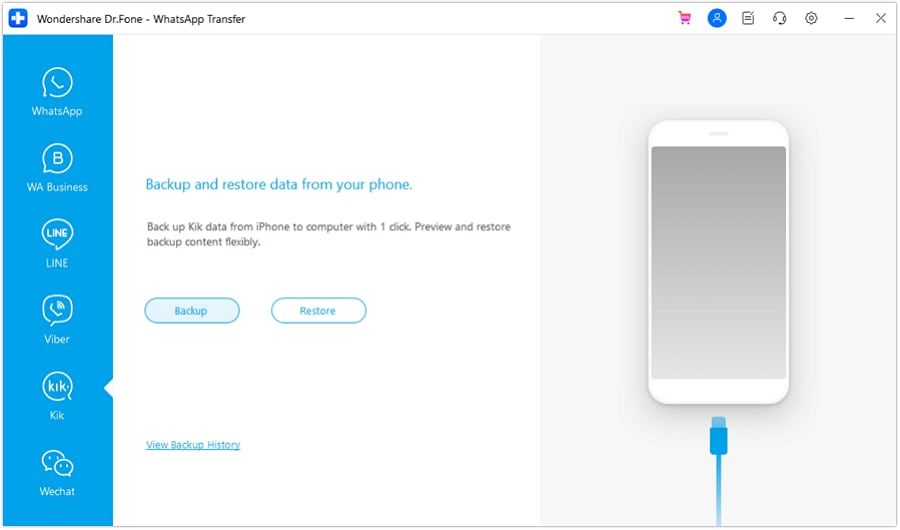
Step 1 Create a safety backup of the old phone first
Run a device backup so you have a fallback copy of important data before attempting the LINE migration.

-
Step 2 Keep accounts and prerequisites stable during the migration window
Ensure stable power, Wi‑Fi, and enough storage headroom so you can complete backup + restore without rushing or switching accounts mid-process.
-
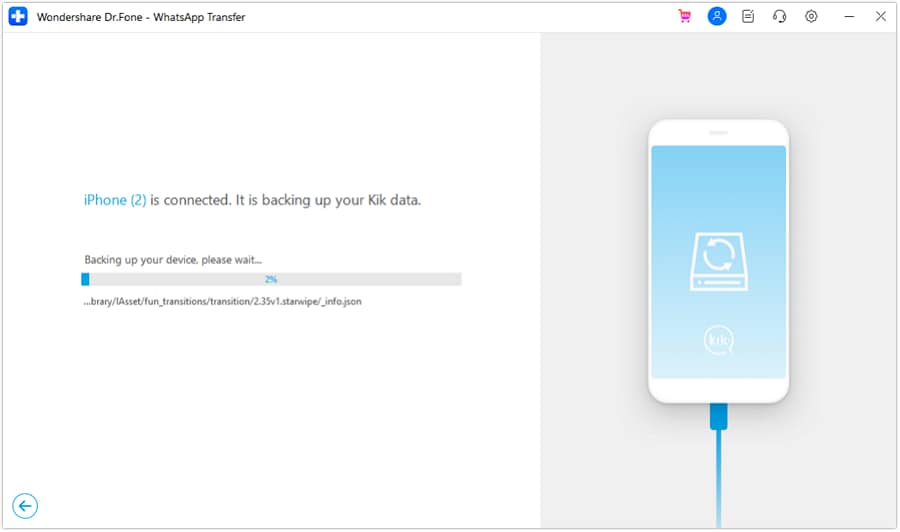
Step 3 Complete the planned LINE backup/restore sequence, then verify on the new phone
Follow your AI-generated checklist (sequence + checkpoints). Confirm you’re using the intended Apple/Google/LINE login and that the restored chat history matches your acceptance criteria.
-
Step 4 Only after verification, do irreversible cleanup
Open LINE on the new phone and check recent chats, older threads, key media samples, expected chat count, and account identity—then keep the old phone unchanged until you’re satisfied.




Conclusion
Use AI to build a strict sequence with verification gates and “do-not-cross” rules; then rely on real tools—like Dr.Fone for device-level backup support—and on-device checks to execute and confirm the migration before any irreversible cleanup.
FAQ
-
What’s the most common reason LINE chat history doesn’t show up on the new phone?
Wrong account selection (Apple/Google/LINE login), incomplete/old backup, or starting the migration without confirming the backup target and recency. -
What should I verify before I do anything irreversible (like erasing the old phone)?
That the new phone shows the expected chats (including older threads), the account is correct, and your most important chats/media samples are accessible. -
Can AI guarantee my LINE chats will migrate successfully?
No. AI can only design the safest sequence and checks; success depends on what the devices and LINE actually report during backup/restore. -
If I’m short on time (trade-in deadline), what should I prioritize?
Prioritize verification gates: confirm accounts, complete the backup, confirm restore results on the new phone, and delay wiping the old phone as long as possible. -
Is a device backup enough to prove LINE chats are safe?
Not by itself. It’s a fallback; the real proof is that LINE chat history appears correctly on the new phone after the migration process.
 Add Wondershare Dr.Fone as a preferred source on Google





